



Homepage in English

Learn how to translate your website in the WordPress Editor using the Multilingual Blog version of WPML.

To follow this tutorial, make sure to first install and set up WPML on your WordPress website.
WPML lets you manually translate any type of native WordPress content, like pages, posts, and custom posts.
To translate any of this content:
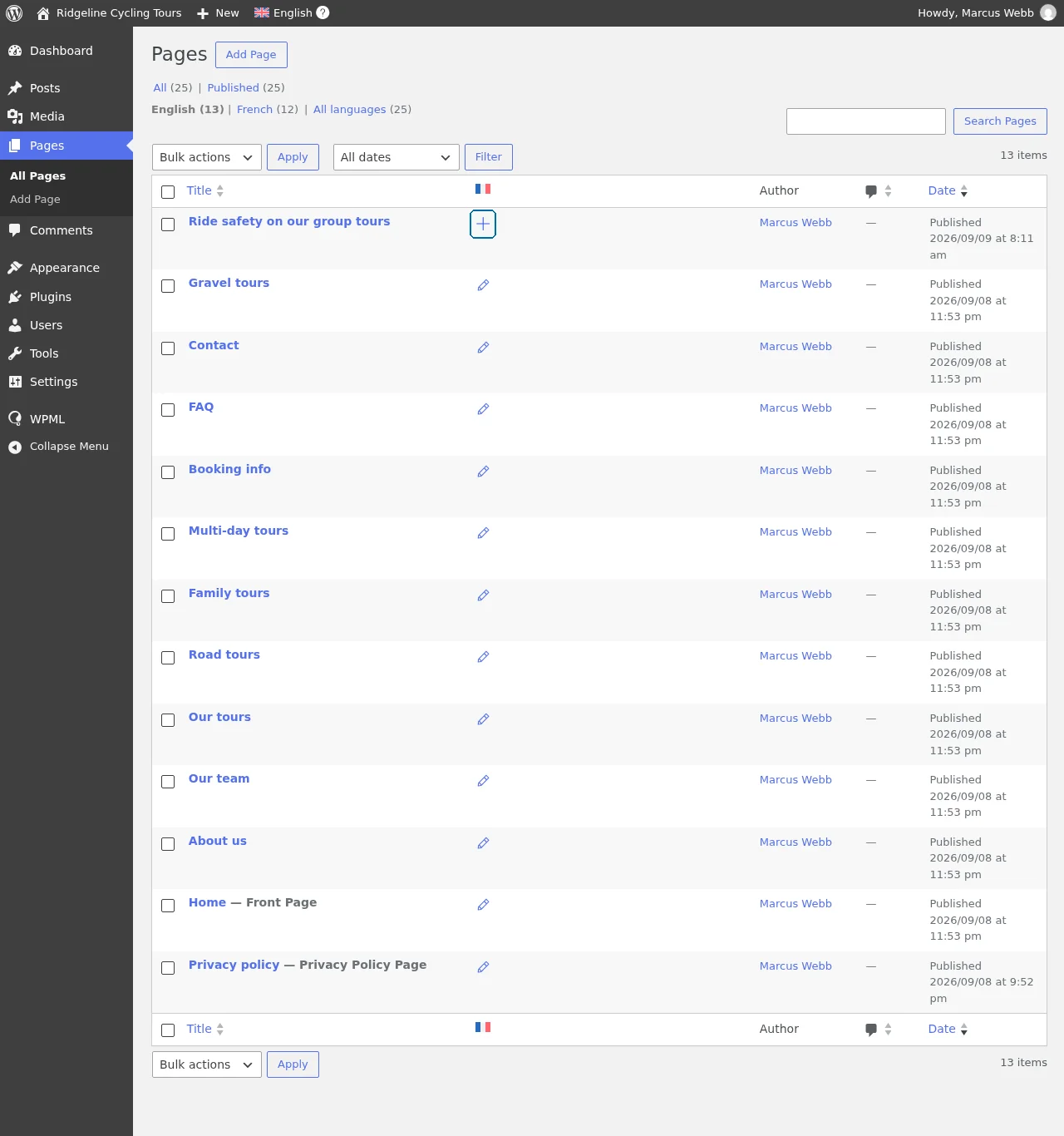
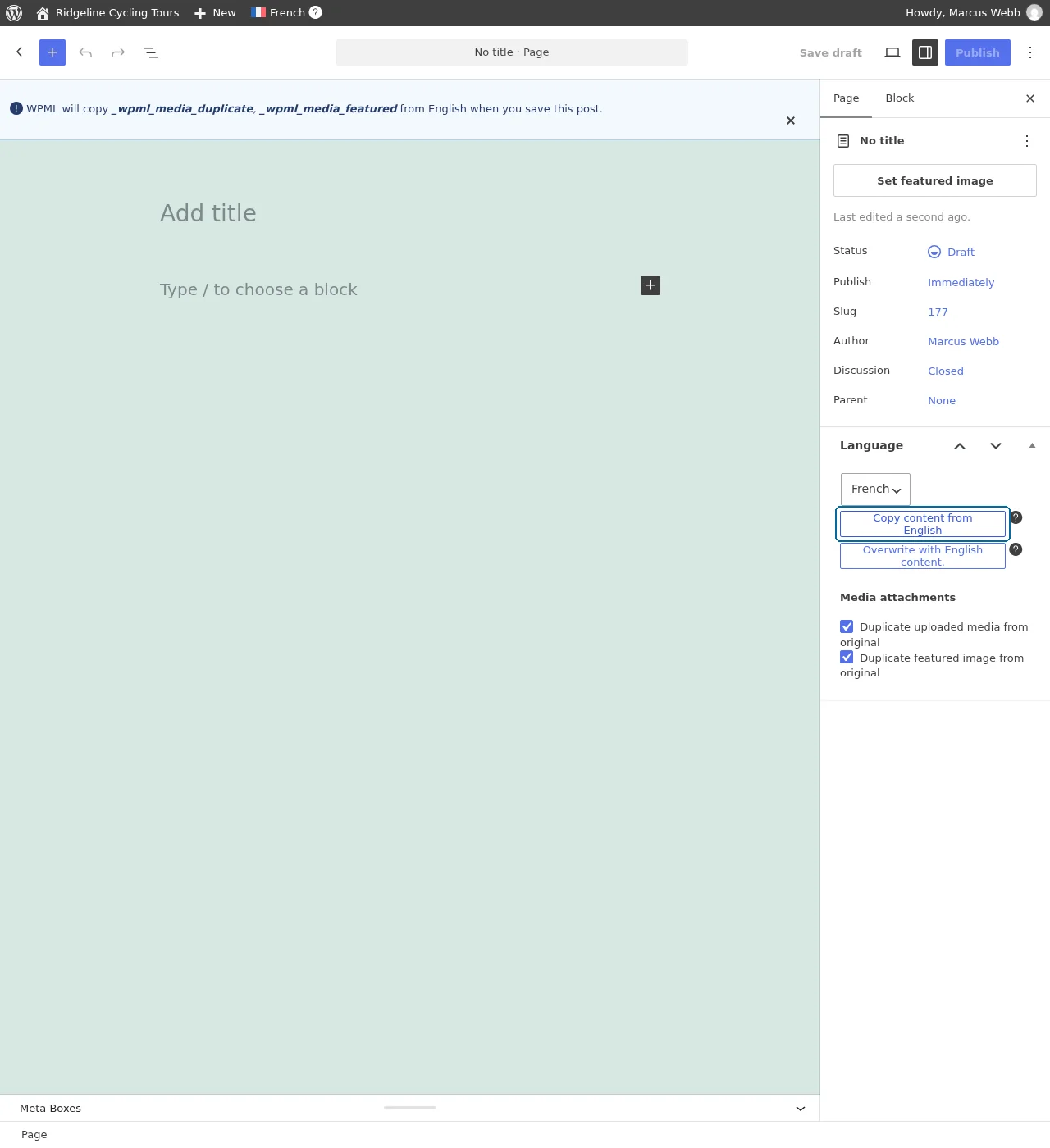
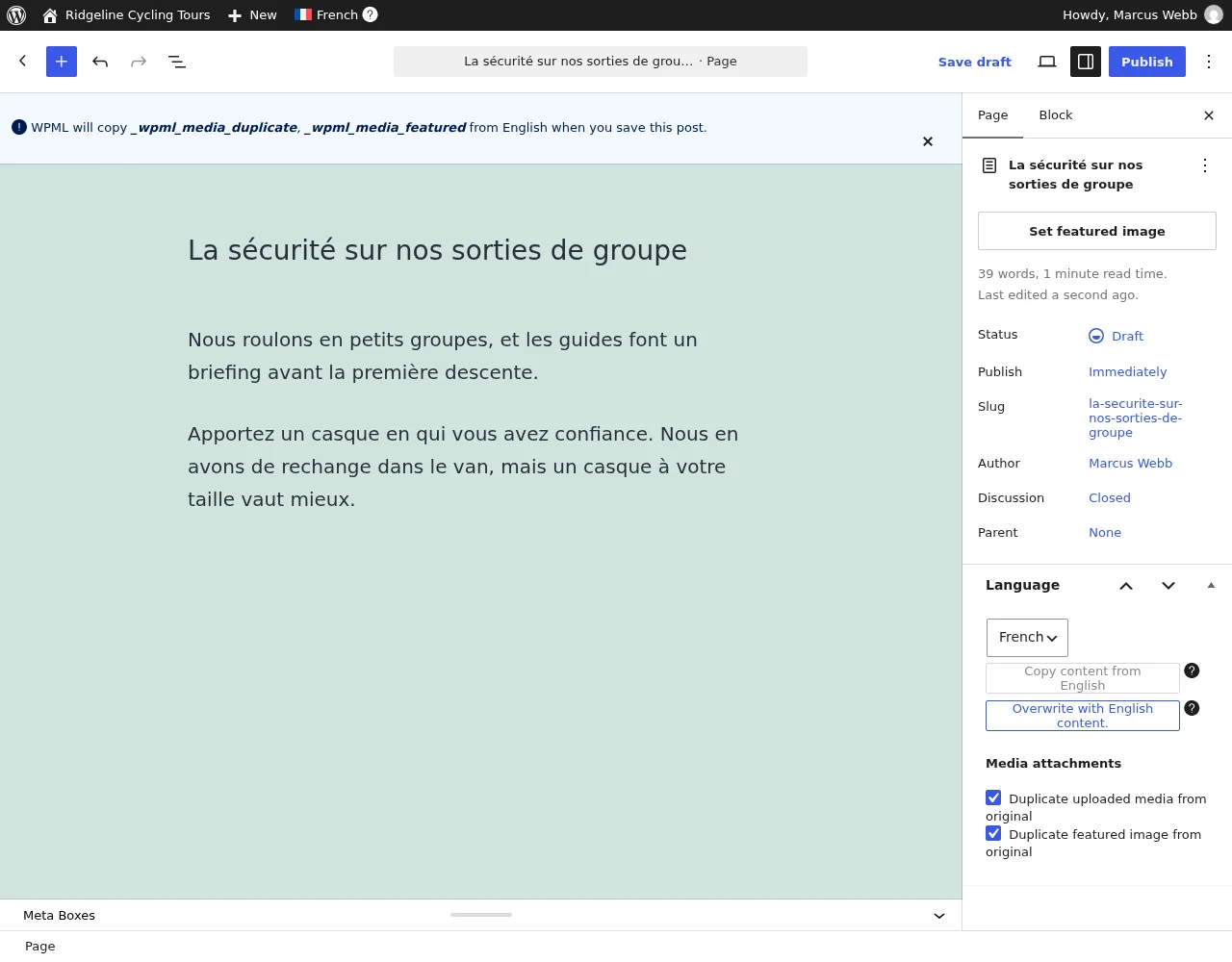
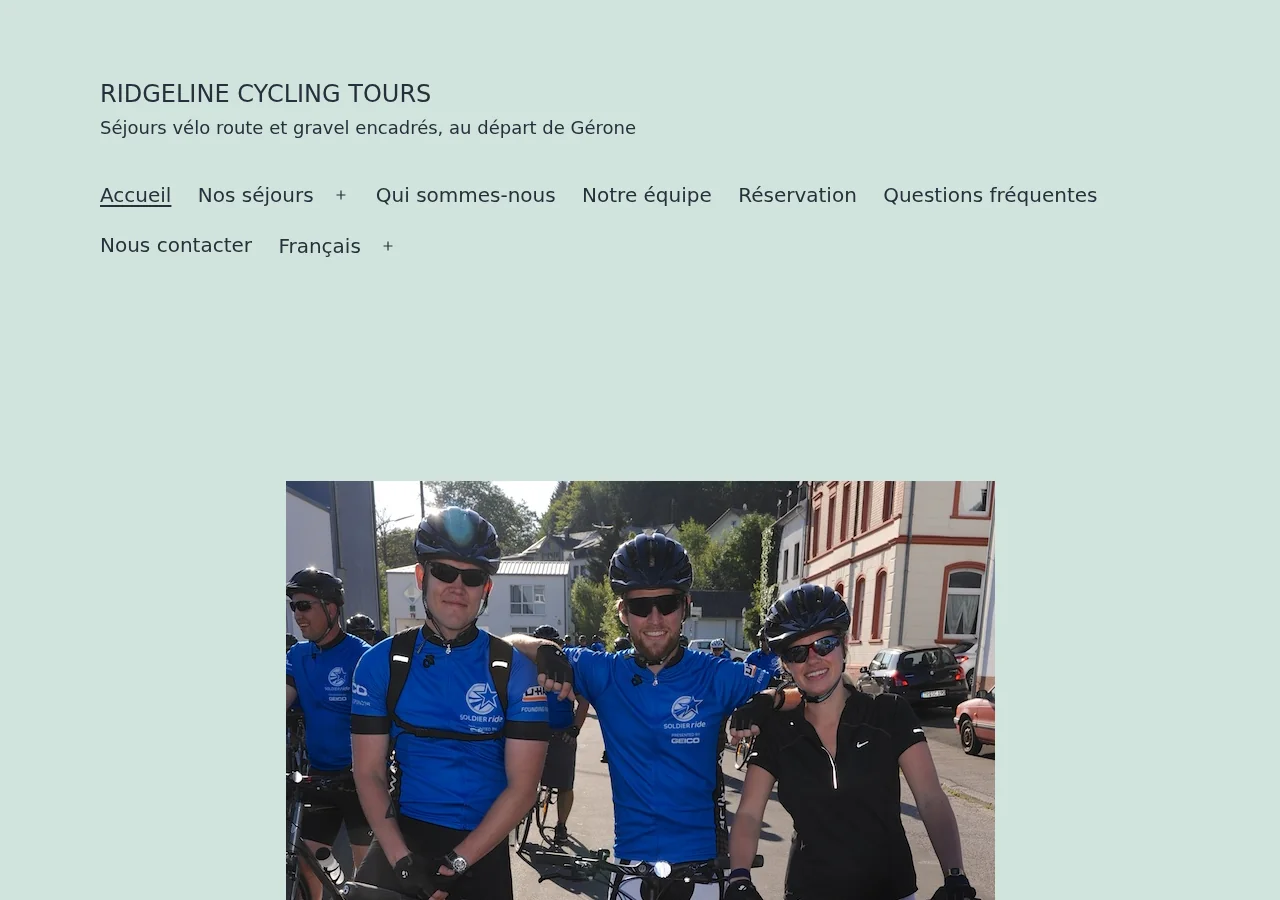
Once published, your content will appear translated on your website when switching languages.
Besides native WordPress content, you can also translate content created with plugins.
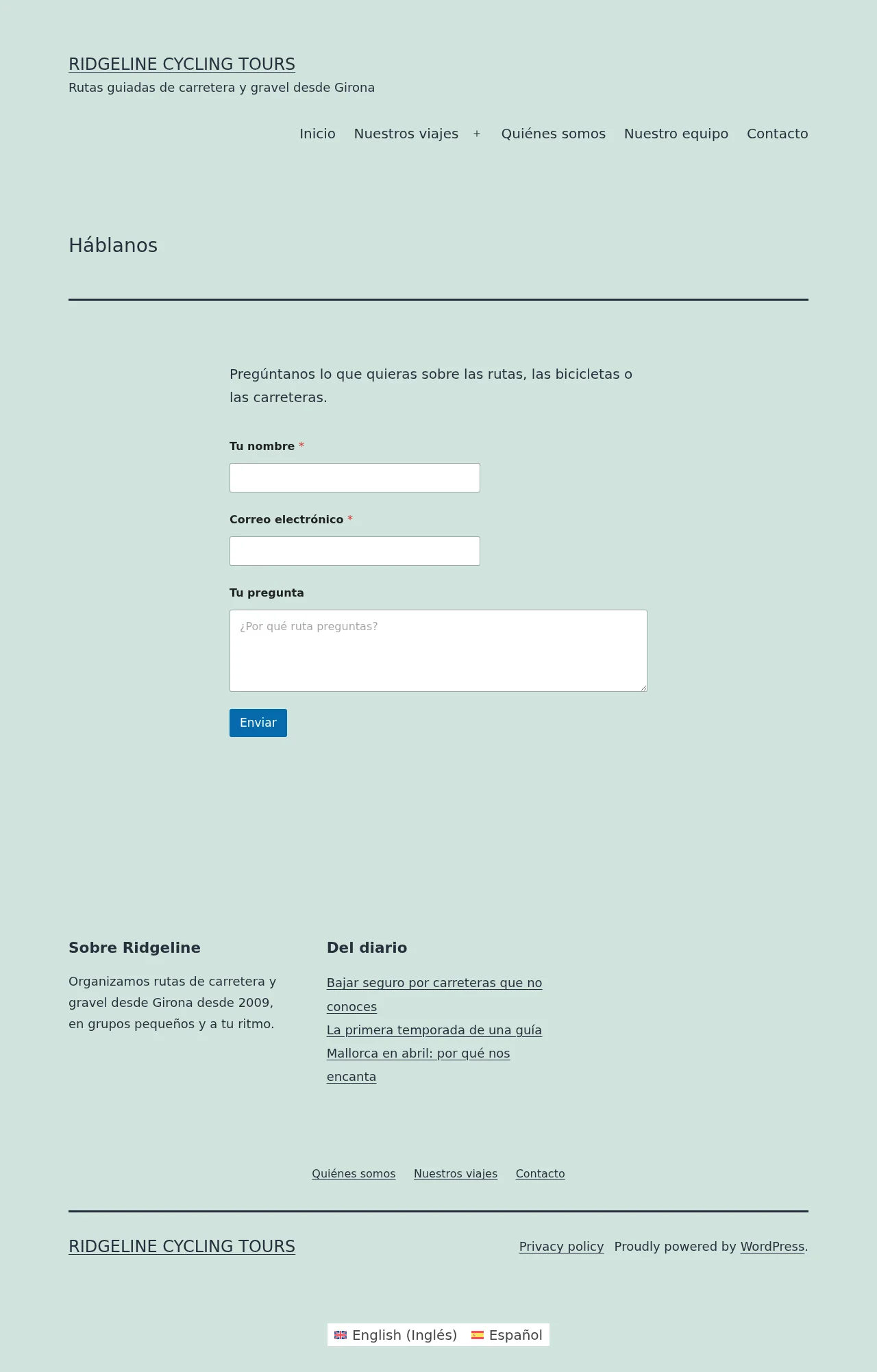
To explain the second method, let’s use WPForms as an example. Like many other WordPress plugins, WPForms lets you insert content using shortcodes:
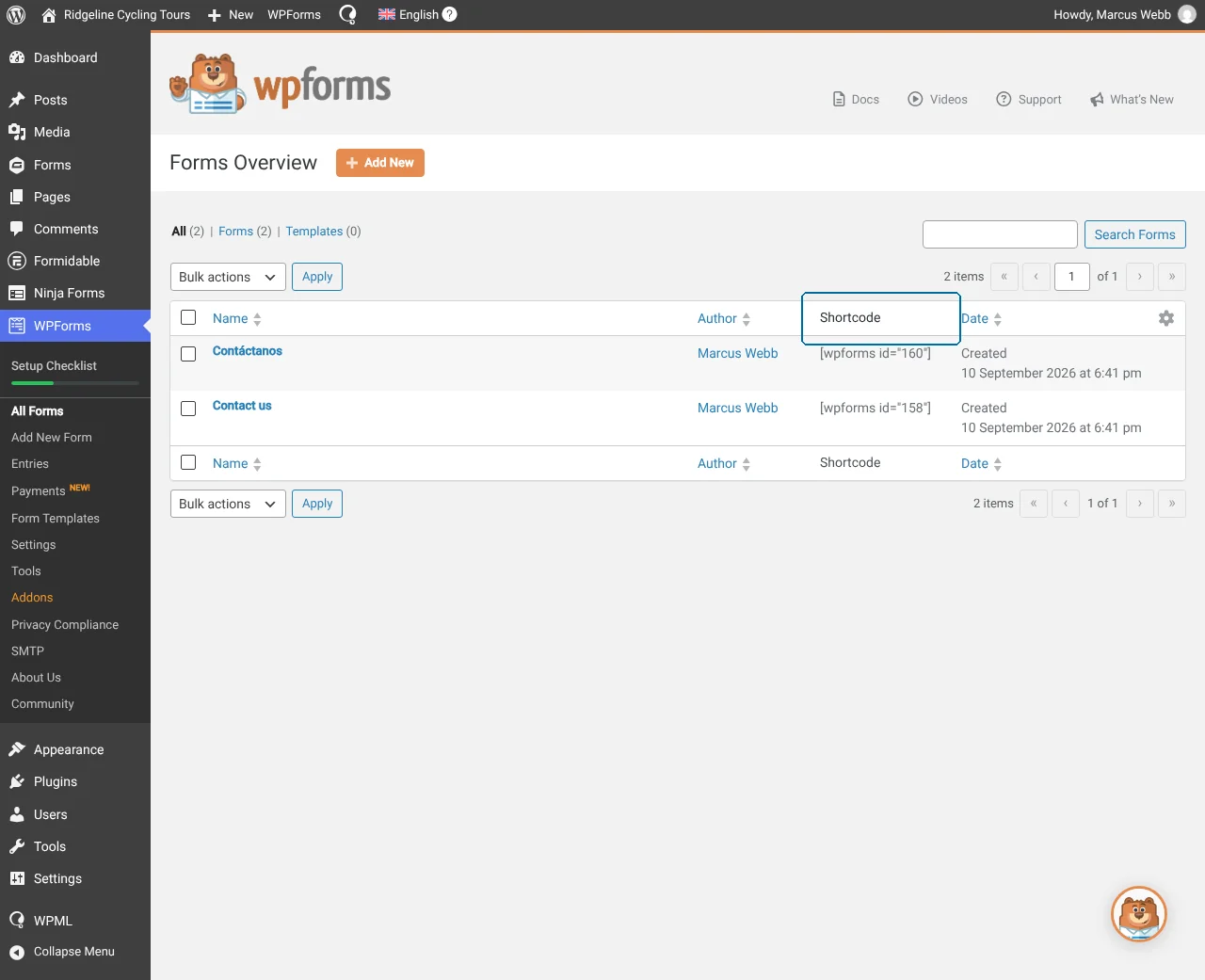
To translate this form, you need to create a completely new form and replace all its texts with translations.
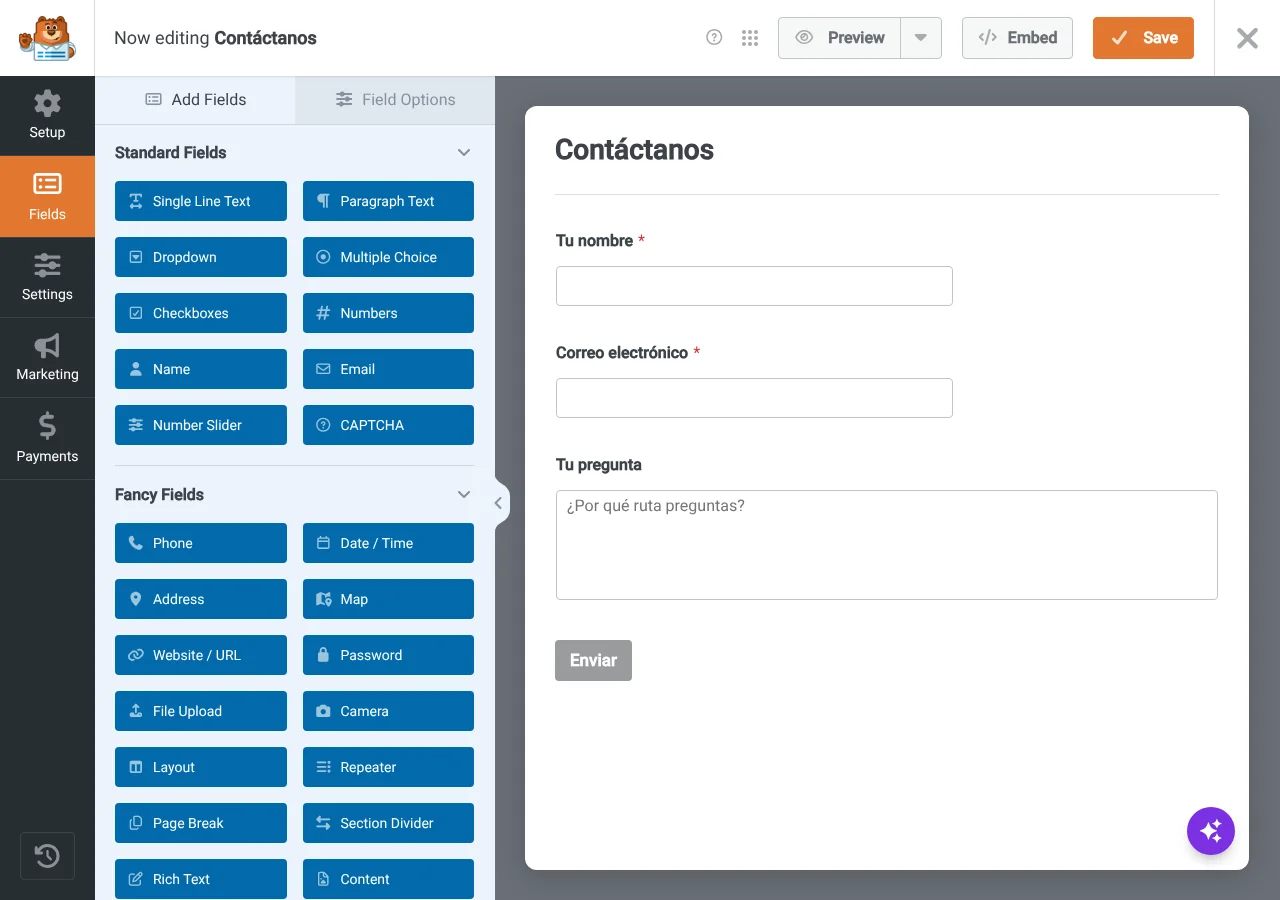
Once done, copy your new shortcode and paste it into your translated page.
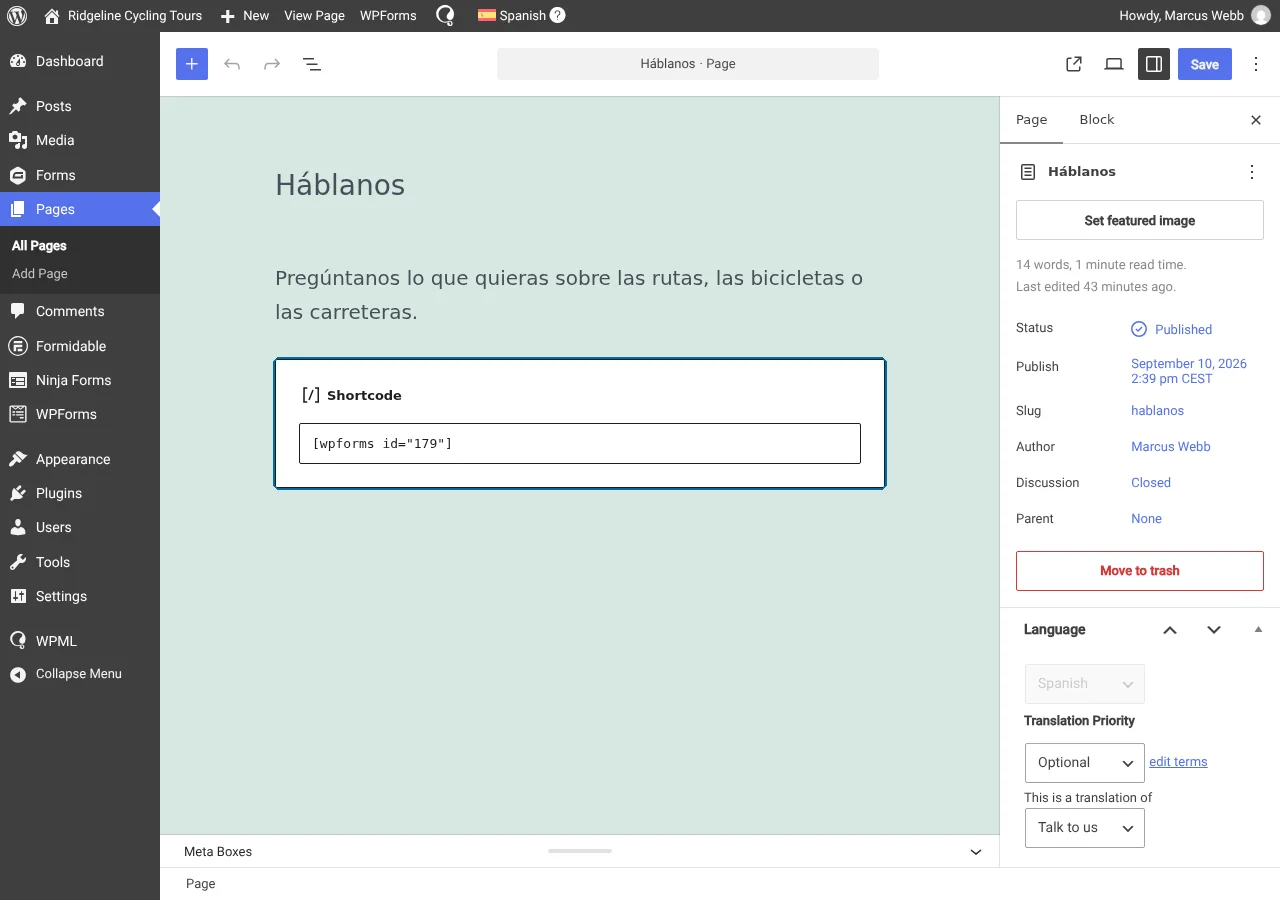
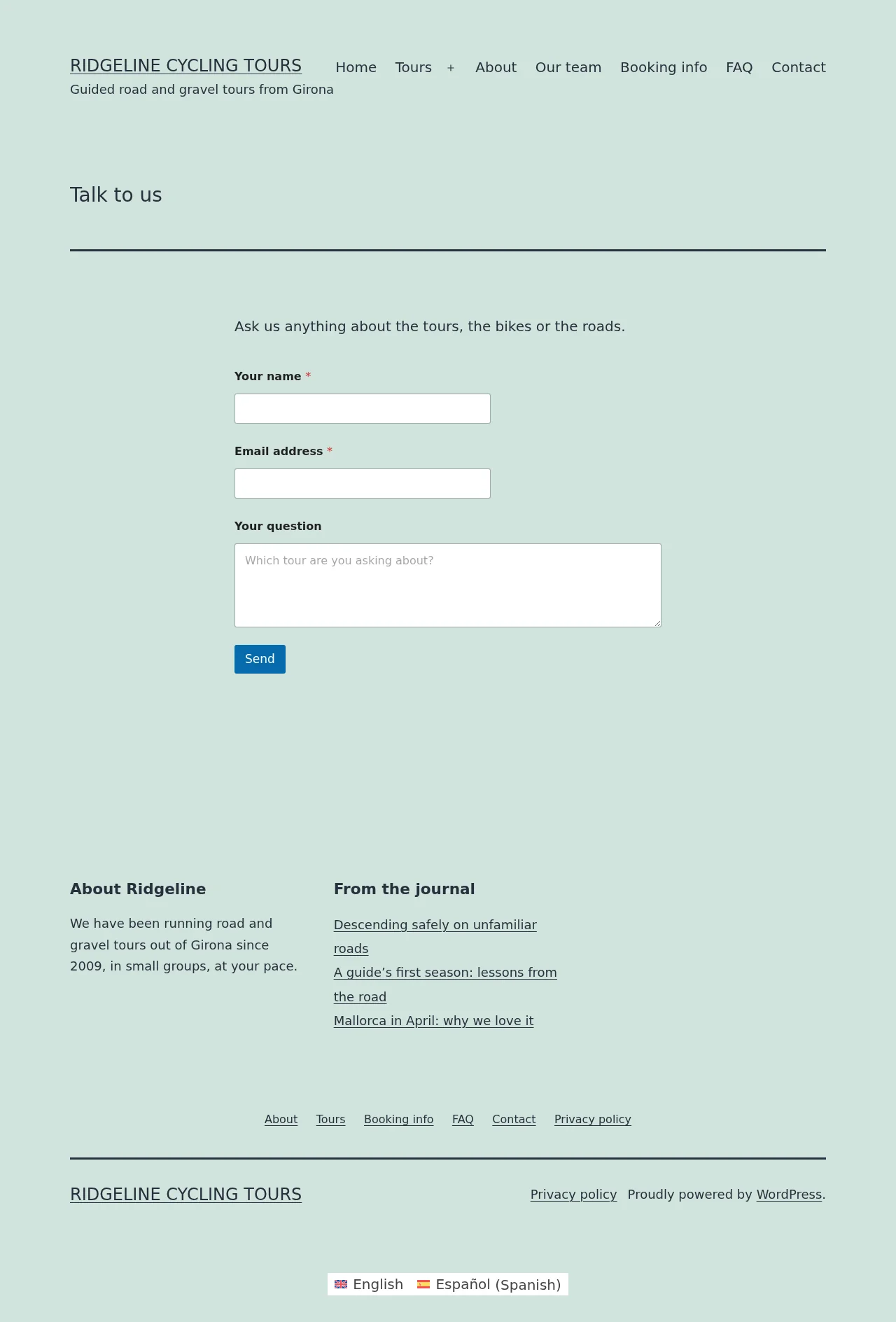
And that’s it! Each language version will now display a unique shortcode with different content.
Looking for more translation tutorials? Check out these helpful guides with step-by-step instructions.
Add a Language Switcher
Insert a language switcher in your menus, widgets, or body content.
Localize Your Media
Personalize your media to local audiences by displaying different images and videos in each language.
Skip the manual work and save hours of your time with WPML’s AI translation – backed with our translation quality guarantee.
Upgrade to Multilingual CMSTo translate texts in different theme parts, like your header, footer, or sidebar, you need the WPML String Translation add-on, available in the Multilingual CMS and Multilingual Agency plans.
Your custom post type screen is likely missing Plus icons because your post type is not set to translatable in WPML’s settings.
To enable it for translation, go to WPMLSettingsPost Types Translation and set your post type to Translatable. The Plus icons will now appear on your custom post type screen.
You can translate categories and tags (also known as taxonomies) using WPML’s Taxonomy translation screen. Just go to WPMLTaxonomy translation, select a taxonomy from the dropdown, and click the Plus icon to enter translations.
Written by