[Решено] Issue with WPML Translation Editor – wrong media and impossible to switch to native editor
Эта тема решена. Вот описание проблемы и ее решения.
Problem: The client is experiencing issues with WPML when trying to translate WooCommerce products. Specifically, the WPML Translation Editor loads many unrelated images from the Media Library and does not allow switching to the native WordPress product editor for translations. Solution: We recommend changing the editor for the entire post type, such as 'Product', to ensure that the native WordPress editor is used for translations. This can be done by selecting the entire post type in the WPML settings. If this does not resolve the issue, please ensure that WPML and all its add-ons are updated to the latest version, currently 4.8.2, to benefit from recent bug fixes and improvements. Updates can be checked and applied from My Account → Downloads on the WPML site. Always back up your database before making changes.
If the solution provided here does not apply to your case, or if it seems outdated, we highly recommend checking related known issues at https://wpml.org/known-issues/, verifying the version of the permanent fix, and confirming that you have installed the latest versions of themes and plugins. If issues persist, please open a new support ticket at WPML support forum for further assistance.
Это форум технической поддержки WPML – плагина для многоязычной WordPress.
Доступно для чтения всем, но только клиенты, купившие WPML, могут оставлять сообщения. Сотрудники WPML отвечают на сообщения форума 6 дней в неделю, 22 часов в сутки.
Предыстория вопроса:
I am trying to translate WooCommerce products using WPML. When I open the translation editor for Czech or any other secondary language, WPML loads a lot of unrelated images from the Media Library. I also tried to switch to the Classic Translation Editor and used the wpml_use_translation_editor_for_post_type filter in my functions.php, but the WPML editor interface still appears instead of the normal WordPress product editor. Link to a page where the issue can be seen: скрытая ссылка
Симптомы:
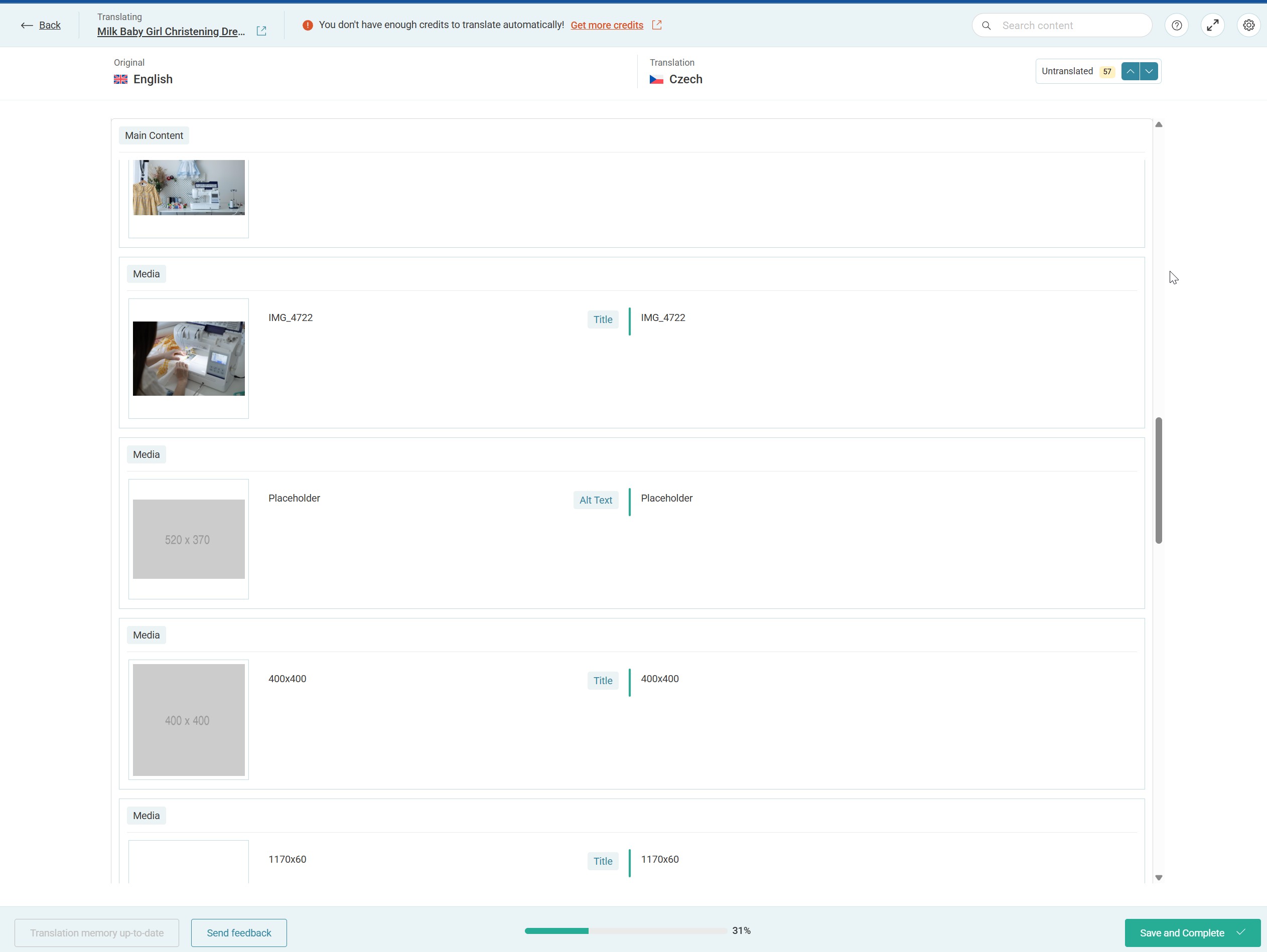
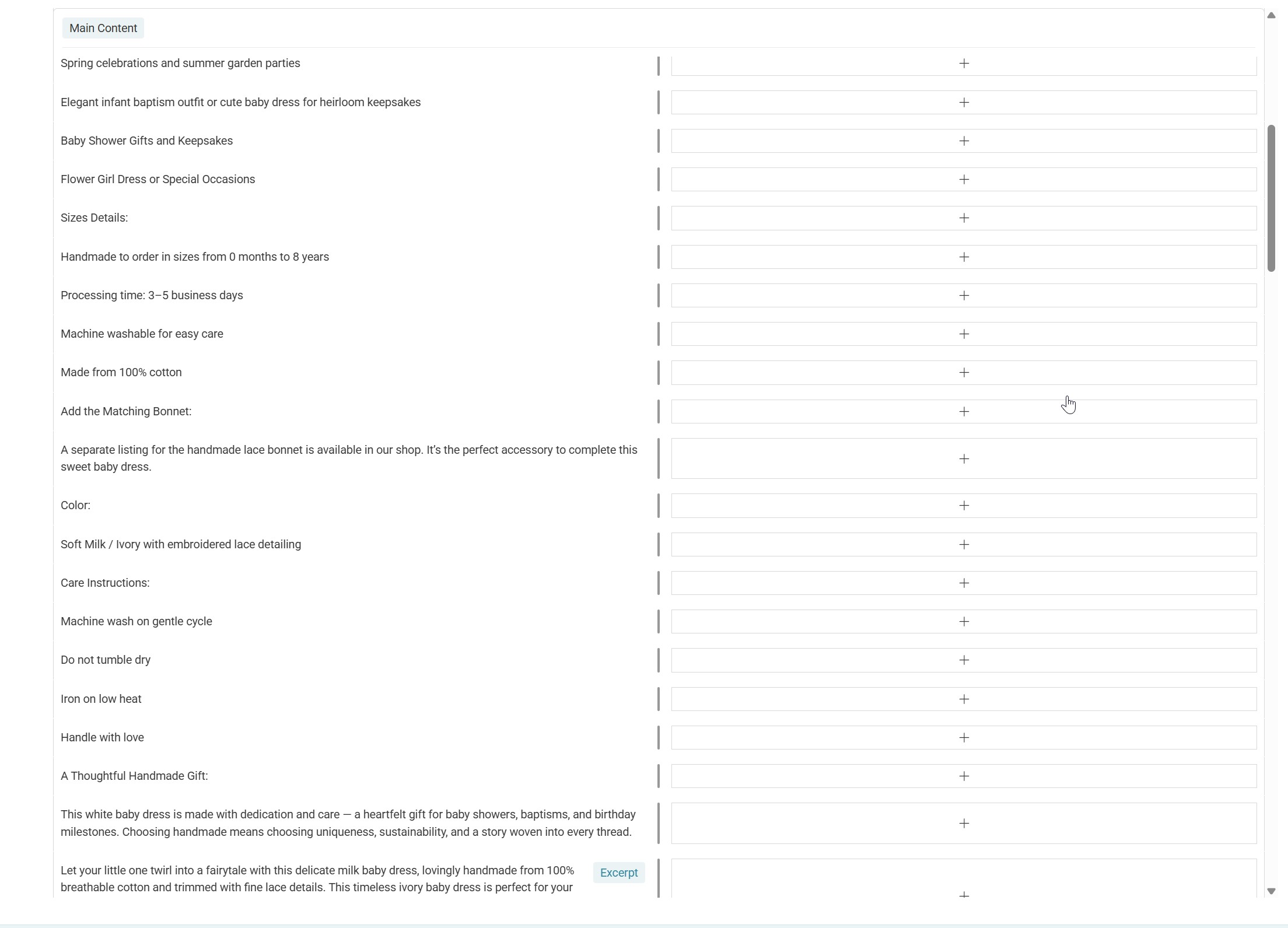
The translation editor loads a large number of unrelated images from the Media Library, which makes product translation confusing. Additionally, it is impossible to fully switch to the native WordPress editor — WPML always forces its own translation interface with a modified layout.
Вопросы:
How can I ensure WPML loads only the product’s own images or copies the product images from the main language?
How can I disable the WPML Translation Editor to use the regular WordPress product editor for translations?
It’s not possible to exclude product images from translation. Whenever you send a product for translation, its associated media is also included. This allows you to translate media texts along with the rest of the product content.
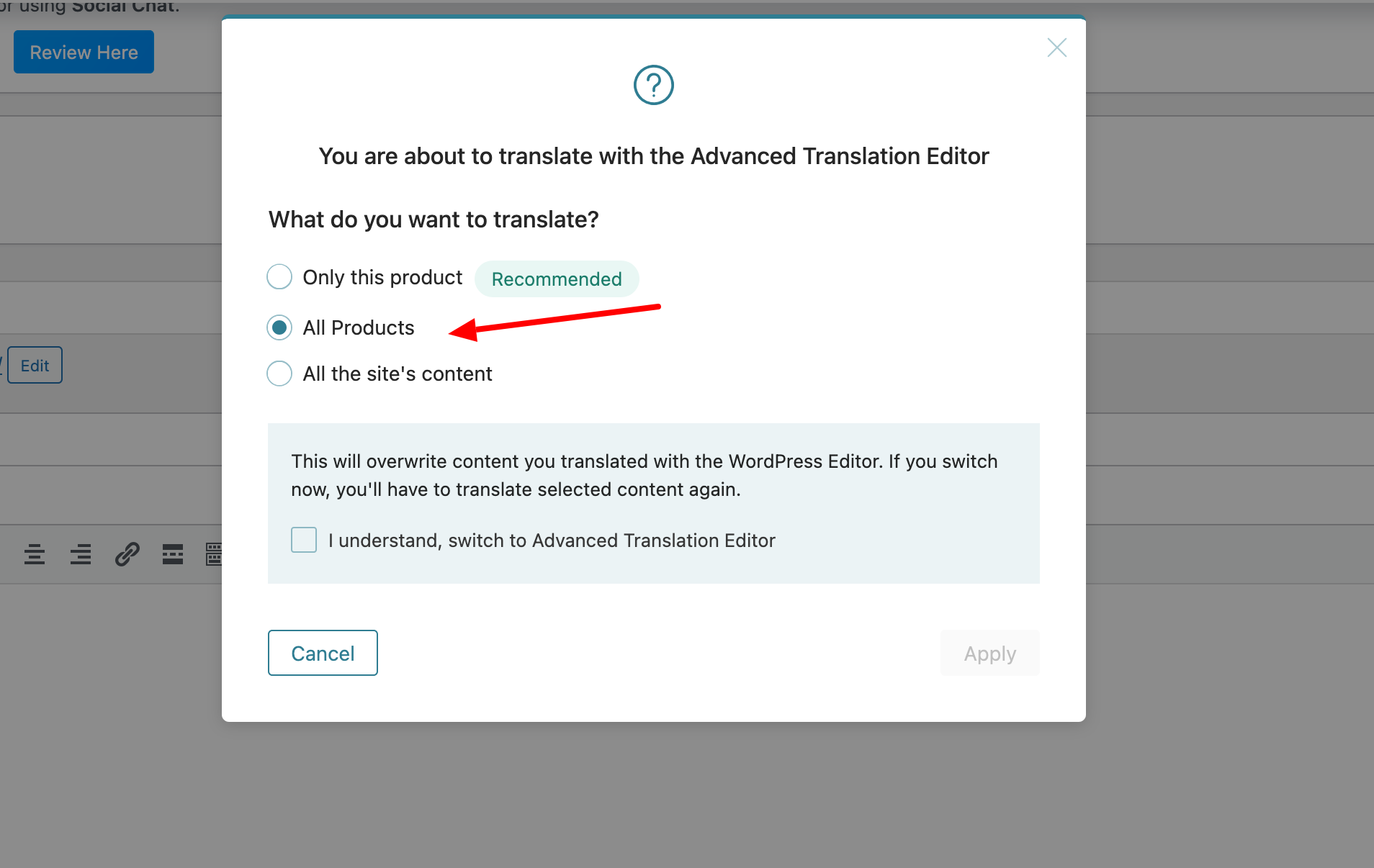
However, it is possible to switch to the native WordPress editor instead of using the WPML Translation Editor. I’ve attached a screenshot for your reference.
Thank you for your reply.
I understand that product-related images may appear in the translation editor.
However, in my case, the editor loads many random images from the Media Library that are not related to the product at all. It displays far more images than the product actually has.
I have switched to the native WordPress editor as you suggested, but some products that were previously translated using the WPML Translation Editor still open in the WPML interface.
How can I completely remove those translations or switch them to the normal WordPress editor?
I understand that product-related images may appear in the translation editor.
However, in my case, the editor loads many random images from the Media Library that are not related to the product at all. It displays far more images than the product actually has.
I suspect that some of those images may have previously existed but were deleted later (might not be in the media library). Could you please try the following steps on the product where you’re seeing this issue?
1. Make a slight change to the original product to trigger a new translation job and ensure it includes the correct images.
2. Update the product.
3. Open it again in the Translation Editor.
I have switched to the native WordPress editor as you suggested, but some products that were previously translated using the WPML Translation Editor still open in the WPML interface.
How can I completely remove those translations or switch them to the normal WordPress editor?
Could you please share screenshots showing one of the products where this happens, after selecting the native WordPress editor?
I recommend deciding which translation method you’d like to continue using — either the WPML Translation Editor or the native WordPress editor — and then we can focus on resolving the issue you’re currently facing based on that setup.
I figured out how to switch the translation editor. I can do it per page or product.
However, if a page or product has already been edited in the WPML Translation Editor, that choice is saved in memory.
Even after changing the editor type for that post type, the specific page that was previously edited with the WPML editor still opens in it.
How can I remove or reset the saved editor choice from the site’s memory?
For example, if a page was previously translated with the WPML Translation Editor, but now I want to open and edit it using the regular WordPress editor — how can I switch it completely?
I’ve performed some additional tests on this. If you change the editor for an entire post type — for example, Product — the native WordPress editor will open, even for products that were previously translated using the WPML Translation Editor. Selecting the entire post type, as shown in the screenshot, should completely switch it to the native WordPress editor.
If this doesn’t work as described, please share screenshots of the steps you’re taking so I can review them.
Also, please make sure that WPML and all its add-ons are updated to the latest version (4.8.2) to benefit from the most recent bug fixes and improvements.
You can check the latest released versions under My Account → Downloads on our site.
If you don’t see the updates, click the Check for updates button in Plugins → Add New Plugin → Commercial.
Before making any changes, please remember to back up your database.