


Learn how to translate JetEngine custom post types, fields, taxonomies, and other elements into more languages with WPML.
Getting Started
To follow this tutorial, install and activate:
Configure Translation Settings
Before you can translate JetEngine with WPML, you first need to choose which content on your site is translatable.
To set your translation preferences, go to WPMLSettings and open the following sub-pages:
- Post Types Translation – Listings, Components, Post Types, etc.
- Custom Fields Translation – Meta Boxes, Meta Fields, etc.
- Taxonomy Translation – Custom Taxonomies, etc.
To enable a type of content for translation, set it to Translatable and Save.
Translate JetEngine with WPML
To translate any JetEngine content:
- Go to WPMLTranslations.
- Expand the section with the JetEngine content you want to translate and select your items.
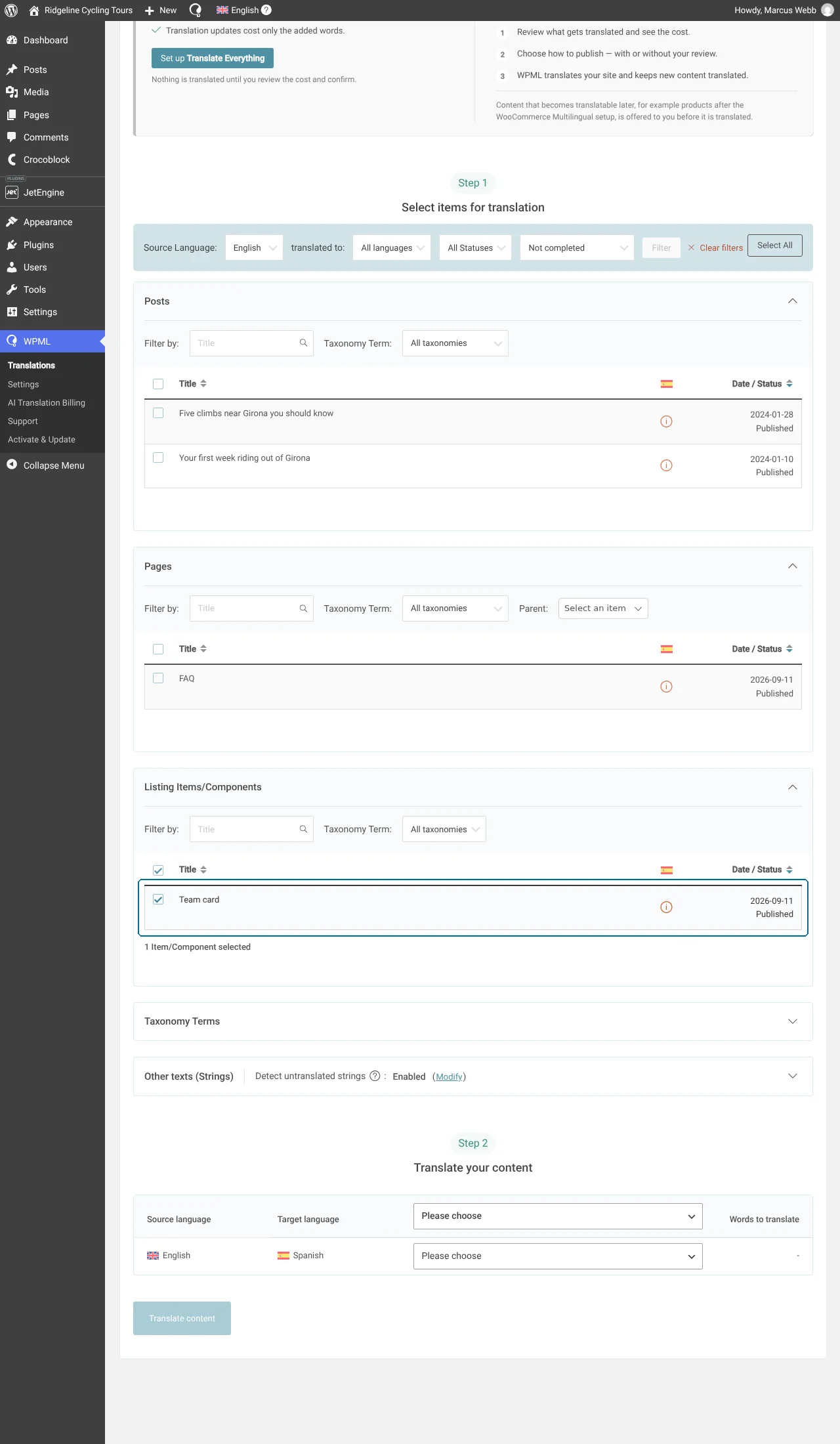
- Choose your translation method and click Translate.
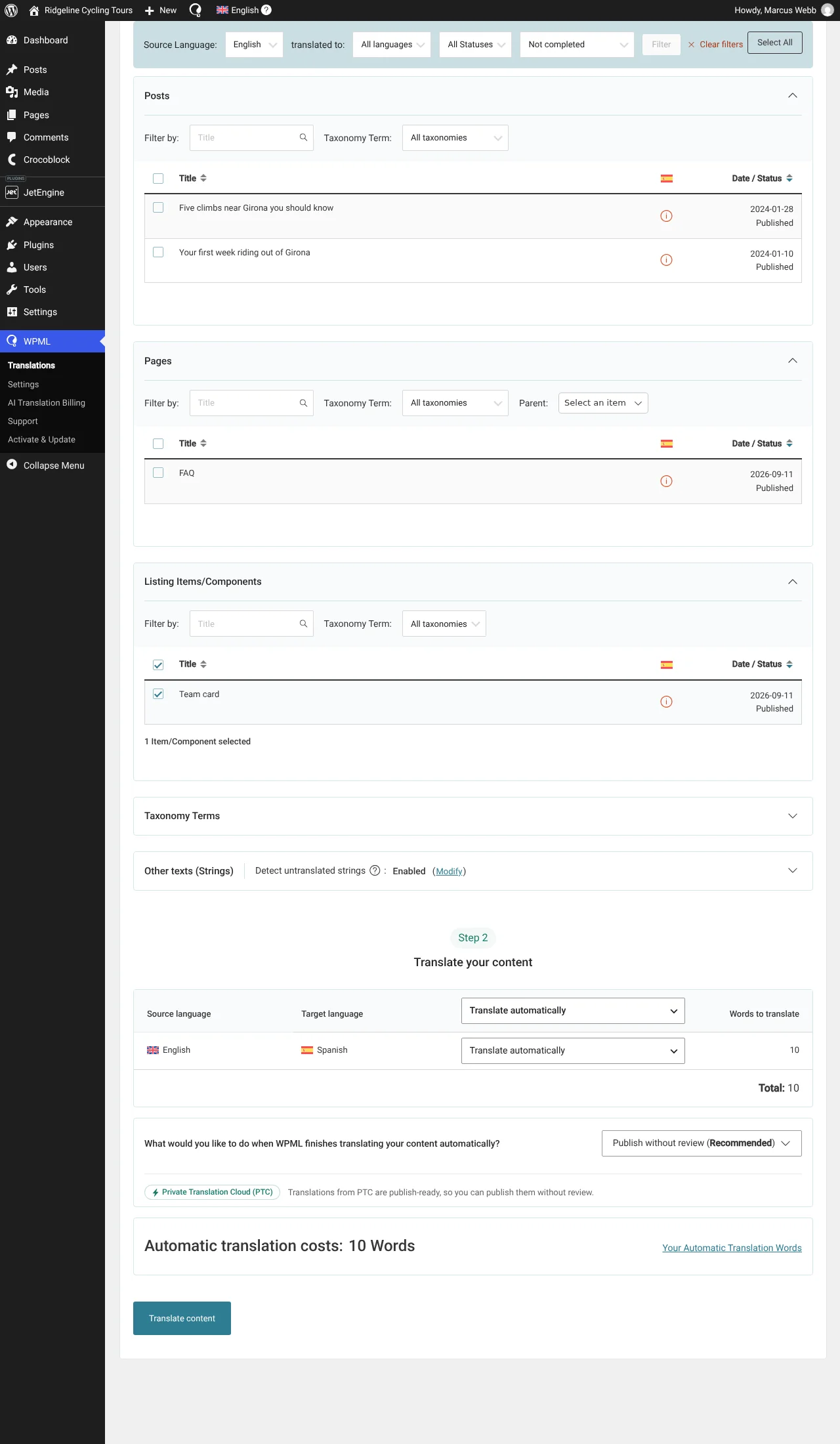
For the best translation quality, we recommend translating automatically with Private Translation Cloud (PTC), our most accurate translation engine.
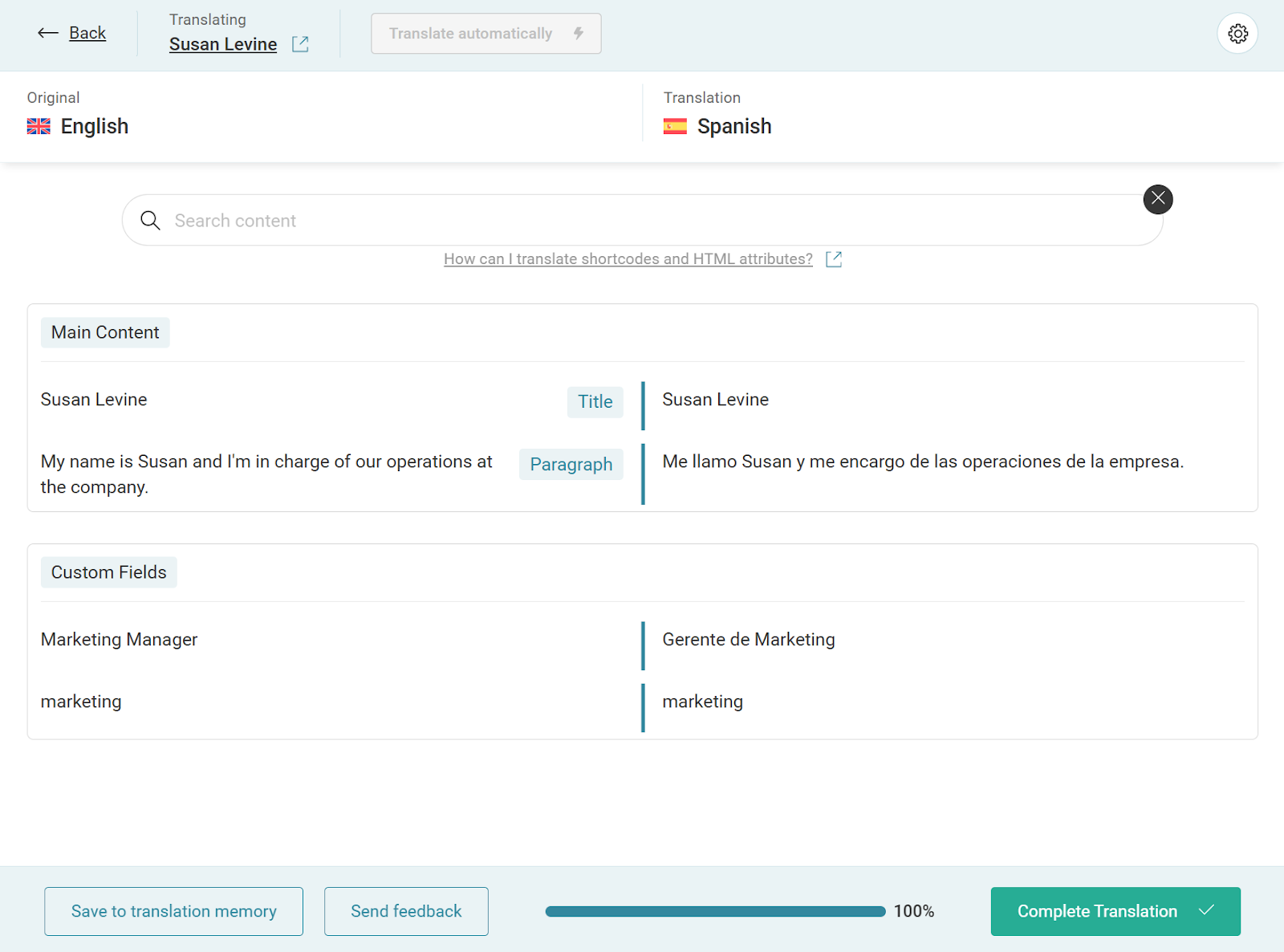
- Finally, go to WPMLTranslations and open your recent translation jobs. Review your translations and click Save and Complete to publish them.
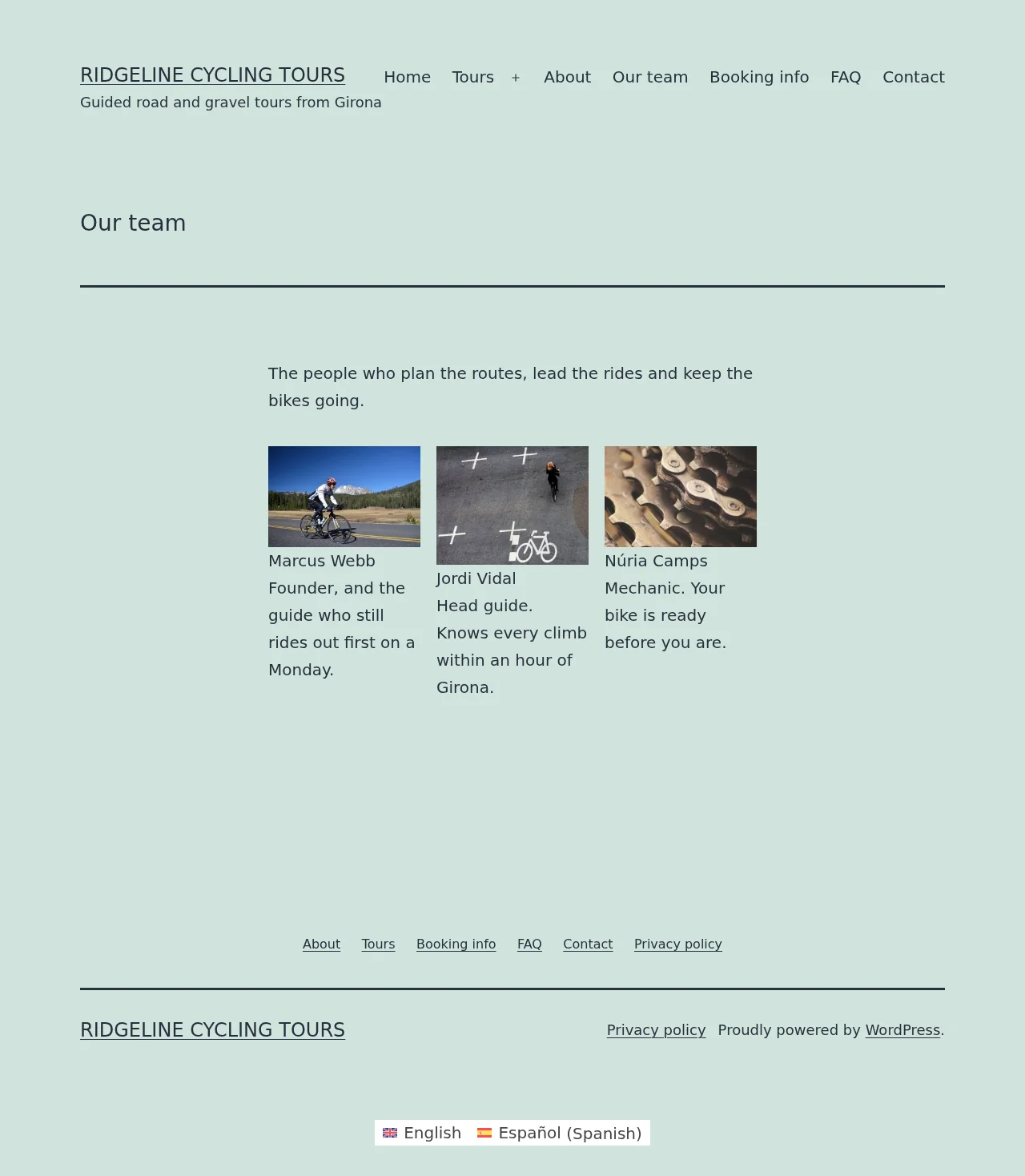
To view translations on your website, visit the content you just translated and switch languages.
Frequently Asked Questions
How can I translate Options Page fields?
1. Go to WPMLTranslationsStrings.
2. Expand the section titled Not seeing strings you’re looking for and click the Admin Texts Translation link.
3. Search for your Options field value, select it, and click Add to String Translation.
You can now translate your Options field in String Translation.
