


Contextual Understanding
The outcome is translation that meets and exceeds human quality. And, you get all this at the speed and cost of ordinary machine translation.

The easiest, most accurate and cost-effective way to translate your WordPress site with WPML is using PTC – WPML’s AI translation engine.
PTC translates your site with full understanding of your topic and target audience. It knows the right tone and formality to use for different languages. It knows your terminology and understands your branding.
The outcome is translation that meets and exceeds human quality. And, you get all this at the speed and cost of ordinary machine translation.
PTC maintains consistency with your specific terminology and understands your branding nuances across all languages.
Edit a term, brand name or tone once and PTC applies it everywhere after. Repeat edits become one-click rules on the Improve Translations tab.
We’re so confident that you’ll like WPML’s AI translation by PTC that we’re offering a full money-back guarantee.
 Klemen Teran
Managing Director, Pappiga Web & Mobile Solutions
Klemen Teran
Managing Director, Pappiga Web & Mobile Solutions
Before PTC, we used other engines, but they just weren’t good enough according to our clients. When you introduced PTC we tested it, and honestly, there were no complaints or corrections, even from native speakers. It’s natural, it understands context, and it’s professional. Clients didn’t want to use other engines, but they do want to use PTC now. That gap is as huge as it gets.
 Kiku Solé
Co-founder, Nordkat Solutions SL
Kiku Solé
Co-founder, Nordkat Solutions SL
I used to copy content into translation tools and manually fix translations to make them sound accurate, which was a slow process. At first, I was concerned about how much using PTC would cost me, but once I saw how well it handles context and brand voice, it was an easy decision. My clients are happy with the context-aware translations that reflect their brand’s voice, and it’s saved me a huge amount of time.
 Paulo Santos
Manager, iConnect
Paulo Santos
Manager, iConnect
I was using a professional translator before and wasn’t sure PTC would match that quality. I decided to try because of the price professionals were charging me. My clients say the translations are perfect. You can have translations that seem like they were done by a professional, but at a much cheaper price and quicker. You only need to push a few buttons and you’re done.
WPML’s AI “sees” your product images when it translates your shop. It knows exactly what it’s translating, producing content that reads and feels natural in all languages.
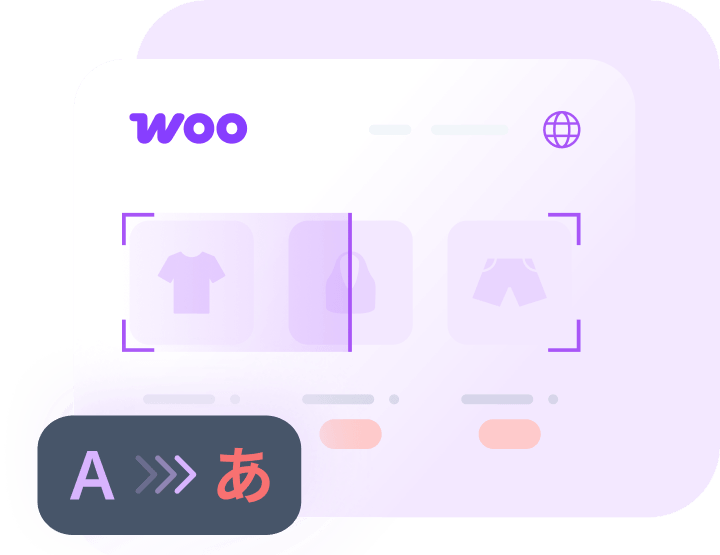

PTC, WPML’s AI translation engine, supports both WordPress websites and software. Translate your website and software together, to enjoy complete consistency, low cost and unified billing.
 WordPress Sites
 Software Apps
 Mobile Apps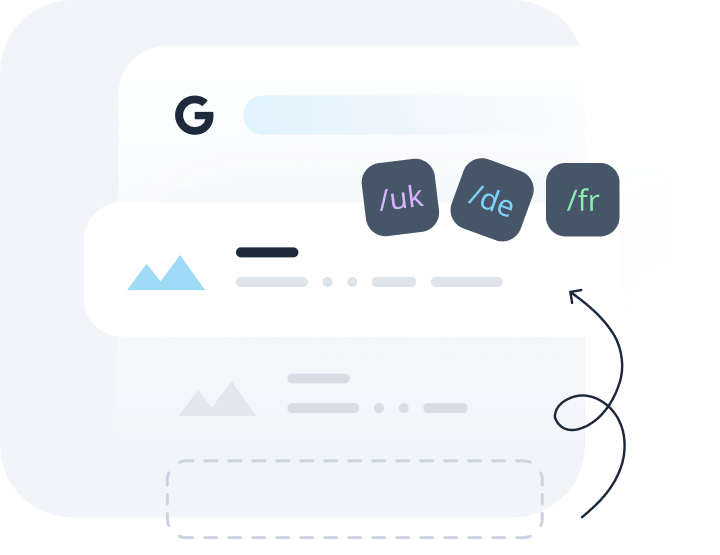
Besides translating at human quality, PTC also protects your SEO optimization. It knows the length limits for SEO meta data, and ensures that translations for page titles and meta-descriptions fit.
All new WPML accounts come with free AI translation words, enough to translate most sites at no extra cost.
22.5K / 45K
Included Words 22,500 with Multilingual CMS, 45,000 with Multilingual Agency.
For larger sites that need more than the included free words, choose between pay-as-you-go and prepaid packages.

The recommended option for most sites and agencies: lowest per-word cost, with spend limits and per-site views via the agency dashboard.

Best when you need to pay upfront for a block of words – for example, when accounting requires a purchase order per client.
