


Learn how to translate Complianz features into multiple languages with WPML. Translate your cookie consent banner, legal documents, and more.
Getting Started
To translate Complianz with WPML, install and activate the following plugins:
- WPML Multilingual CMS
- WPML String Translation
- Complianz – GDPR/CCPA Cookie Consent (opens in a new tab) or Complianz Cookie Consent Premium (opens in a new tab)
- Complianz – Terms and Conditions (opens in a new tab)
Before starting translations, make sure you complete the setup wizards for both Complianz and WPML. The Complianz wizard will help you generate legal documents that you can then translate with WPML.
Translate Complianz Legal Pages with WPML
You can use WPML to translate pages generated with Complianz, such as your Privacy Policy, Cookie Policy, etc:
1. Go to WPMLTranslations.
2. Expand the Pages section, select your legal documents and click on Translate your content.
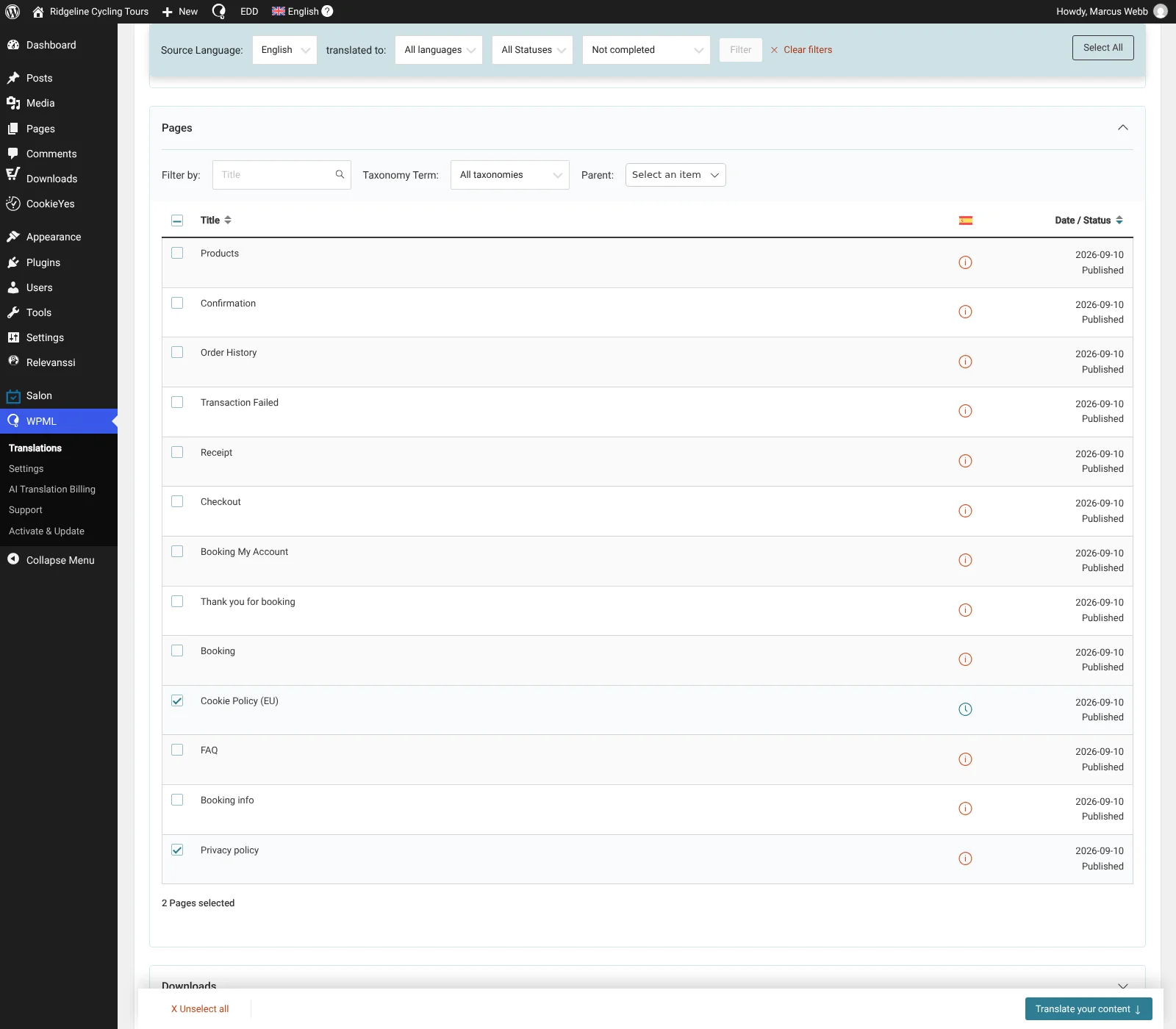
Translating legal documents via the Translations dashboard
3. At Step 2, choose your translation method (translating automatically is recommended) and click Translate.
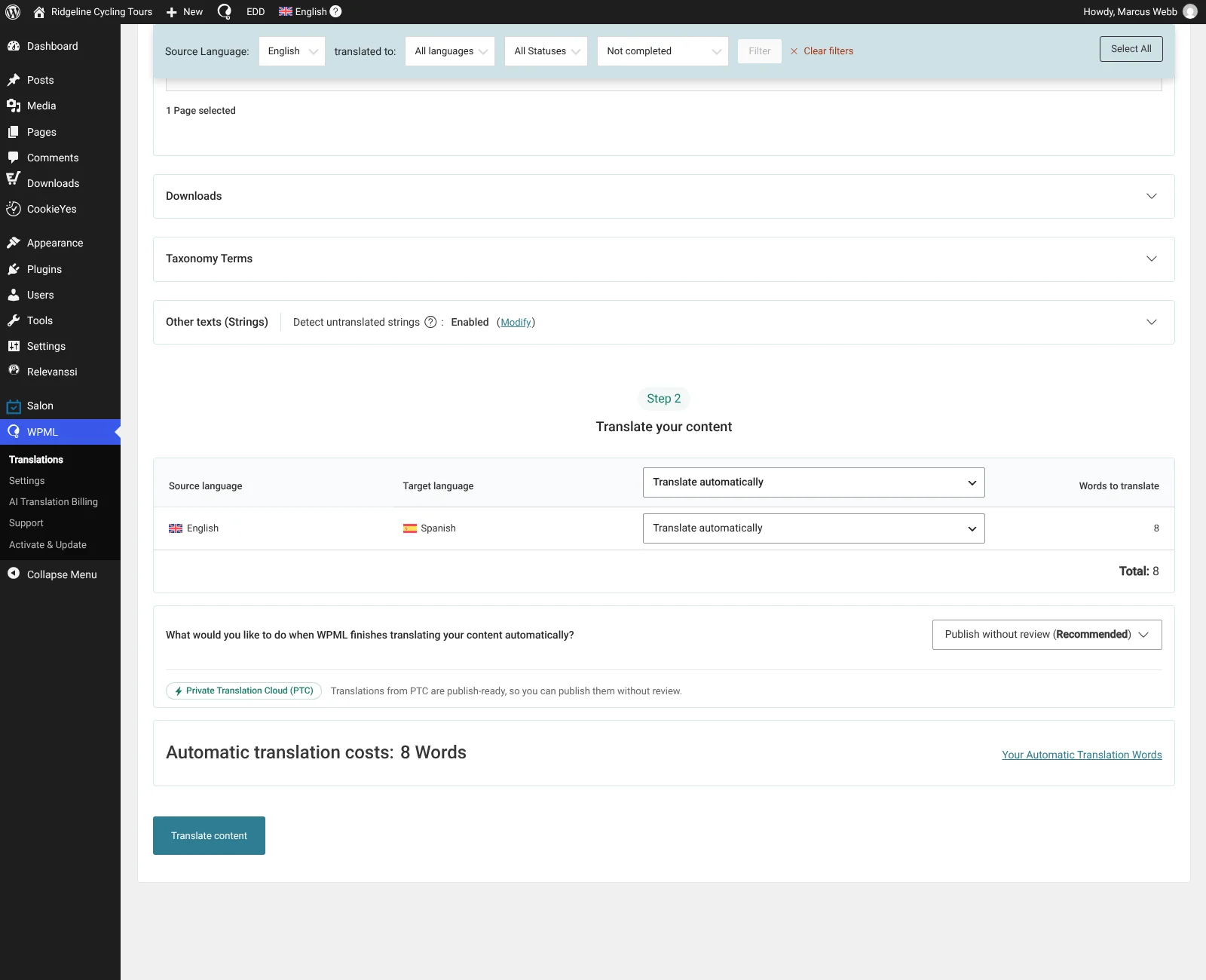
Sending Complianz content for automatic translation
Translate Your Consent Banner
When you’ve set up your Consent Banner with Complianz, you can translate it with WPML.
To translate your Consent Banner:
1. First, visit any page on your site to see the Consent Banner. WPML automatically picks up untranslated strings when you visit your site’s frontend. To do this, make sure your Consent Banner isn’t disabled.
2. Go to WPMLTranslations and expand the section Other texts (Strings).
3. Filter for the “complianz” domain. This will show you all texts included in the Consent Banner. Select them and click Translate your content.
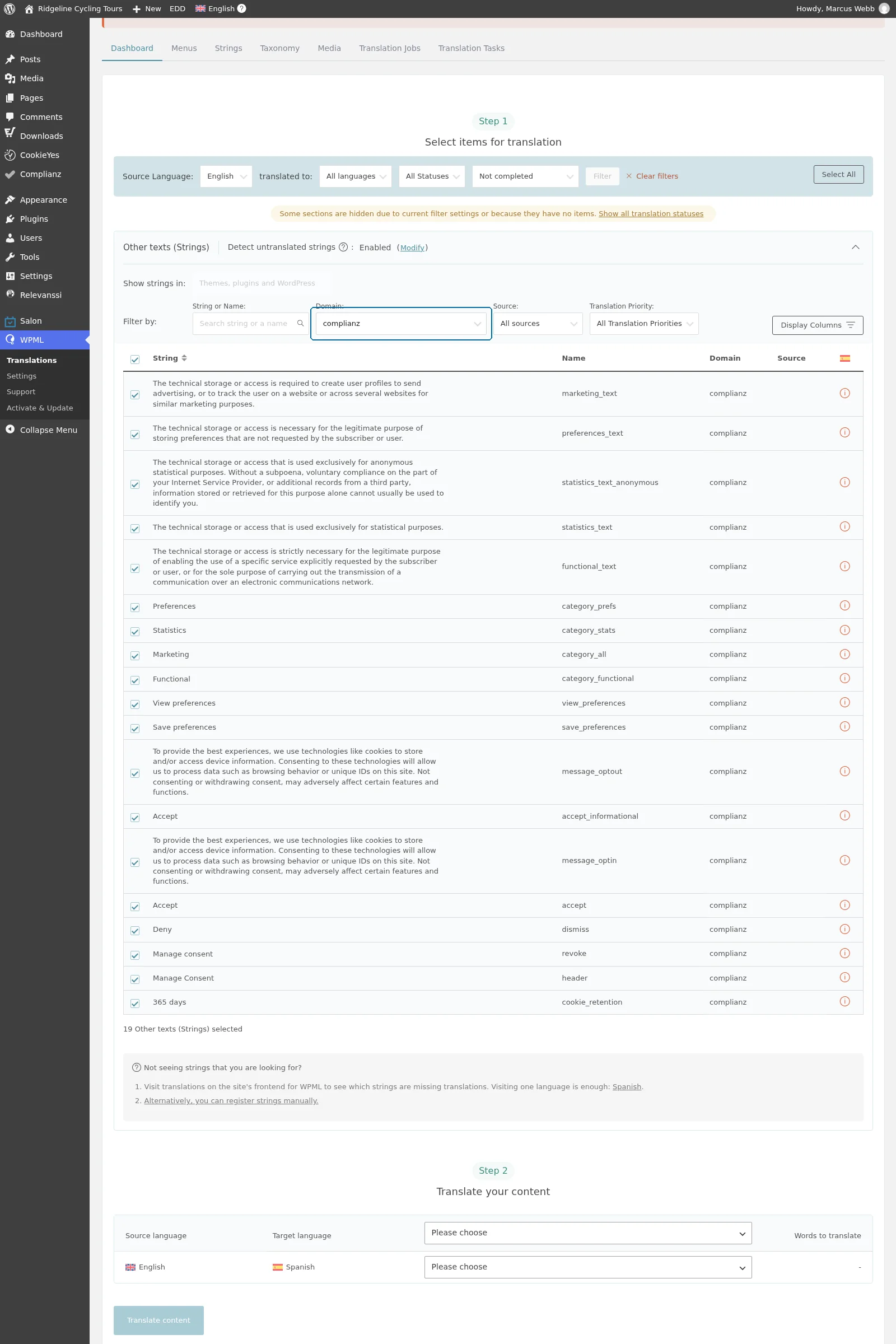
Sending Complianz strings to translation
4. Select your translation method at Step 2, and click Translate.
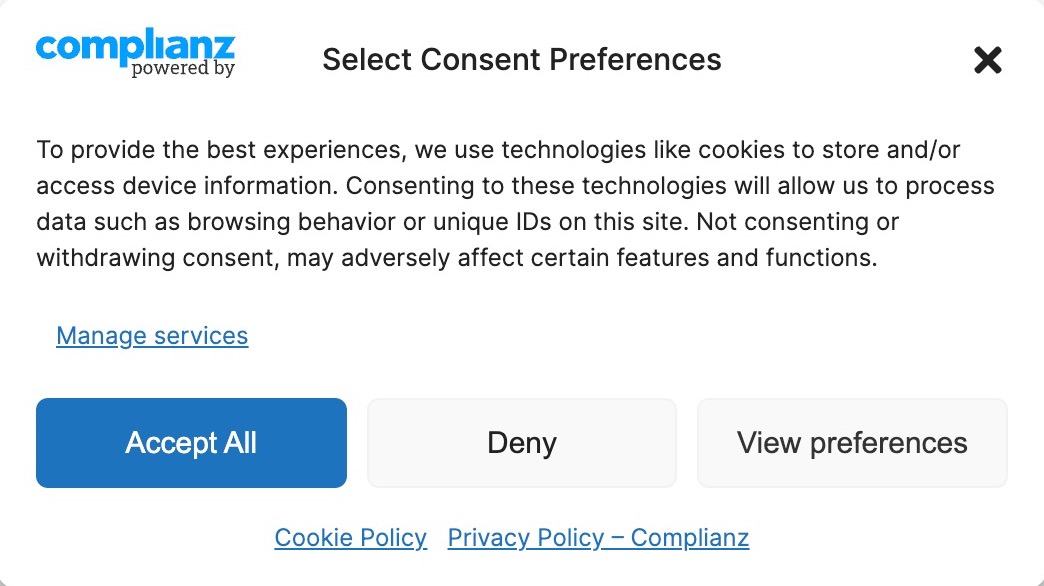
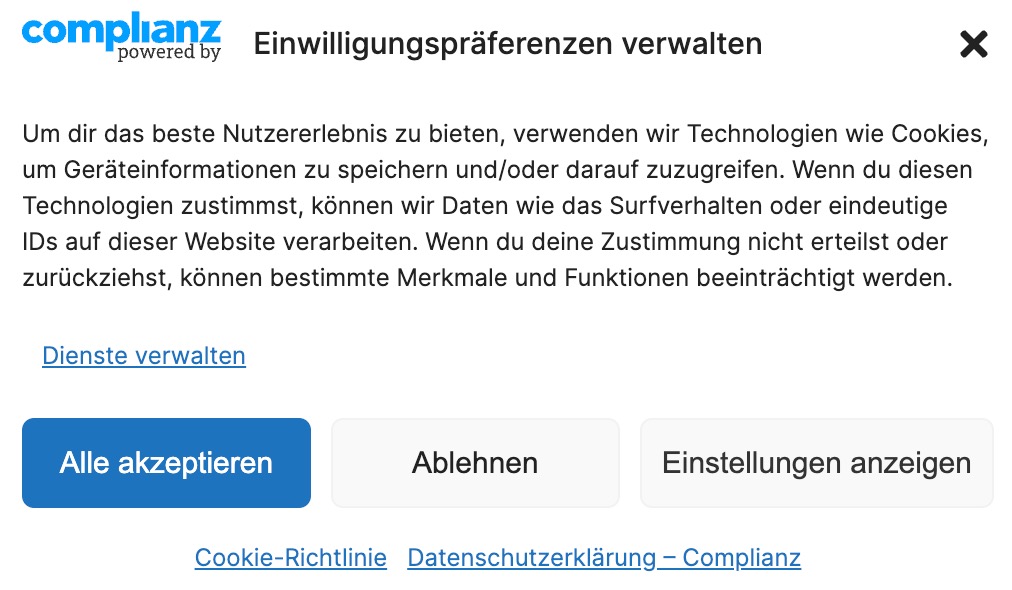
Once your Consent Banner has been translated in a secondary language, it will automatically appear on translated pages. For example, switching from the Cookie Policy in English to the Cookie Policy in German will also show the Consent Banner in German.
If you have any links to legal documents on the Consent Banner (such as a link to the Privacy Policy), make sure these pages are published and translated. This way, the link directs users to the page in the correct language.
Editing Translations
To edit translations:
- Go to WPMLTranslations and select the content you want, whether it’s pages generated with Complianz or Complianz strings.
- At Step 2, select Translate Myself and send to translation.
- Go to WPMLTranslations — you’ll find the content there. Click on Translate or Edit to open WPML’s Advanced Translation Editor. In this editor, you can translate both automatically and manually.
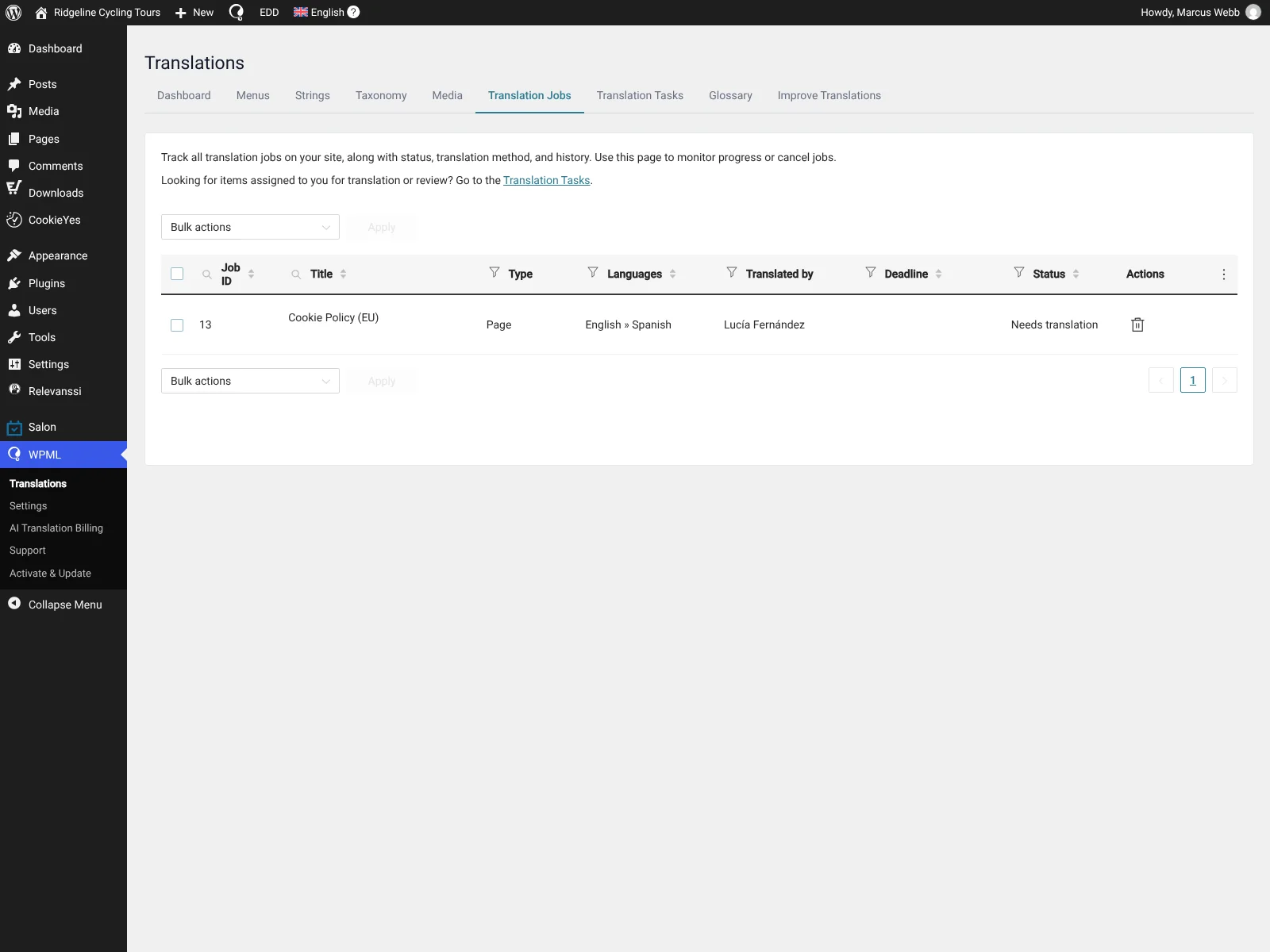 WPMLTranslations" width="1600" height="1200"/>
Editing translations from WPMLTranslations
