


How to Import Multilingual Content Into WordPress – WooCommerce, CSV, and XML
Learn how to bulk-import multilingual content into WordPress using the WPML Export and Import plugin. WPML assigns the right language to every row – posts, pages, custom post types, taxonomies, WooCommerce products and their variations – and links translations across languages. It works with any source – another WordPress site, a spreadsheet, or an external system like a PIM or a booking platform.
Introduction
Why This Plugin
WPML Export and Import works alongside the WordPress import plugin you already use. The import plugin moves your data. WPML Export and Import adds the language information at the end so each row lands in the right language and each translation links to its source.
Integrations
WPML Export and Import works with these export and import tools:
- WP All Export Pro and WP All Import Pro – export from a WordPress site with the language information included automatically, and import posts, products, and taxonomies from CSV or XML.
- The built-in WooCommerce export/import tool (ProductsExport and ProductsImport) – moves products via a single CSV, with the language information included in the export.
- The built-in WordPress export/import tool – moves posts, pages, and custom post types via WXR files.
- The WP Import Export plugin.
- Custom CSV or XML pipelines – any tool that can add the language columns to its rows.
Legacy – the WPML All Import Plugin
WPML All Import is the legacy plugin that predates WPML Export and Import. It’s no longer supported or recommended. The procedure on this page is the up-to-date way to import multilingual content into a WordPress site – use it instead of any workflow described in the old plugin’s documentation.
Export – Get Your Import File
Everything you import starts as a file. There are two ways to get one:
- Export it from a WordPress site. Use a supported export tool and the language information rides along automatically.
- Prepare it yourself. Your data lives in a spreadsheet or an external system (PIM, MLS, ERP, booking platform), and you add the language columns to the file by hand – see Prepare Your Own File in the Import section.
Configuration
When you’re exporting from a WordPress site, install and activate on it:
- WP All Export Pro (or another supported export tool).
- WPML Export and Import – it adds the language information to every exported row.
When you’re preparing the file yourself, there is nothing to install – the work is in the file itself.
Run the Export
Export your WordPress content with your export tool of choice. With WPML Export and Import active, the export file already carries the language columns for every row – there is nothing to add by hand. Continue with the Import section.
Import – Bring It In
Configuration
Install and activate these plugins on the site you’re importing into:
- An import plugin: WP All Import Pro, the built-in WooCommerce import tool, the built-in WordPress importer, or WP Import Export.
- WPML and WPML String Translation.
- WPML Export and Import (the add-on this page covers).
- WPML Multilingual & Multicurrency for WooCommerce if you’re importing WooCommerce products.
Set up WPML with every language you plan to import. The target languages must already exist in WPMLSettingsLanguages before you run the import.
The First-Import Wizard
The first time you open WPMLExport and Import, a short wizard asks whether you’re exporting the content from this site or from a different website or system.
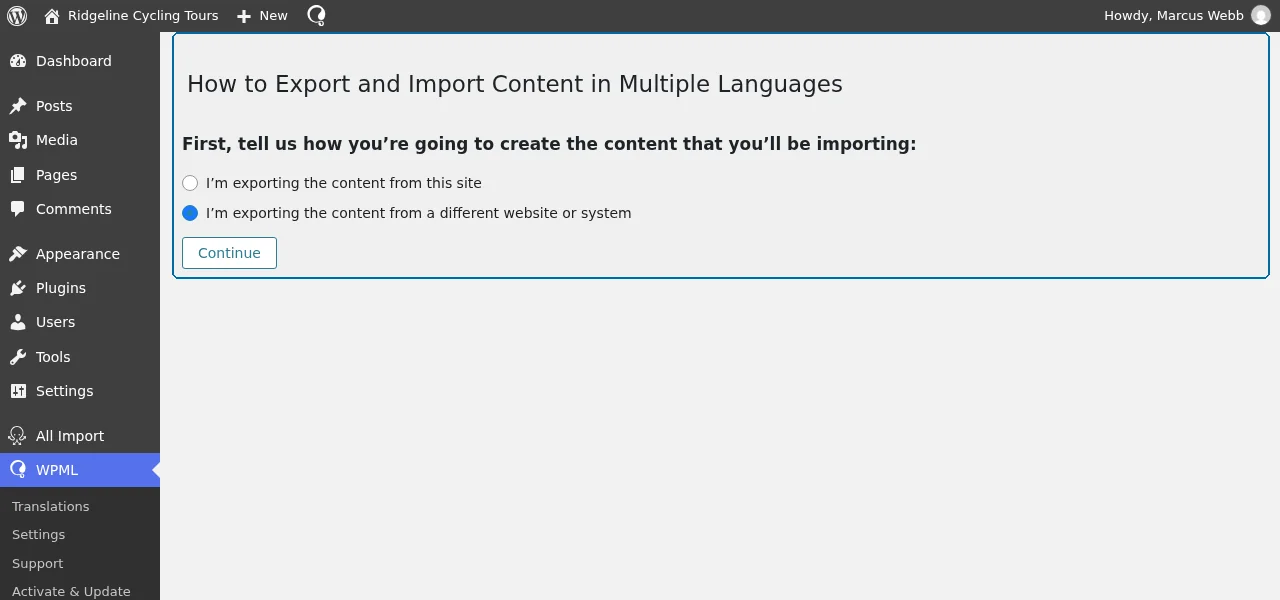
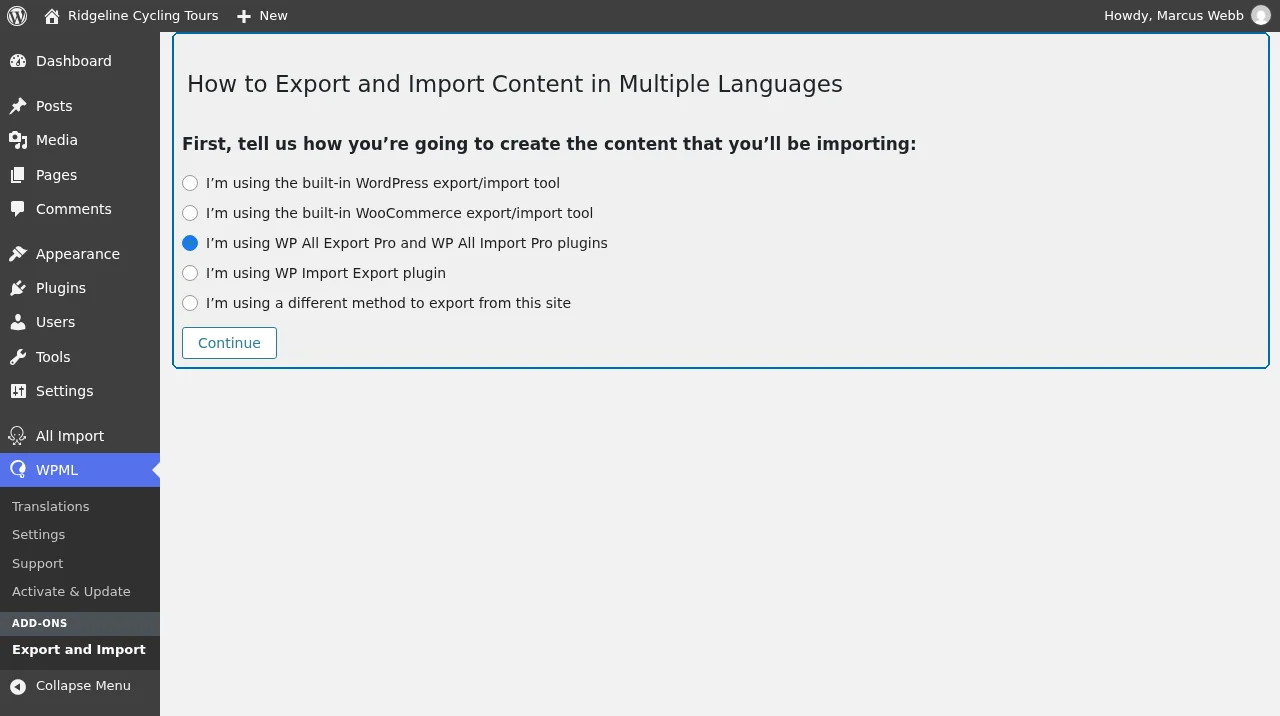
When you export from this site, the wizard also asks which tool you’re using – the built-in WordPress or WooCommerce export/import tools, WP All Export and WP All Import, WP Import Export, or a different method.
Based on your answers, the page shows a three-step guide tailored to your setup: how your content gets its language columns (automatically for supported tools, manually otherwise), the import itself, and the reminder to come back and run WPML Import. Once it detects imported content with language information, the page reports how many posts and terms are waiting and shows the Run WPML Import button.
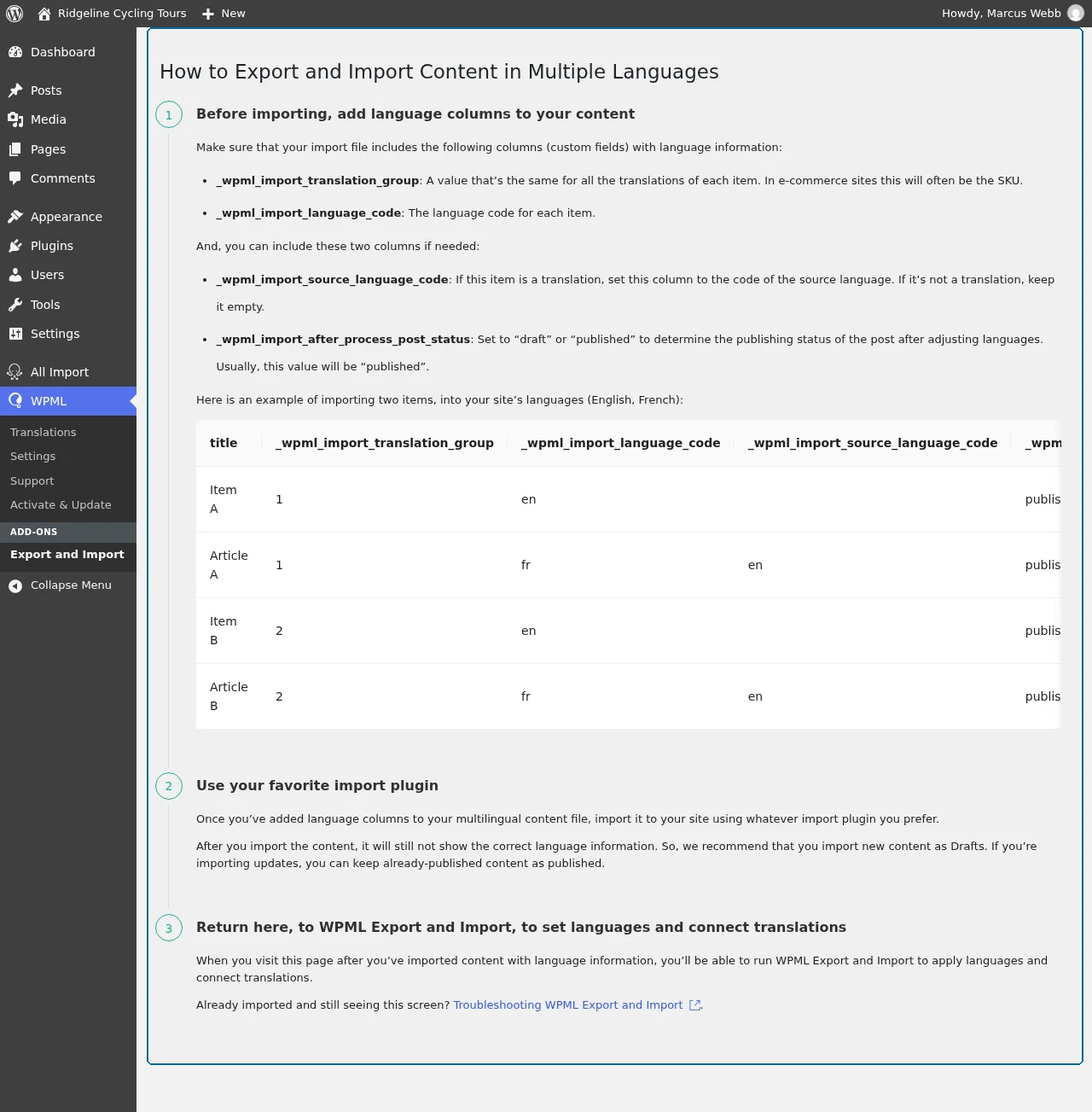
There is nothing else to configure – this page is the plugin’s whole interface.
Prepare Your Own File – Spreadsheets and External Systems
Add three columns to each row of your file. These are how WPML pairs translations together and tags each row with the right language:
_wpml_import_translation_group. A unique value shared by all language versions of one piece of content. For products, use the SKU. For everything else, generate your own ID and reuse it for the source row and each translation of it._wpml_import_language_code. The ISO language code for the row (enfor English,esfor Spanish,frfor French,pt-ptfor European Portuguese, and so on)._wpml_import_source_language_code. Only on translation rows; the language code of the original. Leave it empty for source-language rows.
Use each translation group value for one piece of content only. WPML keeps the group of every item it connects, also after the import. A row that you import later with the same group value joins the translations of that item.
Two more columns are optional on post and product rows:
_wpml_import_after_process_post_status. The status that the post gets after Run WPML Import. Use a WordPress status name:publish,draft,pending, orprivate. Writepublish, notpublished._wpml_import_tea. Set it to1on a source row to send that item to automatic translation. This column acts only when WPML’s Translate Everything mode is on – see Automatically Translate Imported Content.
Let an AI Assistant Prepare the File
You do not have to add these columns by hand. Give your CSV or export file to an AI assistant together with an instruction like: “Add the WPML import columns _wpml_import_translation_group, _wpml_import_language_code and _wpml_import_source_language_code to this file. The English rows are the originals; pair each translation with its original by SKU.” The assistant fills the three columns in seconds. Review a few rows before importing.
Here is a worked example for blog posts. The file has a language column, and an original column with the title of the English post that a row translates:
title,content,language,original
Summer Sale,Our summer sale starts on June 1.,English,
Soldes d'été,Nos soldes commencent le 1er juin.,French,Summer Sale
The instruction for this file:
Add the columns _wpml_import_translation_group, _wpml_import_language_code and _wpml_import_source_language_code to this CSV. The English rows are the originals. For each English row, make a short ID from its title and use it as the translation group. Give each translation the group of the English row that its original column names. Use the language codes en and fr. Leave the source language empty on English rows, and set it to en on the translations.
The result, with the content shortened:
title,content,language,original,_wpml_import_translation_group,_wpml_import_language_code,_wpml_import_source_language_code
Summer Sale,...,English,,summer-sale,en,
Soldes d'été,...,French,Summer Sale,summer-sale,fr,en
For WP All Import Pro and similar tools, prepare two spreadsheets: one for taxonomies (categories, tags, product categories), one for posts and products. The built-in WooCommerce import tool takes a single spreadsheet because product categories live inside the product rows.
Custom WooCommerce Attributes for Variable Products
If you have variable products with custom attributes, add an extra column to translated product rows: _wpml_import_wc_local_attribute_labels. The value is a JSON object of slug:translation pairs. For a French variable product with Size and Color attributes:
{"size":"Taille","color":"Couleur"}The slug is the attribute name in lowercase with spaces replaced by dashes.
Import Taxonomies First, Then Posts
When you have a separate file for taxonomies, always import it first. Categories, tags, and any other taxonomies need to exist before posts and products can reference them. Then import posts, pages, products, and other content types.
If you split your data into one file per language, import every language file before running the WPML wiring step.
You only run WPML Import once, after everything is in. The wiring step processes taxonomies before posts, and then reconnects each post to the terms in its own language – so posts that were imported while the terms were still unwired come out attached to the right-language terms.
Map the Language Columns in Your Import Plugin
Each import plugin handles custom columns its own way. The critical step is mapping the three WPML columns to custom fields (or term meta, for taxonomies). In WP All Import Pro, this happens in Step 3 of the import wizard:
- For posts and products. Open Custom Fields, add three fields, drag the language columns to the Value boxes, and use the column names without brackets in the Name boxes.
- For taxonomies. Open Term Meta, add three term-meta fields, and map the language columns the same way.
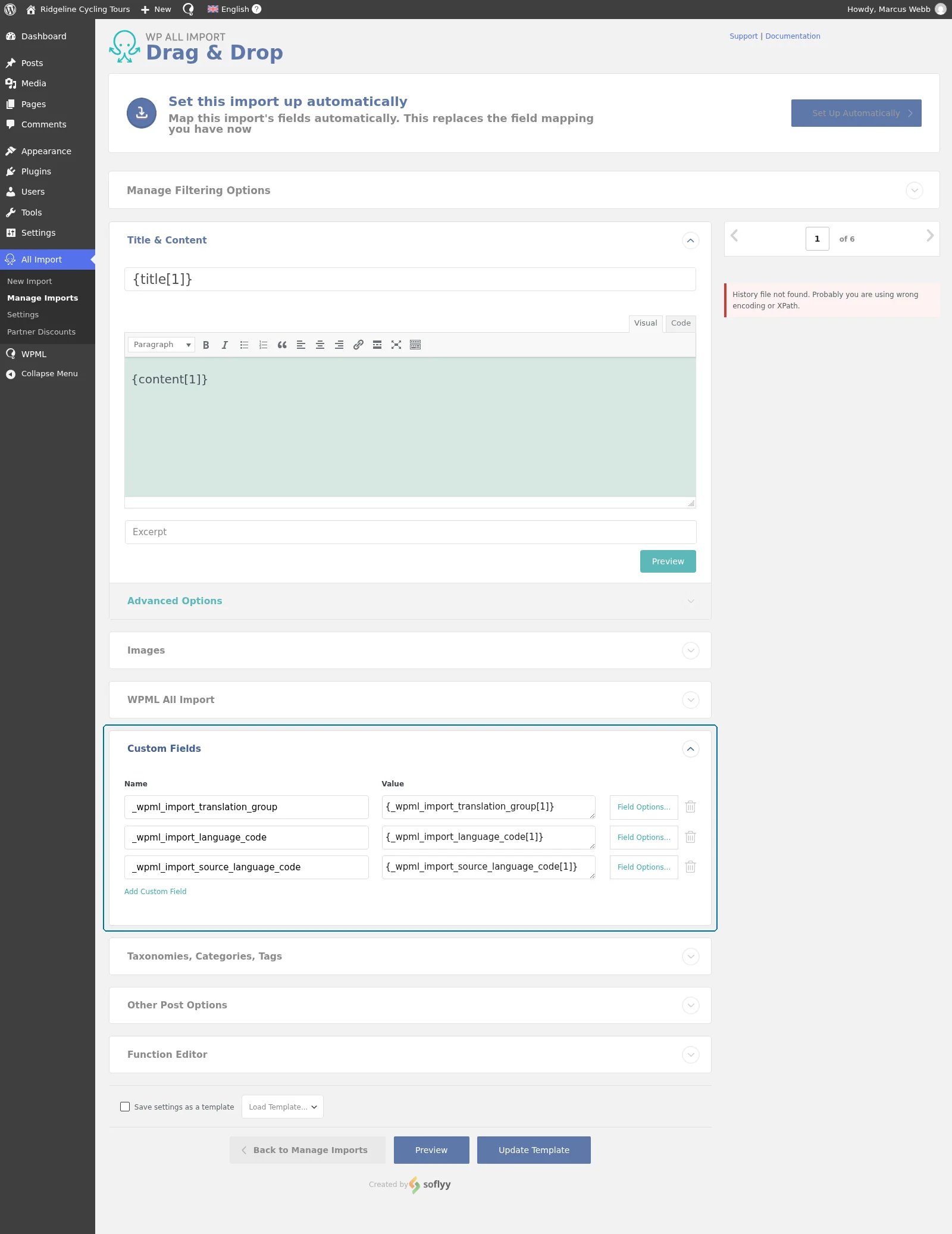
If the columns aren’t mapped, WPML has nothing to read when you run the wiring step.
What You’ll See Between the Import and the Wiring Step
Until you run WPML Export and Import, imported content all sits under your default language, and WPML automatically holds posts and products in Draft status to keep mixed-language content off the front-end. This is the expected interim state, not a sign of a failed import. After the wiring step, the content is published – or set to whatever status you put in the _wpml_import_after_process_post_status column.
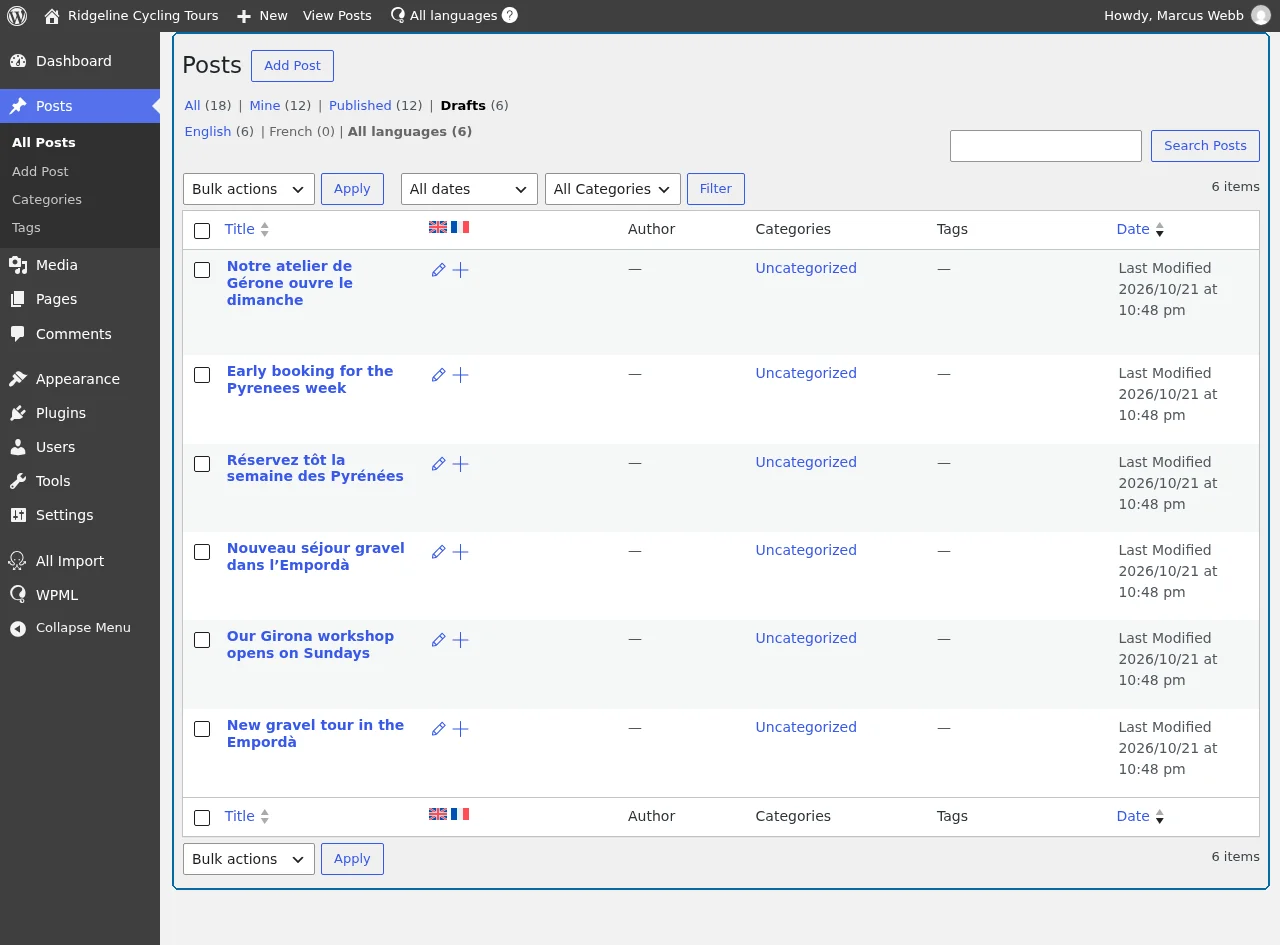
For unsupported import plugins, you’ll need to publish posts manually after the wiring step is done.
Run WPML Import
Once the import plugin has finished:
- Open WPMLExport and Import in the WordPress admin.
- Click Run WPML Import.
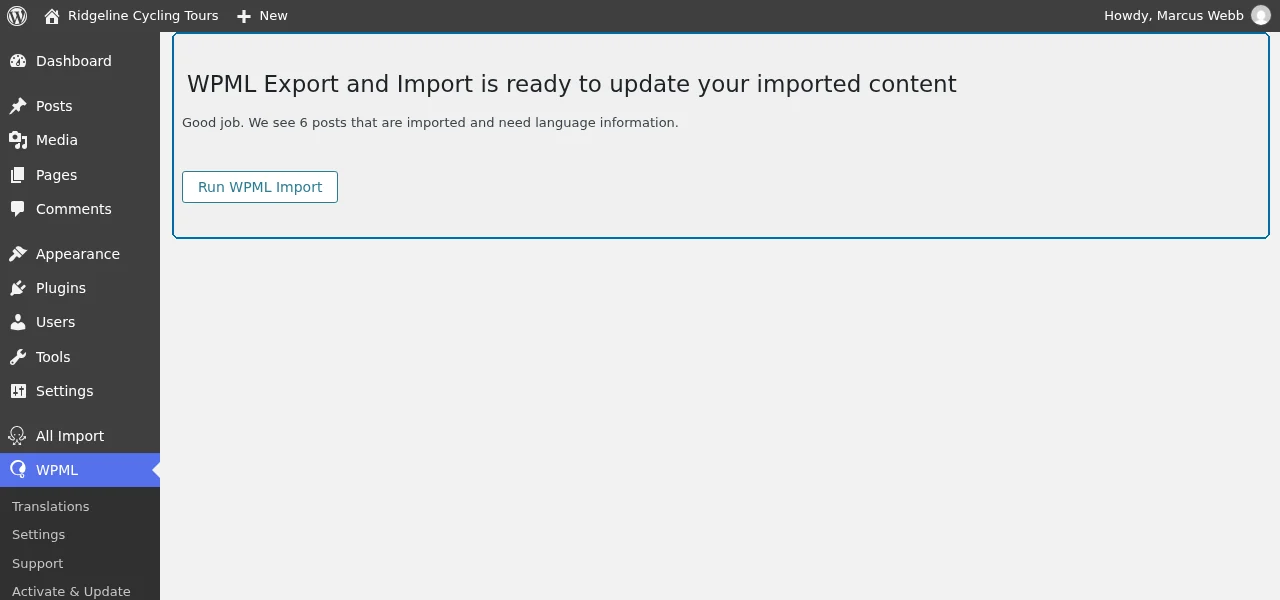
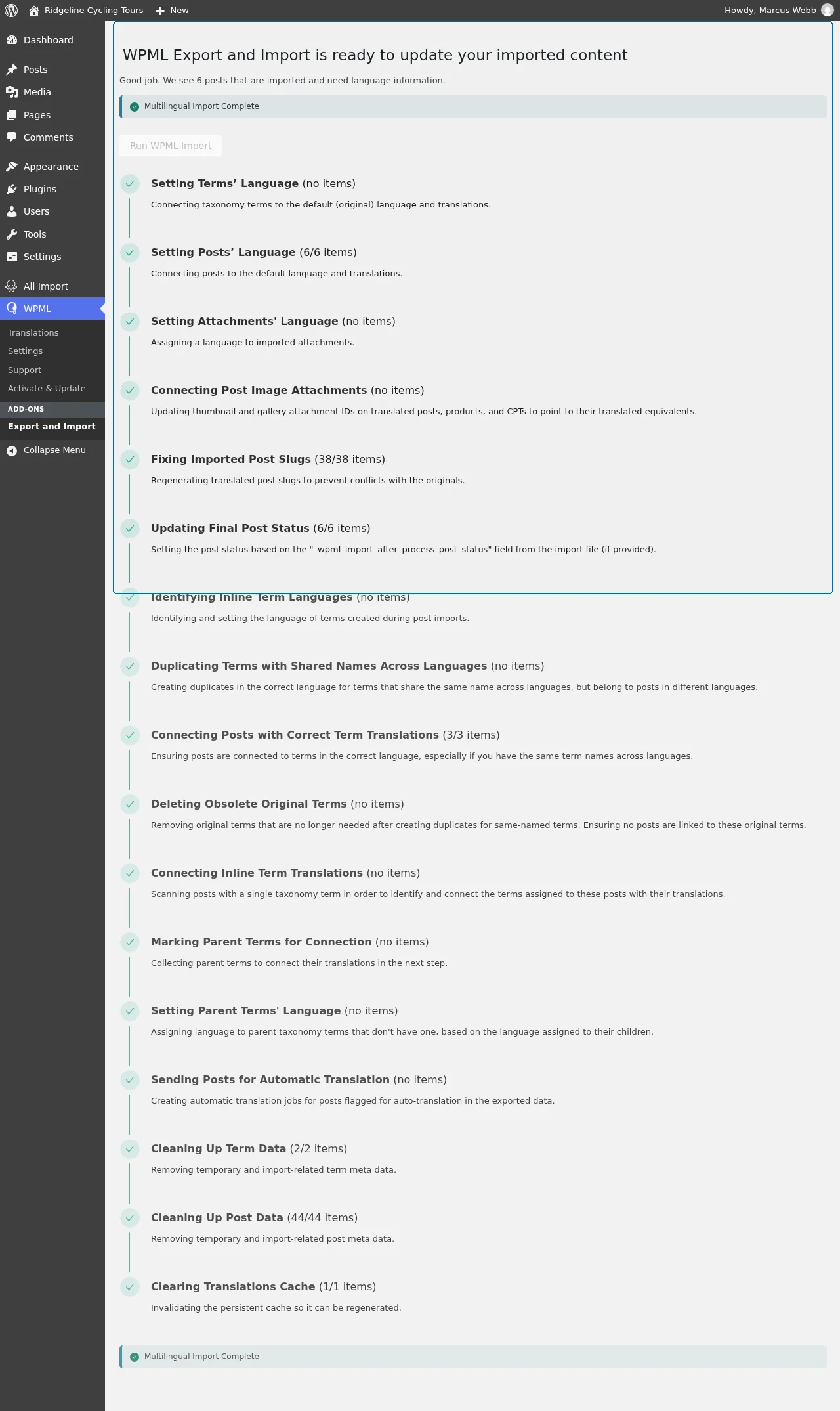
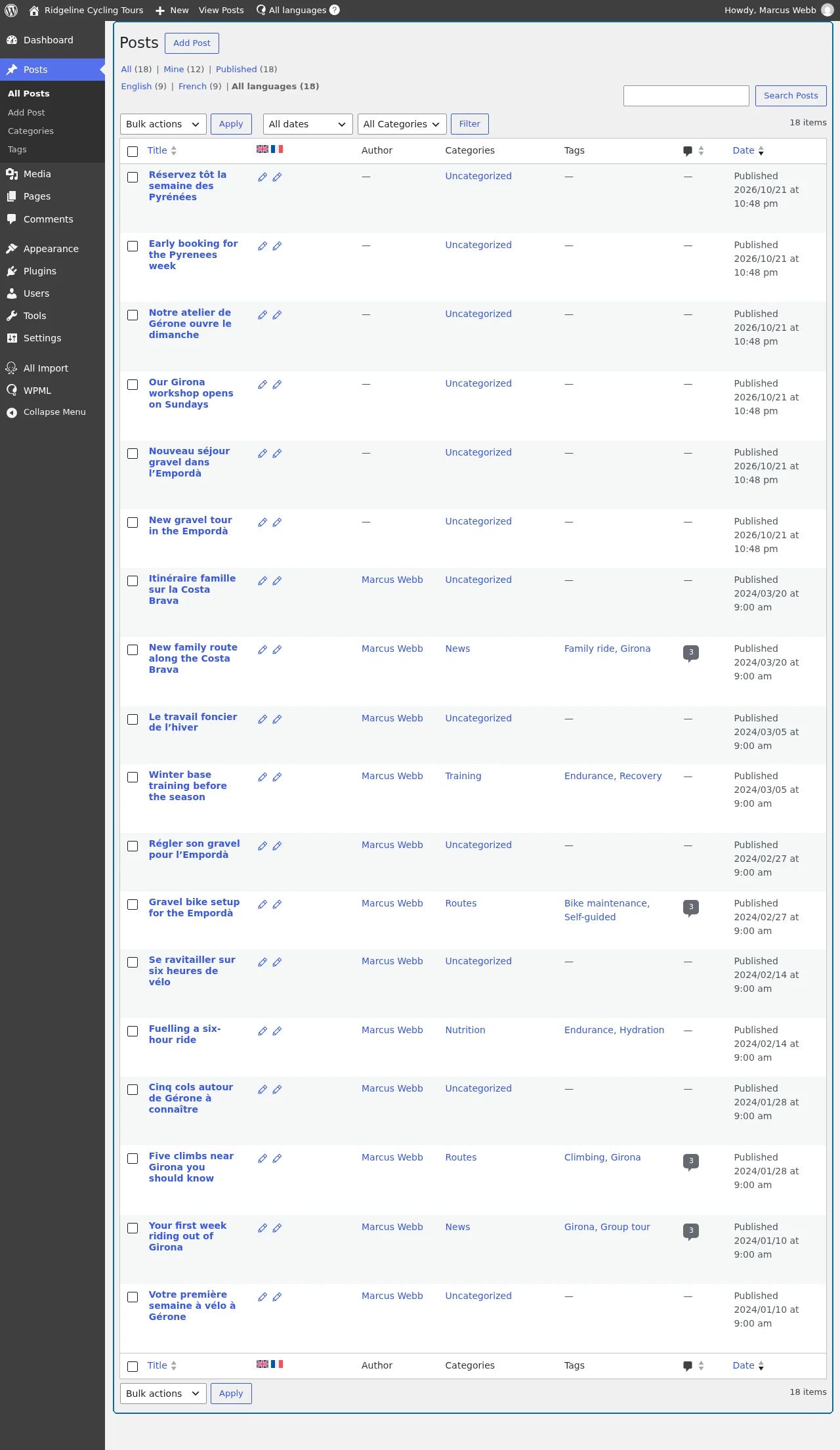
WPML reads each row’s language columns, assigns the language to that row, and links translations to their source. On large catalogues this can take several minutes. When it’s done, your imported content is published in the correct language with every translation connected to its source.
Spot-check on the back-end and the front-end:
- Open the post-type or product list – confirm each row shows under the right language flag.
- Visit the front-end and switch languages – each translated page should load its translated version, not fall back to the source.
If a taxonomy translation didn’t link up, open the term in the WordPress admin and use the term’s Languages box to connect it to the default-language term.
What WPML Import Does Not Cover
WPML Import sets the language of each item and connects its translations. It does not change other content. Check these after the import:
- Parent pages, menus, and sticky posts. WPML does not adjust the parent of a translated page, does not add imported items to menus, and does not copy the sticky setting between languages.
- Links and image IDs inside the content. WPML does not change the links, the image IDs, or the image fields inside the imported content. Edit them in the translation.
- Copied fields. WPML Import connects translations, but it does not copy fields such as price or stock from the original to the translations. To copy them after an update import, open the original and save it again.
- WooCommerce Bookings. Bookable products import without their person types (child, adult etc.) and resources. Add the person types and resources to the translated products after the import.
Automate – Run WPML Import Without Clicking
For nightly syncs, supplier feeds, deployment pipelines, or any scheduled import, the WPML wiring step can run without the admin UI. Three ways to wire this up:
POST Endpoint (for Cron-Driven Imports Like WP All Import Scheduled Actions)
This is the recommended way. Add a strong secret key to wp-config.php:
define( 'WPML_IMPORT_KEY', 'your-strong-secret-key-here' );Then add a second command to your scheduled-import setup. It sends a POST request to your site and passes the key in the request body:
curl -X POST https://yoursite.com/ \
  -d 'wpml_import_trigger=your-strong-secret-key-here'
The same call with wget:
wget -q -O - \
  --post-data='wpml_import_trigger=your-strong-secret-key-here' \
  https://yoursite.com/
For WP All Import Pro’s manual scheduling, add either command right after the import command.
When the wiring step runs, your site answers with the status 200 and this message:
Import process completedTwo other answers tell you what happened: 401 means the key doesn’t match, and 204 means there was nothing left to process.
The Old URL Endpoint – Removed in 5.0.0
Before WPML Export and Import 1.2.0, you passed the key in the URL:
https://yoursite.com/?wpml_import_trigger=your-strong-secret-key-hereSince WPML Export and Import 5.0.0, this URL no longer runs the import. A request that carries the key in the URL gets the status 405. Move your scheduled imports to the POST call above.
The reason is the key. A URL travels through server logs, browser history, and analytics, and your key travels with it. A POST request keeps the key in the request body.
Action Hook (for PHP-Scheduled Imports)
If you’re scheduling imports from PHP with Action Scheduler or wp_schedule_single_event, trigger the WPML step with one action call:
do_action( 'wpml_import_process' );To run it as a one-off background task right after your import action:
wp_schedule_single_event( time(), 'wpml_import_process' );If an import doesn't finish, see Debugging WPML.
WP-CLI
For deployment scripts, container builds, or any pipeline where the admin UI isn’t available, run the wiring step from WP-CLI:
wp wpml import processThe command reports how many translations were connected. It’s a drop-in replacement for the Run WPML Import button.
Automatically Translate Imported Content
You can have WPML translate imported content automatically. Without this, you would import the content in one language and then – with Translate Everything Automatically enabled – select all the imported items and send them for translation yourself, which gets time-consuming for large batches and repeated imports. Add one more column to your file instead:
_wpml_import_tea. Set to1on the source-language rows you want translated automatically.
When you run WPML Import, WPML creates automatic translation jobs for every flagged post, into each of your site’s languages that doesn’t already have a translation. Rows you imported translations for are left alone.
This requires WPML’s Translate Everything Automatically mode to be enabled – without it, the flag is ignored.
Common Pitfalls
- Import file is missing the three language columns. Content imports but lands as untagged source-language rows; Run WPML Import has nothing to wire. Fix: add the columns to your source data, re-export, and re-import.
- WP All Import’s Custom Fields / Term Meta mapping was skipped. Same shape as missing columns. The data is in the file but the import plugin didn’t store it on the post. Re-run the import with the fields mapped.
- Target languages aren’t set up on the import site. Imported rows for an unconfigured language land in the default language. Add the missing languages at WPMLSettingsLanguages first, then re-run.
- Unsupported import plugin. Imported posts stay in Draft after the wiring step. Publish them manually, or switch to a supported plugin.
- Custom-built import scripts that don’t pass language data through. The fix is at the script level. The three language columns (and the WooCommerce attribute column when applicable) need to reach the row.
- Content that your own code adds is not held in Draft. WPML holds content in Draft only for the supported import plugins. Content that your code adds with
wp_insert_post, or a WooCommerce import that runs from PHP or WP-CLI, keeps the status that the code gives it. Create new content as drafts yourself, and set_wpml_import_after_process_post_statustopublish. wp exportdrops the language columns of terms. WP-CLI 2.12.0 ships export-command 2.1.14, which writes no term meta. Afterwp import, every category and tag loses its language columns. Update export-command to 2.1.15 or later, or export from ToolsExport in the WordPress admin.
If imports keep tripping over the same issue, the WPML support team answers import questions 24/7.
Use Cases
Move Multilingual Content to a New Site
The most common scenario: export the content from one WPML site and bring it – in full or in part – into another.
- On the source site, install WPML Export and Import next to your export tool and export the content you want to move (see Export). The language columns ride along automatically.
- On the new site, complete the Import configuration – plugins installed, every language from the source site set up.
- Import taxonomies, then content, with your import tool.
- Run WPML Import. Your content comes out in the right languages with every translation connected, just like on the source site.
Reset WPML and Re-Import Translations Into the Same Site
Think of the export as a safety copy of your site’s language wiring: each row’s language, and which rows belong together as one translation group. You can keep that copy current automatically – for example, a scheduled nightly export in your export tool, saved to its own file. If WPML’s language data ever gets into a bad state, you reset WPML and re-import the most recent export taken while the data was still good, following the steps below. One thing this cannot do: repair an export made after the problem – the file preserves whatever state the data was in when it was exported.
- Export while the language data is intact – or reach for your latest scheduled export. Export every content type you care about with its translations (see Export). The three language columns capture what you’ll need to restore: each row’s language and which rows belong together as translations of one another.
- Reset WPML. Follow Reset WPML. The reset removes all WPML data – the languages, the language of each item, the links between translations, string translations, and translation jobs – and deactivates WPML. Your posts, pages, products, and taxonomies stay. Activate WPML again.
- Set the languages up again – the same default language and the same secondary languages the site had before the reset.
- Re-import the same file, updating the existing content. This is the step that differs from a new-site migration: the posts already exist, so the import must update them instead of creating new ones. Use WP All Import with record matching (match on ID), or the WooCommerce importer’s update existing products option. The standard WordPress importer can’t do this – it only creates new content, so it would duplicate every row.
- Run WPML Import. The language assignments and translation groups from the file are wired back onto the existing content.
Only the language of each item and the links between translations come back. String translations, translation jobs, and WPML settings are not in the export file. Set them up again after the import.
Add a Language Later
You imported your catalog in English and Spanish, and now you add French. Prepare a file with the French rows only. Give each row the translation group of its original, the language code fr, and the source language en. Import the file and click Run WPML Import. WPML keeps the group of every item it connected, so each French row joins the translations of its original.
Sync a Supplier Feed Every Night
Your supplier sends a product feed every night. The original products are in English, and the feed has the three language columns. Schedule the import in WP All Import Pro, and add the POST call right after it. Set _wpml_import_tea to 1 on the rows of new products. Each night, the new products get their languages, and WPML sends them to automatic translation into your other languages.
Written by