You can create a fully multilingual e-commerce site using Easy Digital Downloads and the WPML Multilingual for Easy Digital Downloads plugin. Learn how to translate your products and the rest of your site’s content.
Getting Started
Start by installing and activating the following plugins:
Please note: For Easy Digital Downloads Multilingual to work, you need to change the permalink structure to something other than the default. You can do this from the Common Settings section in Settings → Permalinks. For the purpose of this tutorial, we are using the Post name option.
Translating Products, Pages, and Posts
Using WPML, you can translate any content on your Easy Digital Downloads website. This includes:
Pages
Posts
Downloads (products)
Variations
Checkout texts
…and more
To translate, go to WPML → Translation Dashboard, select the content you want to translate, and choose a translation method.
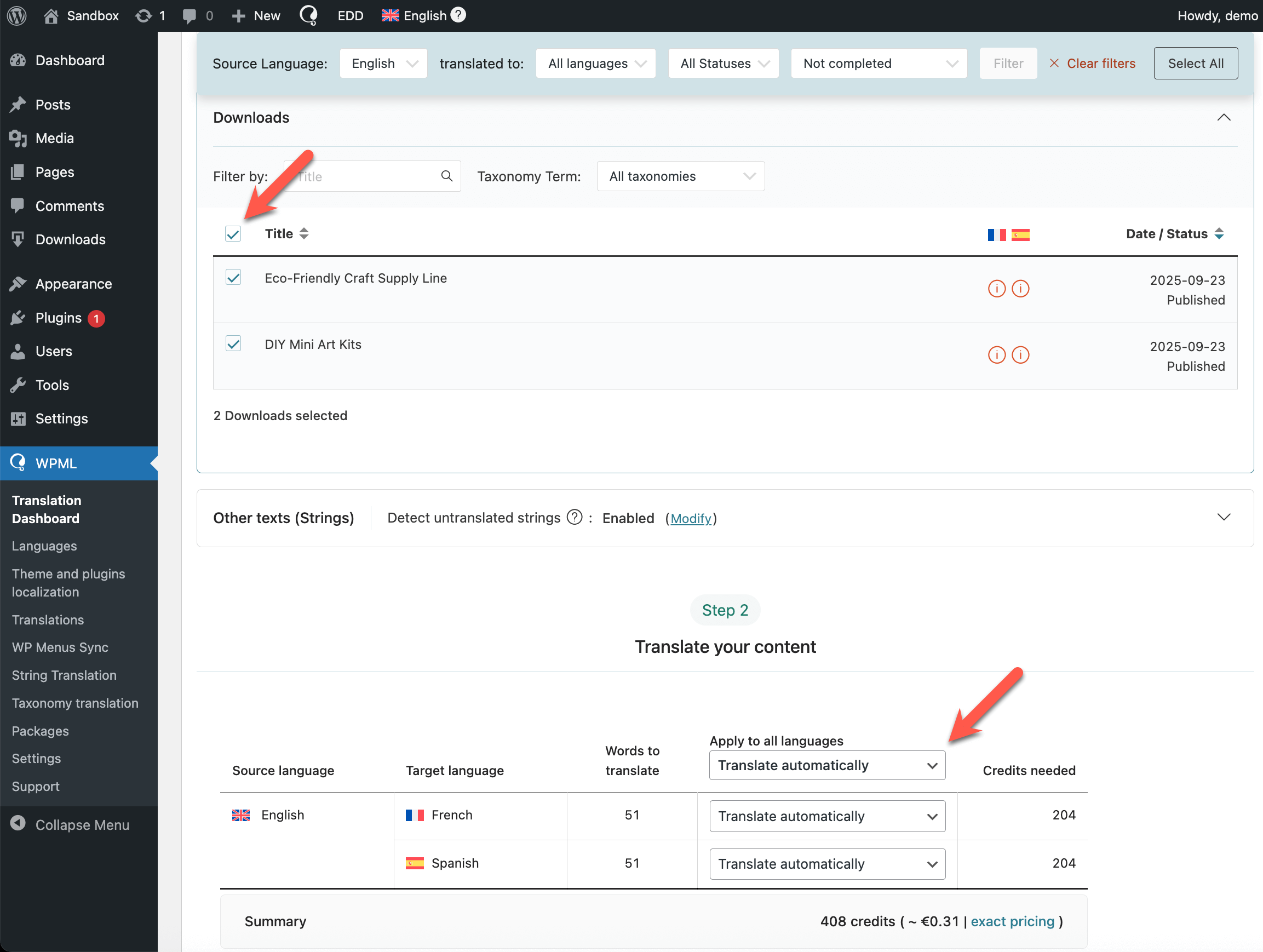
In the case of products created with Easy Digital Downloads, you’ll find them in the Downloads section of the Translation Dashboard.
Selecting Easy Digital Downloads products (Downloads) for translation in the Translation Dashboard
If you choose to Translate automatically, you’ll also need to decide whether to review the translations. To skip the review process, we recommend translating automatically with Private Translation Cloud (PTC), our most accurate translation engine.
When you’re ready, just click Translate. Your translations will be ready within minutes.
Translating Categories and Tags
When you send a post, custom post type, or product for translation, its taxonomies are translated together with the rest of your content.
To learn how to update taxonomy translations or sync taxonomy structures across languages, see the page about translating custom taxonomies.
Translating Texts From Easy Digital Downloads Plugin and Other Places
Besides the content coming from your posts and pages, there are some additional texts coming from your plugins and theme. This includes strings like the Add to Cart button.
To translate these additional texts:
Go to WPML → Translation Dashboard.
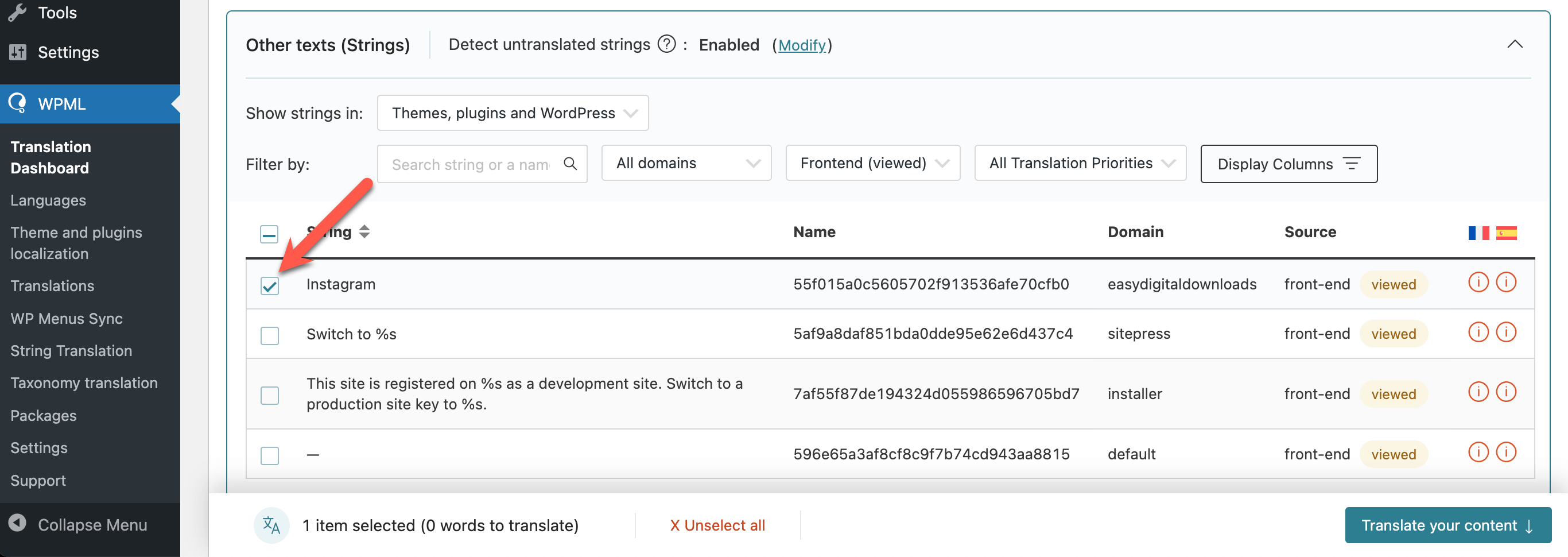
Scroll down to the Other texts (Strings) section and select the strings for translation.
Choose a translation method and click Translate.
Translating additional text from Easy Digital Downloads
Known Issues
There are no unresolved compatibility issues between this plugin and WPML. Search all known issues.
Getting Help
If you need help translating your site built using Easy Digital Downloads and WPML, visit WPML’s support forum.