Creating Multilingual Sliders Using MetaSlider and WPML
Updated: December 24, 2025
MetaSlider (opens in a new tab) is an easy-to-use WordPress slider plugin. This tutorial will show you how to use WPML to translate your sliders created with the MetaSlider plugin.
Getting Started
Start by downloading and activating the following:
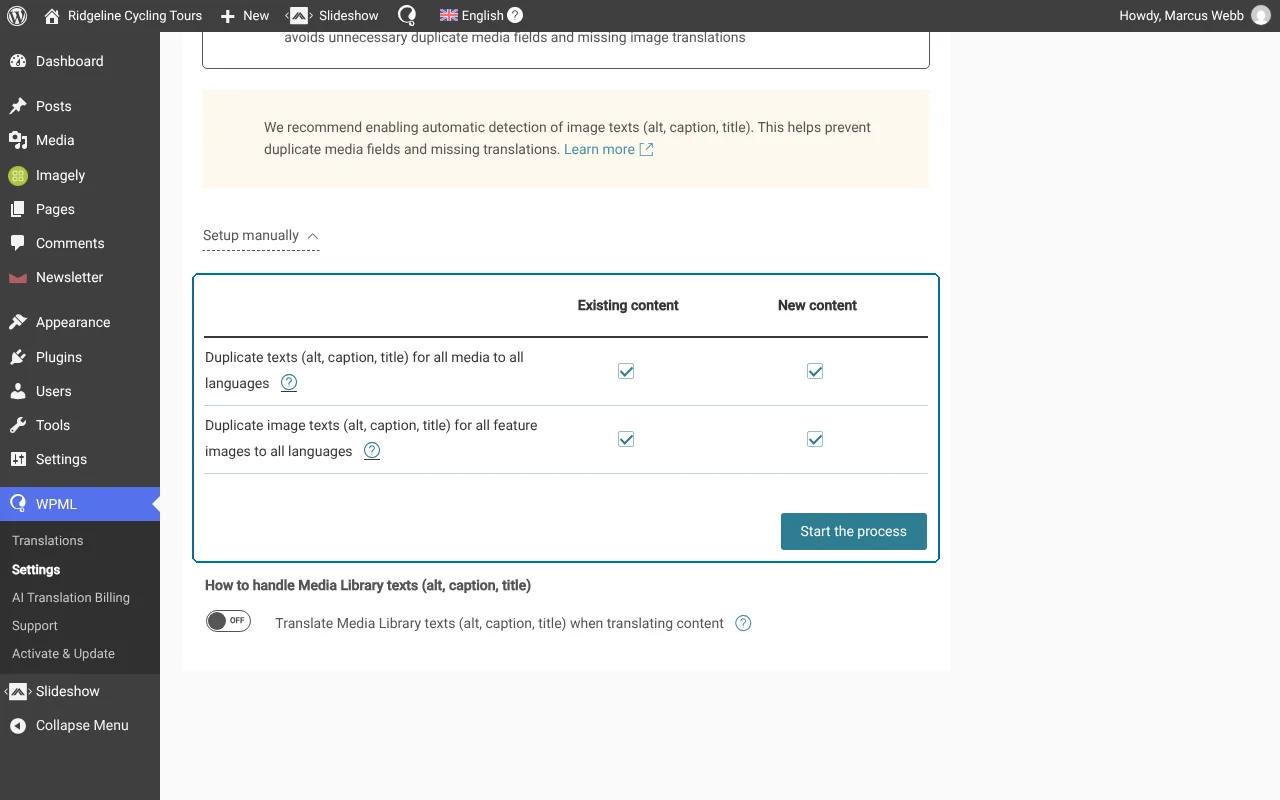
Note: If you had images in your media library before installing WPML, you may need to duplicate your media. To do this, go to WPML → Settings → Media Translation. WPML opens this screen on its recommended setting, Automatically detect best options for translating image texts; the options this step needs are under Setup manually. Open it, and in the Existing content section mark all the options as shown below. Then click the Start button.
Updating Media Translation settings
To learn more about translating images, see our page about Media Translation.
Creating Your Default Language Slider
To create a slider using MetaSlider:
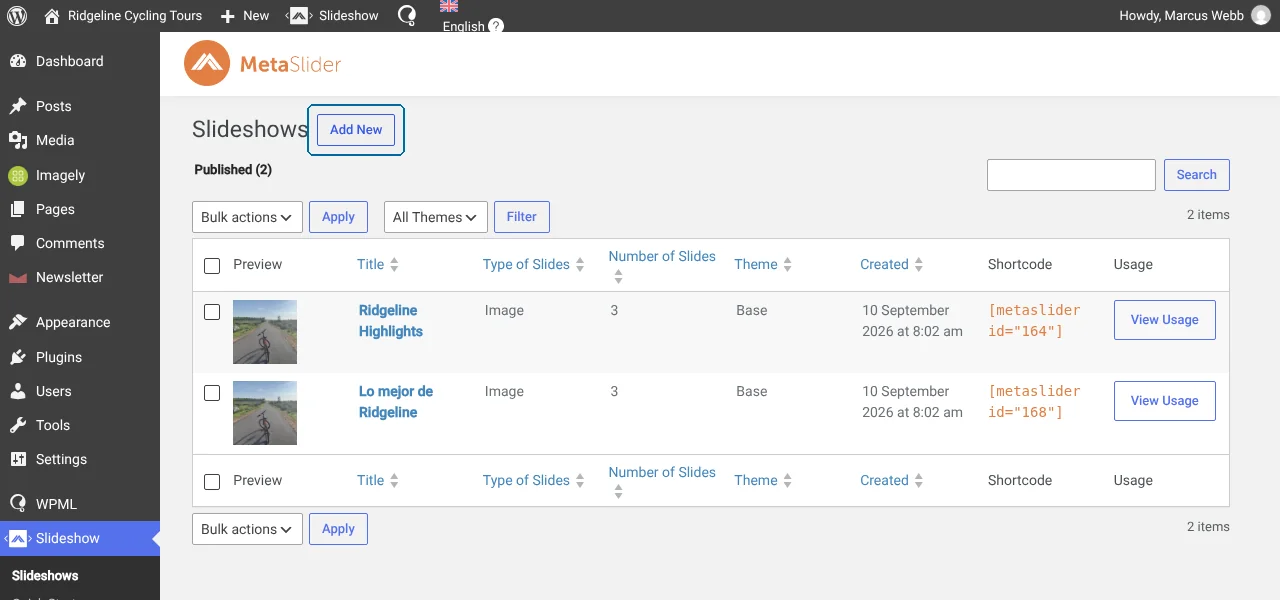
From your admin menu, go to MetaSlider → MetaSlider and click on New in the upper right-hand corner.
Creating a new slideshow
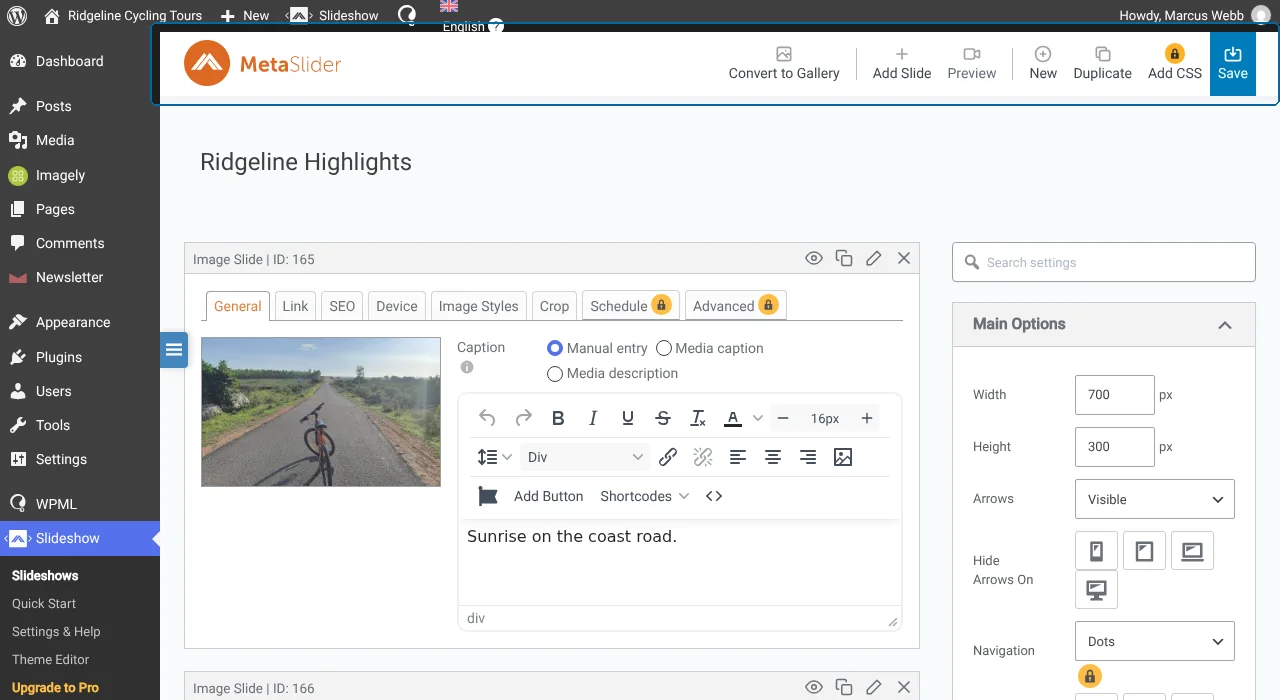
Name your slider and click the Add Slide button to add slides. You can choose between adding existing images from the Media Library or uploading new images.
Adding slides to your slideshow
Configure your slider as best fits your needs and click the Save button in the upper right-hand corner when you’re done.
Creating Your Secondary Language Slider
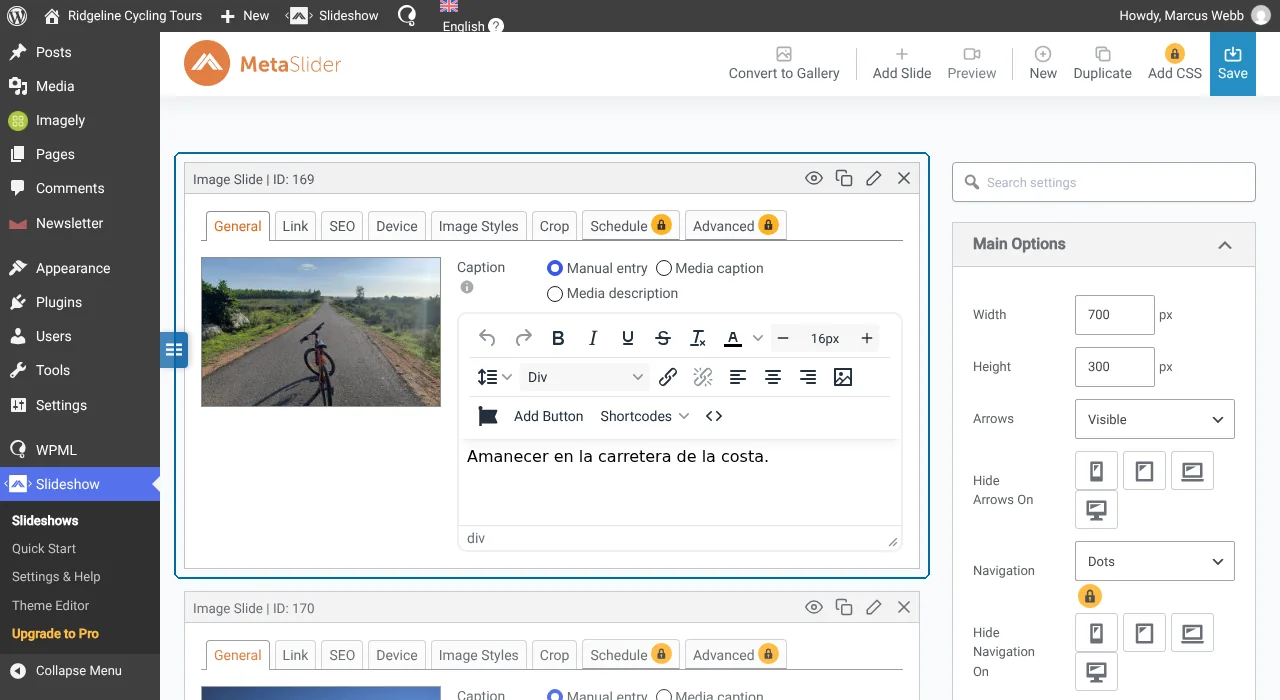
In MetaSlider, open your default language slider and click the Duplicate button.
Once the page reloads, translate your slider name and image captions. You can also change images or slideshow settings for your secondary language.
Save your secondary language slider.
Translating MetaSlider image slides
Adding the Default Language Slider to a Page or Post and Translating It
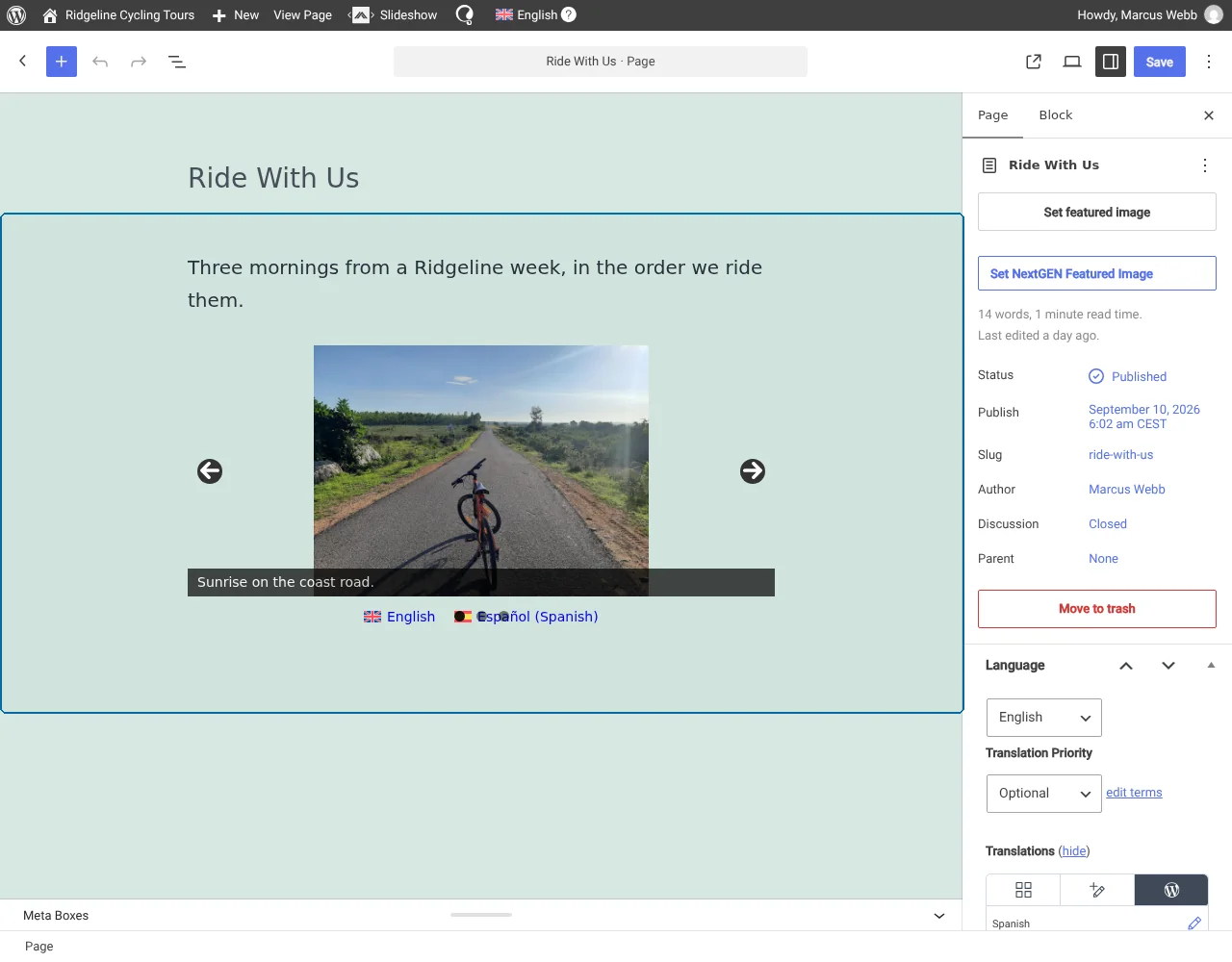
To add your MetaSlider slider to a page or post, add the MetaSlider block and choose the correct slider in your default language from the drop-down list.
Adding the default language slider to a page
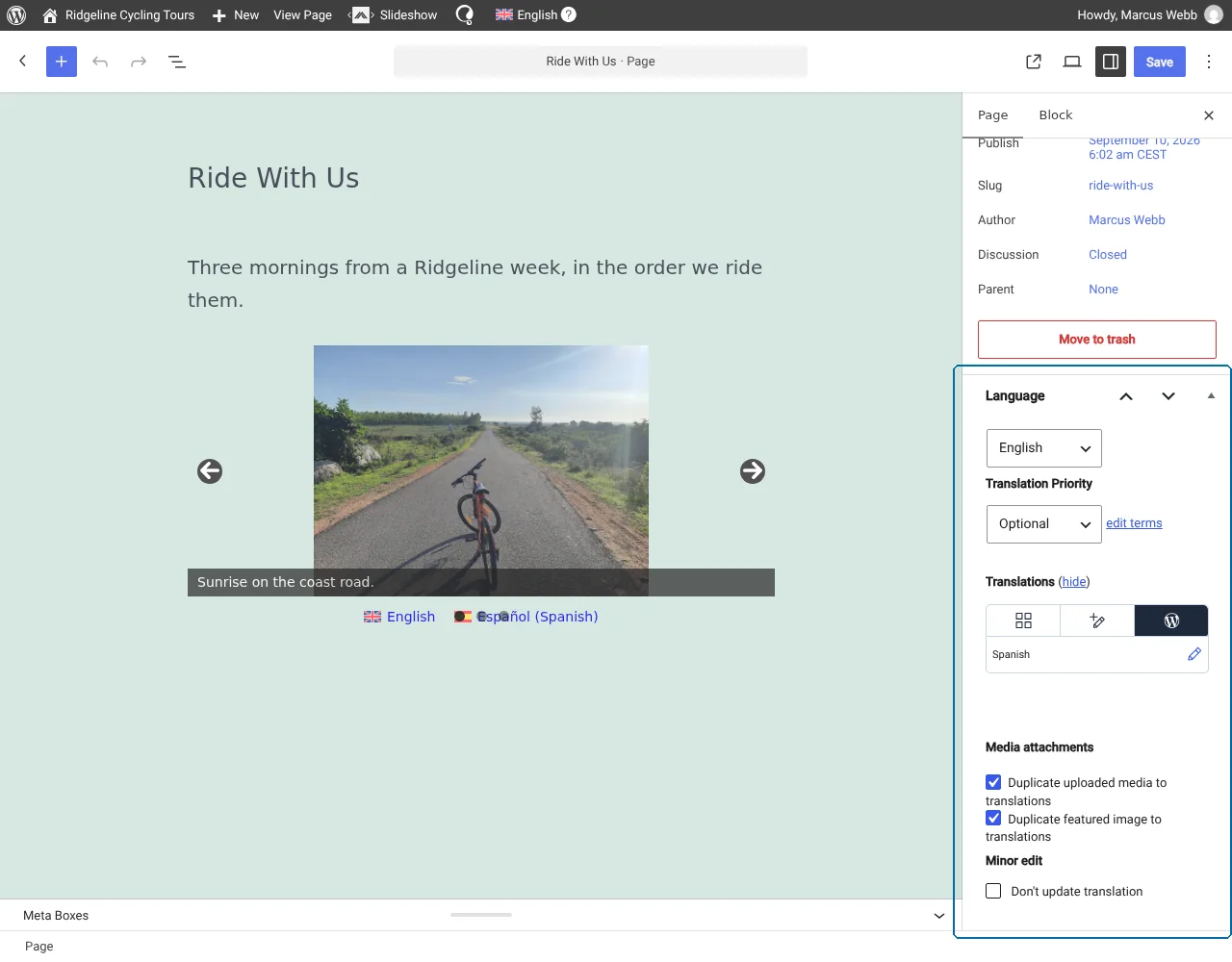
From the Language box in the right sidebar, switch to using the WordPress Editor to translate the page content. In the pop-up that appears, confirm that you want to use the editor to translate this page.
Selecting the WordPress Editor to translate the page content
Click the plus icon next to the language you want to translate the page into.
Add the title and any other content you’d like to your secondary language page.
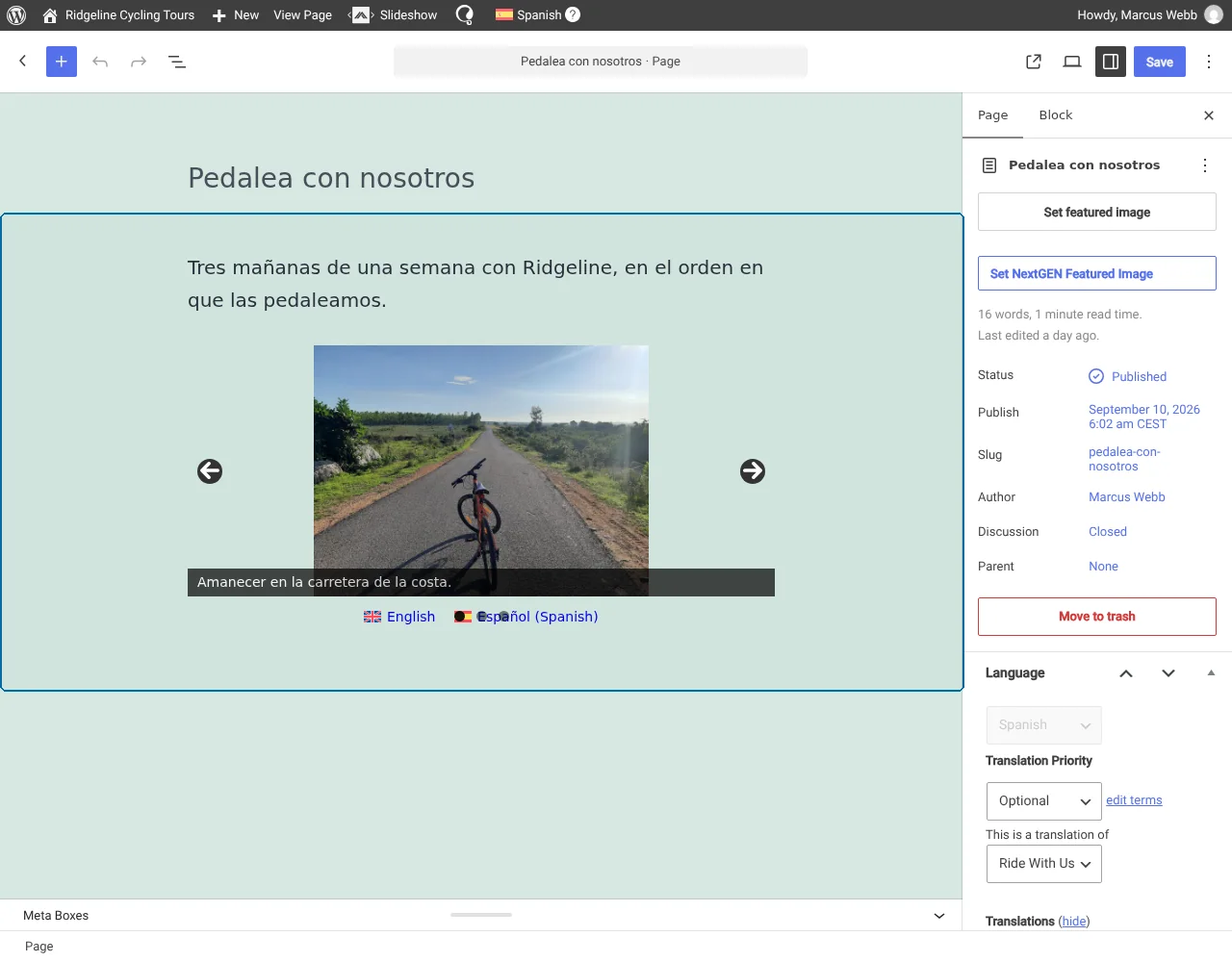
Similarly as with your default language page, add the MetaSlider block. This time, choose the slider you created in your secondary language from the drop-down list.
Adding the secondary language slider to a page
Click the Publish button to save the secondary language page.
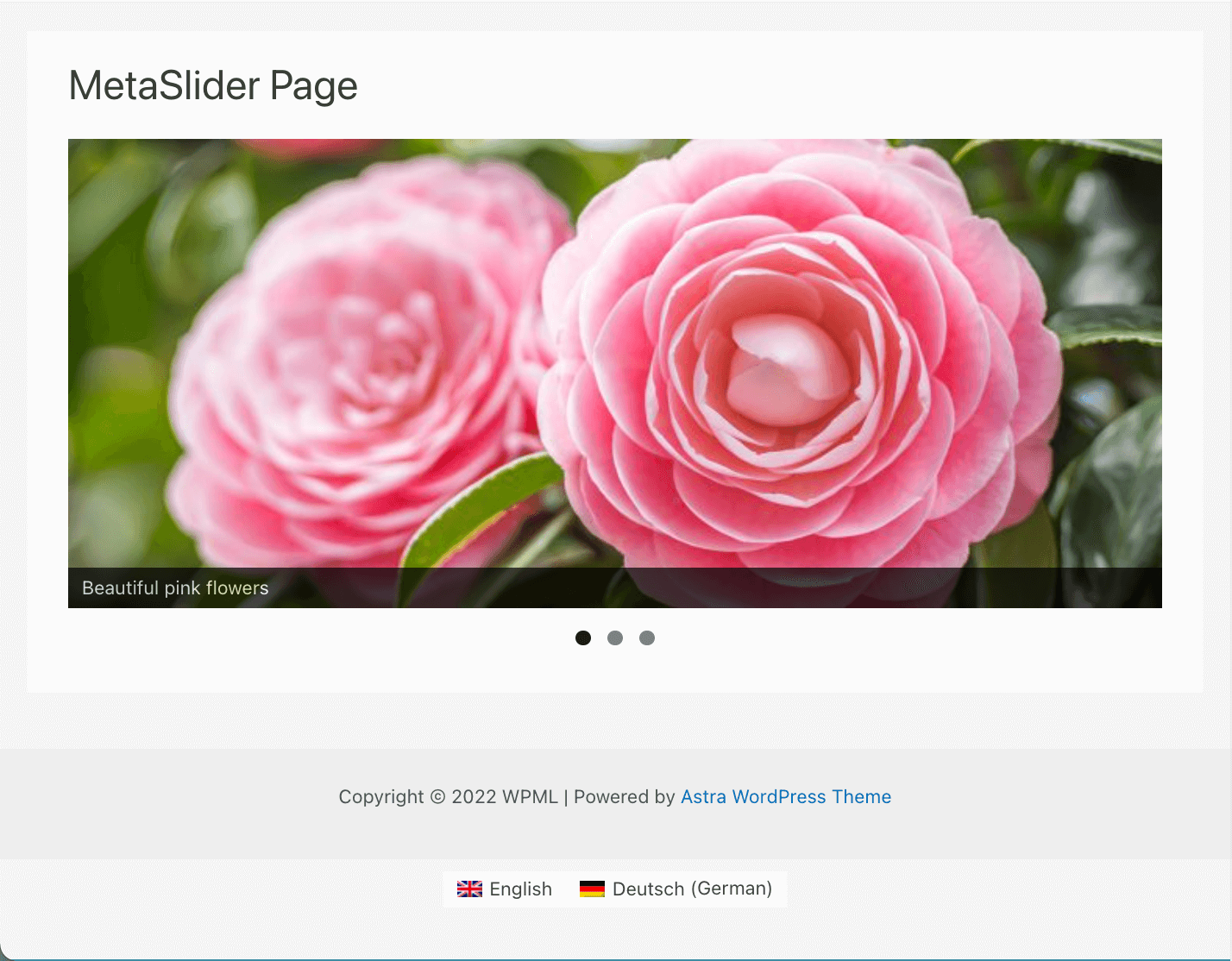
You can now view your pages with the sliders on the front-end:
The slider in the default language
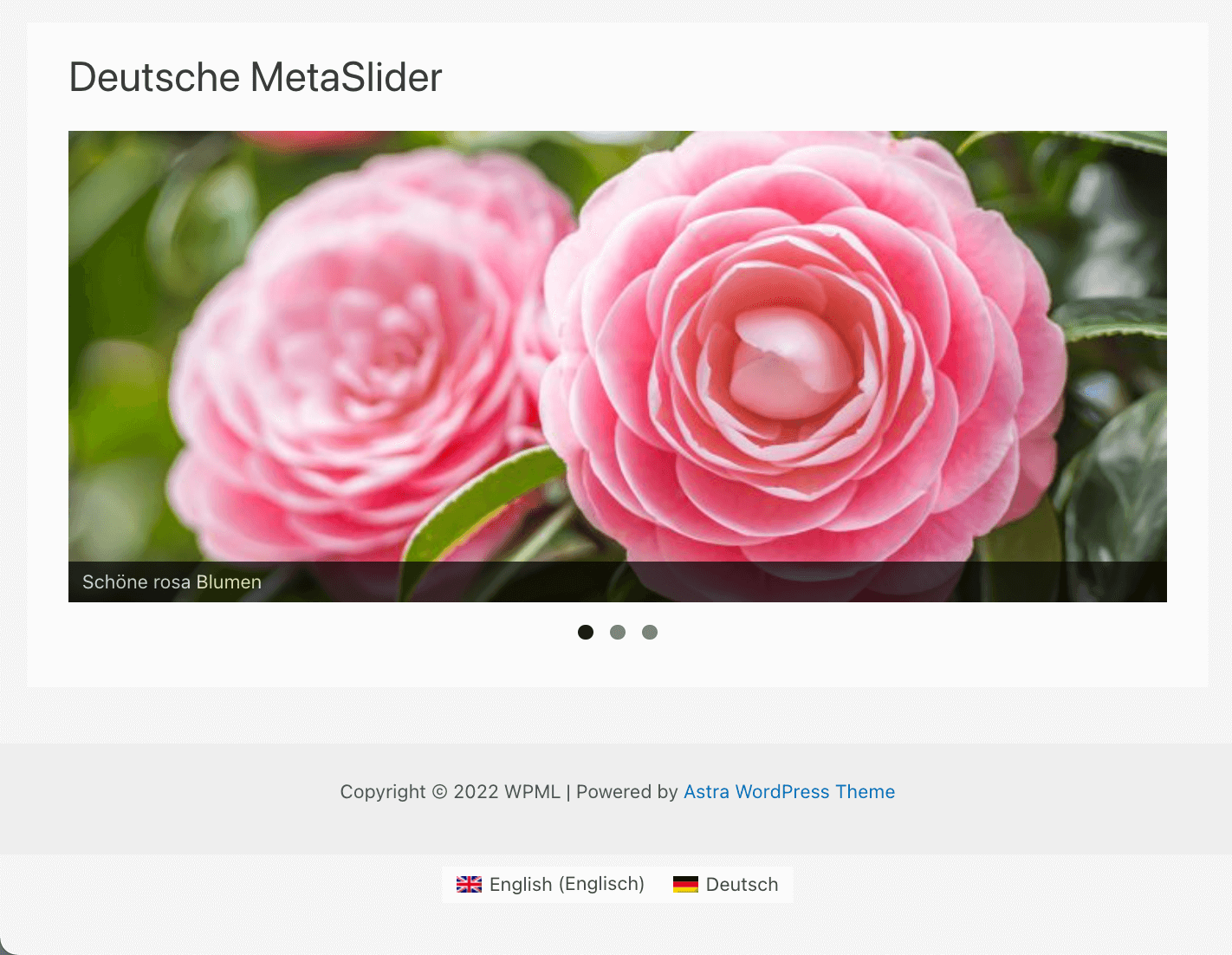
The slider in the secondary language
Known Issues
There are no unresolved compatibility issues between this plugin and WPML. Search all known issues.
Getting Help
If you need help translating your site built using MetaSlider and WPML, visit WPML support.