

On this page
How to Enable Multi-currency in WooCommerce
Add A Currency Switcher for WooCommerce with WCML
Customize Prices And Shipping Rates For Multiple Currencies
How to Enable Multi-currency in WooCommerce
Here are the easy steps to take to add WooCommerce multiple currencies with WCML:
- Download and install WCML
- Go to WooCommerce → WCML and enable multi-currency mode
- Add your secondary currencies
- Configure automatic exchange rates
Let’s see these steps in more detail:
1. Download and install WCML
To run your store in multiple currencies, install and activate:
- WooCommerce
- WPML Multilingual & Multicurrency for WooCommerce
To access the full multilingual features, you also need WPML and WPML String Translation.
2. Go to WooCommerce → WCML and enable multi-currency mode
Enable multicurrency mode and choose how you want to show currencies:
- Choose the free option to set up currencies by location.
- If you have a WPML subscription, you can also choose to show currencies by language.
Option 1: Show Multiple Currencies Based on Location
WooCommerce uses MaxMind Geolocation to detect the customer’s IP address. Create a free MaxMind account and enter your license key.
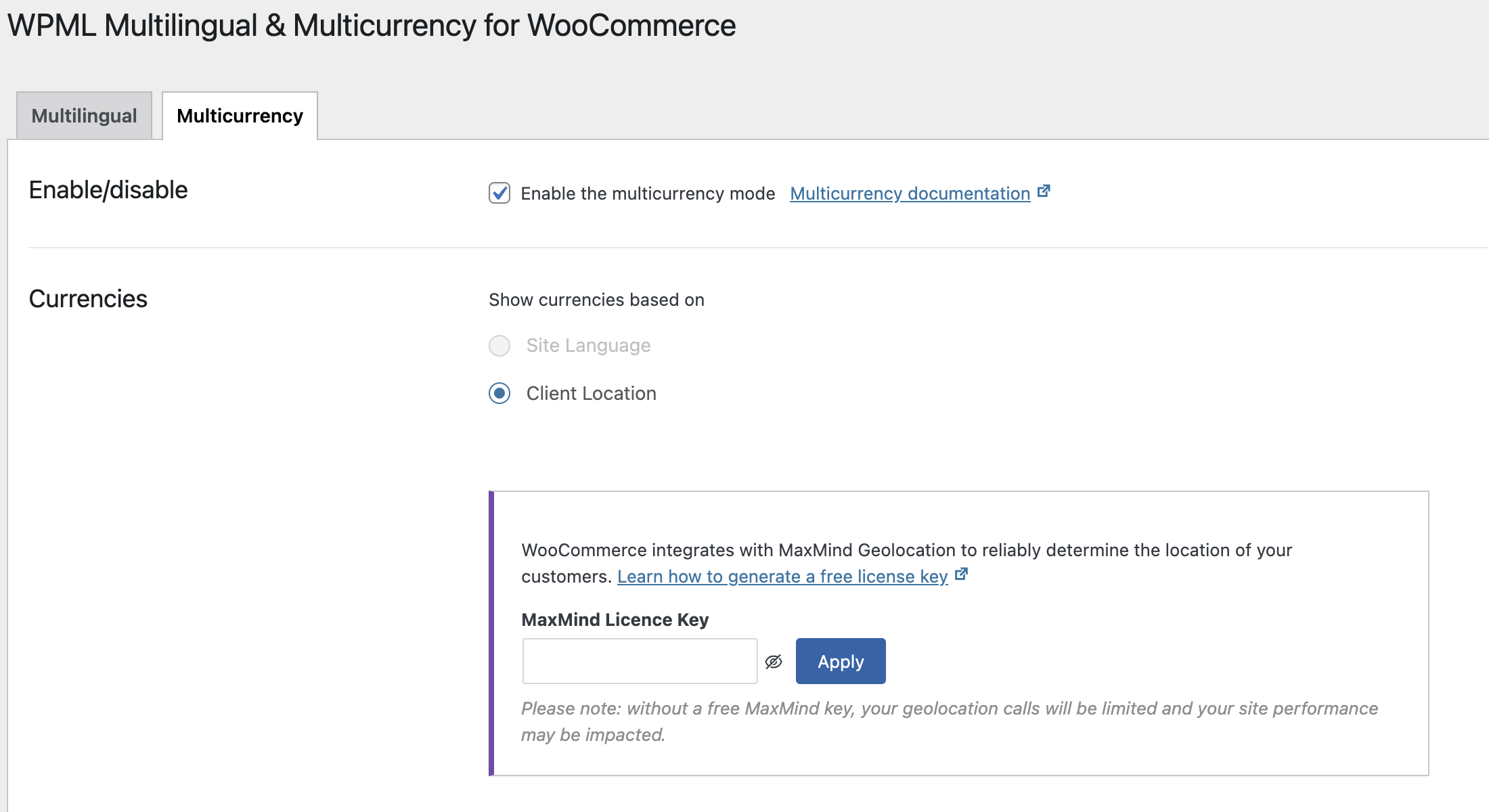
If needed, you can use the wcml_geolocation_get_user_country filter hook to override the default geolocated country and use the billing or shipping address instead.
See the full set of WCML filters and hooks.
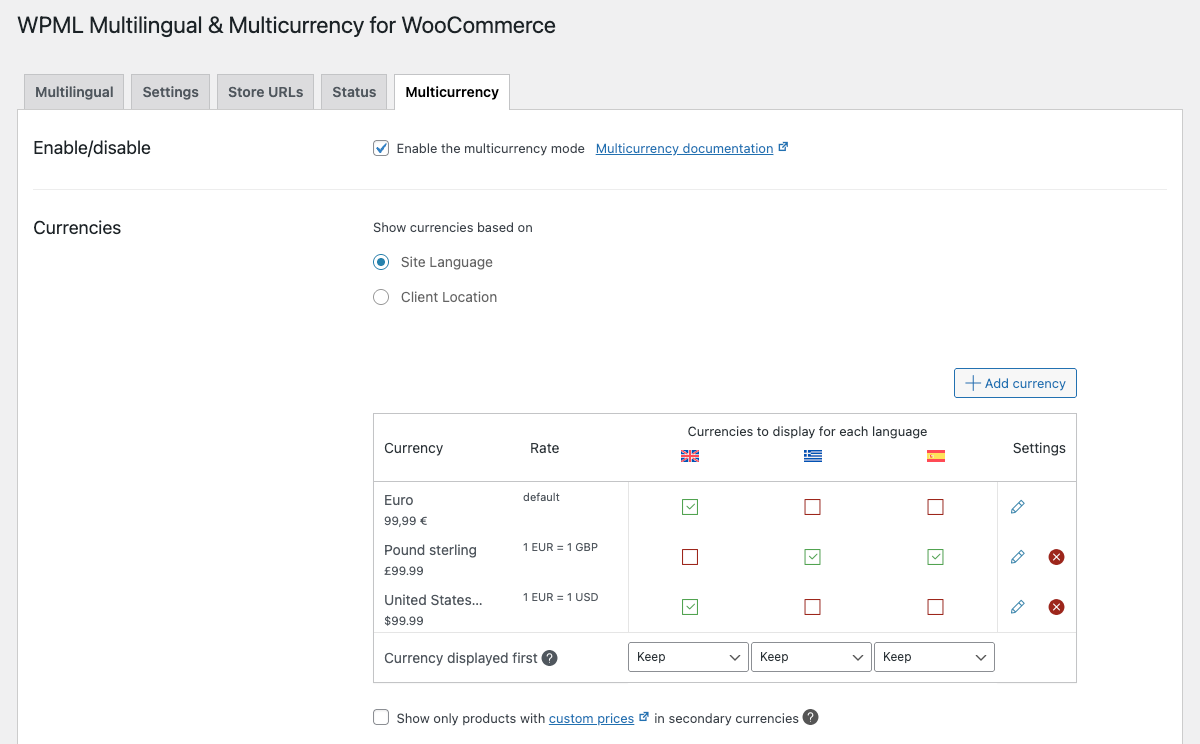
Option 2: Show Multiple Currencies Based on Language
If you have WPML, you can set a default currency for each language. Users will see prices in that currency when they switch languages. You can opt to display multiple currencies for each language or a single currency based on the customer’s language.
3. Add your secondary currencies
Click on Add currency to add multiple currencies in your WooCommerce store from 200+ currencies available. Choose the countries you want to display each currency in.
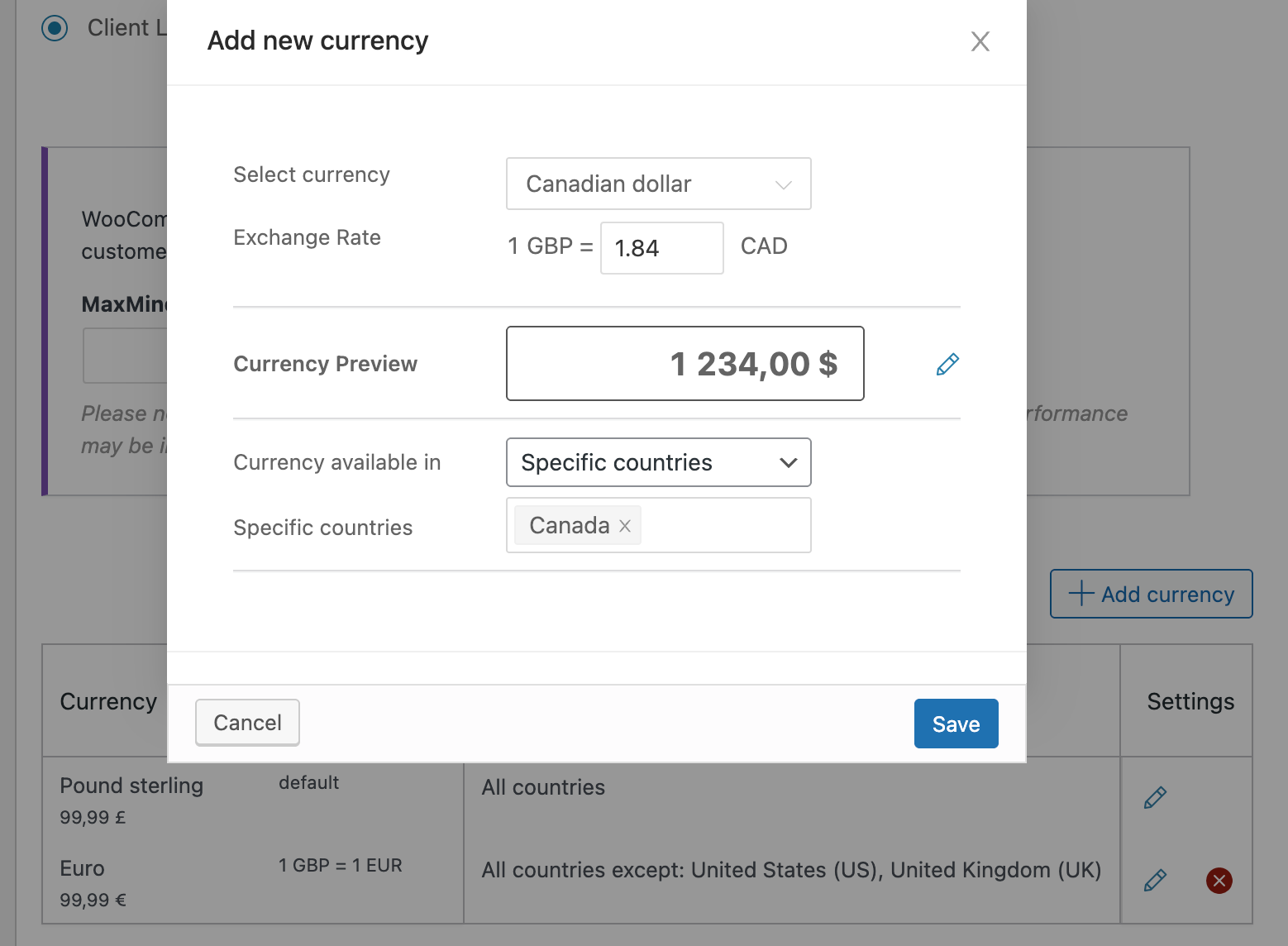
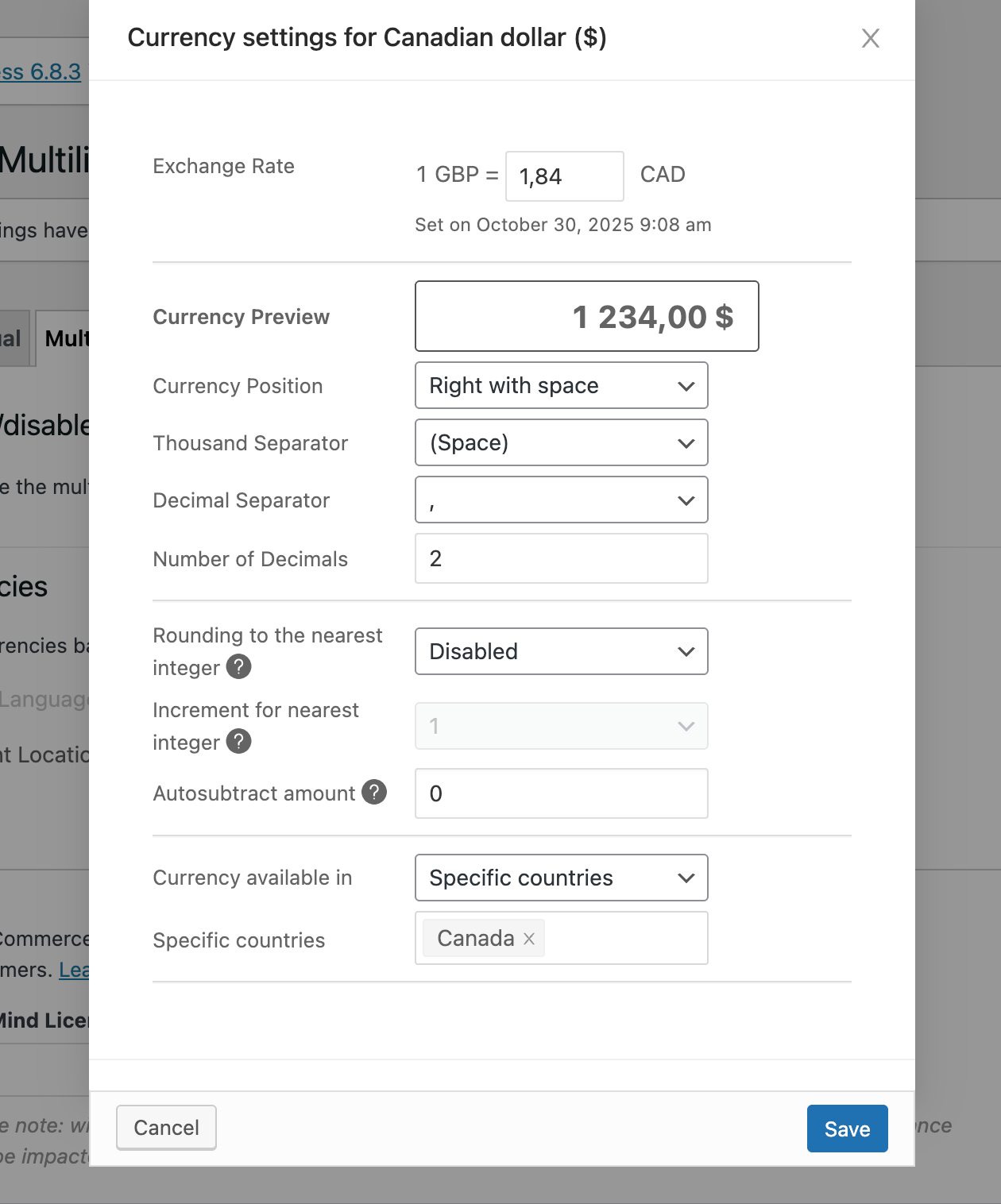
Here, you can also configure your own currency options and rounding rules. Click on the pencil icon next to Currency Preview.
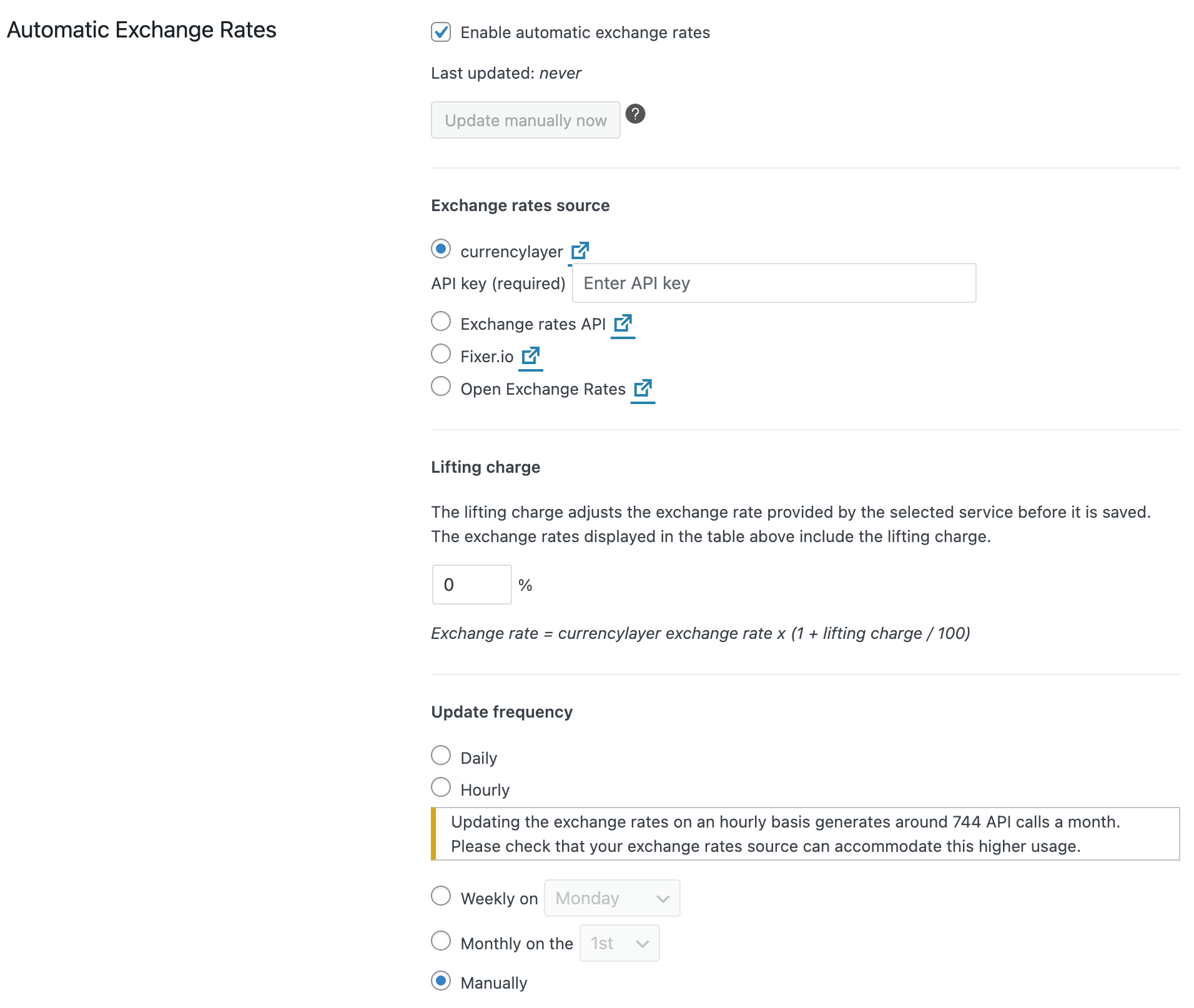
4. Configure automatic exchange rates
When setting automatic exchange rates, choose a service provider, the lifting charge, and update frequency.
Add A Currency Switcher for WooCommerce with WCML
Once you’ve set up multiple currencies, you can display a currency switcher in your site’s theme using a widget, shortcode, or PHP code.
Option 1: Currency Converter Widget
To add a currency switcher as a WordPress classic widget:
- Go to WooCommerce → WCML, on the Multicurrency tab.
- Scroll to Widget Currency Switcher and add a new currency switcher widget.
Option 2: Shortcode
To add the currency switcher to other places on your site, use the following shortcode:
Shortcode: [currency_switcher]
Attributes: format (Available tags: %name%, %code%, %symbol%) Default: %name% (%symbol%)
Example usage: [currency_switcher format="%code% (%symbol%)"]
Option 3: PHP Code
To add and customize currency switchers using PHP code, use the following action:
do_action('wcml_currency_switcher', array('format' => '%name% (%symbol%)'));
Besides format, you can use the following parameter to output a basic dropdown menu with currency codes for option values:
switcher_style: wcml-dropdown, wcml-dropdown-click, wcml-horizontal-list, wcml-vertical-list
The client’s current or the configured default currency for a specific language will be auto-selected.
For more flexibility, you can design custom currency switchers using template files.
Customize Prices And Shipping Rates For Multiple Currencies in WooCommerce
Configure Custom Prices for Different Currencies
To set custom prices for products in different currencies:
- Edit a product.
- Under the General setting, select the option to set prices manually and input your prices for every available currency.
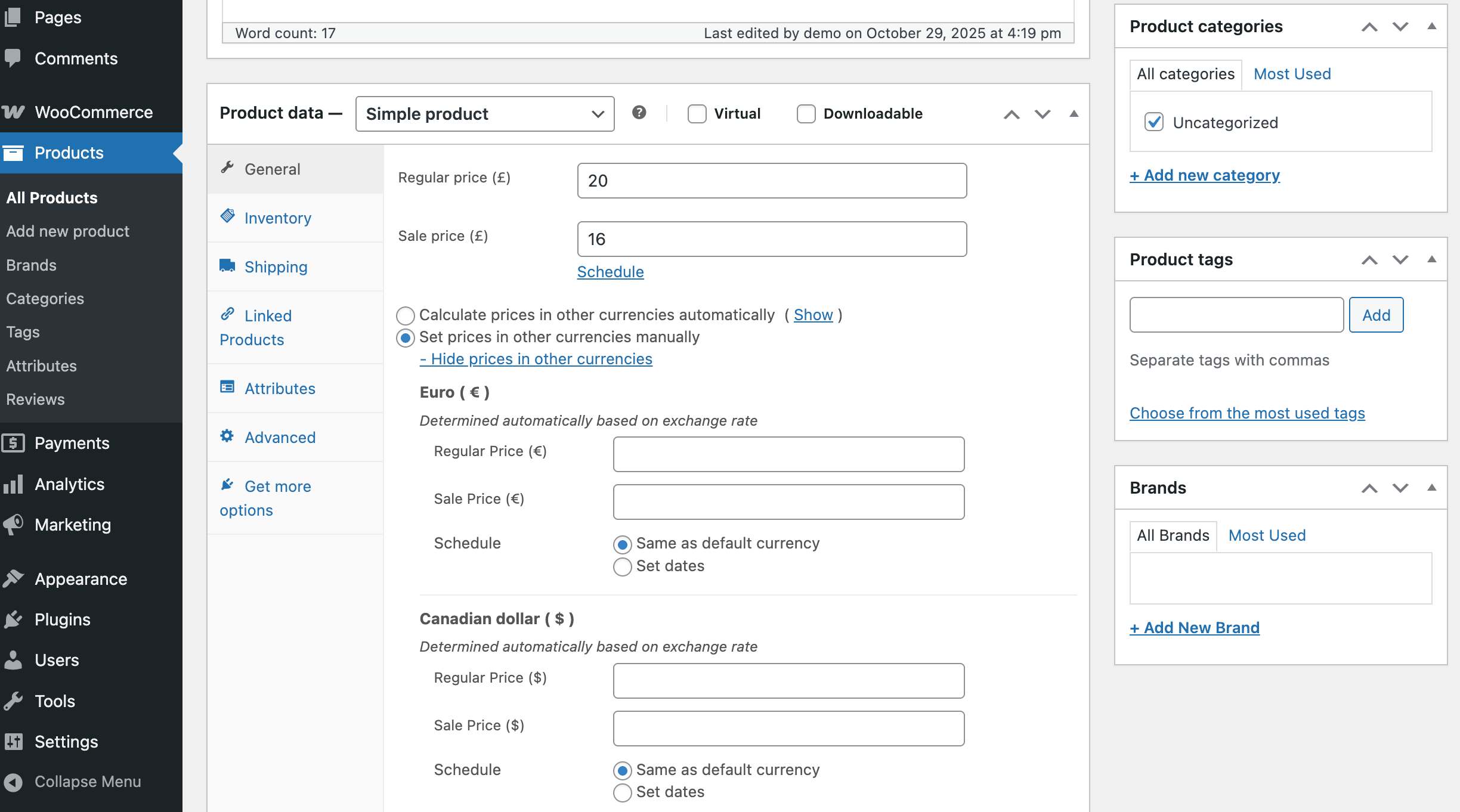
Custom prices override any prices that are automatically determined by the exchange rate. To revert to using the automatic prices, you need to remove the custom prices and update the product.
Set Shipping Rates by Currency
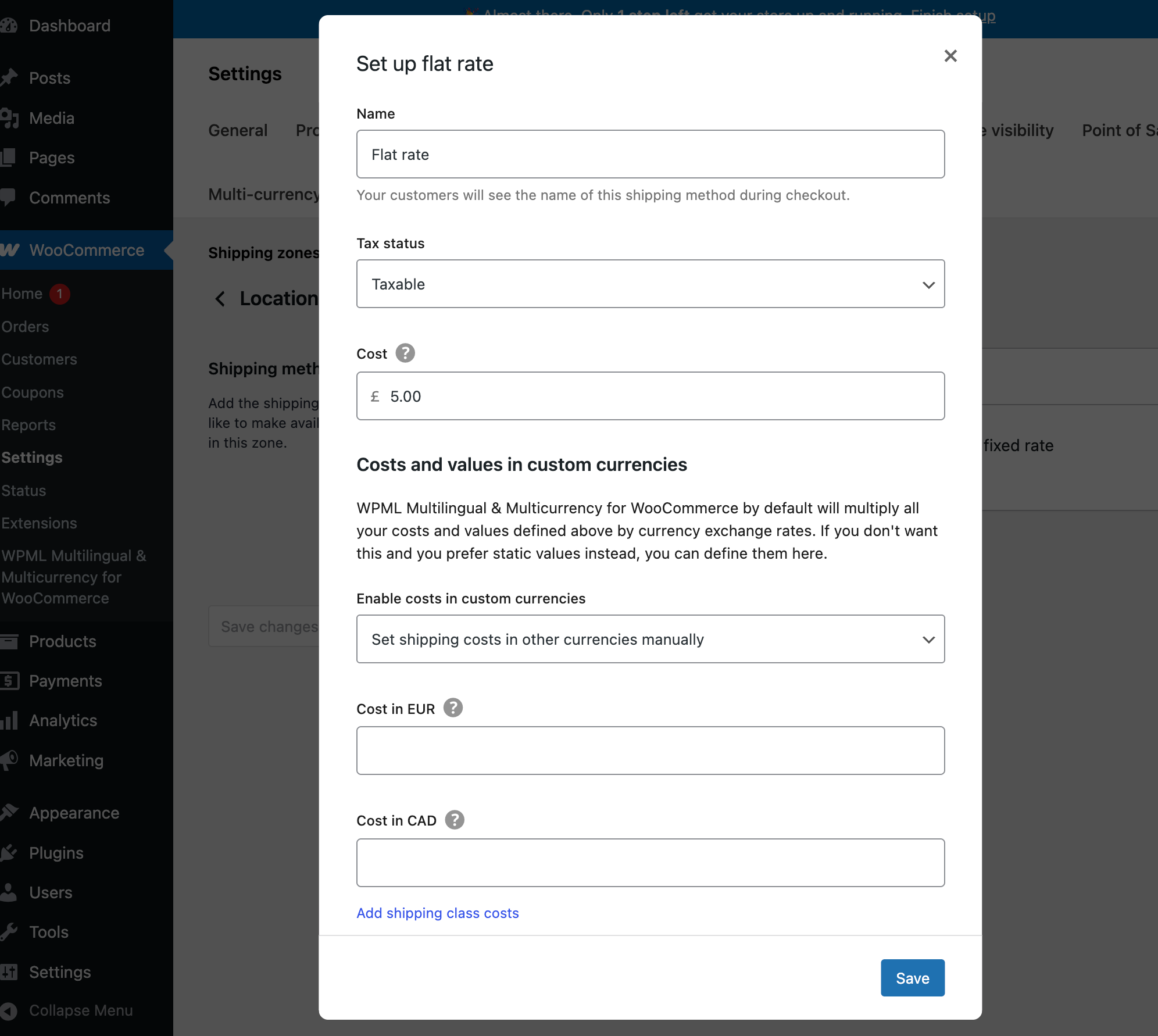
To configure distinct shipping rates per currency:
- Go to WooCommerce → Settings and click the Shipping tab.
- Click Edit under the shipping method you would like to customize.
- Enable the option to set costs in custom currencies manually and enter the prices.
View Orders and Analytics by Currency
On the WooCommerce → Orders page, you can view and filter orders by currency. This can help you understand performance in different currencies.
Manage Payment Gateways Based On Currency and Location
To use different payment methods for each currency and location, you need a paid WPML subscription: WPML Multilingual CMS or WPML Multilingual Agency account.
Set payment gateways per currency
If you have WPML, you can go to the Multicurrency tab in WooCommerce → WPML Multilingual & Multicurrency for WooCommerce and click the pencil icon next to a currency to:
- Enable Payment Gateways and set specific payment gateways for each currency.
- Choose which currency to charge customers and receive payments in for each gateway. This allows you to receive payment in a different currency than the one your client is using. They will see their total amount in the converted currency during checkout.
Configure payment gateways based on customer location
On multilingual sites that use geolocation to display currencies, you can control the payment gateways shown to customers in each location.
- Go to WooCommerce → Settings and click the Payments tab.
- Click the payment method you would like to adjust.
- In Country Availability, set the countries for which you want your payment gateway to show.
Developer Information – Hooks for Multi-Currency
WCML offers filters and hooks for 3rd party plugins to implement custom multicurrency logic, allowing users to see prices and place orders in their preferred currency.
See the full set of WCML filters and hooks.
