


Overview of the Issue
If you create a table with the TablePress plugin, you cannot translate it with WPML. WPML does not show the cells of the table as separate texts in the translation editor.
Workaround
There are three ways to show a TablePress table in more than one language. Choose one of them.
Option 1: One Table per Language (Recommended)
Create one table for each language. Then add each table to the page in its language. The TablePress author recommends (opens in a new tab) this solution too.- Go to TablePressAll Tables.
- Hover over the original table and click Copy.
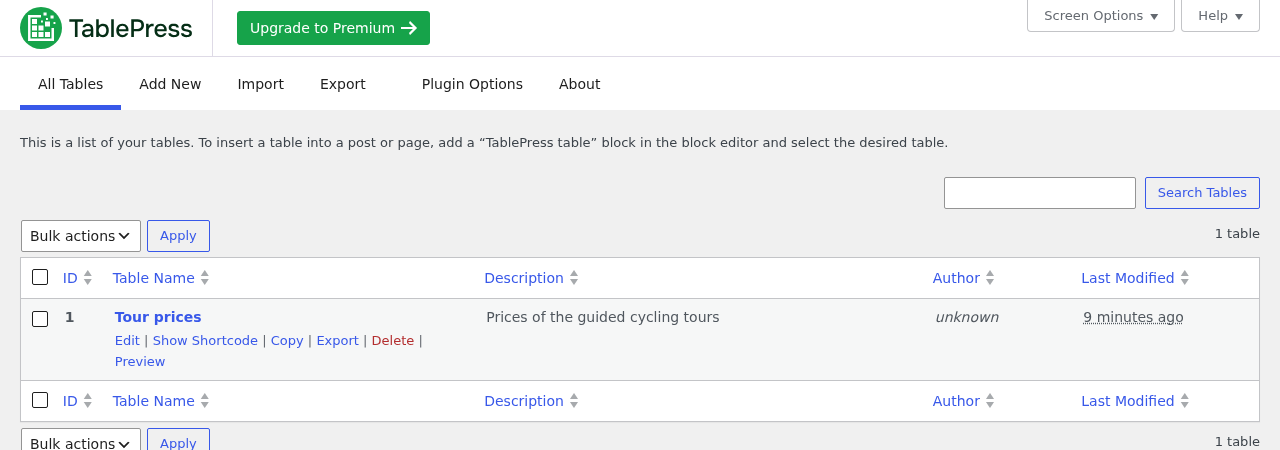
The Copy action on the TablePress All Tables page - Edit the copy and translate its cells in TablePress.
- Add the copy to the translated page. Use the TablePress table block or the shortcode of the copy.
Option 2: Row Filtering (TablePress Premium)
Use the Row Filtering module (opens in a new tab) of TablePress Premium. Copy each row for each language. Use the language code as the filter term, for example in an extra hidden first column.Option 3: Translate the Table with WPML (Advanced)
Use this option only if options 1 and 2 do not work for you. Make a full backup of your site before you start.Limitations: TablePress saves all the cells of a table as one block of code. WPML sends this block to the translation editor as one field.
- You cannot translate the cells in the Advanced Translation Editor.
- In the Classic Translation Editor, you can only edit the cells as raw code, for example
[["Tour","Days","Price"],["Coastal Loop","2","240 EUR"]]. Translate only the words inside the quotes. Keep every bracket, quote and comma. One mistake breaks the table.
- Go to WPMLSettingsTranslation Editor. Under Classic Translation Editor, click Choose.
- Go to WPMLSettingsPost Types Translation. Set TablePress Tables to Translatable – only show translated items and click Save.
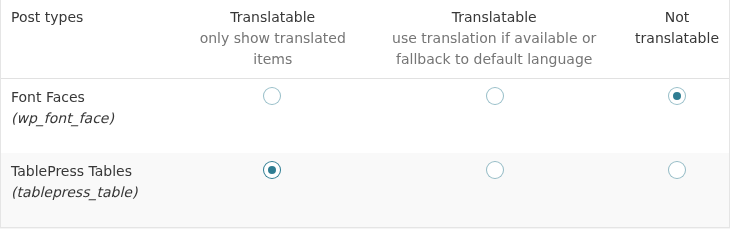
Making the TablePress Tables post type translatable - Go to WPMLSettingsCustom Fields Translation. Click Show system fields. Set these fields to Copy and click Save:
- _tablepress_table_options
- _tablepress_table_visibility
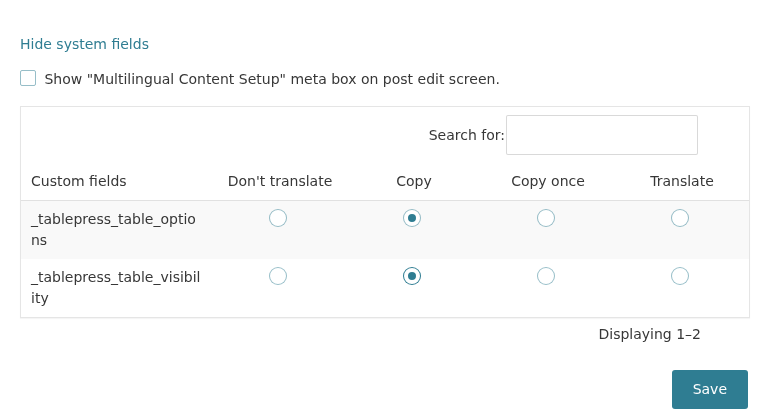
Setting the two TablePress system fields to Copy - Go to WPMLTranslations, in the Dashboard tab. In the TablePress Tables section, select the table. Click Translate your content, choose Translate myself and click Translate content.
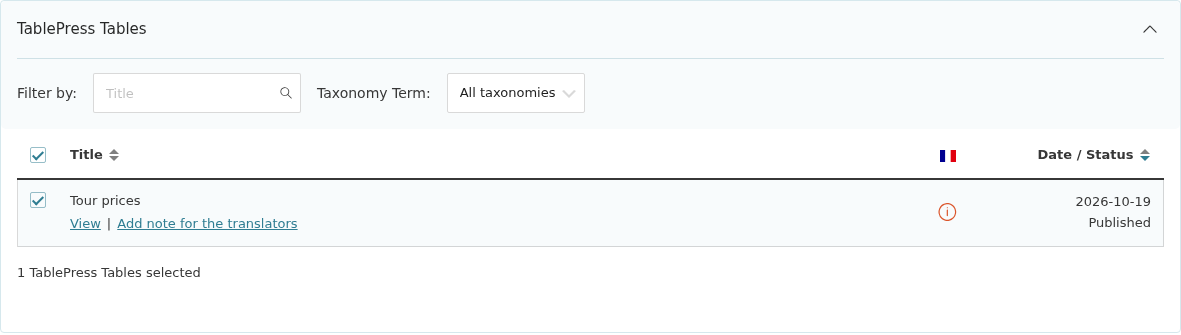
Selecting the table in the Translation Dashboard - Go to the Translation Tasks tab and click Translate on the row of the table.
- In the Body field, click the Code tab. Translate the cells there, as described above. Do not use the Visual tab. Select Translation is complete for each field and click Save & Close.
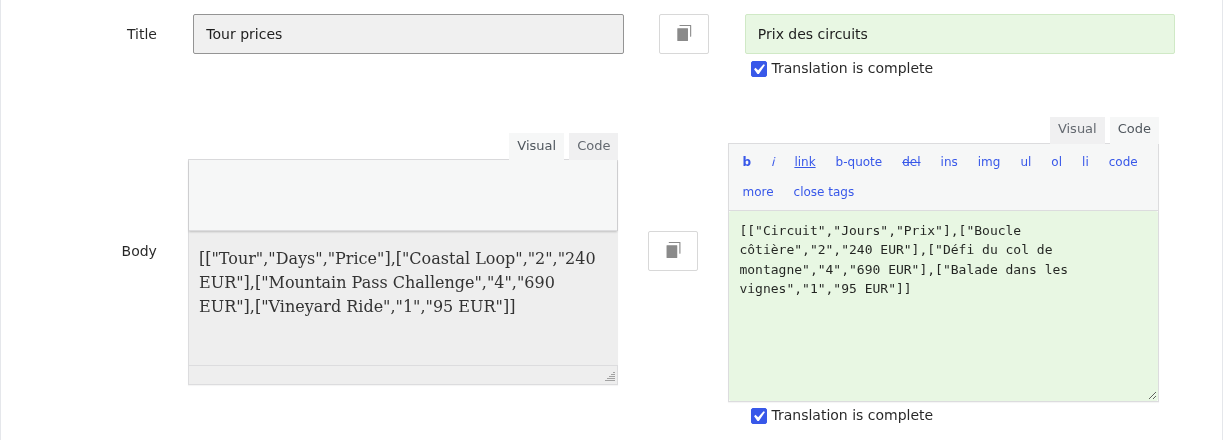
The table cells as raw code in the Classic Translation Editor - Get the ID of the translated table:
- In the Translation Tasks tab, find the row of the table. If the row is not there, the job is assigned to another translator. Take the job first.
- Click View.
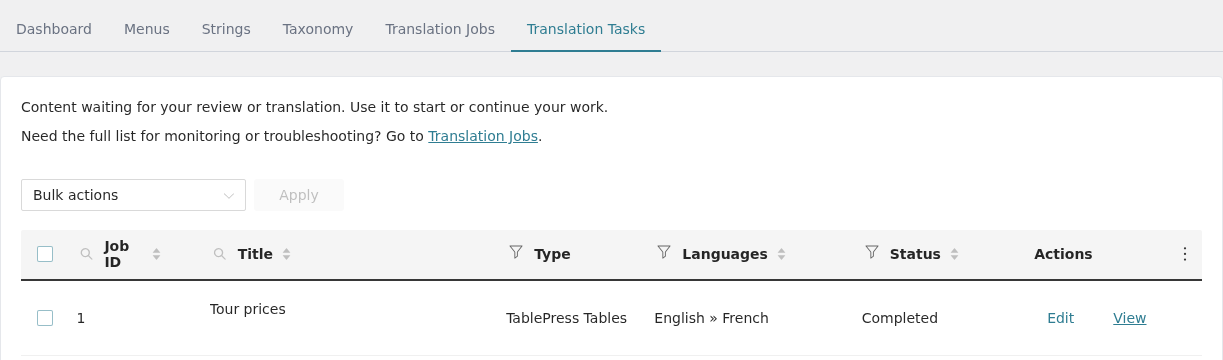
The View button in the Translation Tasks tab - The browser opens an address like
example.com/fr/?post_type=tablepress_table&p=8. The number afterp=is the ID of the translated table. The page shows “Page not found”. This is normal, because TablePress tables are not public pages.
- Go to the Strings tab. In the Utilities section, under Not seeing strings that you are looking for?, click Admin Texts Translation.
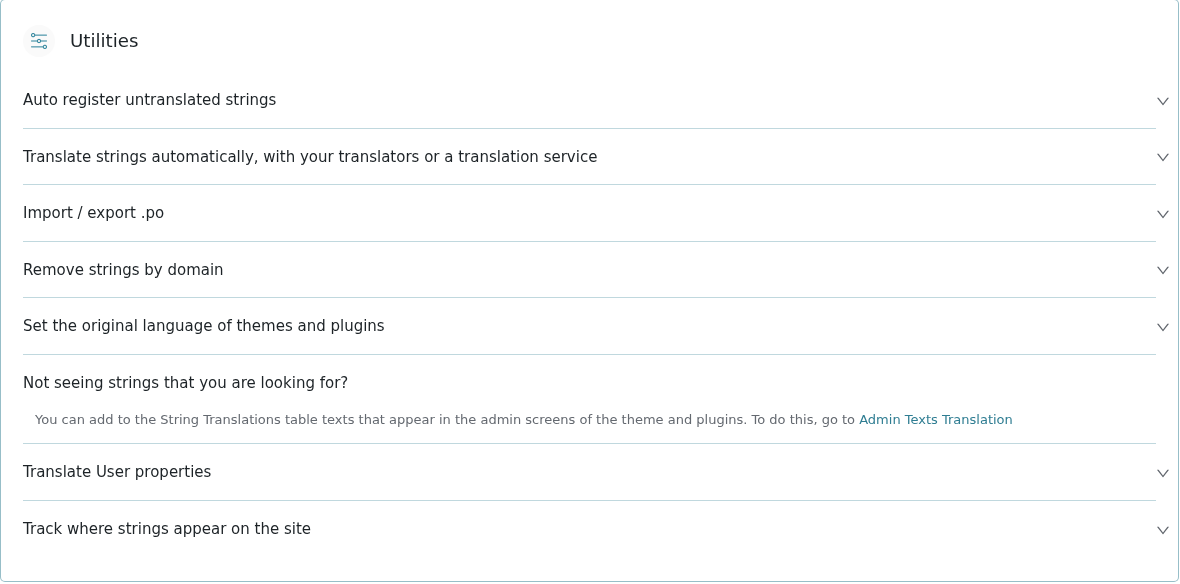
The link to Admin Texts Translation in the Utilities section - Search for tablepress_tables. Select the result and click Add to String Translation.
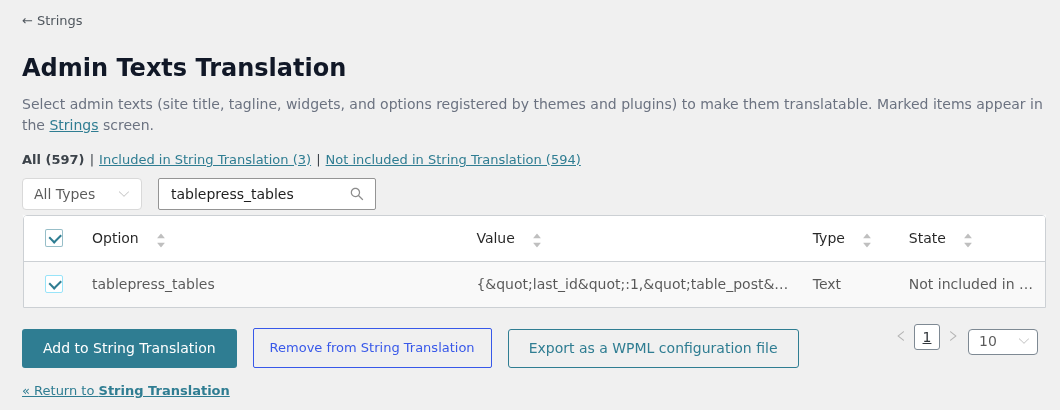
Adding the tablepress_tables option to String Translation - Go back to the Strings tab. In the domain dropdown, select admin_texts_tablepress_tables and click Filter.
- Find the ID of the original table. The string contains pairs like
"table_post":{"1":5}. The first number is the table ID that TablePressAll Tables shows. The second number is the ID of the original table. - Click the pencil icon to translate the string. Copy the original into the translation. Then replace the ID of the original table (5 in this example) with the ID of the translated table (8 in this example). Press Enter to save.
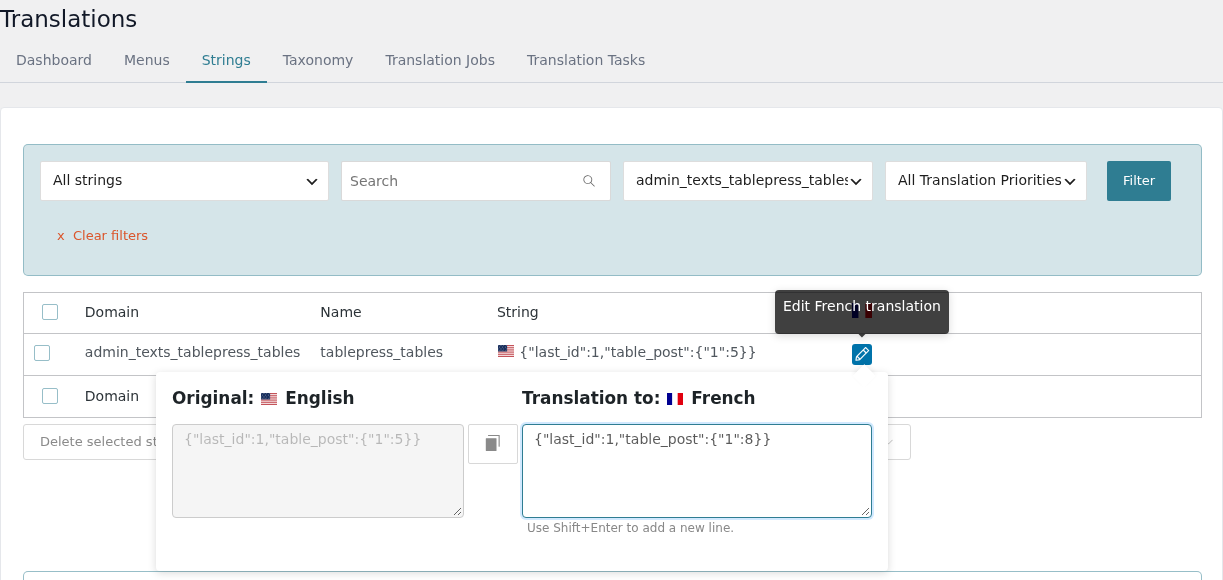
Replacing the original table ID with the translated table ID - Translate the page that shows the table as usual. The table block or shortcode keeps the same table ID. On the translated page, it now shows the translated table.
