This is the technical support forum for WPML - the multilingual WordPress plugin.
Everyone can read, but only WPML clients can post here. WPML team is replying on the forum 6 days per week, 22 hours per day.
Tagged: Exception
This topic contains 1 reply, has 0 voices.
Last updated by Otto 10 months, 2 weeks ago.
Assisted by: Otto.
| Author | Posts |
|---|---|
| March 25, 2025 at 2:50 pm #16858500 | |
 moustafaK |
Background of the issue: Symptoms: Questions: 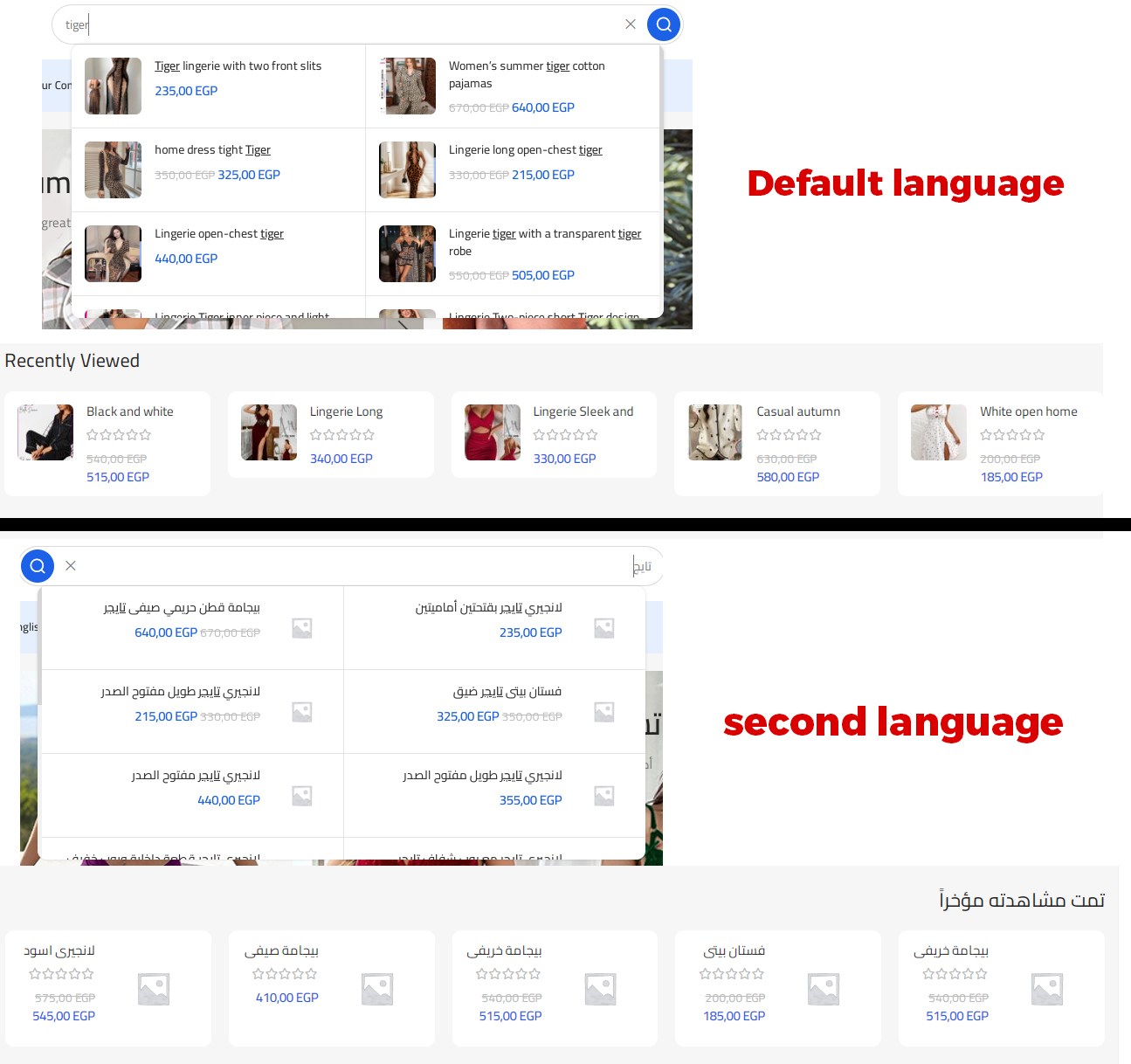 |
| March 27, 2025 at 11:49 am #16868229 | |
 Otto WPML Supporter since 09/2015 Languages: English (English ) Spanish (Español ) Timezone: America/Argentina/Buenos_Aires (GMT-03:00) |
Hello, Could you please increase your WP Memory limit?
<em>Memory Limit</em>
define('WP_MEMORY_LIMIT', '256M');
Paste it just before: <em>That's all, stop editing! Happy blogging.</em> See here for more information https://wpml.org/home/minimum-requirements/ Then, I suggest trying these: 1. Enable Media Duplication for Translations: WPML allows you to duplicate media (images) from the original content to its translations. To ensure images appear correctly across all languages:  This process will duplicate your existing media files for translated content, ensuring that images are available in all languages.  2. Verify Custom Field Translation Settings: Some themes and plugins store image information in custom fields. If these fields aren’t set to copy their values to translations, images might not display correctly. To check and adjust these settings:  Adjusting these settings ensures that image-related custom fields are copied to translated content. 3. Update Translations: After adjusting the above settings, it’s essential to update your translated content to apply the changes: This process ensures that the new settings are applied to existing translations. 4. Clear Cache: Caching plugins or server-side caching can sometimes cause display issues: Best Regards, |