Problem
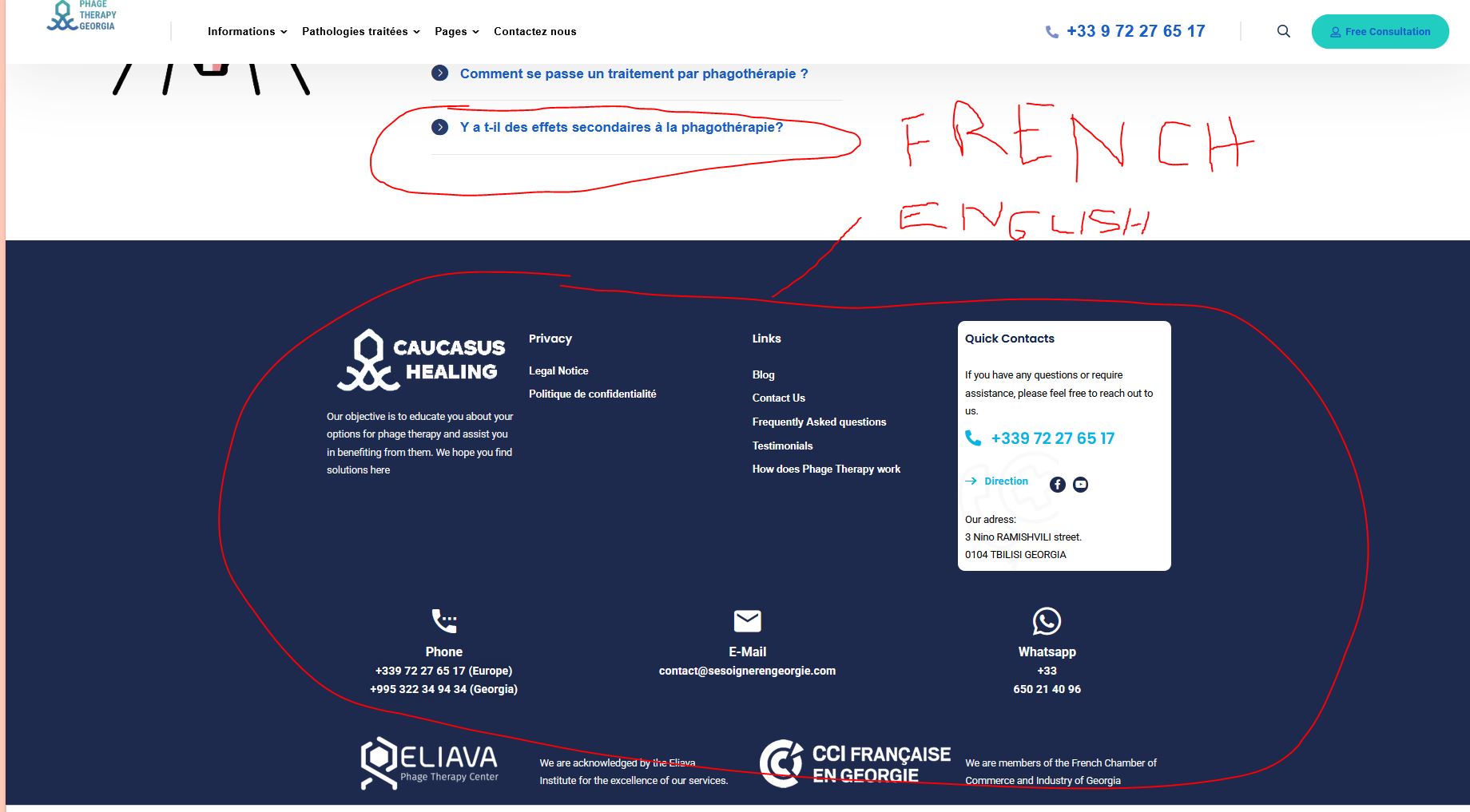
My footer is correctly translated in WPML, but on the live website, the footer still appears in English (fully or partially) on the French version and other translated pages.
Important detail
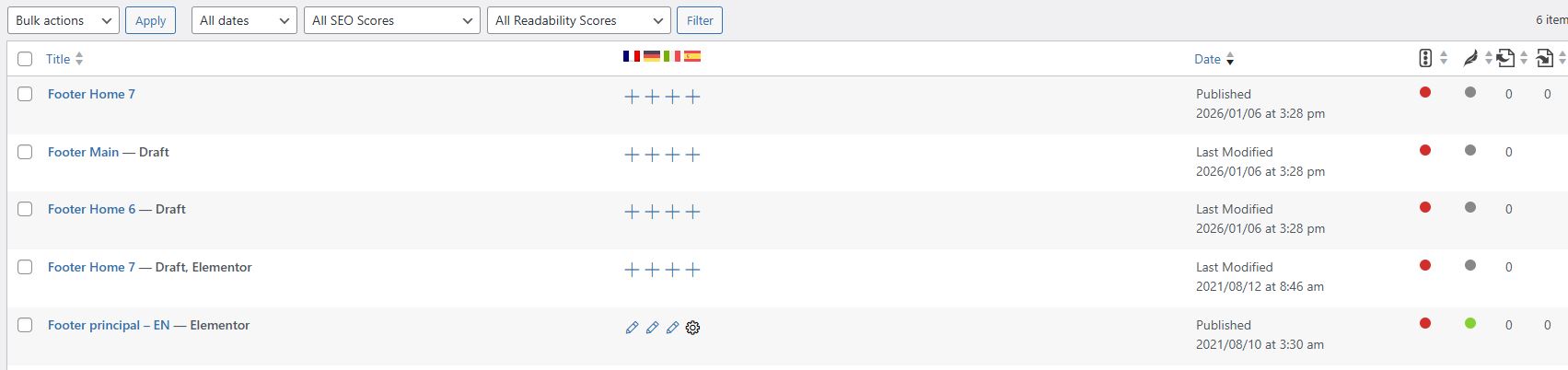
The footer is not a normal page. It is a custom post type created by the theme called “Footers”.
In MedCity > Theme Options > Footer**, the site uses a custom footer layout selected from these “Footers”.
What I already checked**
I identified the published footer template currently used by the theme.
I verified that the footer translations exist in WPML.
I set the custom post type **Footers** as translatable.
I changed the related custom fields to **Translate**:
* `custom_footer`
* `footer_layout`
* `footer_layout_custom`
* I cleared all caches:
* Kinsta cache
* browser cache
* I also rechecked the selected footer in theme options.
**Current result**
Even after all this, the live website still loads the English footer instead of the translated one.
**My question**
Could you please check whether this is a known compatibility issue between:
and especially whether the footer custom post type / footer layout fields are being mapped correctly by WPML?
Please let me know:
1. if my custom fields should be set differently (**Translate / Copy / Copy once**),
2. if there is a specific compatibility setting for MedCity footers,
3. if I need to register any additional custom fields or admin texts,
4. or if this requires a compatibility patch.
If needed, I can provide screenshots of:
* the “Footers” custom post type list,
* WPML translation settings,
* the footer custom fields translation settings,
* and the live frontend showing the English footer on the French page.
Welcome to WPML support. As I am not familiar with how Medcity works, I have to login to your website most probably.
But from what I undertsand you create a footer and translate it. Then in Medcity options you select which footer should be used.
Now WPML need sto know that.
- Go to the Footer page in the original language.
- From the top address bar of your browser, write down the post ID.
- From the top admin langauge switcher change the language to the secondary one.
- Write down the translated post ID too.
- Follow the steps below to go to the Admin Text section of the string translation: https://wpml.org/documentation/getting-started-guide/string-translation/finding-strings-that-dont-appear-on-the-string-translation-page/#register-admin-and-setting-strings-for-translation
- Search for the ID of the original language.
- If you find it, select it and add it to string translation.
- For the translation of that ID use the second language ID.
- That way you will tell WPML that the theme option should use which ID for the footer translation.
If you did not manage that, I'd appreciate it if you could give me the URL/User/Pass of your WordPress dashboard after you make sure that you have a backup of your website.
It is absolutely important that you give us a guarantee that you have a backup so if something happens you will have a point of restore.