This thread is resolved. Here is a description of the problem and solution.
Problem: You are experiencing an issue where media grid images disappear after translating them using the Classic Translation Editor. Solution: 1. We suspect this might be a compatibility issue with the specific element. To test this, please follow these steps: - Log in to a fresh WP site with WPML installed by using the provided auto login URL. - Install WPBakery Page Builder and configure it as on your site. - Create a test page with a Media grid element in the default language and attempt to translate it.
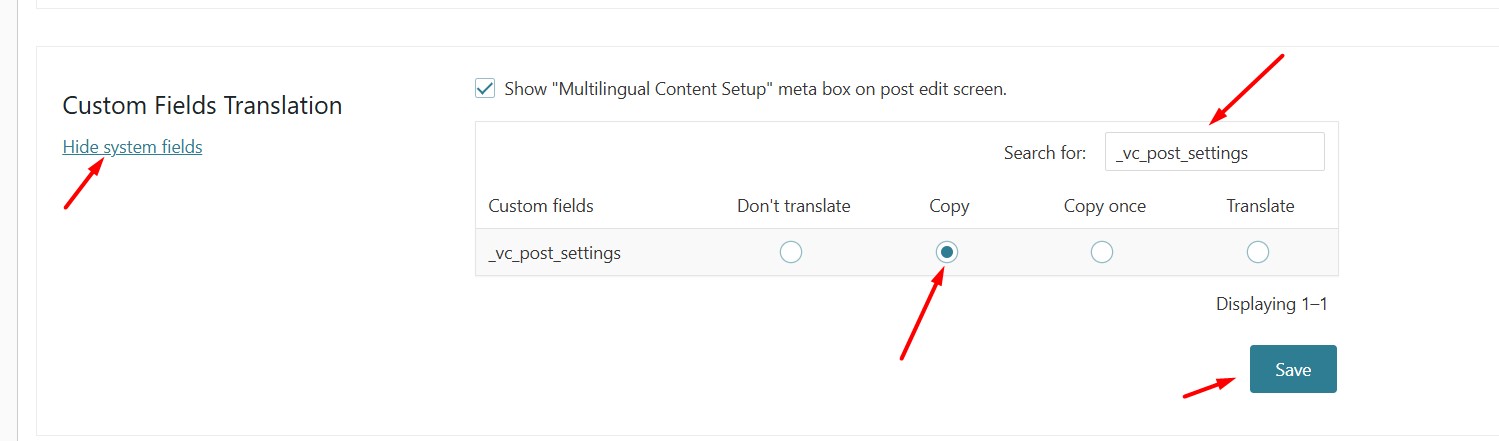
2. If the issue persists, try this workaround: - Navigate to WPML > Settings > Custom Field Translation. - Click on Show System Fields. - Search for
_vc_post_settings
. - Change the setting from "Do not translate" to "Copy". - Save the changes. - Edit the default language page, make a small change in the page title to reload the translation, then edit the secondary language page in WPML Translation Editor and press the Save & Close button.
Please check if the images display correctly in the secondary language after following these steps. If the issue remains unresolved or if the solution seems outdated or irrelevant to your case, we highly recommend checking related known issues at https://wpml.org/known-issues/, verifying the version of the permanent fix, and confirming that you have installed the latest versions of themes and plugins. If needed, please open a new support ticket at WPML support forum for further assistance.
This is the technical support forum for WPML - the multilingual WordPress plugin.
Everyone can read, but only WPML clients can post here. WPML team is replying on the forum 6 days per week, 22 hours per day.
Symptoms:
I received an email from WPML stating that the chat ticket was closed as resolved, but the issue with media grid images disappearing after translation remains unresolved.
Questions:
Why was my ticket closed when the issue is not resolved?
How can I fix the issue of media grid images disappearing after translation?
Thank you for contacting WPML Support. I understand your concern about the ticket being closed while the issue remains. Sometimes tickets are auto-closed by the system if there’s no activity for a while, but I’ll be glad to continue helping you here.
I suspect this might be a compatibility issue with that specific element. To test it, I’ve created a fresh WP site with WPML already installed and configured. Could you please try to replicate the issue by following these steps:
1. Login to the fresh WP site by clicking on the auto login URL: hidden link
2. Install WPBakery Page Builder (or any other required plugin) and configure it as you did on your site.
3. Create a test page with a Media grid element in the default language and try to translate it.
Please note that we only need above mentioned plugin functionality, you don't need to set up an entire website or clone your existing site.
Please share your results so we can move forward.
Thank you for your cooperation
Hello,
Thanks for your help.
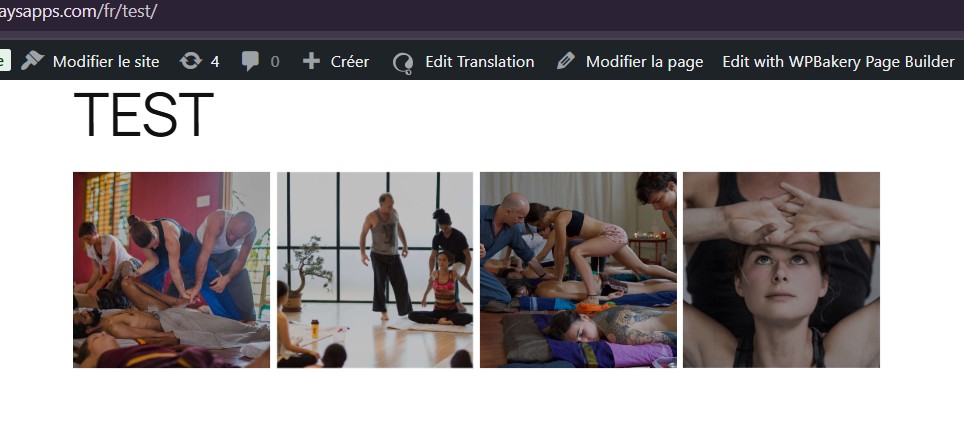
As asked, I created a new page test.
Add a grid of 4 images
Publish
Add a french translation
Translate the image Alt, descritp, captiions..
Save
Open : hidden link
No grid images show !
Thanks for trying it on the new test page. To take a closer look at this issue, please provide temporary access (WP-Admin and FTP Login info) to your site (preferably staging site), so that I can look into your setup and debug the issue.
Your next answer will be private, meaning only you and I can access it.
=== Please backup your database and website ===
✙ I would need your permission to deactivate and reactivate Plugins and the Theme and to change configurations on the site. This is also a reason the backup is essential.
This issue already escalated it to our compatibility team and the workaround is also given. I’m able to fix it on your test site by following the below steps:
- Went to WPML > Settings > Custom Field Translation.
- Click on the "Show System Fields" link
- Searched for "_vc_post_settings."
- Changed the setting from "Do not translate" to "Copy."
- Save the changes
- Edited the default language page, made a small change in page title to reload the translation, edited the secondary language page in WPML Translation Editor, and pressed the Save & Close button.
Now, it shows the correct images in secondary language: hidden link
We had initially changed the translation preference for _vc_post_settings to "copy", but this caused some problems for other users. After discussing it with the WPBakery team, we’ve decided to revert the default preference back to "ignore".
If the "copy" setting works better for your setup, you can keep it by adding a custom XML configuration to your site.
- Go to "WPML > Settings > Custom XML Configuration", add the following and save: