Home›Support›English Support›[Resolved] My support request #17665462 gets an AI response that I don't fully understand and then get closed ...
[Resolved] My support request #17665462 gets an AI response that I don't fully understand and then get closed ...
This thread is resolved. Here is a description of the problem and solution.
Problem: The client was having trouble understanding the AI-generated instructions for adding a Custom XML Configuration in WPML and was unsure if their setup was correct. Solution: We reviewed the client's XML configuration and confirmed it was mostly correct. We made a minor adjustment and suggested the following steps to ensure the changes take effect: 1. Verify the XML configuration. 2. Make a small change to the original page (e.g., add a character to the title) and update the page. 3. Revert the change and update the page again to trigger a new translation job. 4. Check the translation editor to ensure all links appear correctly.
If this solution does not resolve your issue, or if it seems outdated or irrelevant to your case, we highly recommend checking related known issues at https://wpml.org/known-issues/, verifying the version of the permanent fix, and confirming that you have installed the latest versions of themes and plugins. If further assistance is needed, please open a new support ticket at WPML support forum.
This is the technical support forum for WPML - the multilingual WordPress plugin.
Everyone can read, but only WPML clients can post here. WPML team is replying on the forum 6 days per week, 22 hours per day.
My support request #17665462 gets an AI response that I don't fully understand and then get closed automatically— how can I get answers to my questions?
I understand the idea of cretaing Custom XML Configuration but the method and example from Maiya AI seems wrong— I don't understand the example :
2. **Add Custom XML Configuration:**
* Once you have the shortcode tag and the link attribute name, go to **WPML → Settings** in your WordPress admin.
* Scroll down to the **Custom XML Configuration** section and click on the tab.
* In the text area, add the following XML structure. Make sure to replace `your_column_shortcode_tag` with the actual shortcode tag you found (e.g., `vc_column`) and `your_link_attribute_name` with the actual attribute name (e.g., `link`). If you already have a `` section, just add the `` part inside the existing `` section.
I’m sorry to hear that you’re experiencing this issue.
Could you please share a bit more detail about what’s happening so I can better understand the problem? If possible, screenshots showing the issue would be very helpful as well.
I'm sorry I took so long—I didn't know you had replied! I didn't get an email notification...
Did you see the thread exchange I had with Maiya AI?
I explained the problem and tried out several solutions but nothing worked.
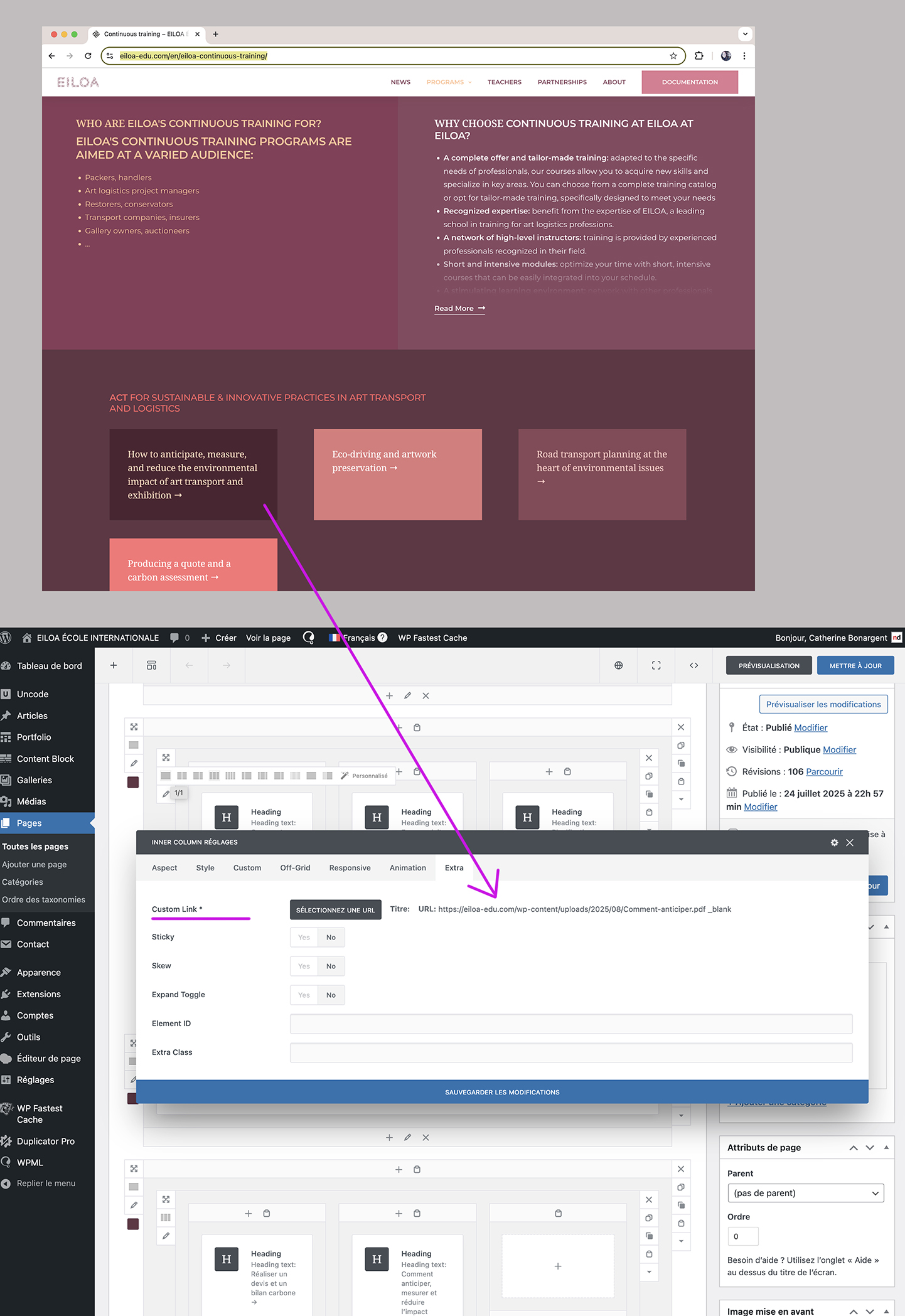
I've finished the translation on the site but there are some links that don't appear in the Advanced Editor or in the string translations. It is the colored blocks on this page which each have a link when you click on them.
hidden link
See capture below. Each colored 'block' is a column in a row, with a text block inside. The link is associated to the column, not the text.
With instructions from Maiya AI, I created and inserted these codes:
I need to request temporary access (wp-admin and FTP) to your site—preferably to a test site where the problem has been replicated if possible—in order to be of better help. When you log in to leave your next reply, you will find the needed fields below the comment area. The information you will enter is private, meaning only you and I can see and access it.
Your configuration was already correct. I only made a very minor adjustment, but functionally the previous setup was fine as well.
What I suspect happened is that after adding the new configuration, the original page was not updated, so no new translation job was triggered with the updated settings.
Here’s what I did step by step:
1. Verified the configuration.
2. Made a small change to the original page (added one character to the title) and updated the page.
3. Reverted that change and updated the page again.
4. This forced the translation to move into the “needs update” state, which triggered a new translation job.
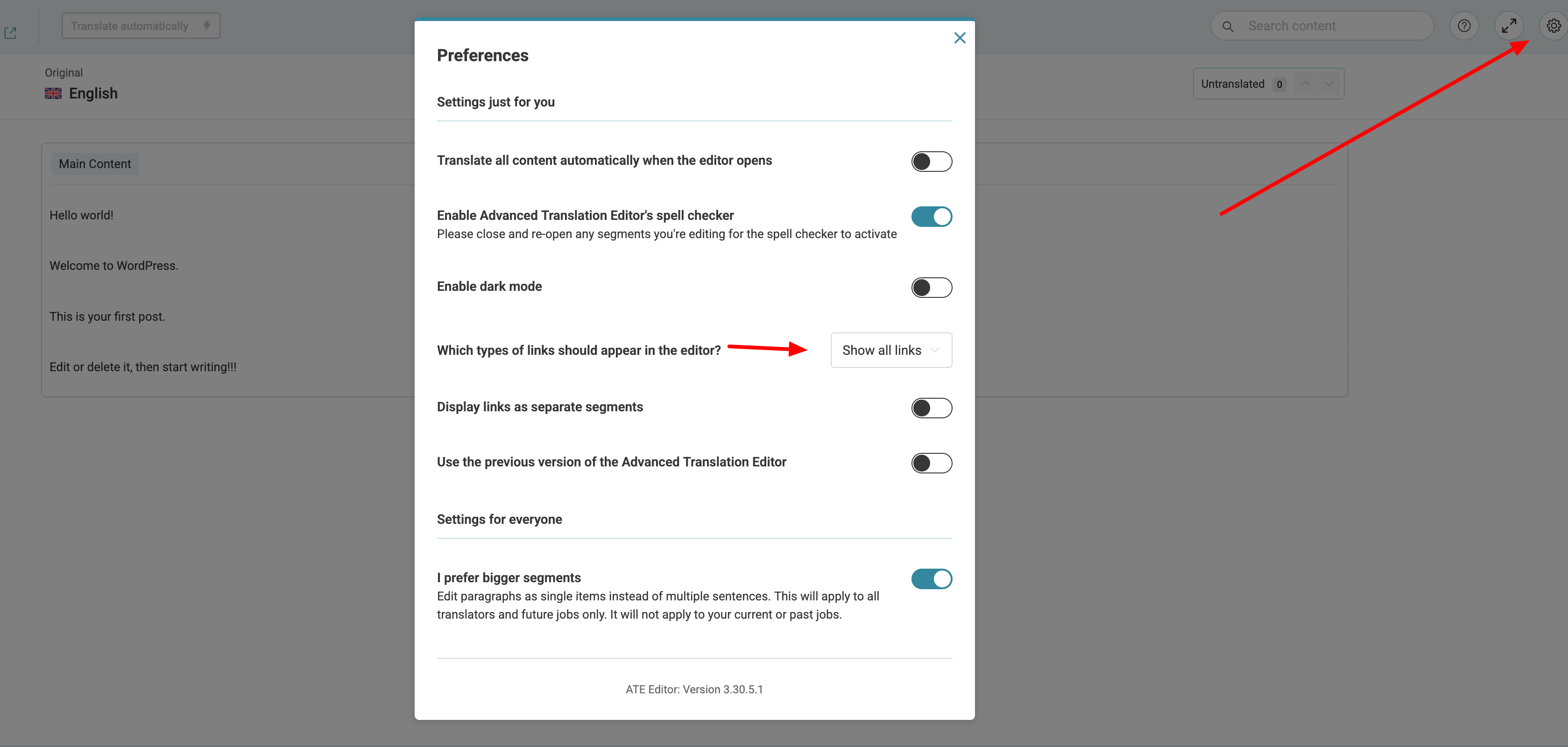
5. Opened the translation editor, where all links now appear correctly.
That's fantastic, although I did make a change and update. It did trigger a new translation job, but in the Advanced Editor, there was nothing to change. So I did it again! Maybe the change I made was not important enough ? I made a word in BOLD...
In any case, thank you for the verification! The site will be finished now 🙂