Home›Support›English Support›[Resolved] Royal Mega Menu Flexbox not rendering on the translated version of the website
[Resolved] Royal Mega Menu Flexbox not rendering on the translated version of the website
This thread is resolved. Here is a description of the problem and solution.
Problem: You are developing a site and trying to make the Royal Mega Menu render on the translated version of the site using WPML, but the Royal Mega Menu Flexbox is not rendering on the translated version of the website. Solution: 1. Create a new menu in the default language of your site. 2. Add mega menu items. 3. Translate the menu by clicking on the plus icon for the secondary language. Don't sync the menus! 4. Create the menu with the translated pages, posts, and custom menu items. 5. Add mega menu items in the respective language. 6. Add the menu to a page or a template in the default language by adding the Mega Menu element, and select the default language menu. 7. Edit the translation of the page or template using the WordPress and Elementor editors. At this step, do not use WPML's Translation Editor! 8. If the page or template were translated with WPML's Translation Editor, you will see a warning. Select: Edit anyway (Not recommended). 9. Edit with Elementor, and click on the Mega Menu element, and select the translated menu you created in step 3.
If this solution does not resolve your issue, or if it seems outdated or irrelevant to your specific case, we highly recommend checking related known issues at https://wpml.org/known-issues/, verifying the version of the permanent fix, and confirming that you have installed the latest versions of themes and plugins. If the problem persists, please open a new support ticket.
This is the technical support forum for WPML - the multilingual WordPress plugin.
Everyone can read, but only WPML clients can post here. WPML team is replying on the forum 6 days per week, 22 hours per day.
We need to replicate this issue on a fresh WordPress installation. Then I'll be able to escalate it to our compatibility team. To achieve this, I created a test website with a clean WordPress installation. You can access it through this link:
hidden link
With this link, you'll be directly logged in.
I've configured WPML to have French as the default language and English as the second language. I also installed the Elementor plugin.
Could you please install the Royal Elementor Addons plugin and see if the issue is replicable on a clean WordPress installation?
Please make sure that you are installing the latest version of the plugin.
When everything is finished and you can replicate the problem, please let us know.
Important! Do not import your site to the test site. We must replicate the problem on a fresh, clean WordPress installation.
Regards,
Itamar.
I'm sorry if it was not clear enough. My request was only to install the plugin and recreate the problem, and not import your site. Also, after you imported your site, I can not access it because the users have also changed.
Could you please reinstall the Royal Elementor Addons plugin on this new test site I created?
hidden link
Please recreate the issue with the Royal Mega Menu Flexbox in the simplest way you can.
I replicated the issue on the home page :
1- I created a wordpress menu
2- I created a mega menu view on item 1 of the menu
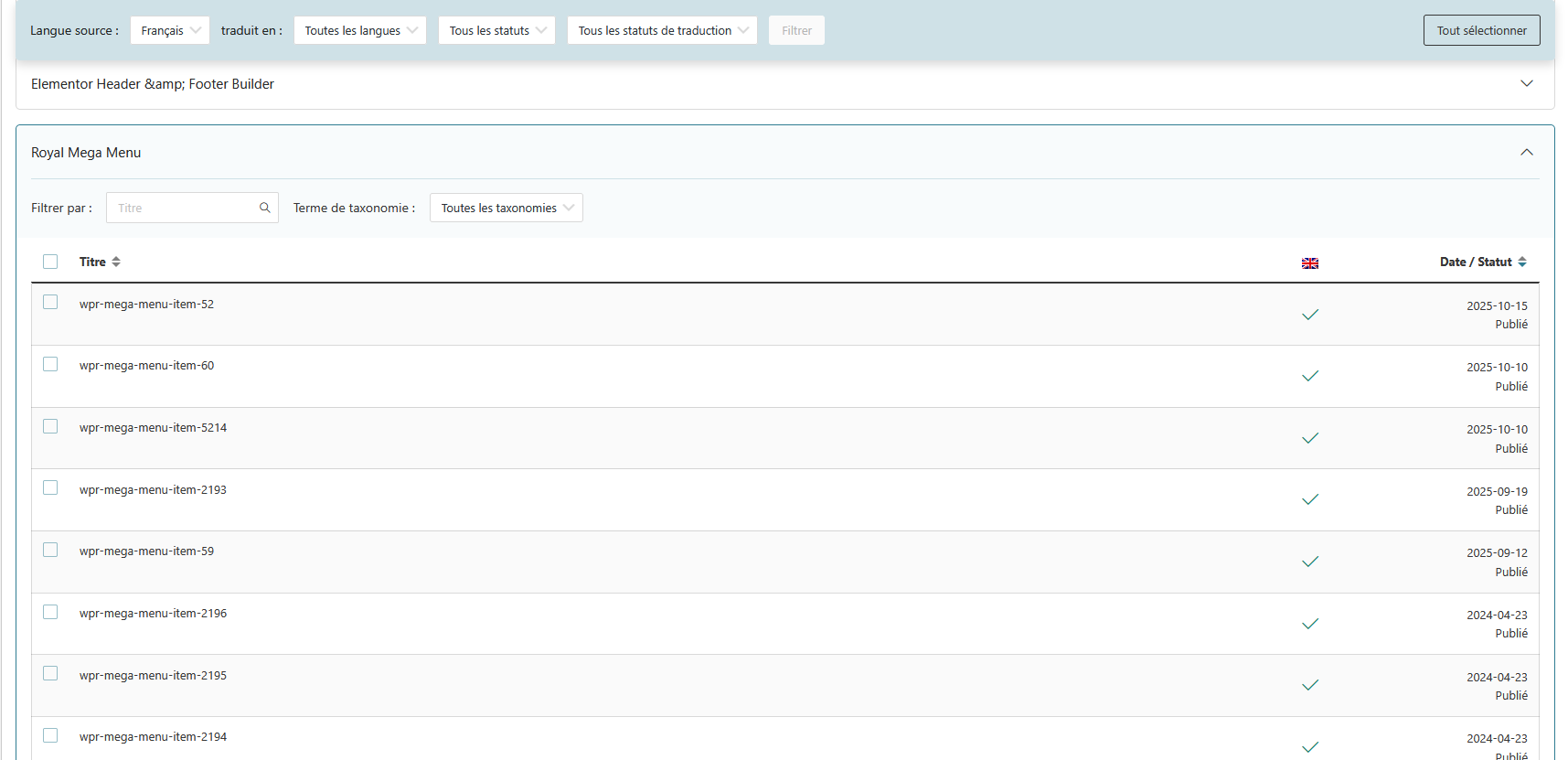
3 - Translated the homepage , synced the menu in WPML then translated the menu in WPML dashboard.
The translated version of the website does not have the mega menu view on item 1
Here are the steps you need to take to make the Royal Mega Menu work on the other languages of your site.
1. Create a new menu in the default language of the site.
2. Add mega menu items.
3. Translate the menu by clicking on the plus icon for the secondary language. Don't sync the menus!
4. Create the menu with the translated pages, posts, and custom menu items.
5. Add mega menu items in the respective language.
6. Add the menu to a page or a template in the default language by adding the Mega Menu element, and select the default language menu.
7. Edit the translation of the page or template using the WordPress and Elementor editors. At this step, do not use WPML's Translation Editor!
8. If the page or template were translated with WPML's Translation Editor, you will see a warning. Select: Edit anyway (Not recommended). Please see the attached screenshot.
9. Edit with Elementor, and click on the Mega Menu element, and select the translated menu you created in step 3.
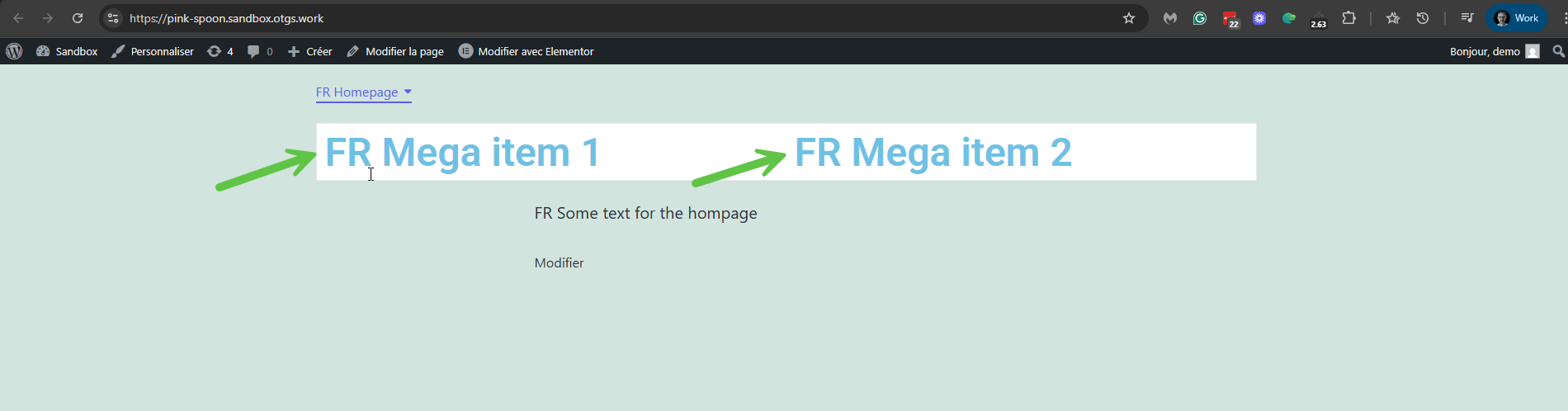
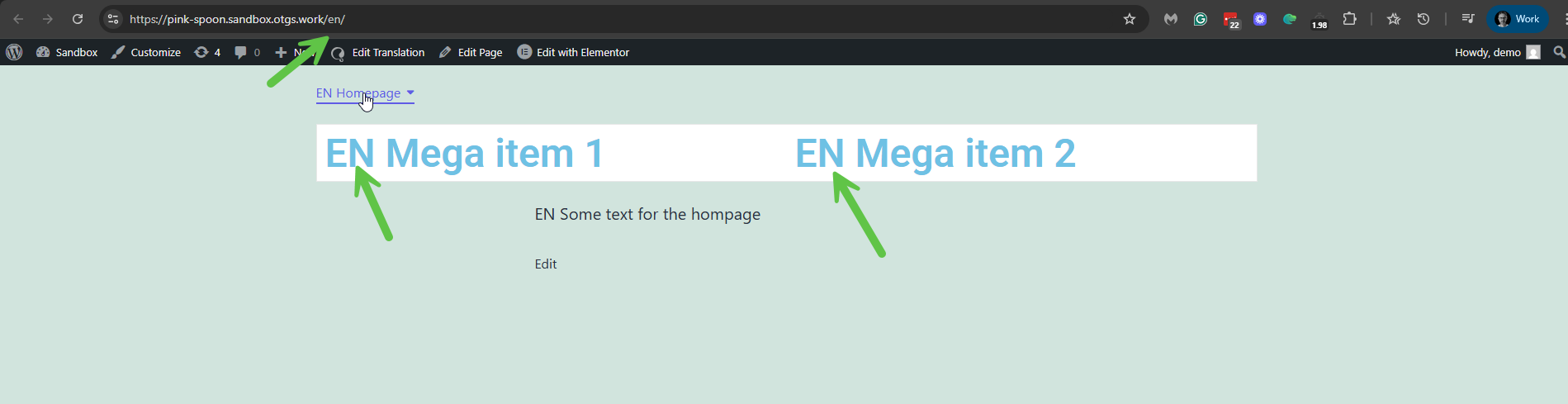
I tested those steps on my test site, and you can see it works: hidden link and switch to English hidden link. Please see the attached screenshots.
Thank you for your guidance. I can confirm that the solution you provided works as instructed.
While I appreciate the workaround, I find the process of manually replicating the Mega Menu for each language to be quite tedious and time-consuming. Any future structural changes will also require manual updates across all language versions, which is not ideal for maintenance.
I am otherwise satisfied with the WPML add-on and your excellent support. Please keep us informed if a more streamlined solution for translating Royal Addon Mega Menus becomes available in the future, perhaps through collaboration between the WPML and Royal Addons development teams.