[Resolved] Translated pages dont look like the English ones
This thread is resolved. Here is a description of the problem and solution.
Problem: The client reported that pages translated with WPML on their Eduma theme-based website using Elementor look different from the original English versions. The issue was observed in the header and footer of the pages. Solution: We recommended checking the WPML->Settings->Custom Fields Translations and setting the following fields to 'copy' to ensure consistency across translations:
thim_elementor_type
thim_elementor_sticky
thim_ekits_conditions
After applying these settings, update the templates in the default language. This adjustment should resolve the discrepancies between the translated pages and the original English pages.
If this solution does not apply to your case, or if it seems outdated, we highly recommend checking related known issues at https://wpml.org/known-issues/, verifying the version of the permanent fix, and confirming that you have installed the latest versions of themes and plugins. If issues persist, please open a new support ticket.
This is the technical support forum for WPML - the multilingual WordPress plugin.
Everyone can read, but only WPML clients can post here. WPML team is replying on the forum 6 days per week, 22 hours per day.
Background of the issue:
Hello, I have installed WPML on my Eduma theme based website and created some language translations for the website.
All content is translated but the template on the translation languuages looks different. I have translated the relevant Elementor pages and the Thim Elememtor templates
I can provide you with an adequate user account to be able to view the website if needed.
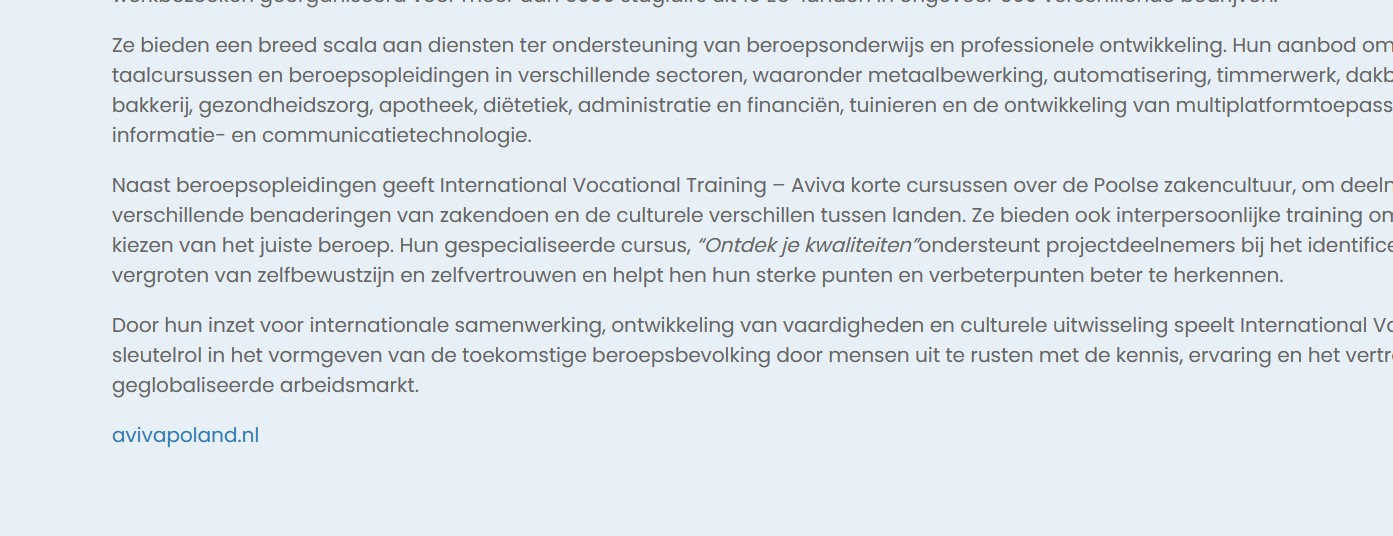
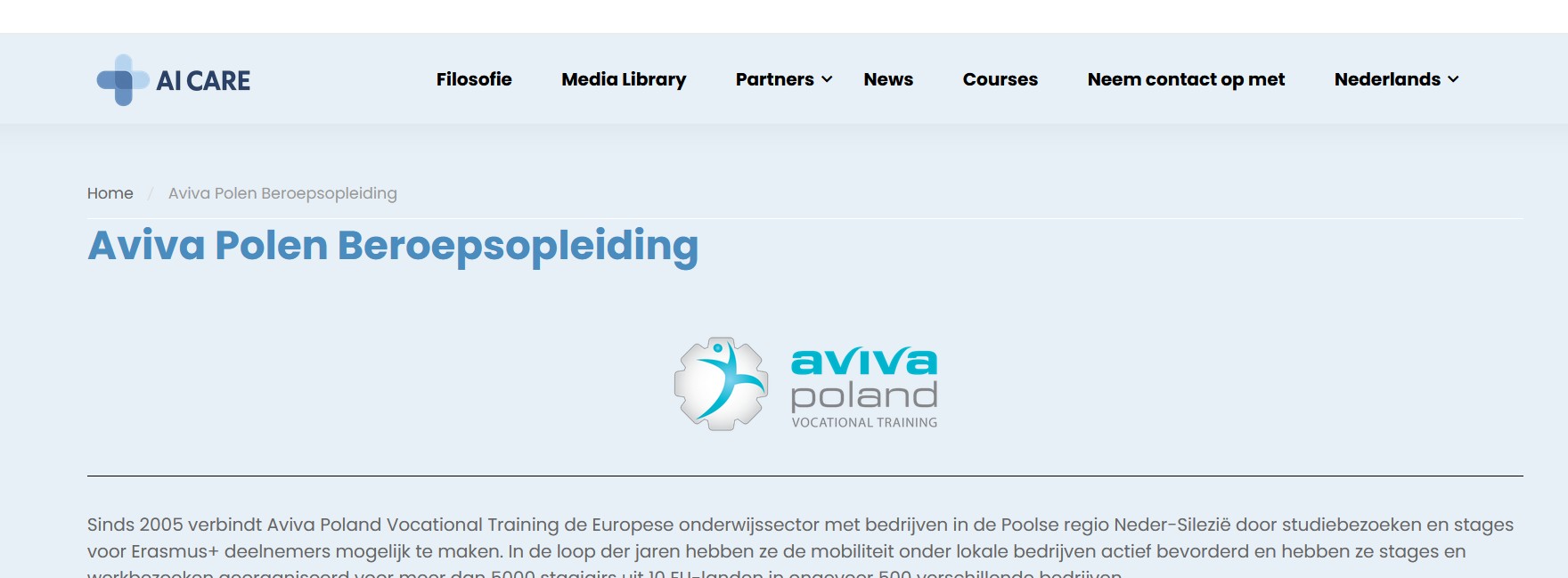
I am uploading screenshots of a simple webpage from the header and the footer where you can see the differences
Symptoms:
Translated pages don't look like the English ones.
Questions:
Why do the translated pages look different from the English ones? How can I solve this?
Is there anything else that can be translated? How can i completely wipe out the translation for an Elementor page and create it from scratch by duplicating the English one?
Dear mr Bhandari, I enabled WP debug but there are no errors either displayed on the screen or in debug.log. PHP logging option is also enabled.
For me this is expected, since there is no error on the website.
The issue is that the header and footer templates that were created after producing WPML translations, are different than the original ones. They produce no error now, but they are different than those in the main language.
Checking the server error_log from previous days, I found some mentions on wpml errors of the theme I am using in the previous days, when i was creating the translations.
You may find the full error_log here (search for wpml) hidden link
I went to WPML->Settings->Custom Fields Translations and set the following fields as copy and updated the templates in default languages, it fixed the issue for me, can you check.
thim_elementor_type
thim_elementor_sticky
thim_ekits_conditions
Hello, first of all thank you for your help and actions!
This partially fixed the issue which is a very good progress.
The difference I can see, is that the footer that was missing from the translation pages, now is inserted.
I still have 2 issues:
1. There is still an issue with the header.
Can you check for example the homepage in English and in Danish? You will notice the difference in the logo, height text fonts etc
2. I tried to create a new translation for the Dutch language for the homepage but it was created without the footer again. hidden link
In general, can you describe what your actions were, apart from changing the 3 Custom fields to "Copy" from "Do not translate"? Maybe more thim_* custom fields need to be changed to Copy?
I followed the below steps:
- I went to hidden link and set the css to be loaded as external file
- Edited the header and updated it: hidden link
The design issue is solved for me
For the footer not showing, please follow the below steps:
- Go to thim Elementor->All Elements
- Change the language from top-bar to the affected language and click on edit conditions and save it without any changes.