


WPML gives you the option of formatting your language URLs in domains, directories, or as parameters. Learn how it works and find what’s best for you.
WPML lets you choose to format your site’s language URLs using a language argument in the URL, in virtual folders, or different domains (or sub-domains). Internally, all languages are saved in one WordPress database, but for visitors languages can appear to be in different sites.
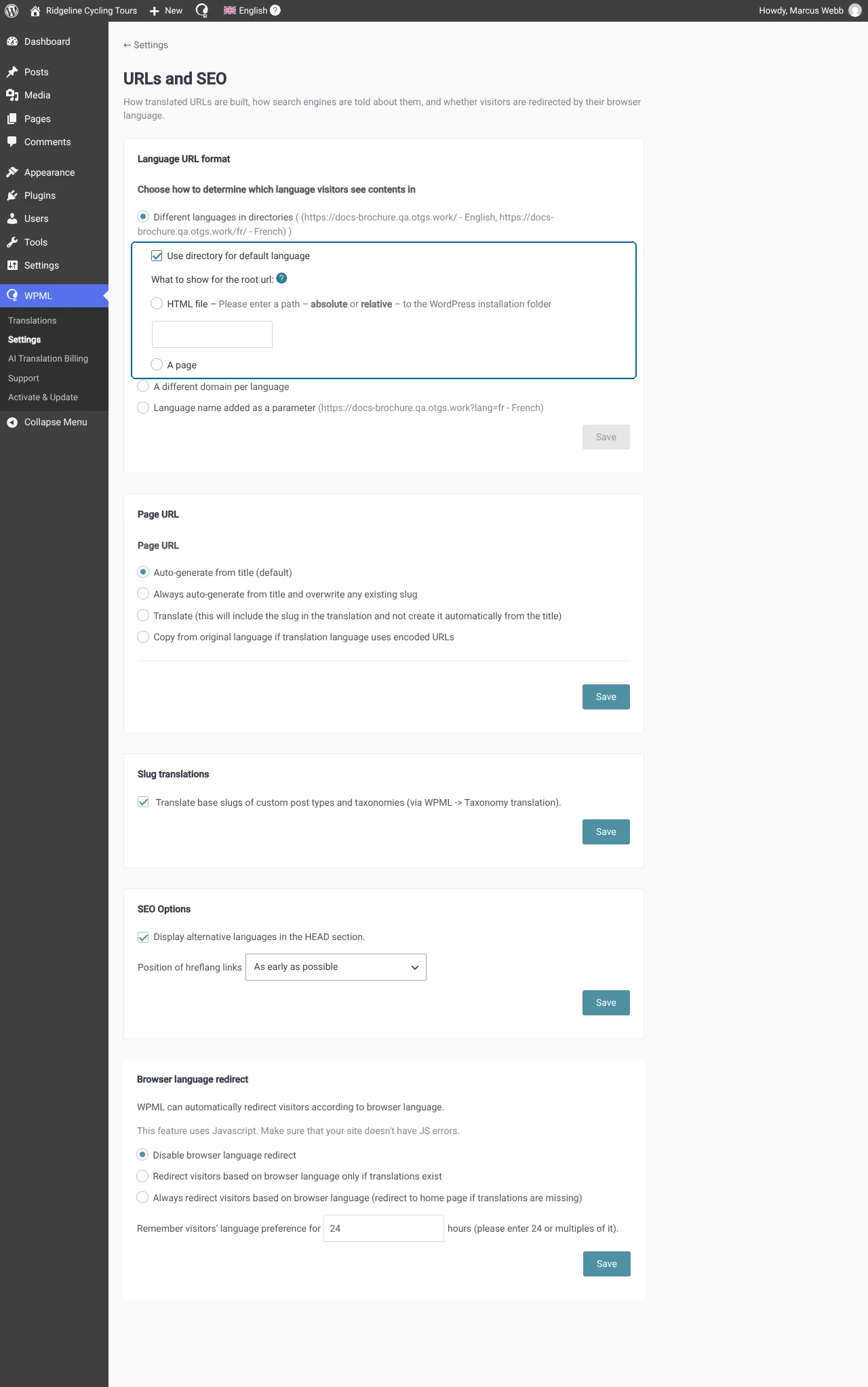
You can choose the format you want when setting up WPML for the first time. If you would like to change to a different format after setting up WPML, you can do so by going to WPMLSettingsURLs and SEOLanguage URL format and scrolling to Language URL format.
You can choose from the following options:
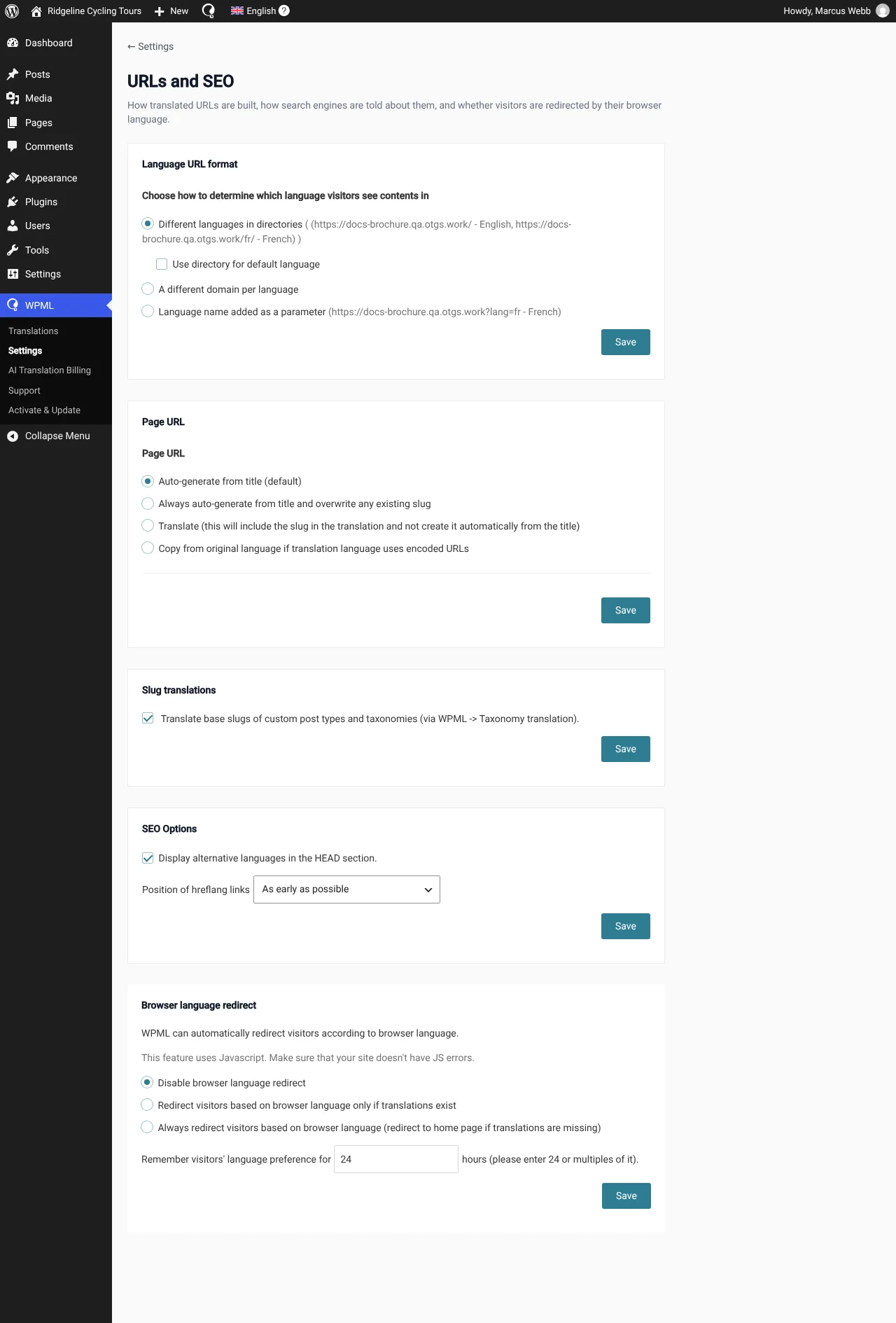
Different languages in directories
When you enable languages in directories, you’re telling WPML to arrange translations in what looks like different virtual folders. For example:
- www.example.com
- www.example.com/es/
- www.example.com/ja/
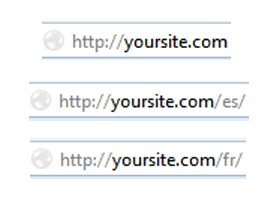
Server settings for languages in directories
To set up your languages in directories, Apache’s rewrite module must be enabled. If you do not have access to your server’s settings, please contact your hosting provider to request them to enable this.
Your site also needs to use a “pretty” permalink structure (opens in a new tab). You can change your site’s permalink structure in your WordPress settings.
Common mistakes
Make sure you’re NOT doing either of the following:
- Creating real directories in your site
You don’t need to create actual directories in your WordPress install, or install WordPress several times. Actually, if you do this, languages in directories will not work.These directories are virtual. They don’t exist as any physical path.
- Redirecting to other directories
Similar to creating real directories, some users edit their .htaccess files and add redirect rules. You shouldn’t do this. WPML creates its own redirect rules dynamically.
For more troubleshooting tips, please see the following article: Cannot Activate Language Directories.
Displaying your site’s default language in a directory
WPML also lets you to display your default language in a directory and select what to show in the site’s root URL.
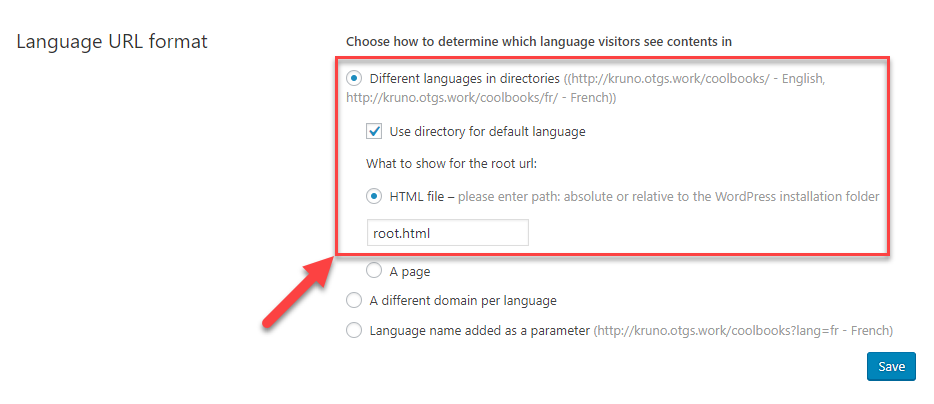
Read more about placing the site’s default language in a directory.
Sub-Site Addresses That Match a Language Directory on Multisite
On a multisite network with sub-sites in directories, WordPress picks the site from the first part of the URL, before any plugin runs. So if a sub-site’s address is the same as one of your language directories, that language’s URLs open the sub-site.
For example, your Spanish pages are at example.com/es/, and a sub-site also uses example.com/es/. Visitors to your Spanish pages get the sub-site or an error page. If this happens with your default language and Use directory for default language is on, your admin screens can fail too.
Where WPML Warns You
From WPML 5.3, WPML:
- Refuses a new sub-site with such an address, in Network AdminSitesAdd New, on wp-signup.php and with wp site create.
- Shows a notice on the main site’s Dashboard and WPML screens, and on the network Sites screens.
- Lists the affected URLs in the Language URL format card and in the setup wizard’s URL step. In the wizard, this is information only, and you can still click Continue.
Hidden languages and archived, deactivated or spam sub-sites count too.
How to Fix It
Choose one of these. Each one changes some URLs.
- Change the sub-site’s address, or delete the sub-site, in Network AdminSites. Links to the sub-site change.
- Change the language’s URL code in WPMLSettingsLanguages. All URLs in that language change, and old links open the sub-site.
- Use another URL format, such as the language as a parameter. All language URLs change.
- For the default language only, turn off Use directory for default language. Default language URLs then have no language directory.
A different domain per language
You can place different languages in completely independent domains. For example:- www.example.com
- www.example.de
You can also choose to place different languages in different subdomains. For example:
- en.example.com
- de.example.com
DNS and server settings for displaying different domains per language
Choosing this format requires you to set up the proper DNS and server settings. Please see our tutorial for step-by-step instructions on the required server settings for using languages in domains.
If you do not have access to your server settings, please contact your hosting provider for assistance.
Language name added as a parameter
Choosing to display the language as a parameter adds the language at the end of your site’s URL. For example:
- www.example.com/?lang=fr
- www.example.com/about/?lang=en
This format does not require any additional changes to your server settings.
