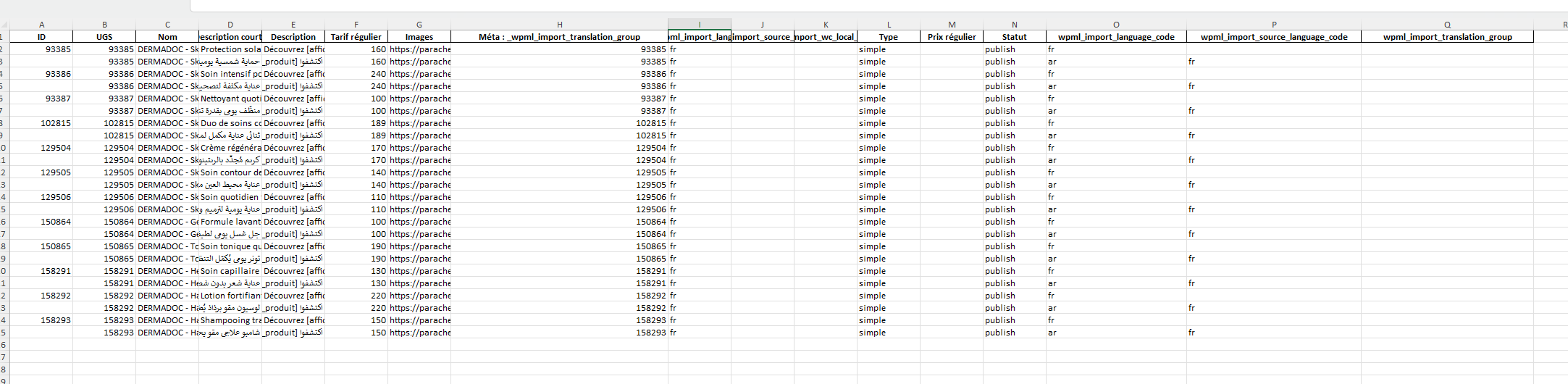
I need a concrete example of a file that can be used to import WooCommerce products in a translated language — for example, importing 10 Arabic versions of 10 existing French products.
I have already tried multiple approaches using Gemini, YouTube tutorials, and ChatGPT, but I still cannot make this work correctly.
Here is the recurring issue:
I import the products in Arabic using the official built-in WooCommerce product importer.
Then, when I click on the WPML Import/Export button to link these Arabic products to their original French versions, WPML automatically converts the Arabic products into new French products, instead of keeping them as Arabic translations.
This behavior happens systematically and without any clear reason.
I am attaching my export file so you can see exactly what I currently have and what needs to be changed to make this workflow work properly.
To be clear:
I am using the official WooCommerce product import tool.
The goal is not to create new French products, but to correctly associate Arabic products as translations of existing French products via WPML.
Hi, asked for something very easy, i just need you to give me an import example file for multilingual products, i already checked youtube, your documentation, chatgpt, gemini, everything. May you please just send me an import example file of multilingual products please ?
and also i didn't find any help regarding hwo to not waste more time, because i feel like we have to do everyhting. Is ther enot a way to import product with directly the samed category, brand, product tag and so on ? it is way too much time consumming to reassigne every product to the right taxonomie. I feel like there must be a better way to do so.
Please apologize. You are right, the process should be streamlined.
I created a full example for you so you can review it.
In this site (you'll be automatically logged in): hidden link
I created and translated the products. Then I ran the export as explained in the documentation I shared before. You can find the export file in the site's hidden link">Media library.
In this other site: hidden link
I imported the products (including attributes and categories).
Can you please review the example and let me know if it helps?
If you already managed to import the products but the categories and attributes are not in synch in the translations, try the following:
- Go to WPML > Taxonomy Translation
- Select Product categories
- Make sure all the terms are translated
- At the bottom of the page you should see a button to synchronize them with translated products
- Do the same for the attributes
Alternatively, you can go to WooCommerce > WooCommerce Multilingual & Multicurrency -> Settings (tab) -> Troubleshooting (bottom right of the page) and run the actions there. ❌ Please make a full website backup before proceeding ❌
Let me know how it goes, please.
Best Regards,
Otto
The topic ‘[Closed] Importing Woocommerce product in translated language’ is closed to new replies.