This thread is resolved. Here is a description of the problem and solution.
Problem:
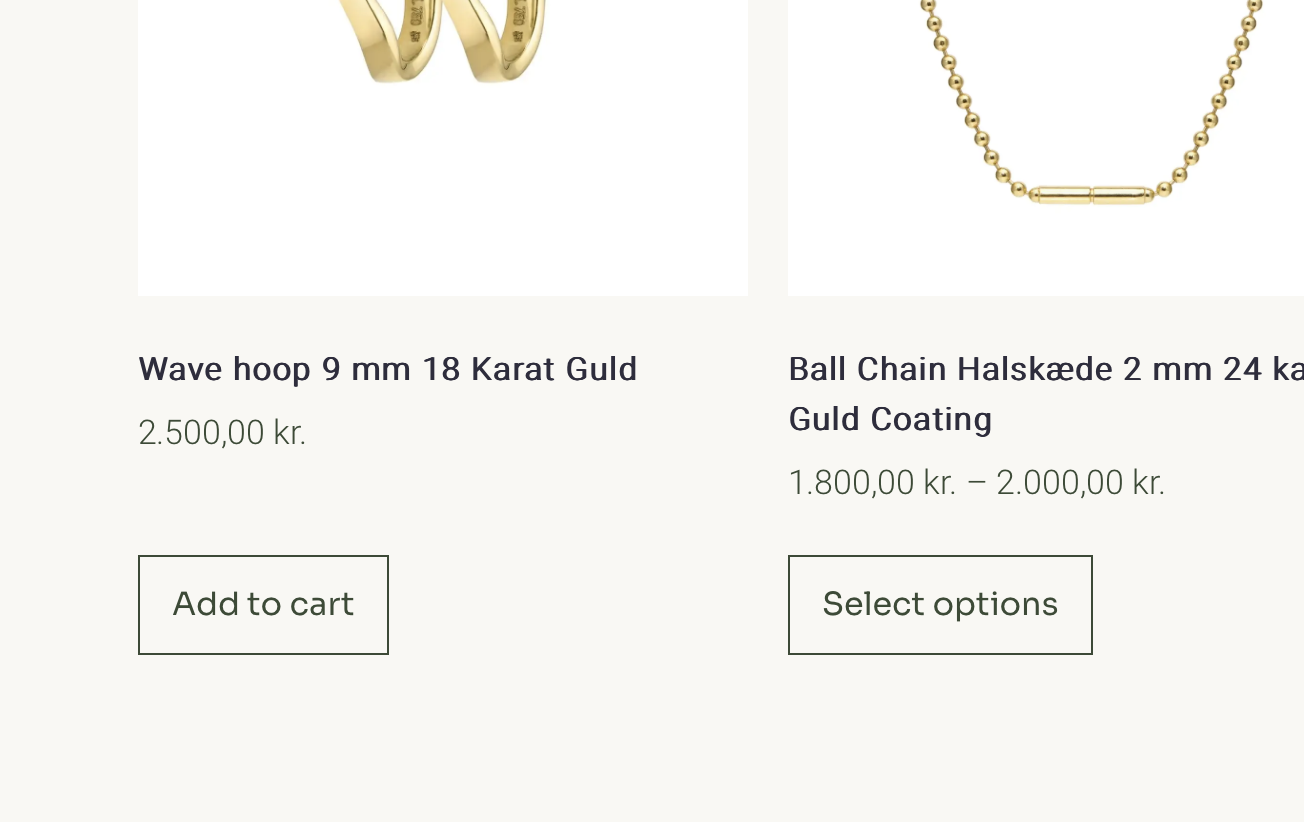
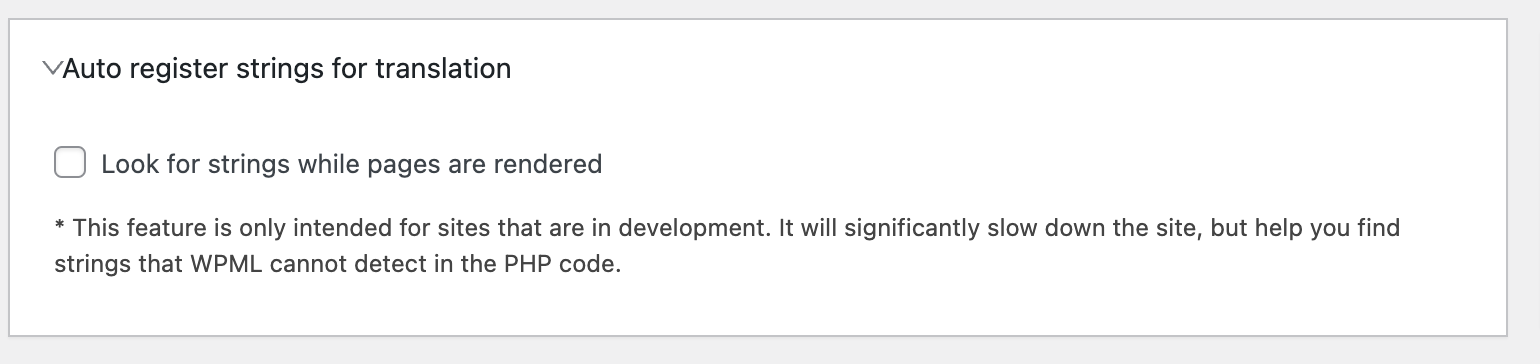
If you're experiencing issues where translations fail when the auto register strings function is turned off on your WPML setup, here's a step-by-step guide to help you resolve this.
Solution:
1. Rename the
languages
folder: In your FTP client, rename the
wp-content/languages
folder to something like
languages-backup
. This action will temporarily remove the compiled
.mo
files while keeping them safe if needed later.
2. Regenerate
.mo
files: In your WordPress dashboard, go to WPML > Support > Troubleshooting, and choose Show custom MO Files Pre-generation dialog box.
3. Test in minimal setup: Since staging works well, it could be that a security or caching plugin on the live site is causing the issue. Temporarily disable any security and caching plugins (like Wordfence, Sucuri, WP Rocket, etc.) and check if WPML functions correctly.
4. Verify translations: Once you’ve completed the steps, review the site to ensure translations display properly.
After testing, you can delete the
languages-backup
folder if everything functions as expected, as WPML will have recreated any necessary files.
If this solution does not resolve your issue, or if it seems outdated or irrelevant to your specific case, we highly recommend checking related known issues at https://wpml.org/known-issues/, verifying the version of the permanent fix, and confirming that you have installed the latest versions of themes and plugins. If further assistance is needed, please open a new support ticket at WPML support forum.
This is the technical support forum for WPML - the multilingual WordPress plugin.
Everyone can read, but only WPML clients can post here. WPML team is replying on the forum 6 days per week, 22 hours per day.
This topic contains 4 replies, has 2 voices.
Last updated by 1 year, 5 months ago.
Assisted by: Bruno Kos.