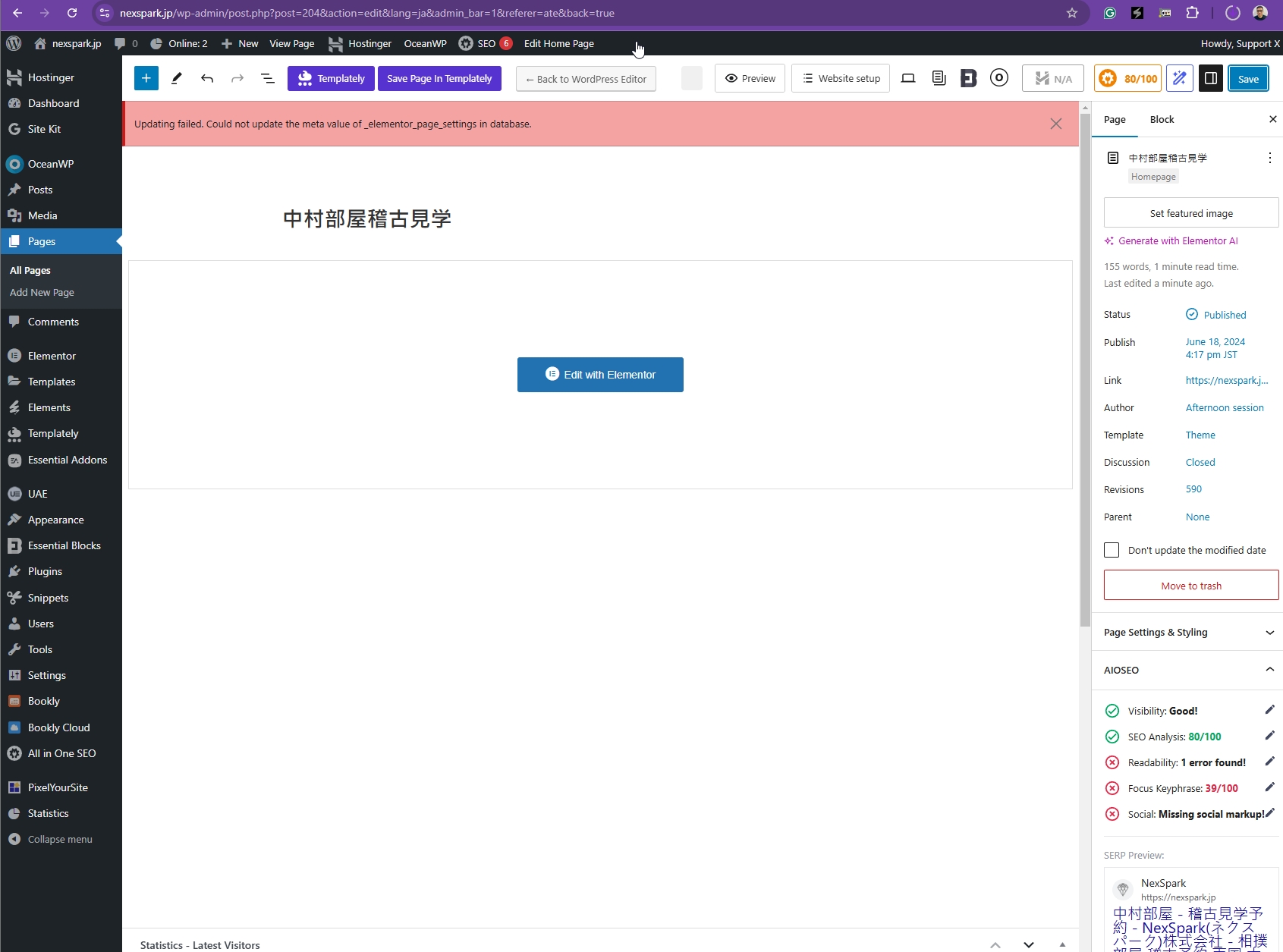
Background of the issue:
I added a new language, Korean, to my site hidden link using WPML. I created a translated page in Korean and attempted to save translations using the WPML Advanced Translation Editor (ATE). I followed documentation related to saving translations and adjusted custom fields translation settings, specifically setting _elementor_page_settings to 'Copy'. I also used WPML troubleshooting options like clearing ATE job cache and synchronizing local job IDs.
Symptoms:
When I try to update the translated content, I receive an error message: 'Updating failed. Unable to update the meta value for _elementor_page_settings in the database.' This issue affects metadata fields, but general text fields are saved correctly.
Questions:
How can I fix the error message 'Updating failed. Unable to update the meta value for _elementor_page_settings in the database'?
Why am I unable to save translations in the WPML Advanced Translation Editor for newly added languages?
I will need to closely examine your website. Therefore, I will require temporary access (WP-Admin and FTP) to a test site where the problem has been replicated, if possible. This will enable me to provide better assistance and determine if any configurations need to be modified.
Please note that it is important to have a backup for security purposes and to prevent any potential data loss. You can use the UpdraftPlus plugin (https://wordpress.org/plugins/updraftplus/) to fulfill your backup requirements.
Your upcoming reply will be treated with confidentiality and will only be visible to you and me.
✙ To resolve the issue, I may need your consent to deactivate and reactivate plugins and the theme, as well as make configuration changes on the site if necessary. This emphasizes the significance of having a backup.
While checking the debug info, I see that the WordPress Memory Limit is below the requirements. The minimum requirements are 128M, but we do recommend 256M and the debug information of your site shows it set to 40M. Please check this link for more details https://wpml.org/home/minimum-requirements/.
You can increase it by adding the following code in your wp-config.php file, right before the /* That’s all, stop editing! Happy publishing. */ line: