
This is the technical support forum for WPML - the multilingual WordPress plugin.
Everyone can read, but only WPML clients can post here. WPML team is replying on the forum 6 days per week, 22 hours per day.
| Sun | Mon | Tue | Wed | Thu | Fri | Sat |
|---|---|---|---|---|---|---|
| - | 9:00 – 13:00 | 9:00 – 13:00 | 9:00 – 13:00 | 9:00 – 13:00 | 9:00 – 13:00 | - |
| - | 14:00 – 18:00 | 14:00 – 18:00 | 14:00 – 18:00 | 14:00 – 18:00 | 14:00 – 18:00 | - |
Supporter timezone: America/Los_Angeles (GMT-07:00)
Tagged: Bug
| Author | Posts |
|---|---|
| December 19, 2025 at 8:01 pm #17679086 | |
 juanG-46 |
Unable to upload svg through media translation. Site uses SVG Support plugin, and can upload svg to media. No method to use existing media as translation. Workaround--swap media directly on Elementor page breaks WPML editor for future text updates. |
| December 19, 2025 at 10:19 pm #17679276 | |
 Andrey WPML Supporter since 06/2013 Languages: English (English ) Russian (Русский ) Timezone: Europe/Kyiv (GMT+03:00) |
One of my colleagues will take on your ticket. In the meantime, I would like to provide some helpful information. We are already aware of why SVG images don’t work with Media Translation at the moment. WPML currently keeps an internal list of supported media file types, and SVG is not included, even if SVG uploads are enabled in WordPress. As a result, SVG files are ignored by Media Translation. Workaround You can enable SVG support by adding svg to WPML’s allowed extensions list in this file: wp-content/plugins/sitepress-multilingual-cms/classes/media-translation/ Inside the function getAllowedExtensionsForFilename(), add 'svg' to the returned array (for example, at the beginning).
	private function getAllowedExtensionsForFilename() {
		return [ 'svg',
Please note that this change will be overwritten on plugin updates, so it may need to be re-applied. The SVG support in Media Translation will be handled correctly in a future version, so that this manual workaround won’t be necessary long-term. Please backup your database before making any changes. |
| December 22, 2025 at 8:43 pm #17683334 | |
|
juanG-46 |
I made the update to class-wpml-media-attachment-by-url-query.php to include 'svg' on line 226 as you showed. Cleared all server and browser caches. Trying to upload an SVG in media translate continues to show 'security check failed' with the SVG Support plugin enabled. Using the Safe SVG plugin, the upload completes, but shows a blank file or a blue question mark 9screenshot attached). This is the same results as before making the change to the php file.  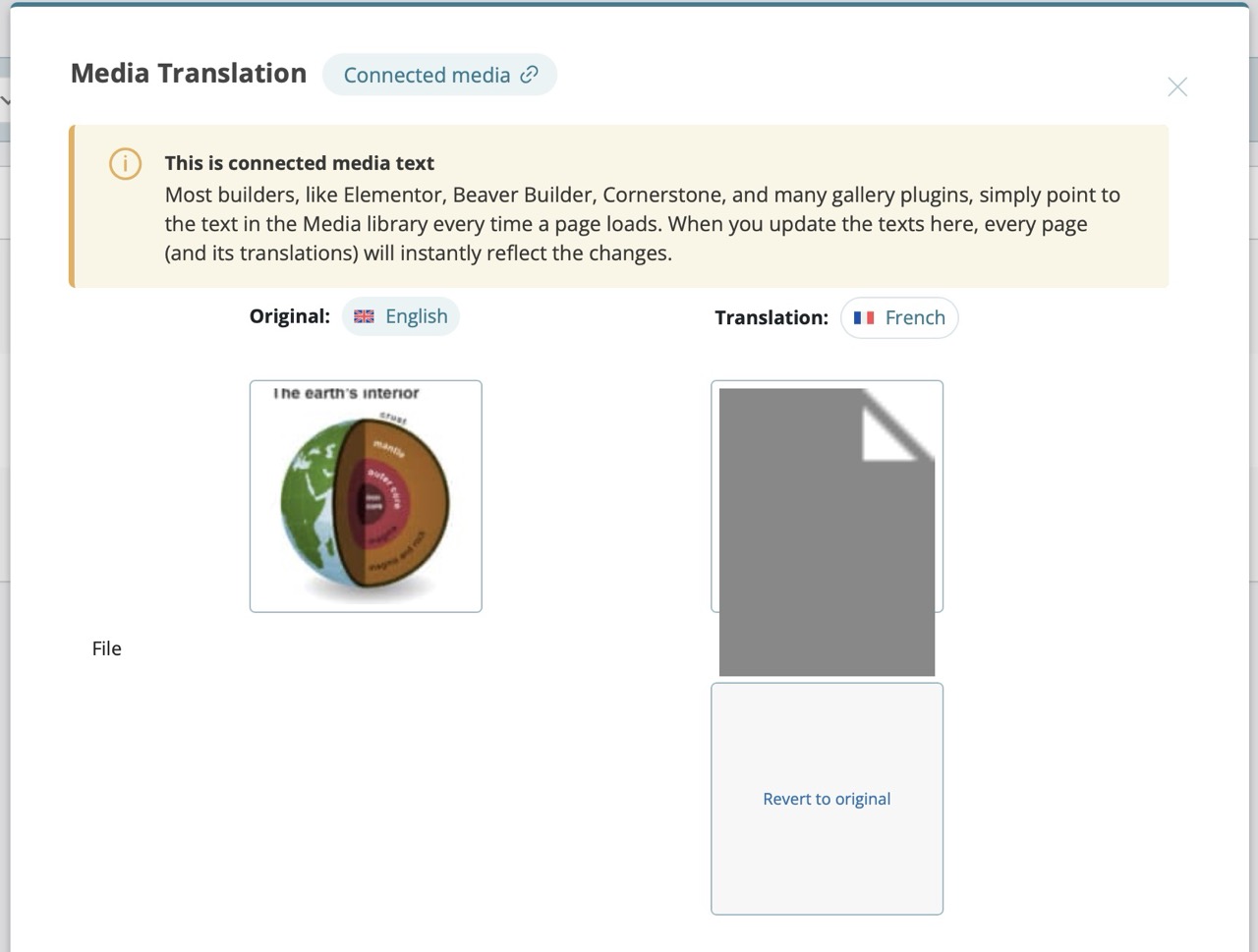 |
| December 22, 2025 at 10:24 pm #17683540 | |
 Bobby WPML Supporter since 04/2015 Languages: English (English ) Timezone: America/Los_Angeles (GMT-07:00) |
Hi there, This issue has been currently fixed by our developers and will be included in the next major release of WPML which is pending. In the meantime the workaround should work. (Using SVG Safe plugin is required) I would like to request temporary access (wp-admin and FTP) to your site to test the issue. **Before we proceed It is necessary to take FULL BACKUP of your database and your website. Providing us with access, you agree that a backup has been taken ** I often use the Duplicator plugin for this purpose: http://wordpress.org/plugins/duplicator/ NOTE: If access to the live site is not possible and the staging site does not exist please provide me with a duplicator package created with the duplicator plugin. Thank you, |
| December 23, 2025 at 6:54 pm #17685480 | |
|
Bobby WPML Supporter since 04/2015 Languages: English (English ) Timezone: America/Los_Angeles (GMT-07:00) |
Thank you for the access details! I was not able to download the SVG file, therefore I created my own for testing purposes. 1. Go to WPML->Media Translation Once you do this the file will display correctly. Let me know your results, please.  |
| December 23, 2025 at 9:30 pm #17685635 | |
|
juanG-46 |
It worked once when I tried translating the Spanish to French using your test file and entering a unique filename, but failed when I tried the same thing translating the English to French. Does the English being Connected Media make any difference? 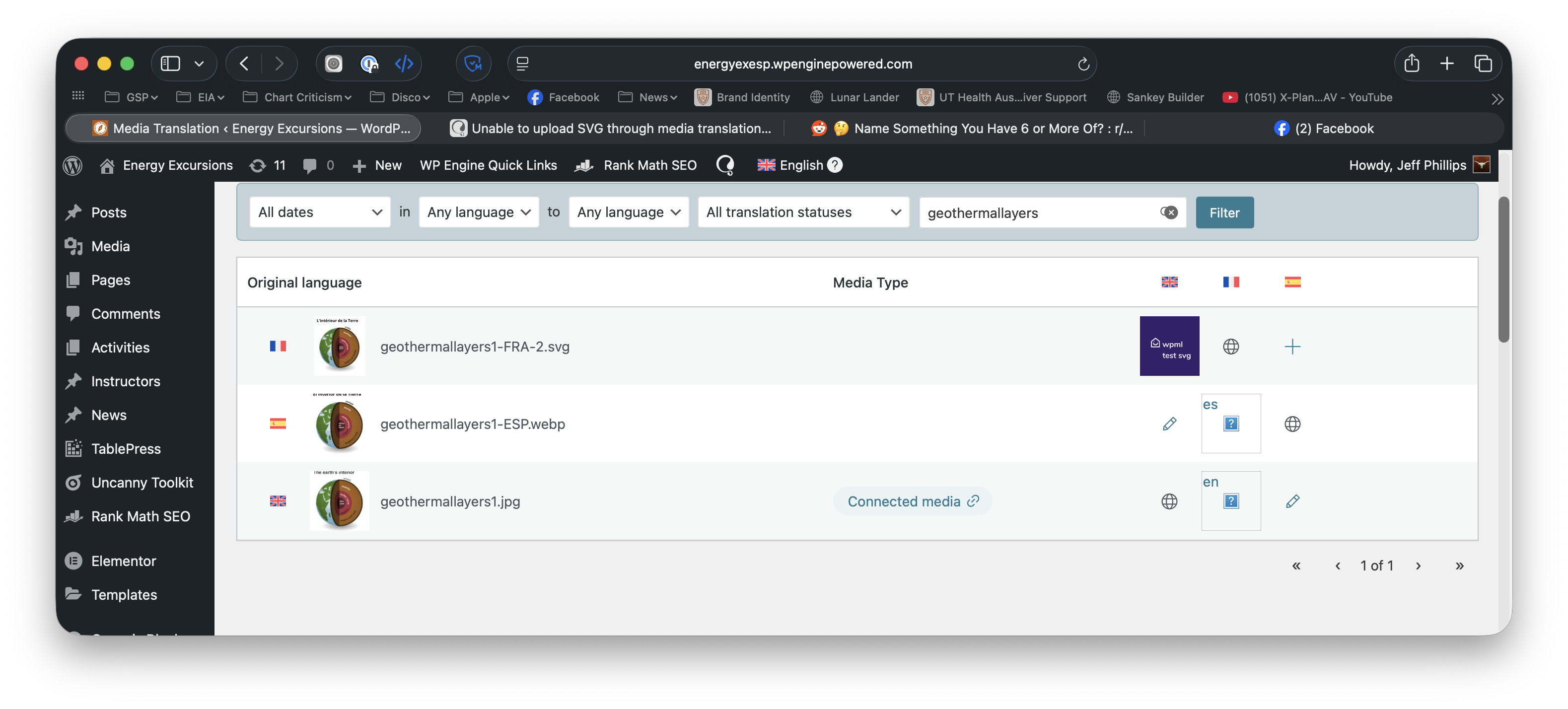 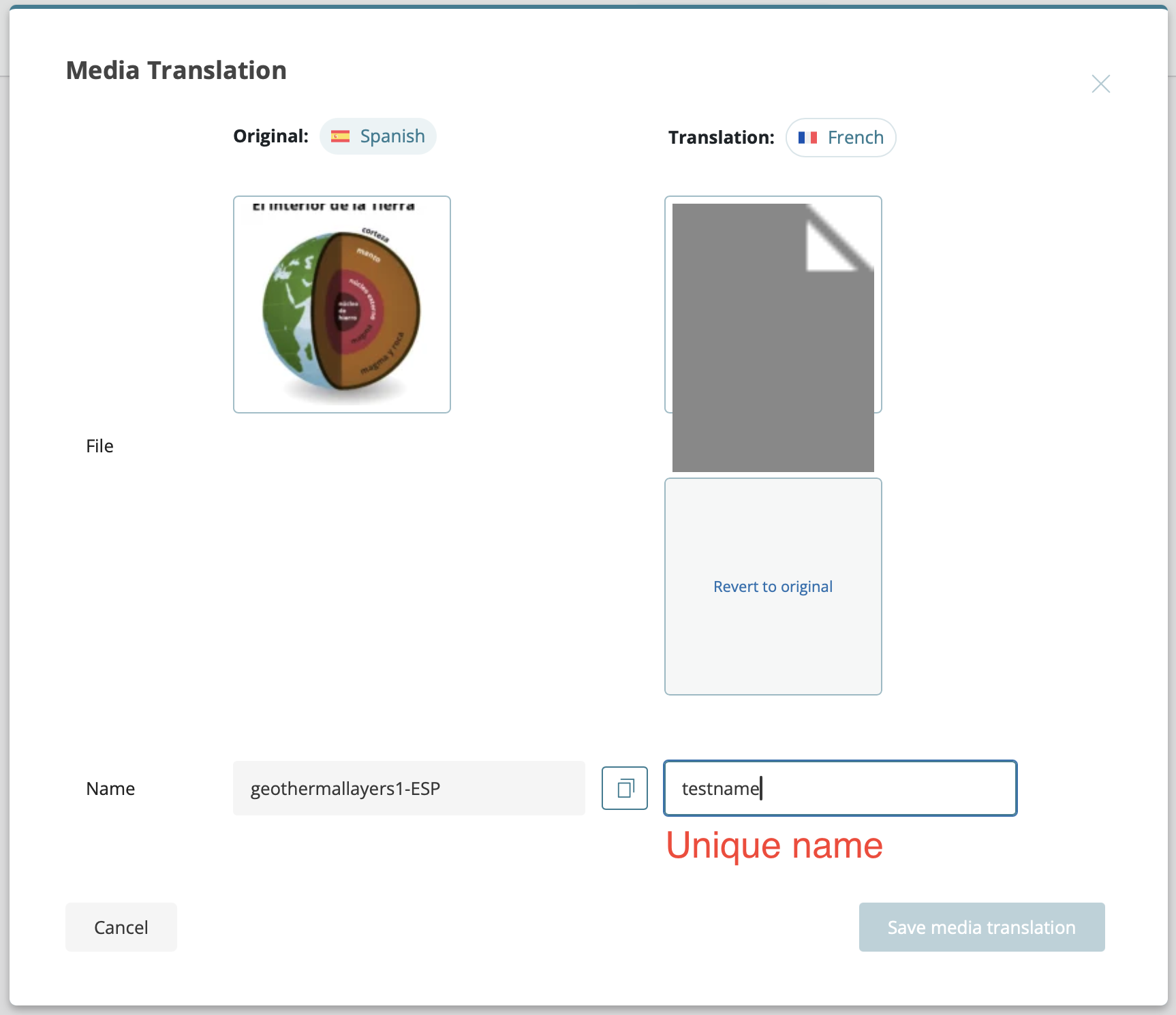 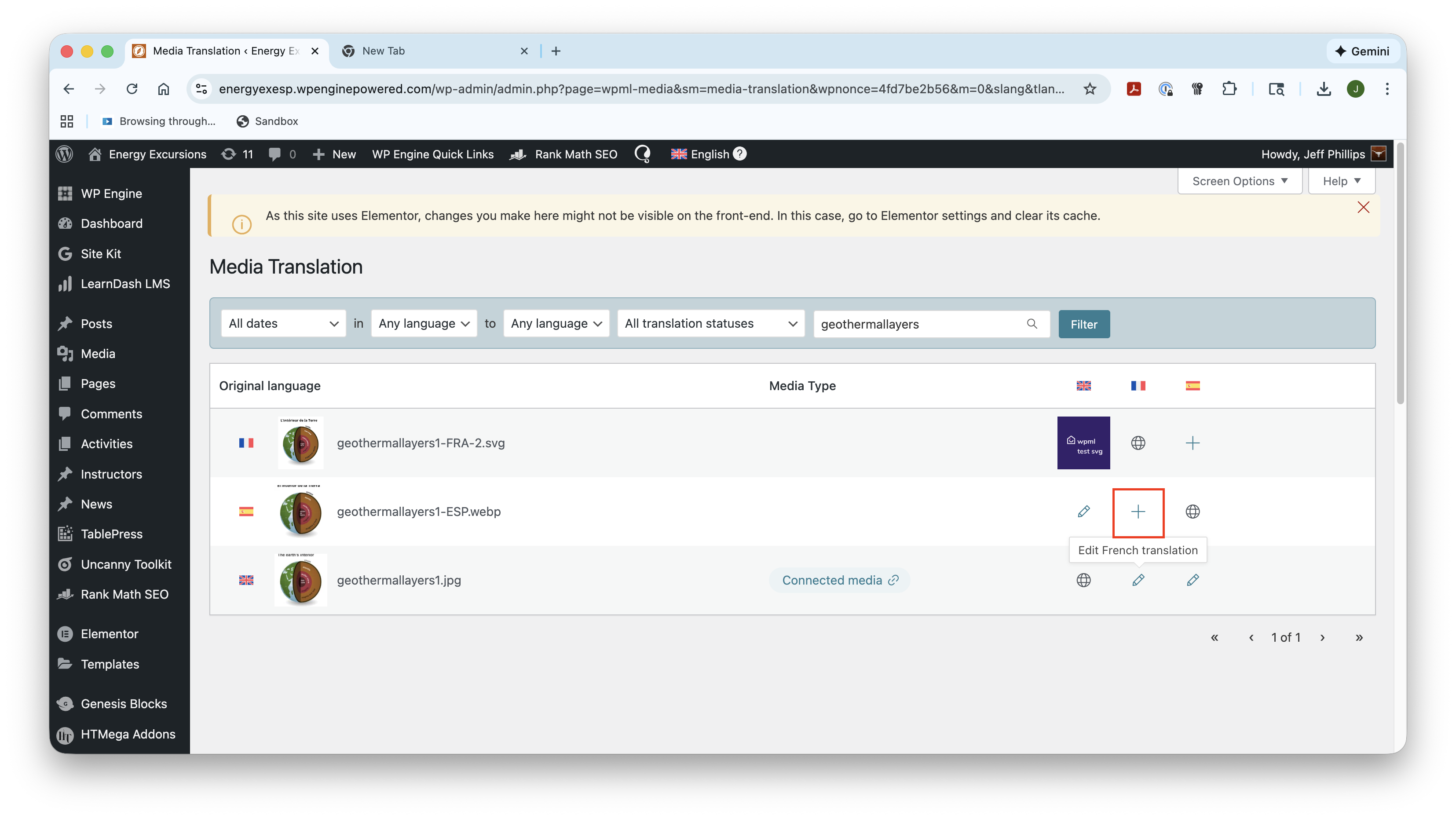 |
| December 23, 2025 at 9:47 pm #17685696 | |
|
juanG-46 |
Here's an interesting development: although the image shows as broken in the WPML Media Translation list, it appears correctly on the translated page. hidden link  |
| December 23, 2025 at 9:56 pm #17685715 | |
|
juanG-46 |
Dang it, it only worked once. Tried again on another image on that same page.   |
| December 24, 2025 at 9:03 pm #17687414 | |
|
Bobby WPML Supporter since 04/2015 Languages: English (English ) Timezone: America/Los_Angeles (GMT-07:00) |
These seem to come from Spanish and French, i'd recommend translating the media directly from the defautl language into the secondary languages and not the other way around. For example you can filter for just English and then translate the EN version into the translations. Let me know your results, please. |
| December 24, 2025 at 9:29 pm #17687415 | |
|
juanG-46 |
That's exactly what I'm trying to do--go from English to French. The example you showed working went from French to English. |
| December 24, 2025 at 9:58 pm #17687430 | |
|
Bobby WPML Supporter since 04/2015 Languages: English (English ) Timezone: America/Los_Angeles (GMT-07:00) |
You are right, let's try something else. I downloaded the EN version which was a jpg file and converted it to SVG. Uploaded it as a new media file. it looks like with that file I am able to upload the SVG translations OK. Can you please give it a test and let me know your results. |
| December 30, 2025 at 8:57 pm #17697360 | |
|
juanG-46 |
It worked! Once! I made new English, Spanish & French Versions of my svg, used the English on the English page, translated the Spanish & French media, and they appeared on the page. Moved on to a second image. Repeated the steps, the Spanish worked as expected, but the French shows missing. Attempting to use the Spanish media (which worked) for the French media fails. Gaaah! I'm about to give up on my dreams of svg and just make webp of everything.  |
| January 2, 2026 at 7:49 pm #17700981 | |
|
Bobby WPML Supporter since 04/2015 Languages: English (English ) Timezone: America/Los_Angeles (GMT-07:00) |
I apologize for the inconvenience this is causing. Our team has integrated a permanent solution for the upcoming release of WPML. However, it looks like even with the workaround at the moment you are not getting stable results. I have shared your case with our devs assigned to this issue and will update you as soon as I have some feedback. |
| January 5, 2026 at 10:11 pm #17705454 | |
|
Bobby WPML Supporter since 04/2015 Languages: English (English ) Timezone: America/Los_Angeles (GMT-07:00) |
Hi there, Following up on this, were you able to resolve the issue? When I check on the site now it looks OK. |
| January 15, 2026 at 5:32 pm #17734956 | |
|
juanG-46 |
Sorry--this was on page 2. I never got SVGs working, so I punted and made everything into WEBP, which works as intended. |







The topic ‘[Closed] Unable to upload SVG through media translation’ is closed to new replies.