Problem: If you're trying to manually upgrade the Multilingual CMS in your development environment and facing issues due to a weak local connection that causes the upgrade process to hang and fail, setting your site in maintenance mode. Solution: We recommend downloading the latest version of the plugin from the Downloads section of your WPML.org account. After downloading, manually install the ZIP file on your site. For detailed instructions on how to manually update the plugin, please visit this guide.
If this solution does not apply to your case, or if it seems outdated, we highly recommend checking related known issues at https://wpml.org/known-issues/, verifying the version of the permanent fix, and confirming that you have installed the latest versions of themes and plugins. If further assistance is needed, please feel free to open a new support ticket at WPML support forum.
Problem: You are trying to translate the footer of your website using WPML, but despite following the string translation documentation, the footer translation stopped working and appears untranslated in Spanish. Solution: Here's what we recommend you try: 1. Go to Appearance -> Widgets and resave the Footer 2 widget. 2. After resaving, the text of this widget should appear in WPML -> Strings Translation. You can then proceed to translate it. 3. Once translated, the changes should reflect on the front end in Spanish.
If this solution does not resolve your issue or seems irrelevant due to being outdated or not applicable to your case, we highly recommend checking related known issues at https://wpml.org/known-issues/, verifying the version of the permanent fix, and confirming that you have installed the latest versions of themes and plugins. If the problem persists, please open a new support ticket at our support forum for further assistance.
Problem: The client is implementing a resume count limit on a multilingual site using WPML. The limit works in the default language but fails in the second language, showing the 'Add Resume' button even when the limit is reached. Solution: We recommend taking a backup of your site and testing the following code to ensure the resume count limit works across all languages:
function resume_manager_count_user_resumes( $user_id = 0 ) {
    global $wpdb;

    if ( ! $user_id ) {
        $user_id = get_current_user_id();
    }

    // Check if WPML is active
    if ( defined( 'ICL_LANGUAGE_CODE' ) ) {
        // Get the default language code
        $default_language = apply_filters( 'wpml_default_language', null );

        // Query to count resumes across all languages (including translations)
        return $wpdb->get_var( $wpdb->prepare( "
            SELECT COUNT(DISTINCT p.ID)
            FROM {$wpdb->posts} p
            LEFT JOIN {$wpdb->prefix}icl_translations t ON p.ID = t.element_id
            WHERE p.post_author = %d
            AND p.post_type = 'resume'
            AND p.post_status IN ( 'publish', 'pending', 'expired', 'hidden' )
            AND ( t.language_code = %s OR t.source_language_code IS NULL )
        ", $user_id, $default_language ) );
    }

    // Default query if WPML is not active (only counts resumes in the default language)
    return $wpdb->get_var( $wpdb->prepare( "
        SELECT COUNT(ID)
        FROM {$wpdb->posts}
        WHERE post_author = %d
        AND post_type = 'resume'
        AND post_status IN ( 'publish', 'pending', 'expired', 'hidden' );
    ", $user_id ) );
}

// Check if the resume limit is reached and remove the "Add Resume" button
function resume_manager_add_resume_button( $user_id = 0 ) {
    $limit = 5; // Set the resume limit (this could be dynamic or configurable)

    $resume_count = resume_manager_count_user_resumes( $user_id );

    if ( $resume_count >= $limit ) {
        // Add custom code to hide or disable the "Add Resume" button
        echo '<style>#add_resume_button { display: none; }</style>';
    }
}
If this solution does not resolve the issue, we can provide a WPML test site to further investigate and solve the problem.
Please note that this solution might be outdated or not applicable to your specific case. We highly recommend checking related known issues at https://wpml.org/known-issues/, verifying the version of the permanent fix, and confirming that you have installed the latest versions of themes and plugins. If the issue persists, please open a new support ticket at WPML support forum.
Problem: The client was experiencing a 404 error when trying to view content translated into English. The expected behavior was to see the same content as in the Portuguese (PT) version, but translated into English. Solution: We reviewed the client's setup and identified that the issue was related to the incorrect translation of the URL slug which included the language code (/en). To resolve this, we removed the language code from the slug translation, ensuring that only the slug part needed translation without including the language code. This adjustment corrected the URL structure and resolved the 404 error.
If this solution does not apply to your case, or if it seems outdated, we recommend opening a new support ticket. We also advise checking the related known issues and confirming that you have installed the latest versions of themes and plugins. For further assistance, please visit our support forum.
Problem: The client reported issues with long delays when saving translations on a page, and the footer not translating correctly despite following provided instructions. Solution: 1. For the issue of delays when saving translations, we recommended refreshing the page as demonstrated in the screen recording: https://go.screenpal.com/watch/cZlwDAneqqk. 2. Regarding the footer not translating, we corrected the string translation to point to the correct language Footer template ID via the WPML String Translation interface.
If this solution does not resolve your issues or seems outdated, we highly recommend checking related known issues at https://wpml.org/known-issues/, verifying the version of the permanent fix, and confirming that you have installed the latest versions of themes and plugins. If the problem persists, please open a new support ticket at WPML support forum for further assistance.
Problem: You are trying to translate the 'lang' attribute of the VikRentCar shortcode ([vikrentcar view="vikrentcar" lang="en-US"]) using WPML, but the translation does not reflect on the page. The issue arises because the 'lang' attribute is stored in a custom database table and is not dynamically updated during the localization process. Solution: To resolve this, you need to make the value stored in the custom database tables translatable with WPML. You can follow the guide on making strings translatable in WPML here: String Package Translation. Until this configuration is set, you will need to manually translate the page containing the VikRentCar shortcode using the WordPress editor instead of the Advanced Translation Editor. Additionally, since the VikRentCar plugin is not listed in WPML’s compatibility directory, it is recommended to contact the VikRentCar development team for further support and encourage them to join WPML's Go Global program for better compatibility.
If this solution does not apply to your case, or if it seems outdated, please check related known issues at https://wpml.org/known-issues/, verify the version of the permanent fix, and confirm that you have installed the latest versions of themes and plugins. If further assistance is needed, we highly recommend opening a new support ticket at WPML support forum.
Problem: If you're experiencing issues where changing a product's status to 'draft' in the default language (Italian) does not automatically sync the status to additional languages (English/Chinese) on your multilingual site, we have a solution for you. Solution: We recommend adding a custom code snippet to your theme's functions.php file to synchronize the publish status across all languages. Here's how you can do it:
function sync_publish_status_across_languages($post_id) {
    // Check if this is a valid post type (product) and that the post is not being autosaved
    if (defined('DOING_AUTOSAVE') && DOING_AUTOSAVE) return;
    if ('product' != get_post_type($post_id)) return;  // Check for WooCommerce product post type

    // Get the current post status
    $post_status = get_post_status($post_id);

    // Get the default language
    $default_language = apply_filters('wpml_default_language', null);

    // Get all translations of the post in different languages
    $translations = apply_filters('wpml_get_element_translations', null, $post_id, 'product');  // Updated for products

    foreach ($translations as $lang => $translation) {
        // Skip the default language post (we don't want to update it)
        if ($lang === $default_language) continue;

        // Get the translation post ID
        $translation_post_id = $translation->element_id;

        // Update the publish status of the translated post
        wp_update_post(array(
            'ID' => $translation_post_id,
            'post_status' => $post_status
        ));
    }
}

add_action('save_post', 'sync_publish_status_across_languages');
Please note that this solution might be outdated or not applicable to your specific case. If this does not resolve your issue, we highly recommend checking related known issues at https://wpml.org/known-issues/, verifying the version of the permanent fix, and confirming that you have installed the latest versions of themes and plugins. If you still need assistance, please open a new support ticket at WPML support forum.
Problem: You are experiencing high server response times due to repetitive WPML-related database queries, as indicated by Query Monitor. Despite using Object Cache Pro, these queries remain inefficient and affect page load performance. Solution: We have reviewed your concern and found that a load time impact of 0.5-1.0 seconds is typical with WPML. The duplicated queries you mentioned contribute only 0.0010 seconds to the load time. Additionally, the website's frontend and backend loaded in less than 1 second, and the PageSpeedInsights score was 96, which is very good. Given these observations, the performance impact of WPML queries is within an acceptable range, and significant optimization may not be necessary at this time.
If this solution does not apply to your case, or if it seems outdated, we recommend opening a new support ticket. We also highly recommend checking related known issues at https://wpml.org/known-issues/, verifying the version of the permanent fix, and confirming that you have installed the latest versions of themes and plugins. For further assistance, please visit our support forum at WPML Support Forum.
Problem: You are experiencing an issue where some elements overlap the header on your pages after updating WPML. Solution: We recommend adding the following CSS to the custom CSS section of your theme to resolve the overlapping elements issue:
This adjustment should prevent the elements from overlapping the header. If this solution does not resolve your issue, or if it seems outdated or irrelevant to your case, please check the related known issues and confirm that you have installed the latest versions of themes and plugins. We highly recommend opening a new support ticket if the problem persists. You can do so at WPML support forum.
Problem: The client is trying to translate the main and submenu from German to English on their website, but the translation is not appearing correctly. The English menu displays the same items as the German menu, and the order of items is incorrect, with some submenu elements missing or invisible. Solution: 1. For menu items that link to pages, ensure that the translations for these pages exist. If they do, these should work as expected. 2. For custom menu items, you need to translate them using WPML > String Translation. You can find a complete guide on translating menus here: Translating Menus. 3. Use WPML > WP Menus Sync to sync entries for dynamic menu items. Note that this will only sync entries if a translation for the linked page already exists. WP Menus Sync will not fully sync menus, especially if they use custom menu items or specific menu plugins. 4. If necessary, edit the translated menu manually to make adjustments. For a guide on creating menus manually, visit: Fully Custom: Create Menus Manually.
If this solution does not resolve your issue or seems outdated, we recommend checking related known issues at https://wpml.org/known-issues/, verifying the version of the permanent fix, and confirming that you have installed the latest versions of themes and plugins. If the problem persists, please open a new support ticket for further assistance.
Problem: The client is trying to add a language switcher widget to the header bar on their website. However, the French page reloads but stays on the French site instead of switching to the English URL. Solution: 1. We recommended updating the URL format to use directories on the live site to see if it resolves the issue. 2. We suggested disabling caching on the site to check if it affects the redirection. 3. We asked the client to provide FTP details for further investigation into potential configuration issues. 4. We advised the client to contact their hosting provider to clarify how the domains are set up and whether they are using two separate databases for the two sites.
If this solution does not apply to your case, or if it seems outdated, we highly recommend checking related known issues at https://wpml.org/known-issues/, verifying the version of the permanent fix, and confirming that you have installed the latest versions of themes and plugins. If issues persist, please open a new support ticket at WPML support forum.
Problem: After translating a WooCommerce product gallery using WPML in Elementor, the gallery shows 'No Product Found' despite selecting the correct categories in the English version. Solution: First, ensure that you have translated the product categories. To do this, navigate to WP Dashboard > WooCommerce > WooCommerce Multilingual > Category (tab). Next, confirm that the products within the category are also translated. If they are not translated, they will not display in the gallery. Then, go to WordPress Dashboard > WPML > Settings > Media Translation. Ensure all checkboxes are enabled and click the Start button. Wait for the process to complete. If the issue persists, we recommend opening a new support ticket. Please ensure you have a backup of your website before providing any access details. For further assistance, visit our support forum at WPML Support Forum. We also highly recommend checking related known issues at https://wpml.org/known-issues/, verifying the version of the permanent fix, and confirming that you have installed the latest versions of themes and plugins.
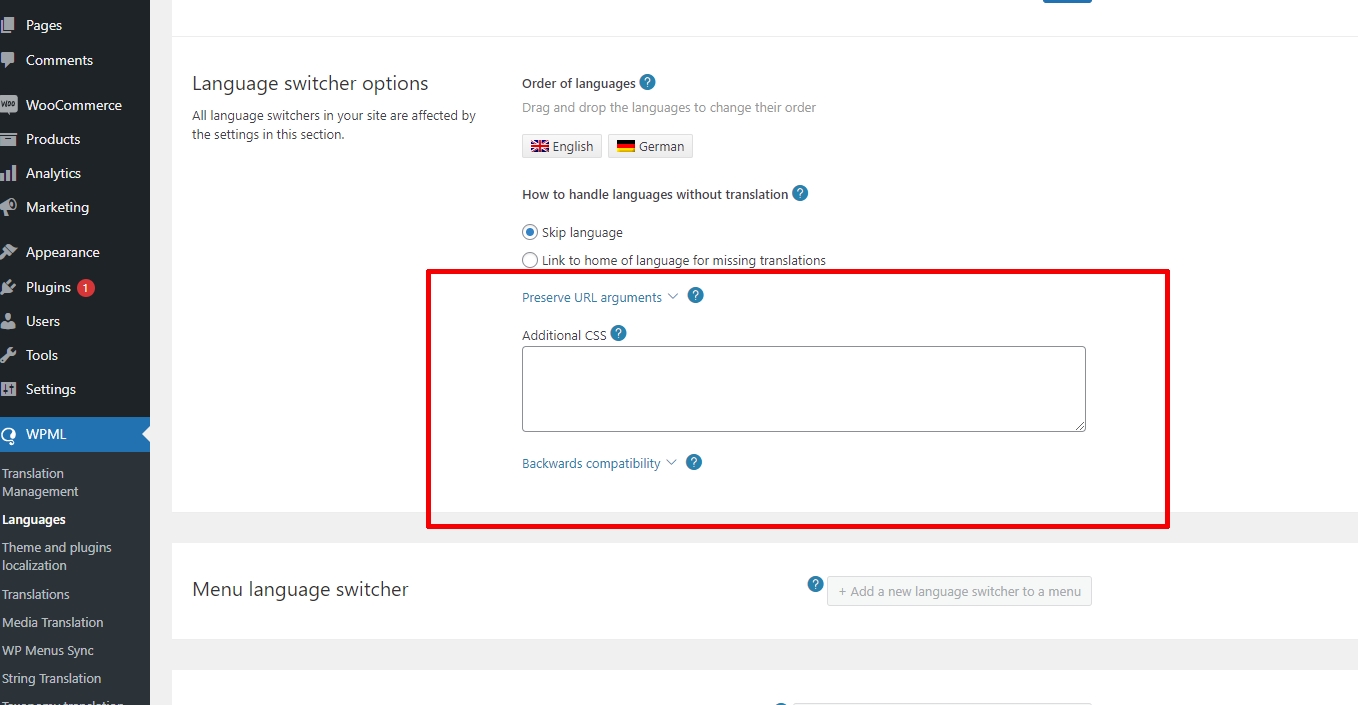
Problem: The client is trying to implement CSS code for the theme 'Twenty Seventeen' to adjust the margin between the headline and the text on the homepage in the mobile version. However, the additional CSS is not applied to the translated version of the website, causing layout issues on mobile devices. Solution: First, we recommend adding your CSS modifications under the WPML>>Languages page in the Language Switcher Options section by clicking on the Additional CSS link. Ensure you perform a site backup before making these changes. For more details, refer to the following documentation links:
Second, the issue might persist because the CSS targets a specific page ID which changes in translated versions. For instance, the original page might have an ID of '9', while its translated counterpart could have '9595'. Adjust the CSS to target the correct page ID for each language version.
If these steps do not resolve your issue or if the solution seems outdated or irrelevant to your case, we highly recommend checking related known issues, verifying the version of the permanent fix, and confirming that you have installed the latest versions of themes and plugins. Should you need further assistance, please open a new support ticket.
The client is unable to translate the footer of their website using WPML, despite having successfully translated the header. They are using the 7Up Theme.
Solution:
If you're experiencing this issue, we recommend checking if the Footer post type is set to be translatable. You can do this by navigating to WPML>>Settings>>Post Type Translation. Ensure you perform a site backup first, then set the option for the Footer post type to Translatable – only show translated items and save the changes. Afterwards, attempt to translate the Footer posts to see if the issue is resolved.
For more detailed guidance, please refer to our documentation on translating custom posts: Translating Custom Posts.
If this solution does not apply because it might be outdated or not suitable for your specific case, we highly recommend checking related known issues at https://wpml.org/known-issues/, verifying the version of the permanent fix, and confirming that you have installed the latest versions of themes and plugins. Should you need further assistance, please open a new support ticket at WPML support forum.
Problem: After updating the WPML plugin, translated pages are not appearing as a Spanish option on the client's website. Solution: If you're experiencing this issue, we recommend you try the following steps: 1. Open the default language page in Edit mode. 2. Make a small change, such as adding a space or a plus sign in your page/post title. 3. Update the page by pressing the “Update” button. 4. Remove the small change made in step 2. 5. Update the page again. 6. Open the translated page in WPML Translation Editor and ensure the translation is 100% complete, then press the Complete Translation button. 7. Clear all sorts of cache from your site/server/CDN. Additionally, here is a helpful documentation on translating Storefront theme: Storefront Theme Translation
If this solution does not apply to your case, or if it seems outdated, we highly recommend checking related known issues at https://wpml.org/known-issues/, verifying the version of the permanent fix, and confirming that you have installed the latest versions of themes and plugins. If the issue persists, please open a new support ticket.
This page includes support tickets that are resolved and documented. Looking for tickets that are “in progress”? Visit the complete support tickets archive