Background of the issue:
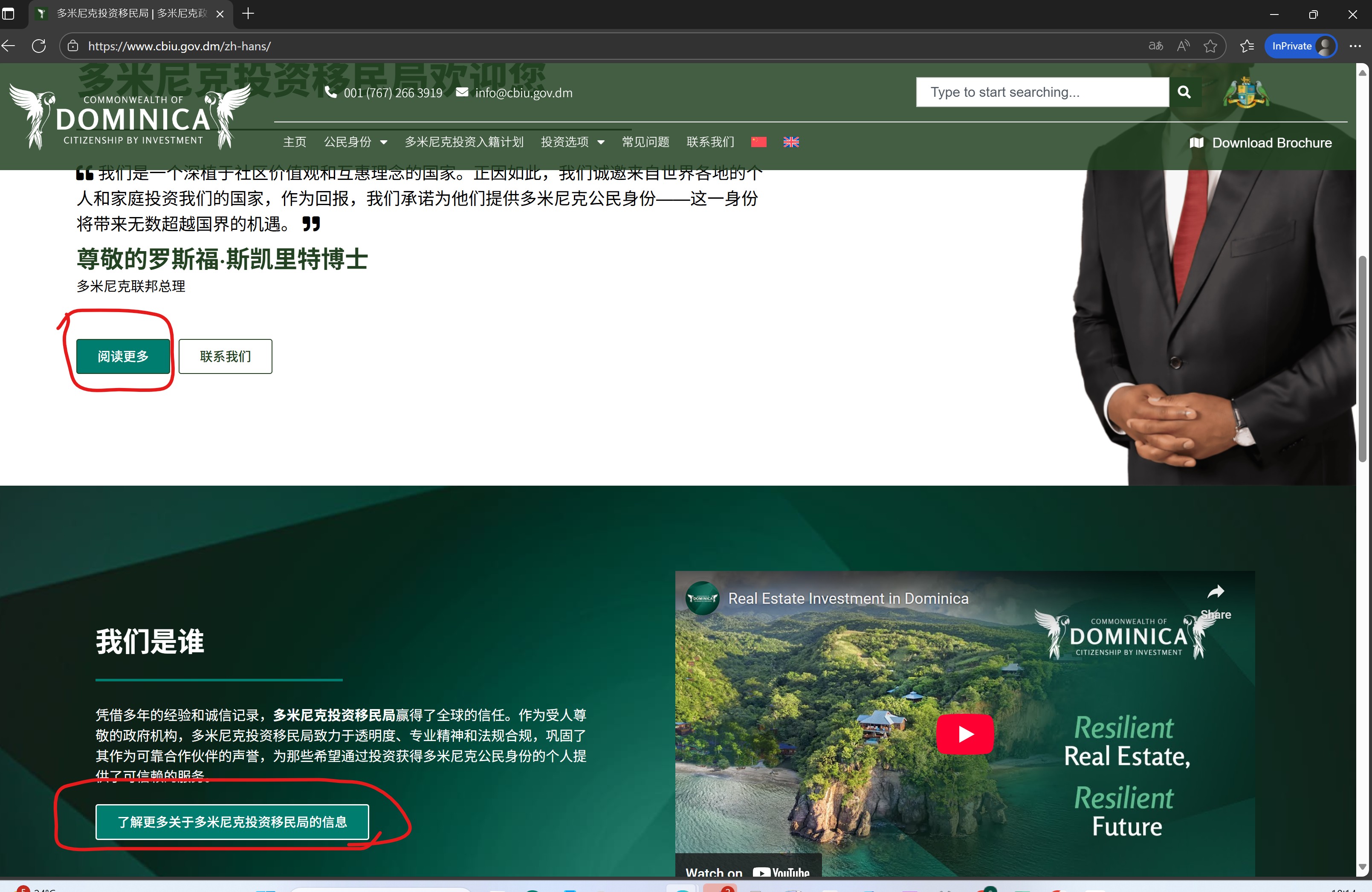
I am trying to remove a few elements from the translated page using the WPML editor. I attempted to do this by using the translation buttons, but I couldn't find an option to modify or delete the content we no longer need. The issue can be seen on this page: hidden link
Symptoms:
I expected to see the page without the first two CTAs in the body of the webpage, but instead, I am seeing the page with all CTAs translated from the English page.
Questions:
How can I remove specific elements from a translated page using WPML?
Is there an option in the WPML editor to modify or delete content?
Thank you for contacting WPML Support. WPML’s Translation Editor is meant for translating content only, not for removing or restructuring it. The translated page will always reflect the structure of the original page.
If you need to hide or remove specific elements only from translations, you have two options:
1. Either try to hide it using custom CSS by using :lang pseudo class: hidden link
2. Or disable the WPML Translation Editor and edit the translated page in default WP Editor/Elementor page builder by following the below steps:
2.1. Open that page in the default language as Edit mode.
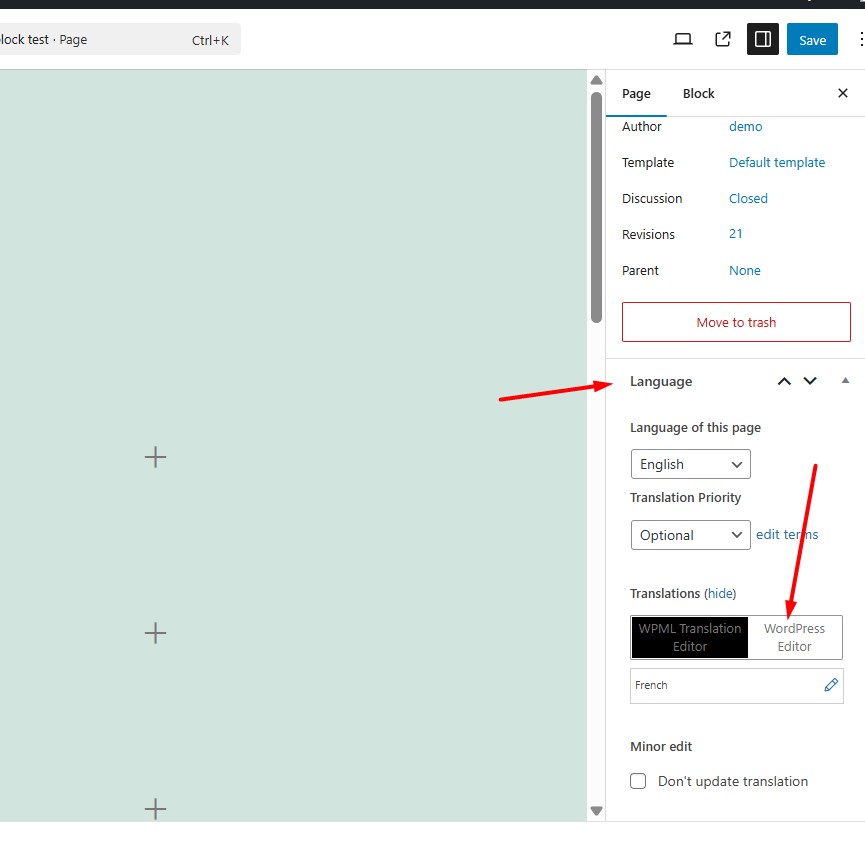
2.2. Enable the “WordPress Editor” from Languages metabox as you can see in the attached screenshot.
2.3. A popup will appear, prompting you to choose whether to apply this setting to just the current page or all pages. Select the option that best fits your needs.
2.4. Click on the translation icon for the secondary language. This will open the page in the default WordPress Editor, where you can edit your translation as you did in the default language.