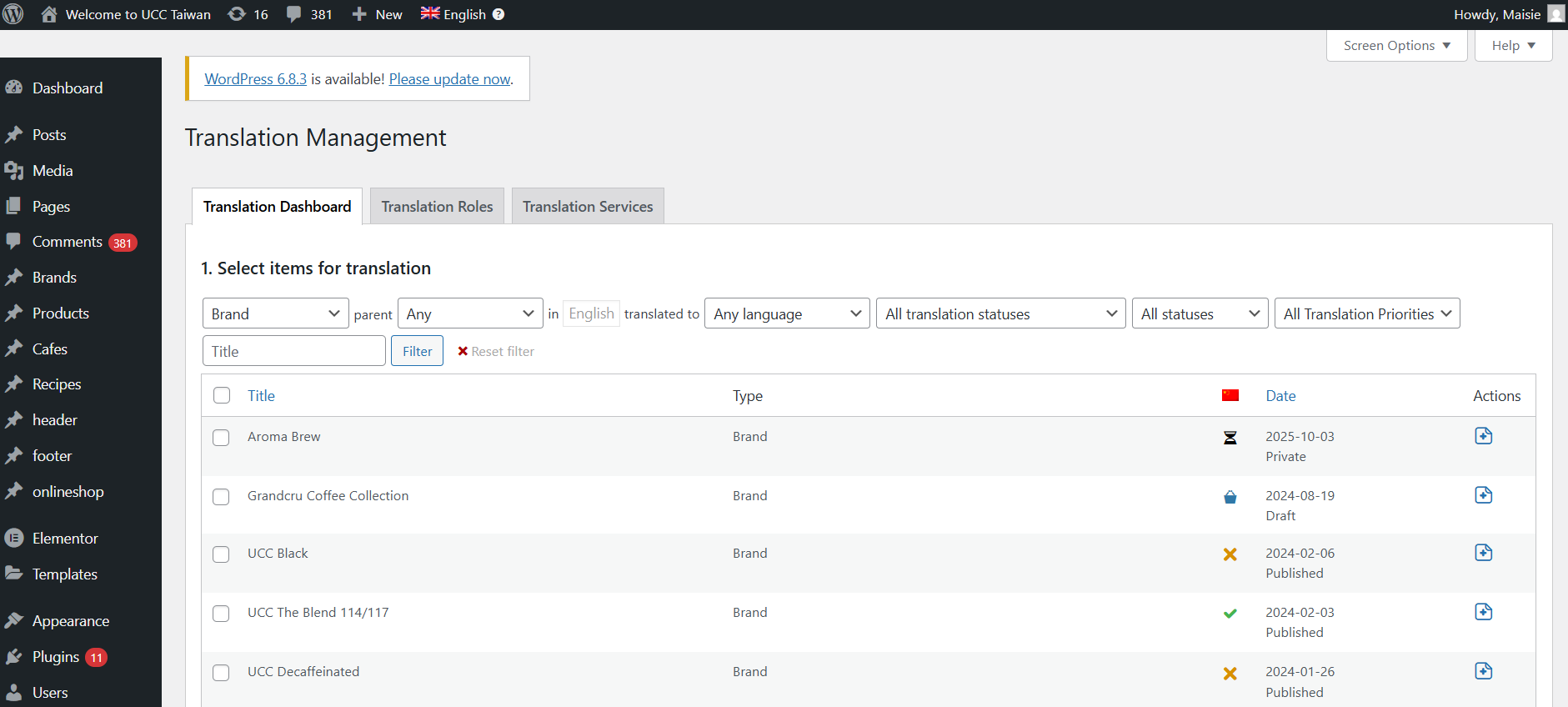
This thread is resolved. Here is a description of the problem and solution.
Problem:
The client is unable to locate and use the WPML Auto Translate Tool on their WordPress site. They are also unsure how to use the WPML Advanced Translation Editor (ATE) and have concerns about existing translations when switching to ATE.
Solution:
1. To find and use the WPML Auto Translate Tool:
- Ensure WPML is installed and activated, and languages are selected under WPML → Setup.
- Use the Translation Dashboard at WPML → Translation Dashboard to send content for automatic translation. Select items, choose 'Translate automatically', and click 'Translate'.
- Review translations in WPML → Translations using the Advanced Translation Editor.
2. To enable more automated translation:
- Go to WPML → Translation Dashboard, find 'Translation Mode', and select 'Translate Everything Automatically'. This will auto-translate all new and updated content.
3. Understanding and using the Advanced Translation Editor:
- The ATE provides AI-powered translations and features like side-by-side contextual views and safe HTML editing. Access it through WPML → Settings and ensure it's selected under 'Translation Editor'.
- Switching to ATE will not affect existing translations unless they were done with different methods. For such cases, retranslate using ATE for compatibility.
If this solution does not resolve your issue or seems outdated, please check related known issues at https://wpml.org/known-issues/, verify the version of the permanent fix, and confirm that you have installed the latest versions of themes and plugins. If further assistance is needed, we highly recommend opening a new support ticket at WPML support forum.
This is the technical support forum for WPML - the multilingual WordPress plugin.
Everyone can read, but only WPML clients can post here. WPML team is replying on the forum 6 days per week, 22 hours per day.