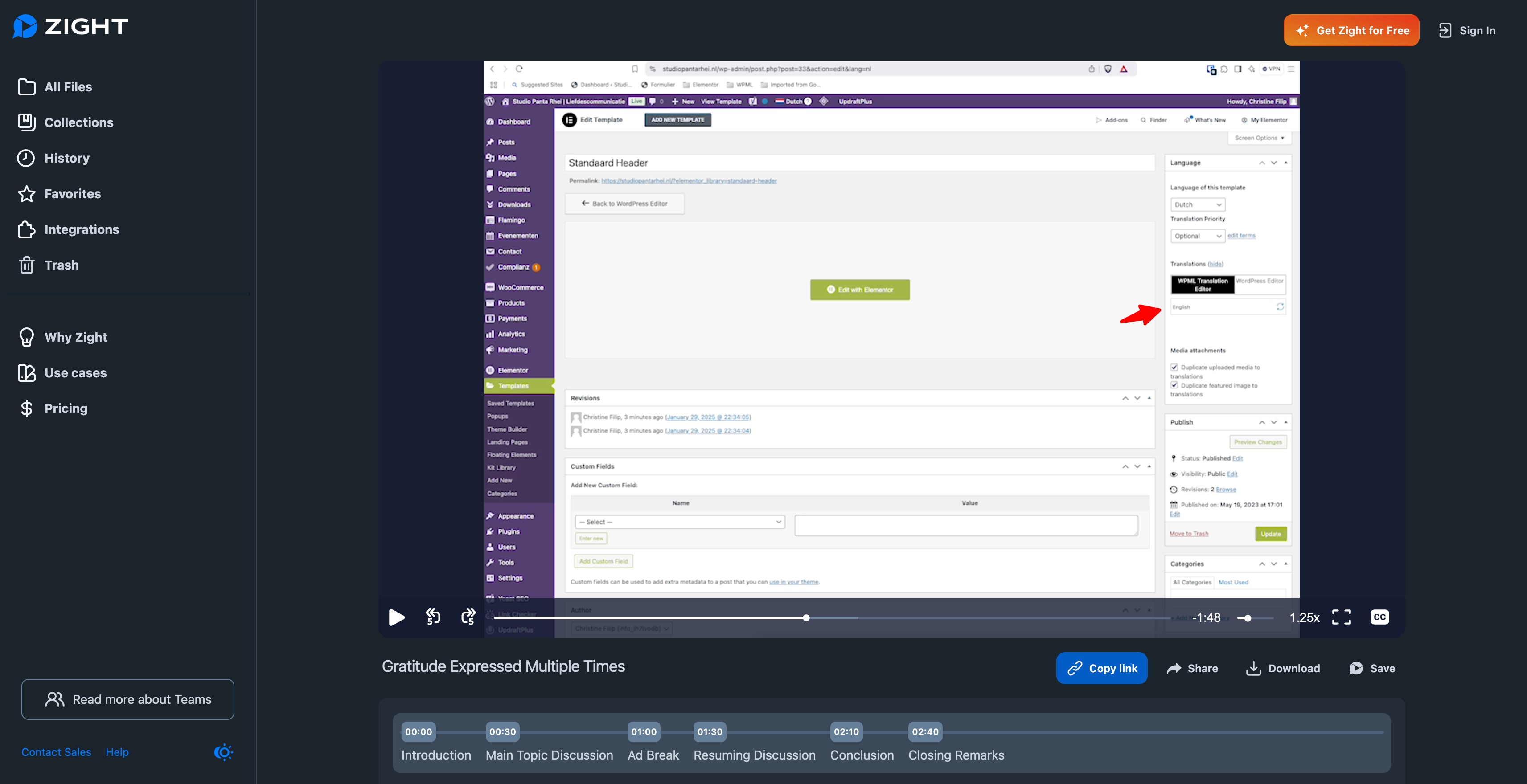
[Resolved] Can make a header in elementor for the translated language
This thread is resolved. Here is a description of the problem and solution.
Problem: The client is attempting to create a header in Elementor for a translated language and is following the WPML documentation. However, the 'Connect with translations' option is not available in the Language box, and the header is not visible under templates after some edits. Solution: First, ensure you are following the correct procedure for your goal. If you are trying to translate an existing Elementor template, follow these steps: 1. Publish your header template. 2. Navigate to WPML → Translation Management, select your template, and click the Filter button. 3. Choose the templates you wish to translate and send them for translation. For more details, visit Translating Elementor Templates. If you are creating a different header design for another language, follow these steps: 1. Create your header template in the primary language and set any Display Conditions. 2. Switch languages from the dashboard, create a separate template in the second language without setting Display Conditions. 3. Edit your default or second language template and connect them. For a visual guide, check this video: Video Guide.
If this solution does not resolve your issue or seems outdated, we recommend checking related known issues at WPML Known Issues, verifying the version of the permanent fix, and confirming that you have installed the latest versions of themes and plugins. If further assistance is needed, please open a new support ticket at WPML Support Forum.
This is the technical support forum for WPML - the multilingual WordPress plugin.
Everyone can read, but only WPML clients can post here. WPML team is replying on the forum 6 days per week, 22 hours per day.
Symptoms:
Item 6 in the documentation mentions locating the Language box in the right sidebar and clicking on 'Connect with translations'. This option is not available for me.
Questions:
Why is the 'Connect with translations' option not available in the Language box?
And during recording the video: why is the header not available under templates anymore?
This is the link to the video hidden link
After the video, I edited the Dutch header and saved it, then it showed up. Now here comes the video with the missing item 6 from the documentation: hidden link
At the end of the video I don't have the original version anymore of the header under Dutch.
I really start to feel very desperate with WPML. Just such a basic simple thing is working so complicated and giving so many wrongful results. It's going through my mind to throw it out.......sorry, but it's the way it is.....
are you trying to translate your header template or create a different header design for 2nd language?
If you are trying to translate, then you are using the wrong procedure.
To translate an Element template, publish it first. Then:
- Go to WPML → Translation Management and select Template/header or what you wish to translate
- Click the Filter button. The list updates
- Select the templates you want to translate, and send them for translation.
Not sure how to reply to your question.
The link I was referring to is for part 1 of my exercise and that is creating a different header template. The URL slug also says creating different elementor templates per language with WPML.
I have a fairly simple header with a logo and a menu.
The company name of the English website is different from the Dutch website.
That's why I need to have an English template with a separate English logo and the menu items I need to get translated.
The translation of the menu items should be not the issue (I hope). The creation of the English template is not working and then assigning the right template to the corresponding language. Just following that webpage is the problem, because as I write, I don't see the same thing as what should be seen in step 6.
As I can see from your video, you already have a translations connected, so you can not connect to any other translation. You can see your Dutch and English templates are connected
Make sure to finish this translation and then delete the English one if you don't need it anymore.
Then once the Dutch template has no content in English, and English is not connected to any other you can connect those 2.
So to simplify the process would be:
1) Create a header template in Dutch, set any Display Conditions and save
2) From the dashboard page switch languages and create a separate template in English, do not set any Display Conditions here.
3) Edit your default or 2nd language template and connect them