This thread is resolved. Here is a description of the problem and solution.
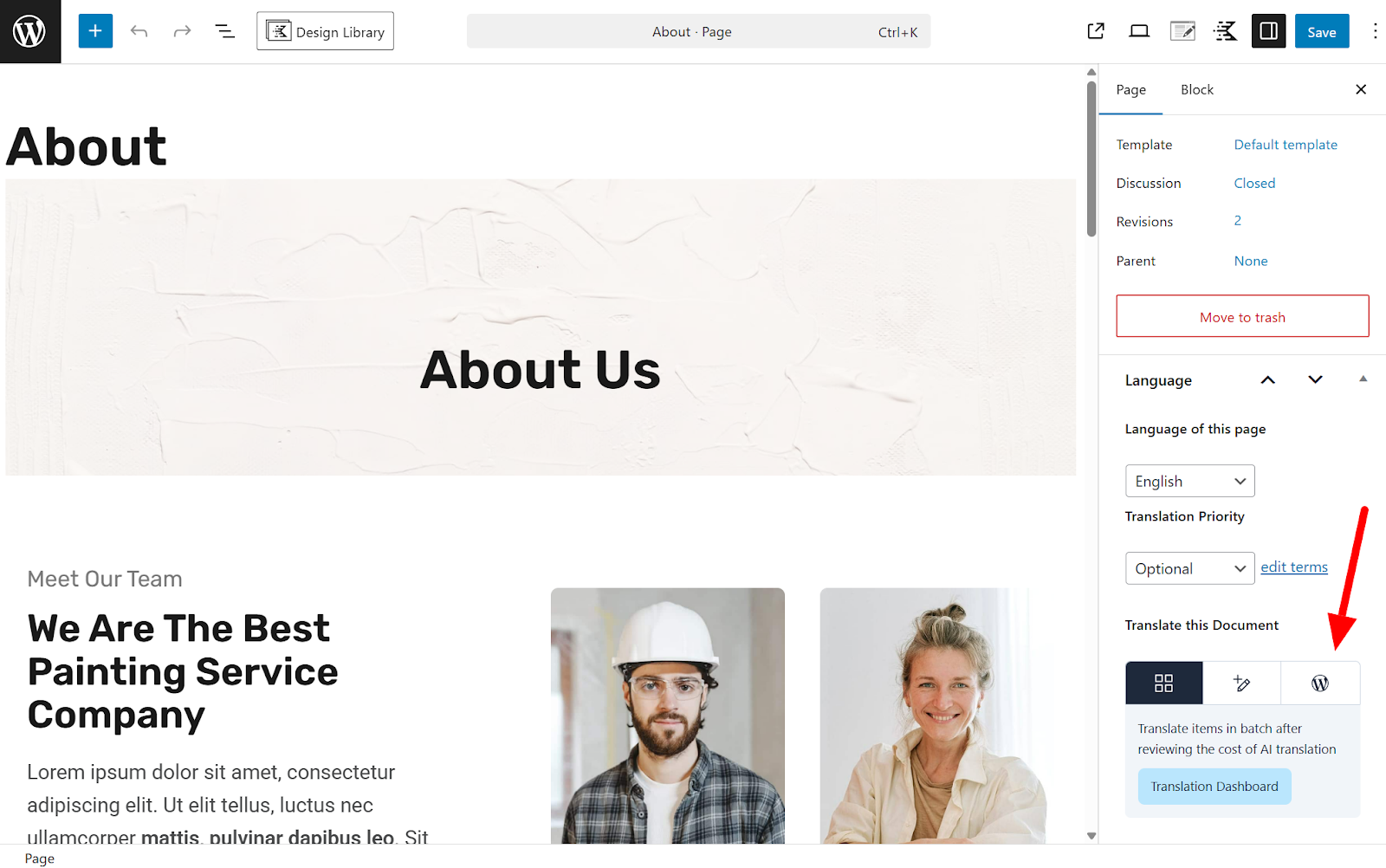
Problem: If you're using Elementor on your multilingual site and need to translate pages without automatic synchronization or translation warnings when editing, you might find this issue familiar. Solution: We recommend the following steps to manage your translations manually: 1. On the original page, select the
WordPress Editor
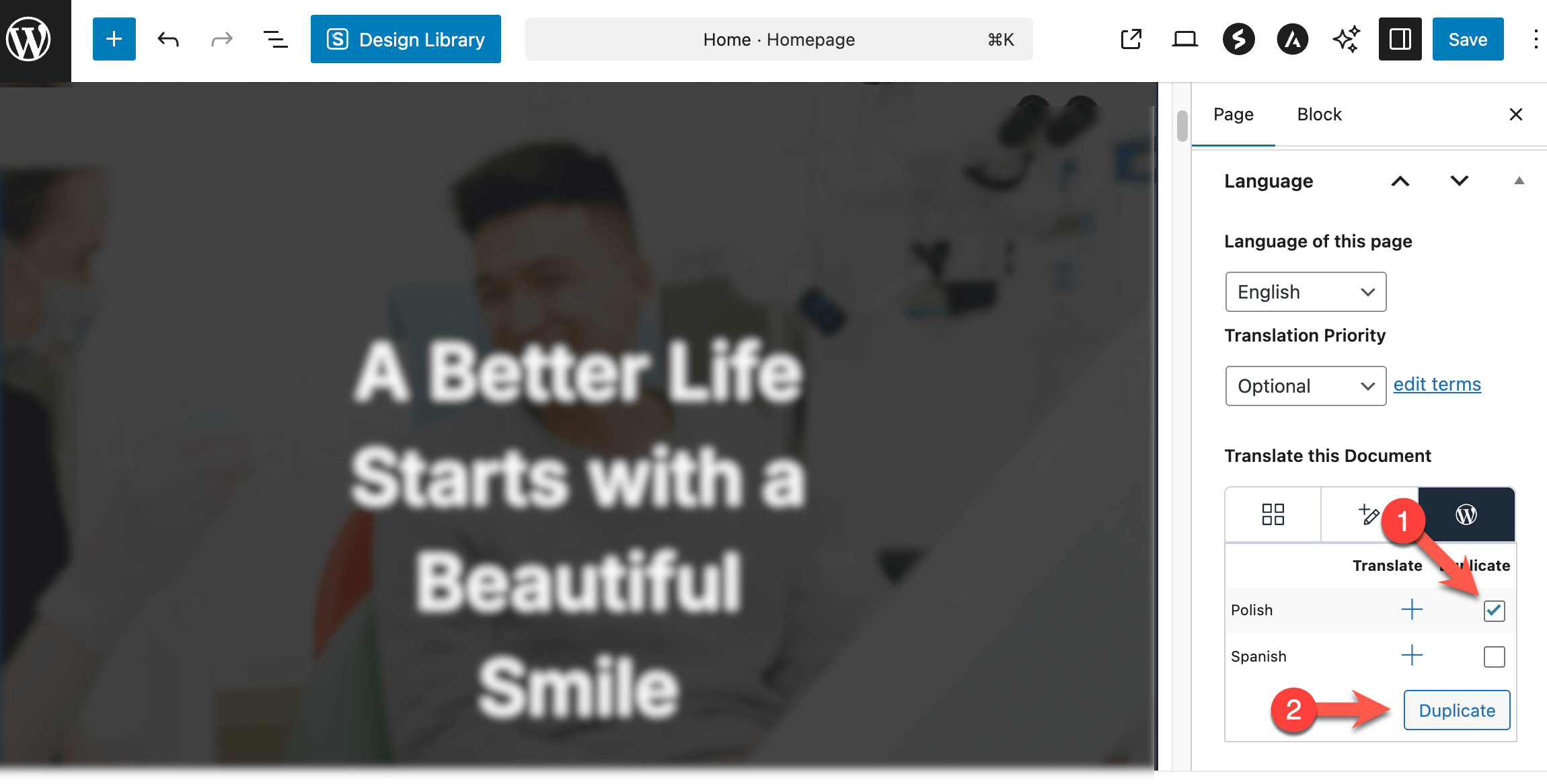
option. 2. In the pop-up that appears, choose where you want to use the Editor. It's advisable to select only that post to test initially. 3. Check the
Duplicate
box and click on the
+
sign to add a translation. 4. Click to Duplicate. 5. Click the pencil icon to edit the translation.
Please note that this solution might be outdated or not applicable to your specific case. We highly recommend checking related known issues at https://wpml.org/known-issues/, verifying the version of the permanent fix, and confirming that you have installed the latest versions of themes and plugins. If this does not resolve your issue, please open a new support ticket at WPML support forum for further assistance.
This is the technical support forum for WPML - the multilingual WordPress plugin.
Everyone can read, but only WPML clients can post here. WPML team is replying on the forum 6 days per week, 22 hours per day.
Hello.
Our site is Elementor based. First language Greek, second English.
I need to translate pages, but after the first translation I do not need the automatic translation functioning, since the English site might have some different or additional content. So I do not wish both languages content to be synchronized or automatically translated.
So, how can I stop this automatic messages/warnings every time I am trying to edit a page that has been translated?
First, let me explain one important thing about WPML: translations created with WPML's translation editor (like automatic translations) should never be edited with the WordPress Editor (or Elementor), and vice-versa. You either create translations with the WPML Editor, or with Elementor, never both.
If you want English pages to have different design/content from the original, you must use the WordPress Editor option, that allows you to create and edit translations using the WordPress Editor and thus Elementor:
In the pop-up, after following the steps from the link, you can select to use the WordPress Editor on the whole website. You can also make sure that "Translate Everything Automatically" is deactivated on WPML > Translation Dashboard.
🚨 Please note that switching between WPML Editor and WordPress Editor requires you to recreate the translations.
What I want to do is simple: when I first want to have a page from Greek to English, I want to duplicate it but after that translate it independently. I only want to keep the original format of the page and the elementor components. I do not want to have automatic translations.
I do not want anything to happen to the English page if I edit the Greek original.
However when I go to the English page I get this warning:
"Warning: You are about to edit your translation using the standard WordPress editor but your site is configured to use the WPML Translation Editor. Any edits you do here will be lost if you later open it in the WPML Translation Editor.".
Sure. It's explained in the link I sent, but I'll summarize it here:
1. First on the original page, select the "WordPress Editor" option. Check Image.
2. On the pop-up that comes up, select where you want to use the Editor. I recommend you select only the that post to test;
3. Select the "Duplicate" check box and click on the "+" sign to add a translation;
4. Click to Duplicate;
5. Click the pencil icon to edit the translation;