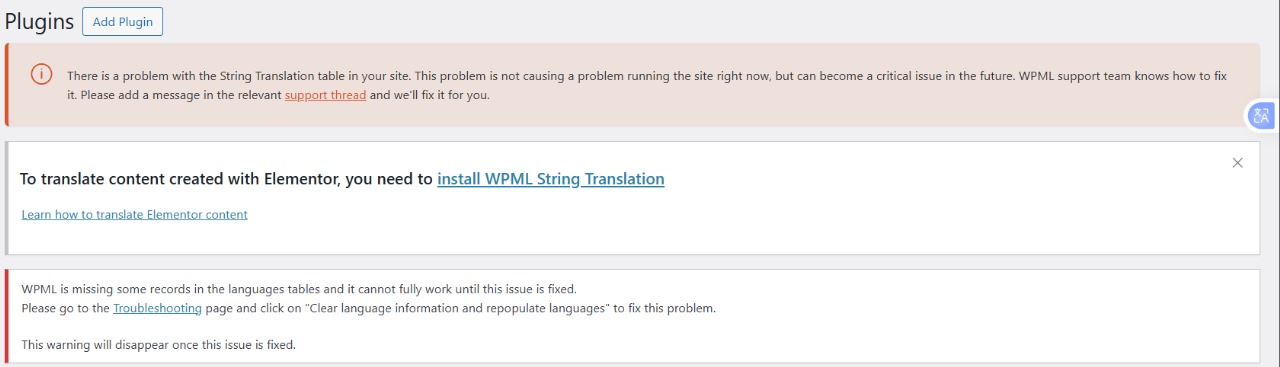
This thread is resolved. Here is a description of the problem and solution.
Problem:
You are trying to activate the WPML plugin but are encountering issues with the String Translation table, which could potentially become a critical issue.
Solution:
This seems to be a compatibility issue or possibly a corrupt entry in the database. We recommend taking the following steps after ensuring you have a full site backup:
1) Activate WPML Multilingual CMS.
2) Go to WPML >> Support >> Troubleshooting.
3) In the WPML Reset section, select the reset option and click on the Reset button.
4) Navigate to Plugins >> Installed Plugins and delete WPML plugins from the plugins directory.
5) Deactivate all other plugins and switch to the Twenty Twenty Five theme.
6) Download the latest versions of WPML Multilingual CMS, String Translation, and WooCommerce Multilingual & Multicurrency from WPML Downloads.
7) Reinstall and activate the downloaded plugins.
8) Upgrade to the latest versions of WooCommerce and Elementor.
9) Reactivate all plugins and switch back to your original theme.
10) Finally, upload and activate the WooCommerce Multilingual plugin.
Please note, resetting WPML content will erase all existing translations and configurations. Refer to this documentation for detailed guidance on WPML reset.
If this solution does not resolve your issue or seems outdated, please check related known issues, verify the version of the permanent fix, and confirm that you have installed the latest versions of themes and plugins. We highly recommend opening a new support ticket at WPML support forum for further assistance.
This is the technical support forum for WPML - the multilingual WordPress plugin.
Everyone can read, but only WPML clients can post here. WPML team is replying on the forum 6 days per week, 22 hours per day.
This topic contains 7 replies, has 1 voice.
Last updated by 8 months, 3 weeks ago.
Assisted by: Bigul.