This is the wrong ticket.. the ticket I submitted didn't submit but FTI I could not add in the log as when i pasted it into the grey box.. the button never ungreyed so i could not submit..
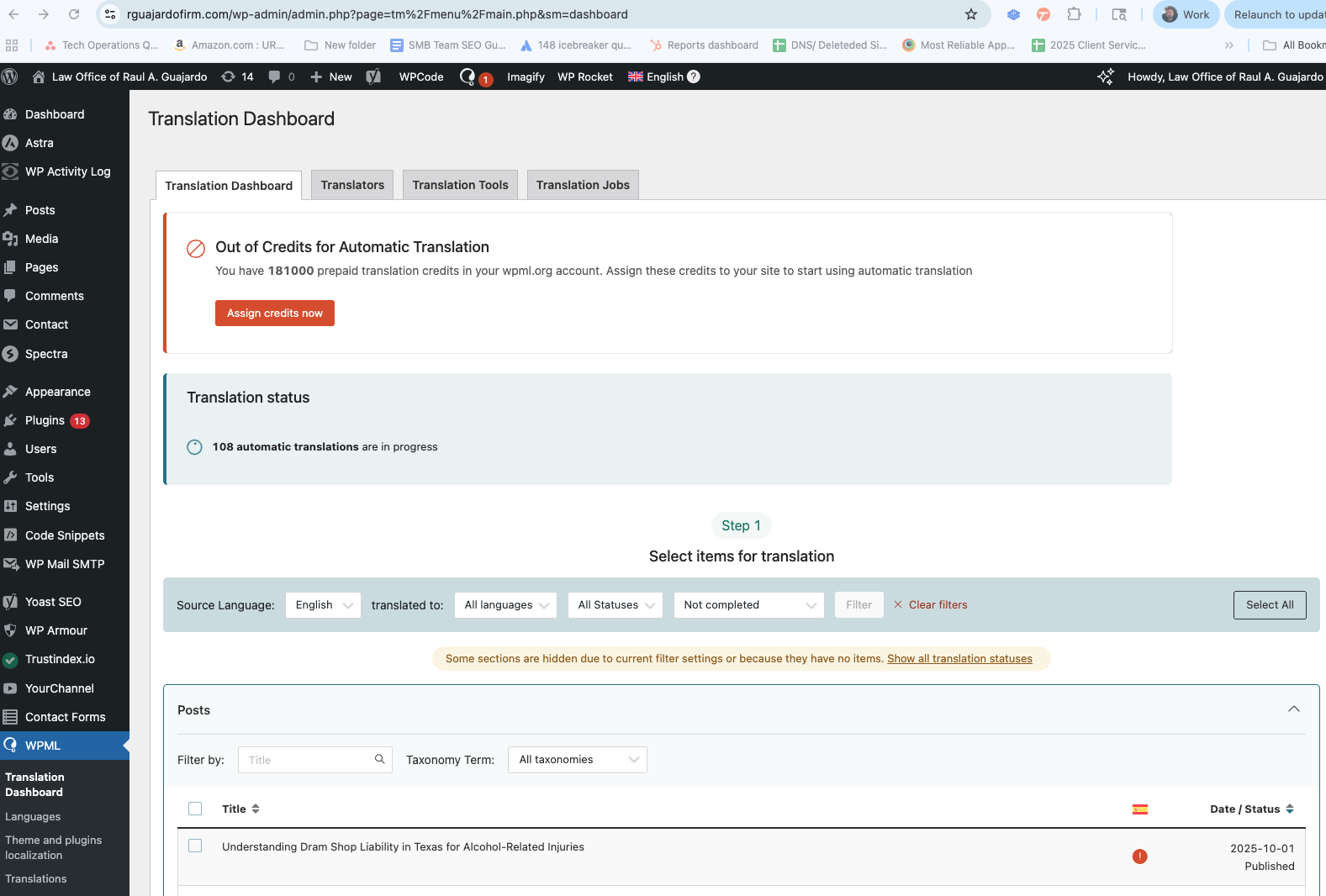
Hopefully you can see the bot chhat but I can't translate its saying i need to add credits but it's setup as pay as you go so i can't assign any credits to it
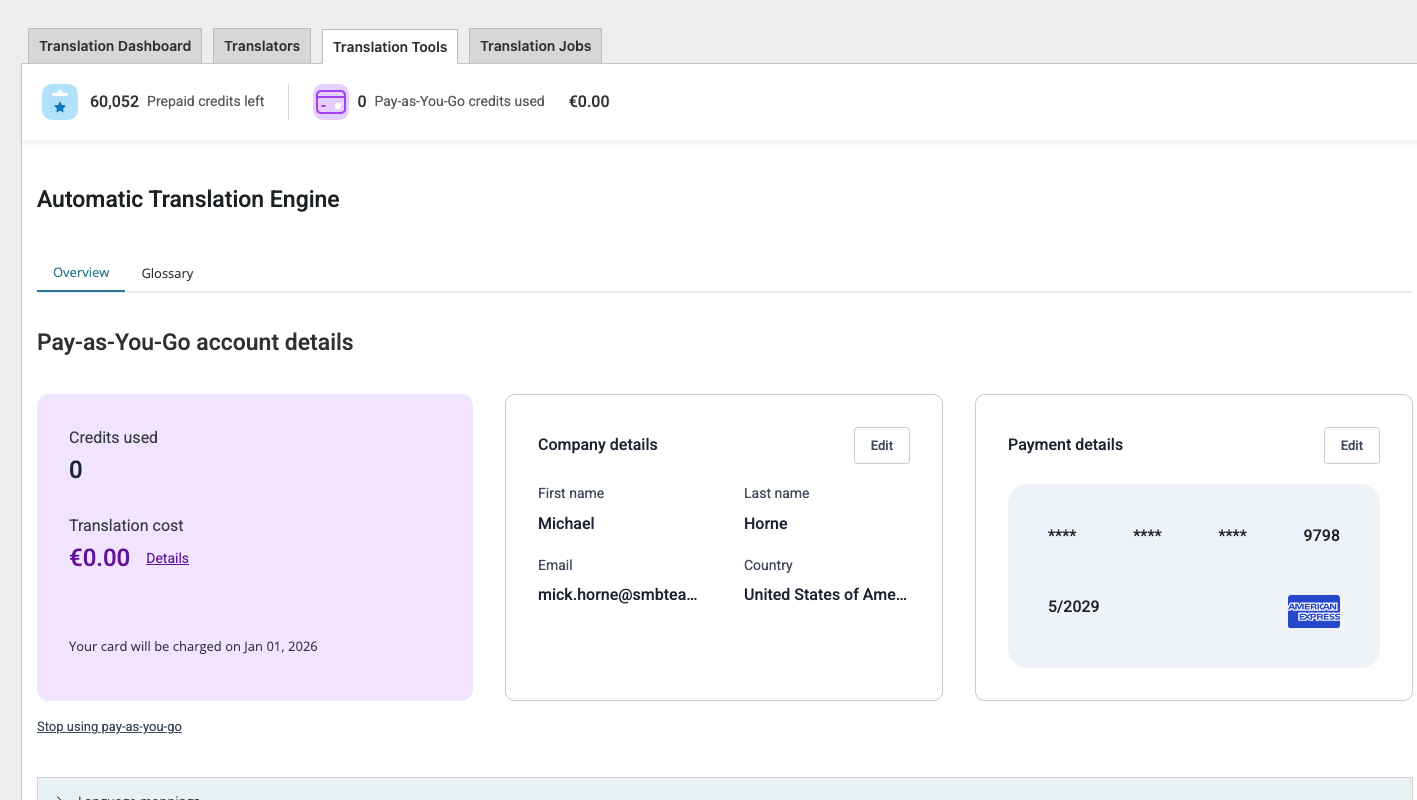
Using Pay-As-You-Go
Payment history and invoices hidden link
Credits used this month:
0
Cost to date:
0€
60052
Prepaid credits left
Settings
Visit the site's Translation Tools page
on the site i get this
Out of Credits for Automatic Translation
You have 181000 prepaid translation credits in your wpml.org account. Assign these credits to your site to start using automatic translation
Languages: English (English )Spanish (Español )German (Deutsch )
Timezone: America/Lima (GMT-05:00)
Hello,
To be able to use prepaid credits, you need to cancel the Pay-As-You-Go subscription at WPML > Translation Dashboard > Translation Tools by clicking "Stop using pay-as-you-go".
After that, you should be able to assign credits to the site from wpml.org and use them.
If this does not solve the issue, please let us know.
no not really i wanna do it either way see the sceenshot it has credits, 60,000 of them assigned AND it has Pay as you go activated however in wordpress nothing works
We can't add credits.. and pay as you go is not working , I have disabled and reenabled pay as you go and tried it both. ways see video of it disabled and no credits adding
This is Andrey here. I will be assisting you further.
I need to request temporary access (wp-admin and FTP) to your site, where the problem has been replicated, if possible, so I can be of better help. When you log in to leave your next reply, you will find the needed fields below the comment area. The information you will enter is private, meaning only you and I can see and access it.
It appears that no site key is currently connected to your website.
Please try the following steps:
1. Go to https://wpml.org/account/sites/
2. Remove the site entry associated with this website (if one exists).
3. On your website, navigate to Plugins → Add New → Commercial and click Unregister WPML from this site.
4. Once the page reloads, click Register WPML. You will see a prompt asking for a site key — click Get a key for this site.
5. In your WPML account, follow the wizard to generate a new key and make sure to set it as a Production site.
6. Copy the new key and paste it into the Commercial tab on your website.