This thread is resolved. Here is a description of the problem and solution.
Problem: If you're experiencing issues with translating content into English using WPML, where updating content in the primary language (Czech) and then switching to ATE results in the content for translation not loading and displaying the message: 'Unable to retrieve job details,' it might be due to the translation job containing no translatable data. This issue could be evident across multiple sites using the WPML plugin. Solution: We recommend checking the .xliff file generated by WPML. If the
<body>
element within the .xliff file is empty and the 'wpml-words-to-translate-count' is '0', it indicates that WPML is unable to extract any translatable content. This could be due to server-side issues rather than a problem with WPML configuration, plugins, or themes. Possible server-side causes include multiple applications of output compression (e.g., zlib.output_compression in PHP combined with server-level gzip/Brotli), modifications by security or performance layers (e.g., WAF, CDN, reverse proxy, or caching layer), or incorrect headers or content encoding (e.g., globally applied 'Content-Encoding: gzip'). To resolve this, contact your hosting provider, explain the issue, and ask them to investigate how responses are encoded and compressed on the server. This step is crucial especially if the issue affects multiple sites, suggesting a shared server configuration problem.
If this solution does not apply to your case, or if it seems outdated, we highly recommend checking related known issues at https://wpml.org/known-issues/, verifying the version of the permanent fix, and confirming that you have installed the latest versions of themes and plugins. Should the problem persist, please open a new support ticket at WPML support forum for further assistance.
This is the technical support forum for WPML - the multilingual WordPress plugin.
Everyone can read, but only WPML clients can post here. WPML team is replying on the forum 6 days per week, 22 hours per day.
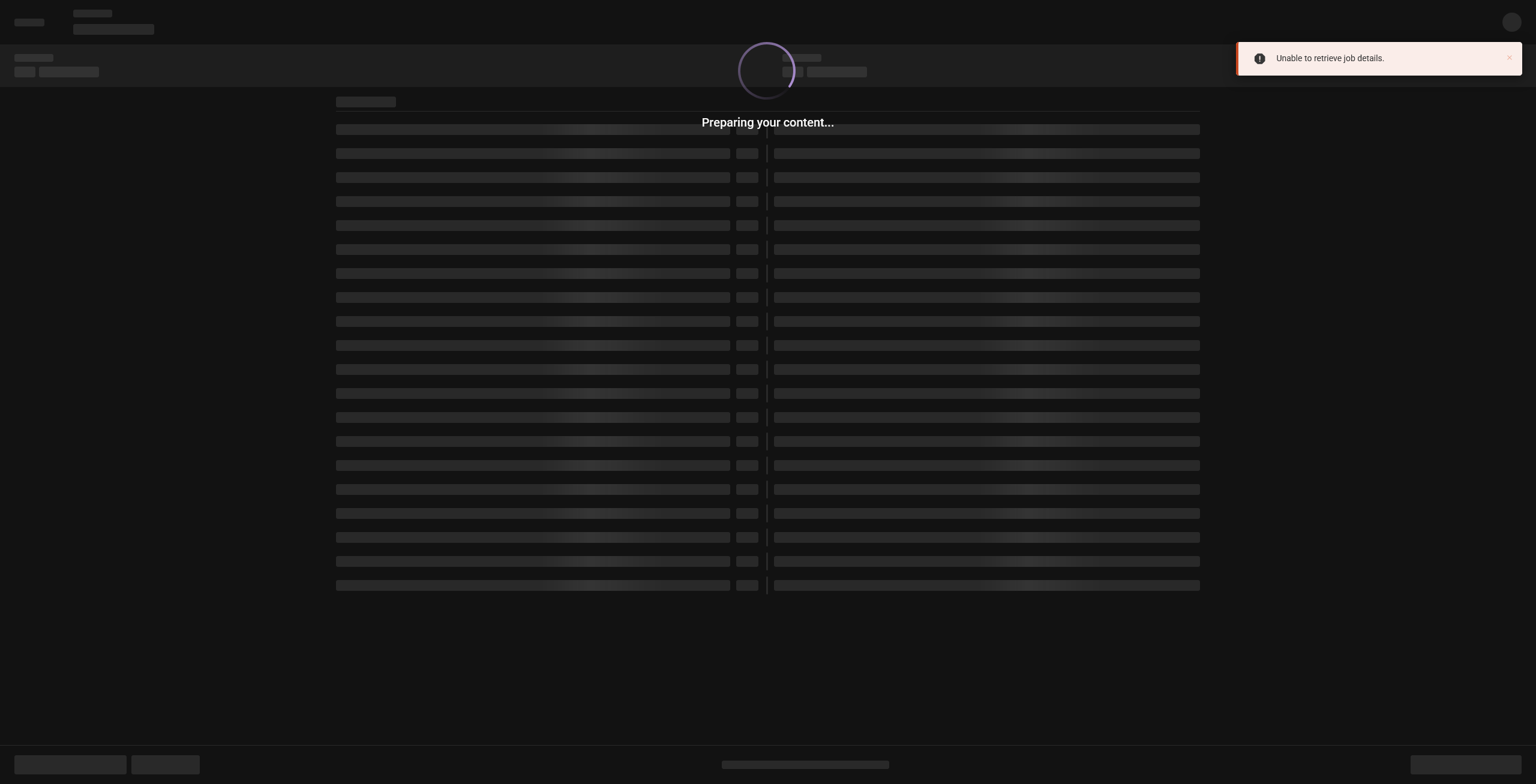
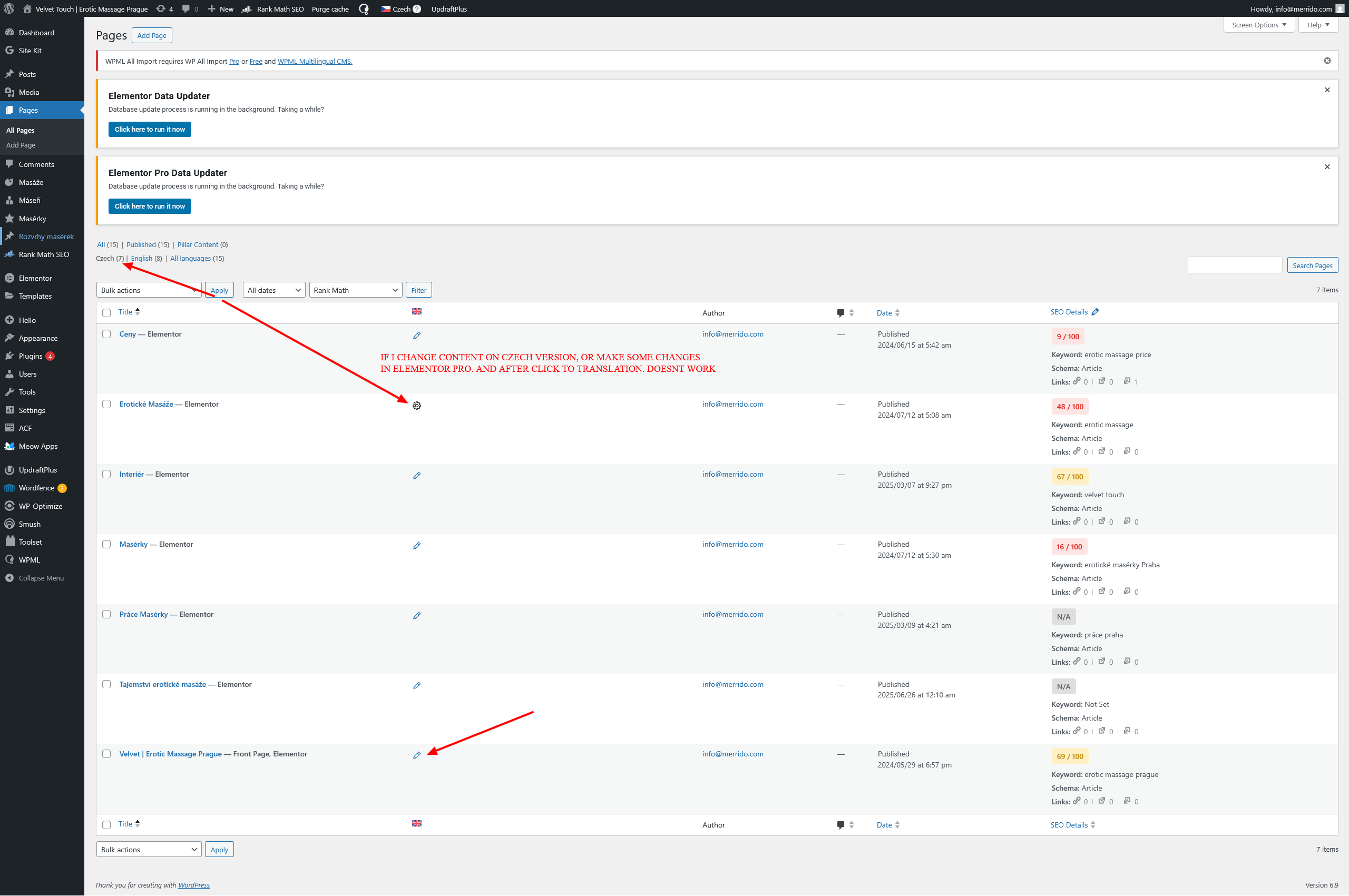
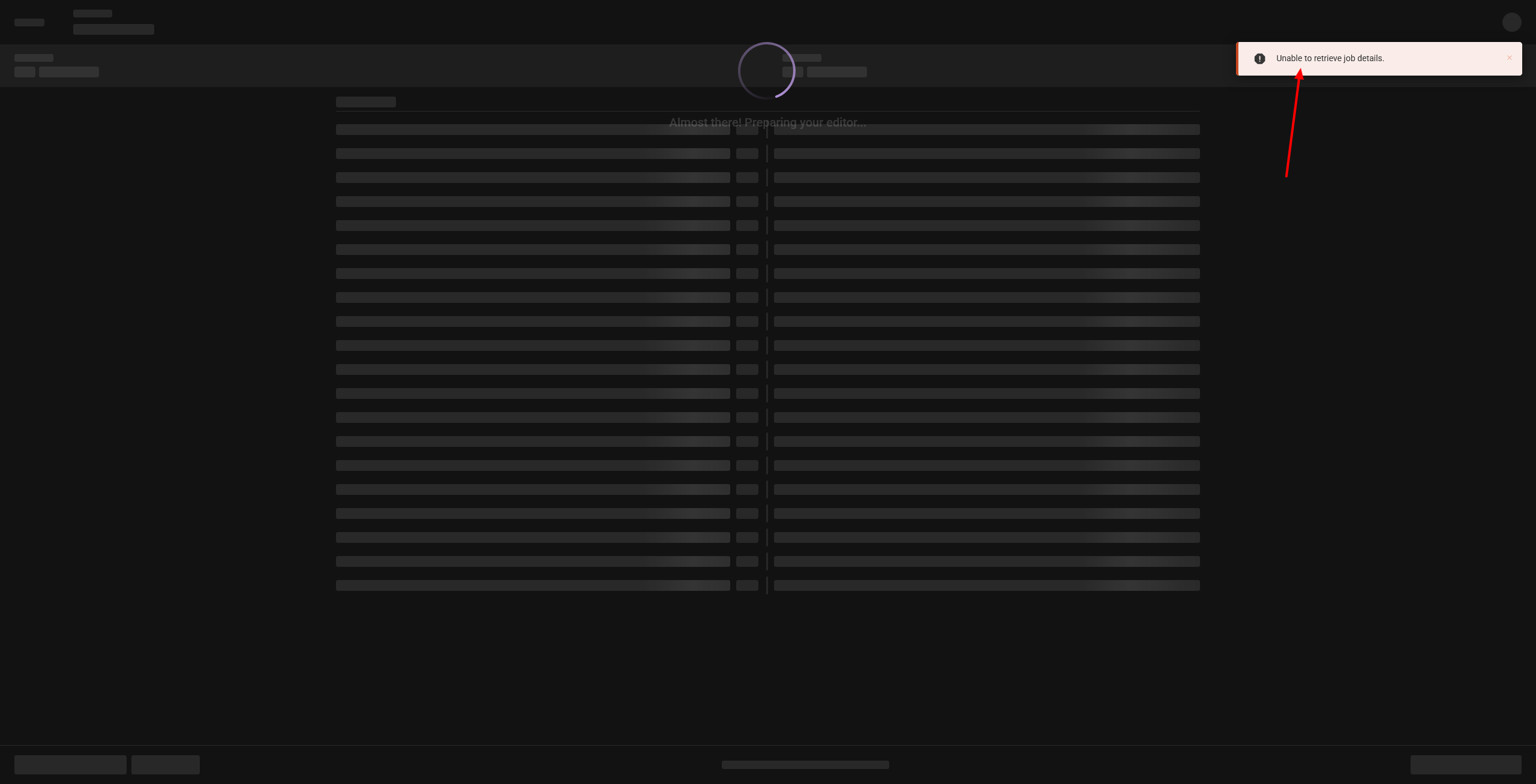
I’m having an issue on one (and not only one) of my websites with translating into English. The problem occurs when I update the content in the primary language (Czech) and then switch to ATE — the content for translation doesn’t load and I get the message: “Unable to retrieve job details.”
I tried the steps you mentioned for other situations in the Task history, but the problem persists. I can provide admin access so you can take a look personally.
I’m not experiencing this only on this website — I’m seeing it on all new websites using the WPML plugin. This has been happening for about six months. I’ve been handling translations by manually editing pages in the translated versions, but I would like it to work as before: one click and automatic translation.
It’s frustrating at this point, and client update work is piling up.
I need to request temporary access (wp-admin and FTP) to your site—preferably to a test site where the problem has been replicated, if possible—in order to be of better help. When you log in to leave your next reply, you will find the needed fields below the comment area. The information you will enter is private, meaning only you and I can see and access it.
Please provide the exact steps to reproduce the issue (including the test page where it occurs).
Before, please consider updating the PHP and MySQL versions on your server.
My next reply is set as private. You can create temporary access using any dummy email address, then provide the access credentials in the private fields below the comment area.
I’ve reviewed the WPML settings and the internal entries related to the Advanced Translation Editor (ATE), and everything appears to be correctly configured. I also opened several pages and can confirm that the ATE loads and works as expected on my end.
To help me investigate this further, could you please share the exact steps to reproduce the issue? It would be especially helpful if you could include:
• The specific page where the problem occurs
• The actions you take before the issue appears
• Screenshots
With these details, I’ll be able to look into it more precisely.
Yes, the old translations are fine. The main language is Czech and it’s translated into English.
To describe it more clearly: when you click on the old translations, everything works fine. But when I change something in the Czech version — add new content or edit it — save it, and then try to translate it into English, it throws that error. As a result, I have to manually redo the content on every page for SEO.
So if you try it yourself on any page — make a change in the Czech version and then try to translate it — you’ll see that the new content cannot be translated. Please try it.
Try adding some new content on any page that currently works, save it, and then start the translation. You’ll see what I mean.
I’ve reviewed this and can also reproduce the issue on a newly created test page. I checked the translation job sent to the Advanced Translation Editor, and it appears to contain no content to translate, which is unexpected.
At this point, I suspect that one of the plugins may be affecting this behavior. Could you please try testing this by temporarily deactivating all plugins except WPML and then checking again?
If the issue persists after that, please let me know if I may create a copy of your site to run further tests in a local environment.
I proceeded with additional testing and installed your site locally. Without making any changes, I was not able to reproduce the issue when creating new content.
For the pages you mentioned, after updating the original page and opening the translation editor, the content was pulled correctly into the editor.
One change I did make during testing was generating a new site key, which may be relevant here. Based on this, could you please try the following steps on your site?
1. Go to https://wpml.org/account/sites/ and remove the site key that is currently associated with this site.
• If you see any unused site keys connected to domains that no longer exist, please remove those as well.
2. In your WordPress admin, go to Plugins → Add New → Commercial tab and click Unregister WPML from this site.
3. Once the page reloads, click Register WPML. When prompted, click Get a key for this site.
4. Complete the site key wizard in your WPML account and make sure to set the site type to Production.
5. Copy the newly generated site key and paste it into the Commercial tab on your site.
After completing these steps, please test the issue again and let me know whether the problem still occurs.