Using WPML’s Translation Management
WPML includes a Translation Management plugin which allows site managers to determine which users will translate each content.
The Translation Management module is available as part of the Multilingual CMS package.
This page explains how to use WPML’s Translation Management.
To learn more, read about Translation Management Features.
Setting up translators
A translator, in WPML, is a WordPress user to whom you give translation privileges. Translators can have any type of account in WordPress, including even subscribers. When translating, they will use WPML’s translation editor, rather than manually editing WordPress posts and pages.
To turn WordPress users into translators, go to:
WPML->Translation Management->Translators.
Choose the translation language pair and the user.
For your own translators, click on the ‘local’ option and select the WordPress user. You can also find pre-qualified professional translators in the ICanLocalize option.
Note: once you’ve already chosen a WordPress user as translator, to add another language pair, click on the ‘edit’ link for that translator in the list of translators on this page.
Selecting content types for translation
If you’re only using posts and pages, without any custom fields, you can skip this section.
To choose custom types and custom fields for translation, go to:
WPML->Translation Management->Multilingual Content Setup.
You’ll see a section for custom fields, custom types and taxonomy. Check the items that require translation.
For custom fields, you can choose to either:
- Not translate
- Synchronize – copy from the original to the translations
- Translate
For custom types and taxonomy, you can choose to make translatable, or keep all in the default language.
Sending content for translation
Now that you’ve turned regular WordPress users into translators and configured what to translate, you can go ahead and send content for translation.
Go to WPML->Translation Management->Translation Dashboard.
The Translation Dashboard lets you filter content according to translation status. Then, you can select what to translate and who will translate it.
When you click on Translate documents what you’ve selected is sent to translation.
If you chose translators from ICanLocalize, content is sent offsite for translation. If you select local, your translators will receive notification emails and will translate in WordPress, using WPML’s translation editor.
In both cases, you will see the status of the documents update from ‘not translated’, to ‘translation in progress’. Then, when translations complete, the status updates accordingly.
Jobs queue for translators
When Admins send content for translation, your translators receive notification emails.
Translators don’t see the Translation Dashboard. Instead, each translator has a queue of jobs, which the site Admin has sent him/her.
Translators go to WPML->Translations for their queue of pending jobs.
Translating using WPML’s translation editor
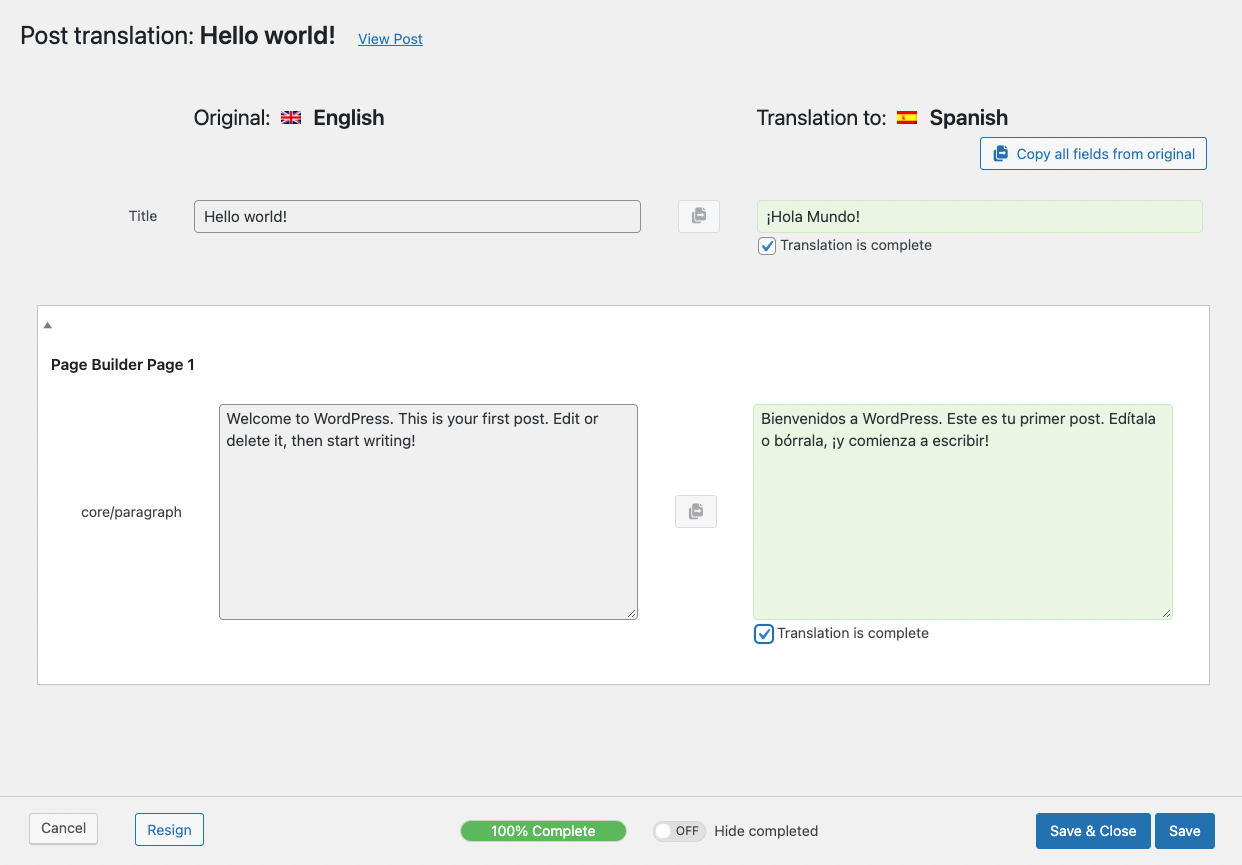
When translators click on ‘edit’, from their list of pending jobs, they get to WPML’s Translation Editor. There, they view the originals and the translations, side-by-side.
Here is the same Hello world post, in the Translation Editor.
A blog post includes a title, a body, tags and categories. The Translation Editor shows each of these in a different field. You can see the original and the translation and copy between them.
Just like the standard WordPress editor, the Translation Editor also includes HTML and Visual editing modes.
When each field is completed, click on the translation finished check-box to move to the next field.