Tiled Galleries translated to Spanish
Tiled Galleries & WPML

The Jetpack plugin offers dozens of features, from social media embedding through galleries and contact forms, to displaying complex mathematical equations and more. You can use WPML to translate texts related to Jetpack’s features.
The newest Jetpack version is almost 100% compatible with WPML. This very powerful plugin has multiple modules and we are working on making them all compatible. Please contact our support for any issues.
In this tutorial, you will learn how to make Jetpack multilingual with WPML.
We will explain how to use and translate some of Jetpack’s major features. There are many features found on the JetpackSettings page. They are classified and divided into the following tabs: Writing, Sharing, Discussion, Traffic, and Security.
To run a multilingual site with WPML and Jetpack, you will need:
If you are a site developer, these are the main steps you need to follow to get started:
If you are a site owner working with a developer, ask them to perform the above steps for you.
WPML offers two translation editors you can use for translating your site’s content:
Besides translating your site content yourself, you can also:
After installing Jetpack, a new Add Contact Form button is available when editing posts and pages. When you click on it and add a form, Jetpack adds shortcodes tags that create the actual form fields, buttons, and other elements.
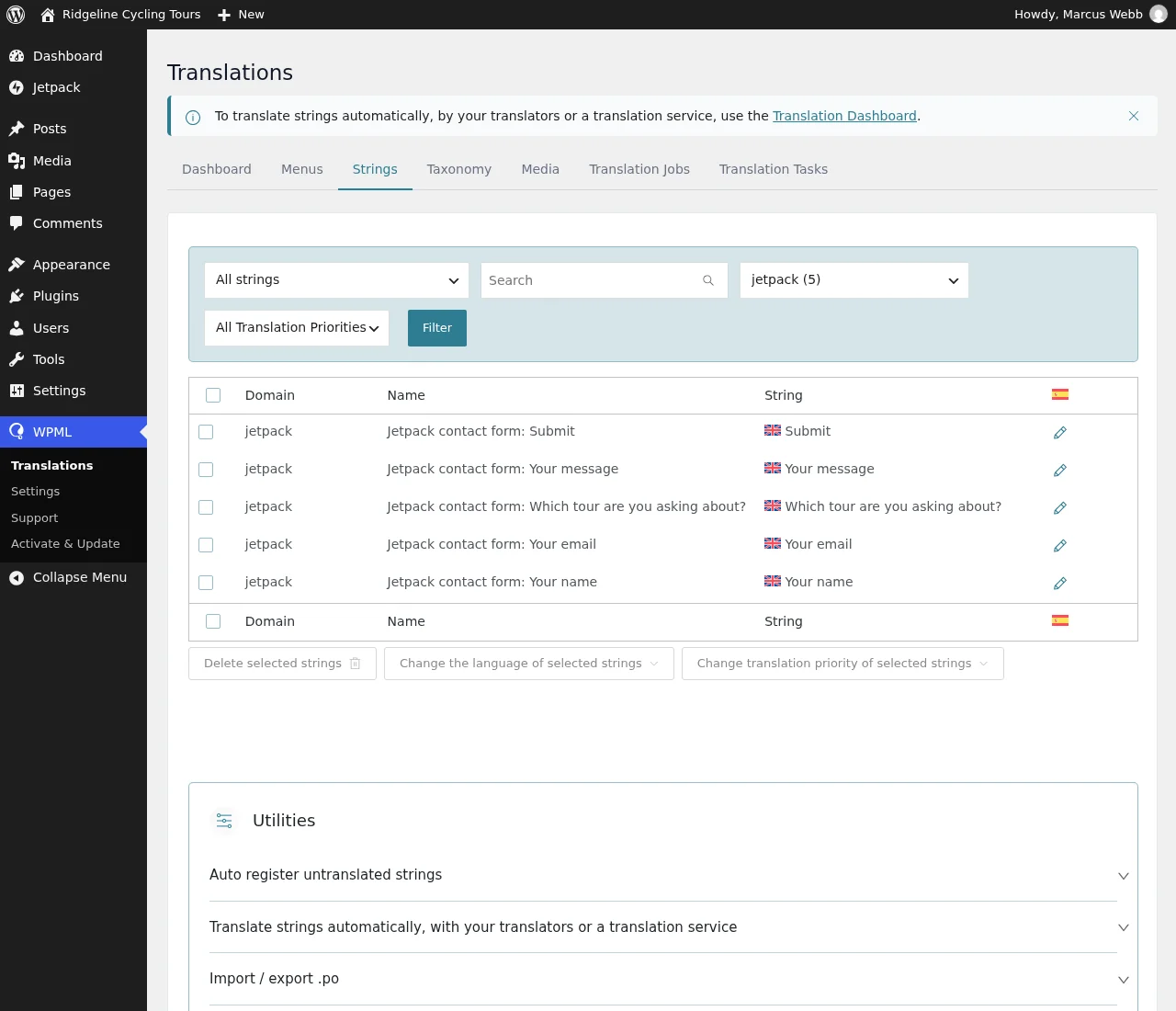
To translate a contact form, use the following steps:
Repeat these steps for all texts coming from Jetpack.
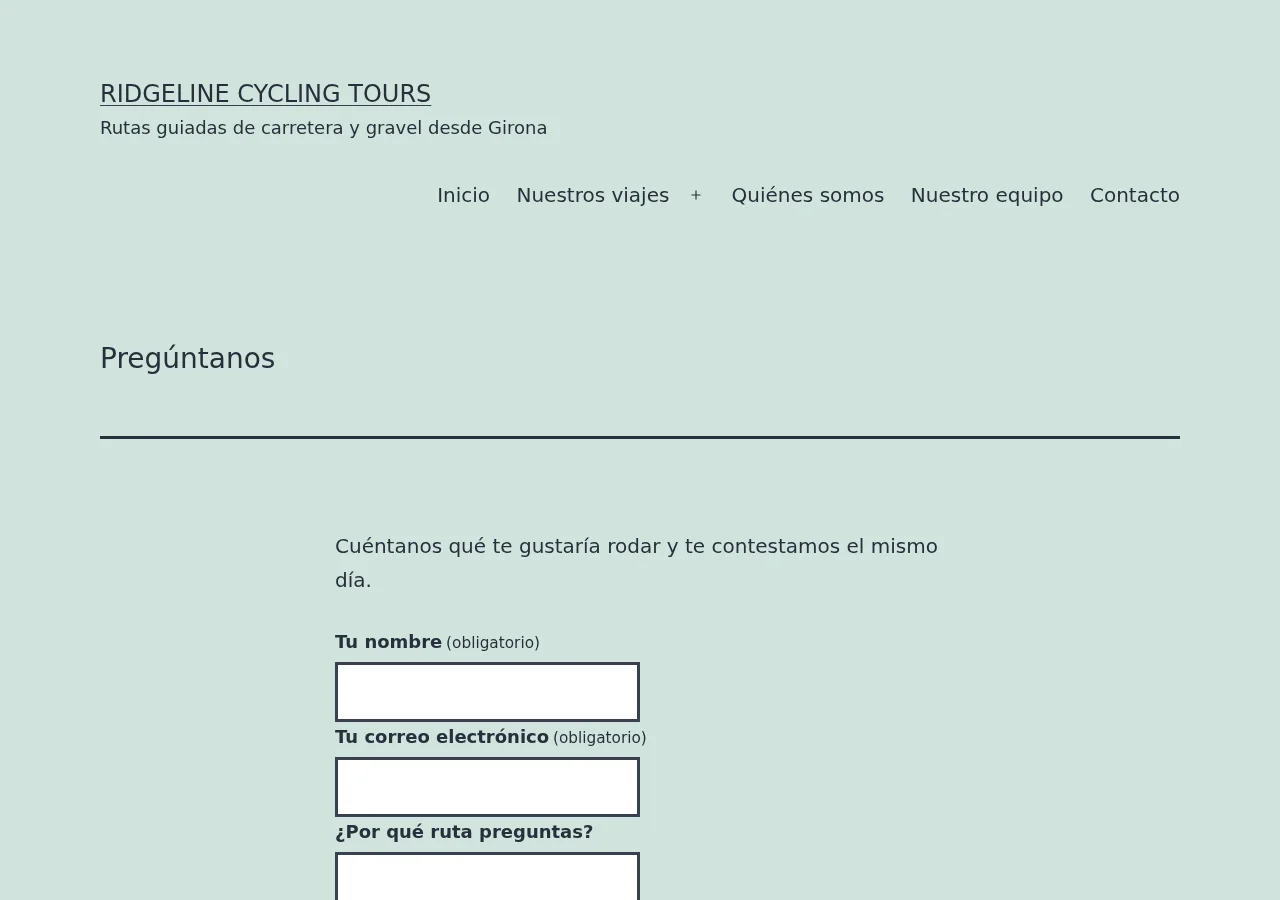
Results: in the following image, you can see the form added to a Spanish page (named “Pregúntanos”) with all the texts translated to Spanish:
You are also able to translate the email template text sent to your visitors – your English visitors will read an English email while your Spanish visitors will enjoy a Spanish version.
This is a powerful gallery feature that lets you create custom image galleries from within the usual WordPress post editor. With WPML, you can create different galleries per language and also translate all the texts related to those galleries.
Let’s see how this is done. First, check that the Tiled Galleries module is enabled. Now, when you add a gallery to a page, Jetpack gives you a choice of layouts for it.
After this is done, we are going to translate the gallery. For that, duplicate your post and click on the Translate Independently button. You can now change the images, image titles and alt texts on the secondary language’s post editing screen.
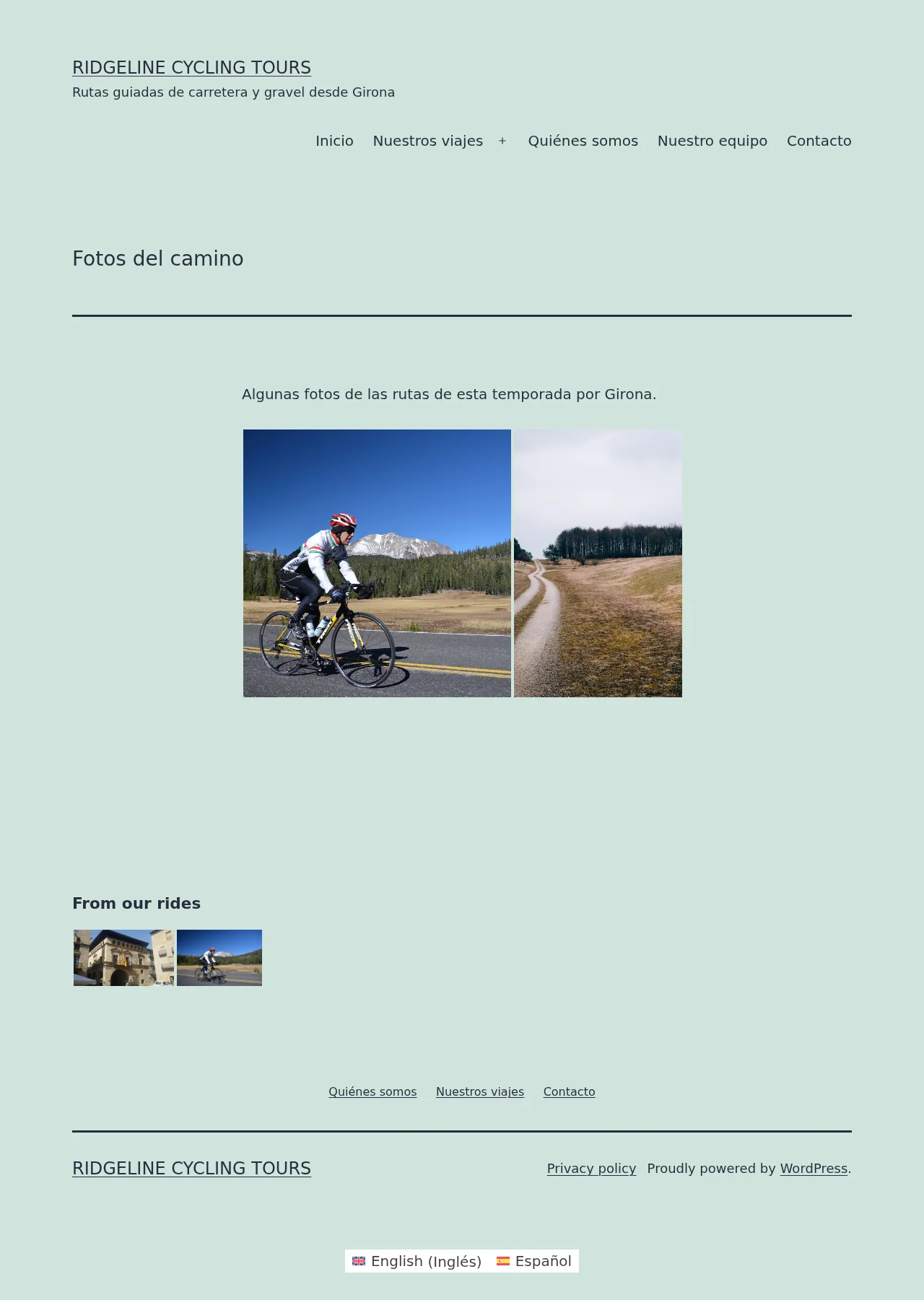
For the sake of this tutorial, I selected rounded gallery images for English and square ones for the Spanish version. As you can see in the following image, everything is translated, including the alt texts and the captions produced by Jetpack.
Tiled Galleries translated to Spanish
Tiled Galleries in the default language
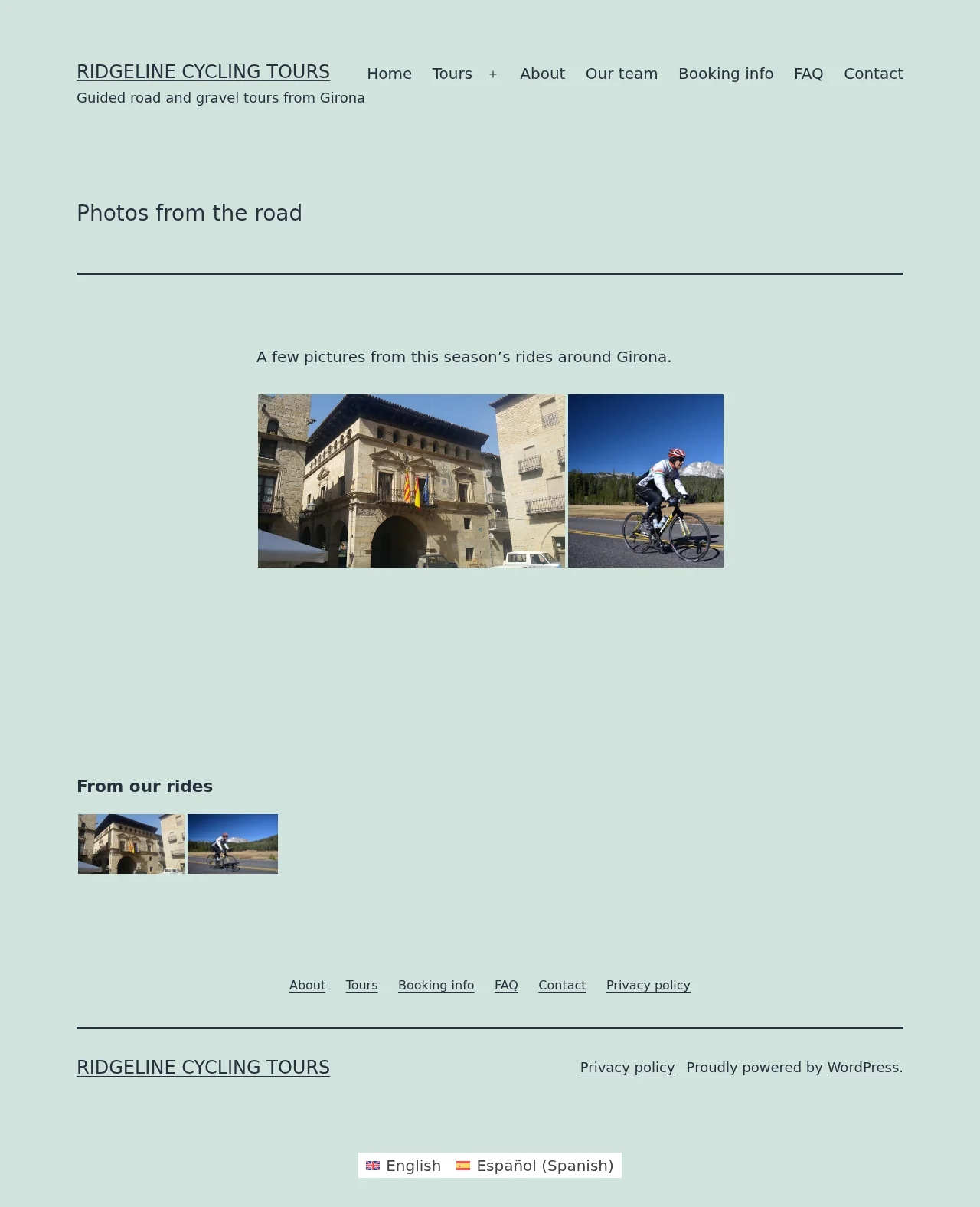
This handy module provides many useful widgets, like Twitter, Facebook Like Box, Custom Image Gallery , Upcoming Events, and more. All of them can be translated using WPML.
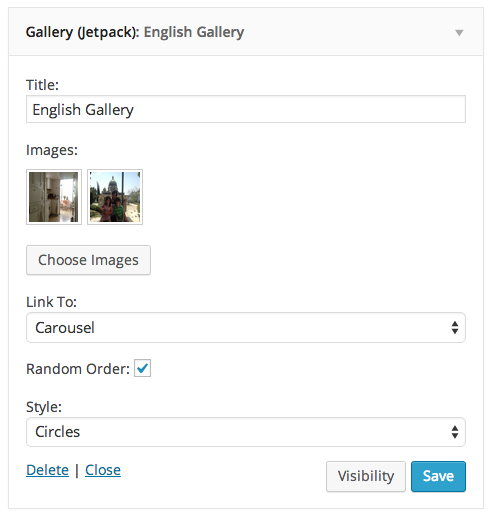
Let’s take a look at the Tiled Gallery widget or Gallery (Jetpack) as it is titled on the AppearanceWidgets page. This widget displays a photo gallery or slideshow and is related to the Tiled Gallery Module which we have described above. To make this widget visible, drag it to your theme’s widget area, select images for it and set its other related options.
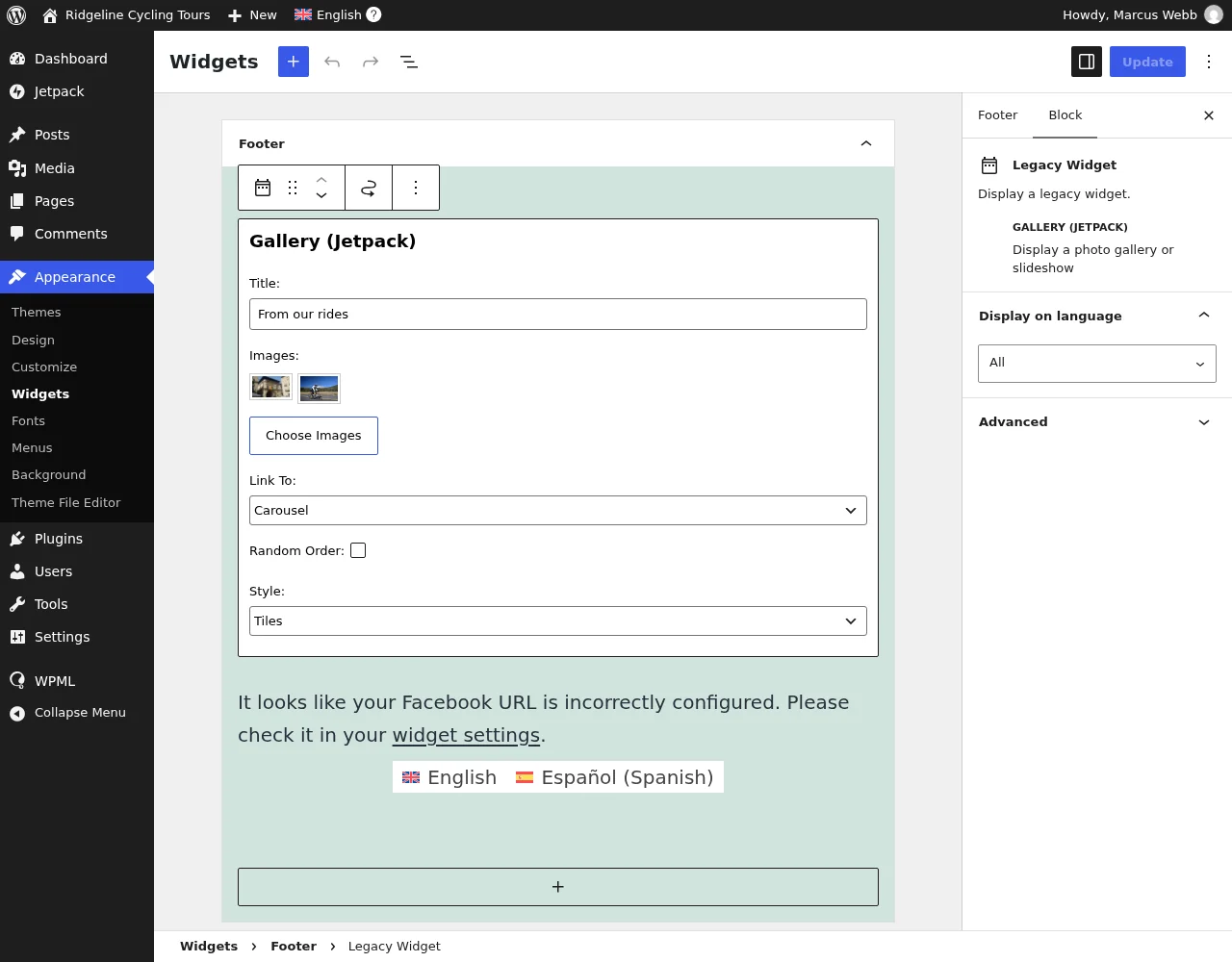
Now, you can go to the WPMLTranslationsStrings page and translate all the texts linked to this widget. Use the same steps as described in the previous section.
The following images display two different language versions of the “widgetized” area:
Widget Gallery Jetpack & WPML
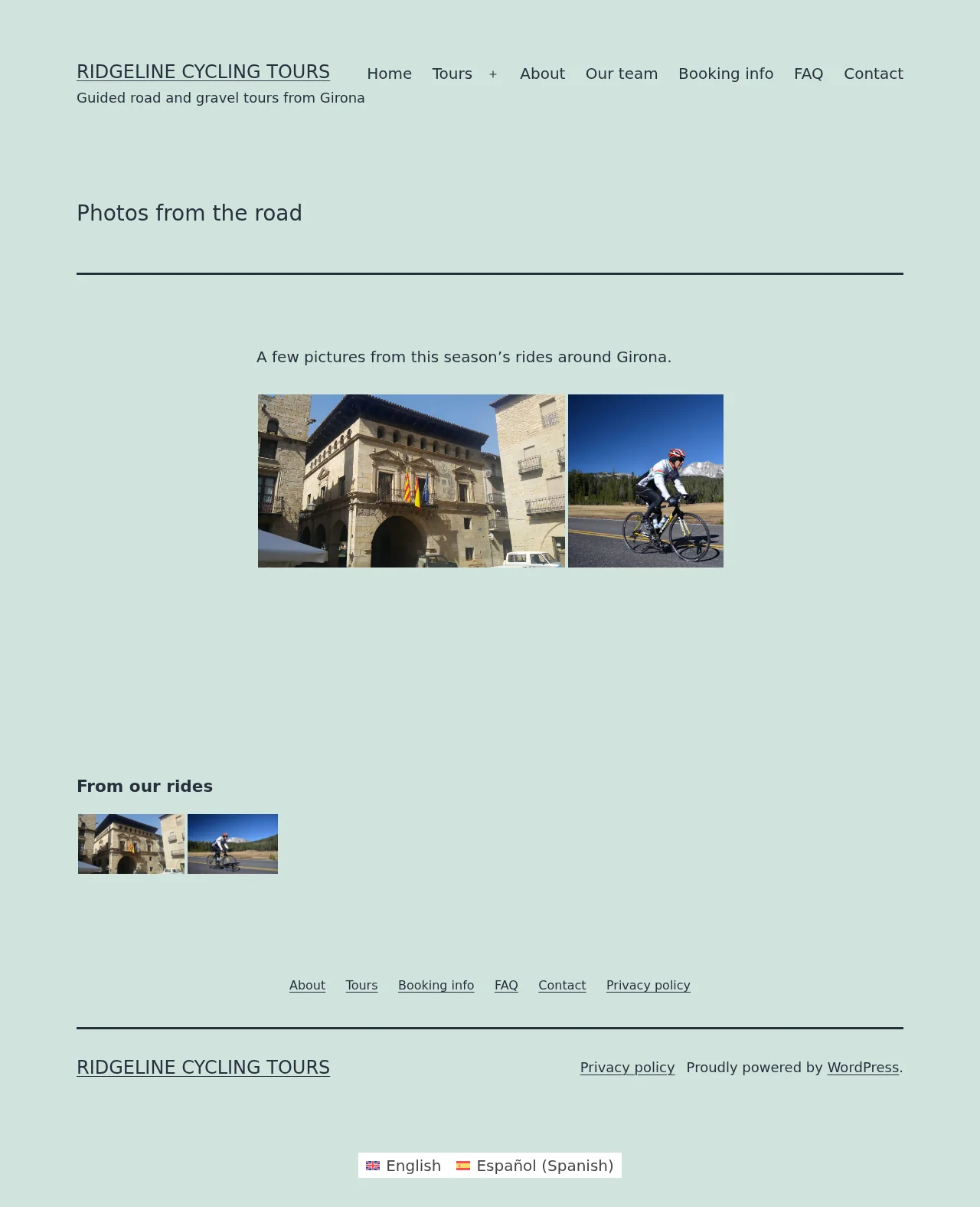
Widget Gallery Jetpack & WPML
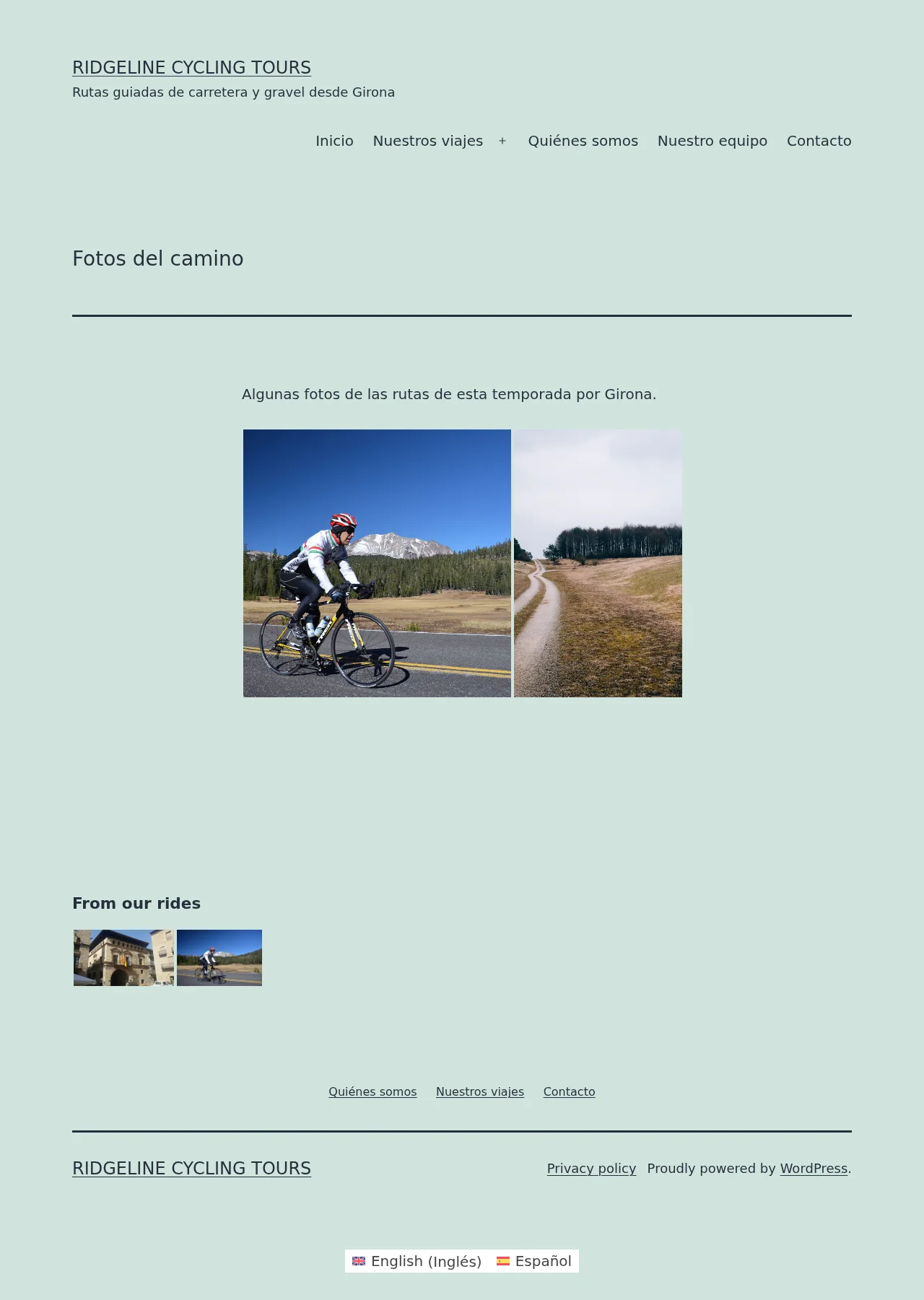
Following the same process allows you to translate all other Extra Sidebar Widgets.
The Jetpack package contains many more features and to translate them, you should follow the same procedure as described above.
Written by