Skip to content Skip to sidebar

This thread is resolved. Here is a description of the problem and solution.

Problem:
The client from EUROTEXT, a WPML translation partner, was unable to download XLIFF files for in-house translations as the files were not appearing in the 'Translations' or 'Translation Queue' after setting up a translation project in WPML Translation Management.

Solution:
We advised the client to ensure that the translators are properly set up and language pairs are assigned. This setup involves:
1. Setting up translators and assigning language pairs: https://wpml.org/documentation/translating-your-contents/#setting-up-translators
2. Assigning translation jobs to these translators: https://wpml.org/documentation/translating-your-contents/#assigning-the-translations-to-a-translator
3. Manually downloading XLIFF files: https://wpml.org/documentation/translating-your-contents/using-desktop-cat-tools/configuring-xliff-file-options/#manually-downloading-xliff-files

Additionally, we requested the client to provide debug information to better understand their setup and confirm if the user is set as a translator. This information helps in diagnosing issues related to user permissions and access.

If this solution does not resolve your issue or seems outdated, we recommend checking related known issues at https://wpml.org/known-issues/, verifying the version of the permanent fix, and confirming that you have installed the latest versions of themes and plugins. If problems persist, please open a new support ticket at WPML support forum.

This is the technical support forum for WPML - the multilingual WordPress plugin.

Everyone can read, but only WPML clients can post here. WPML team is replying on the forum 6 days per week, 22 hours per day.

This topic contains 3 replies, has 2 voices.

Last updated by Bruno Kos 1 year, 11 months ago.

Assisted by: Bruno Kos.

Author Posts
May 15, 2024 at 10:44 am #15629584

Max Schreiner

Hello,

EUROTEXT is a translation company. We are WPML translation partners. Now, we would like to update our website, and for that we need to do some in-house translations (ES-EN). As these are for our own website, there is no invoicing involved, and therefore we needn´t go through the hub, as far as I understand.

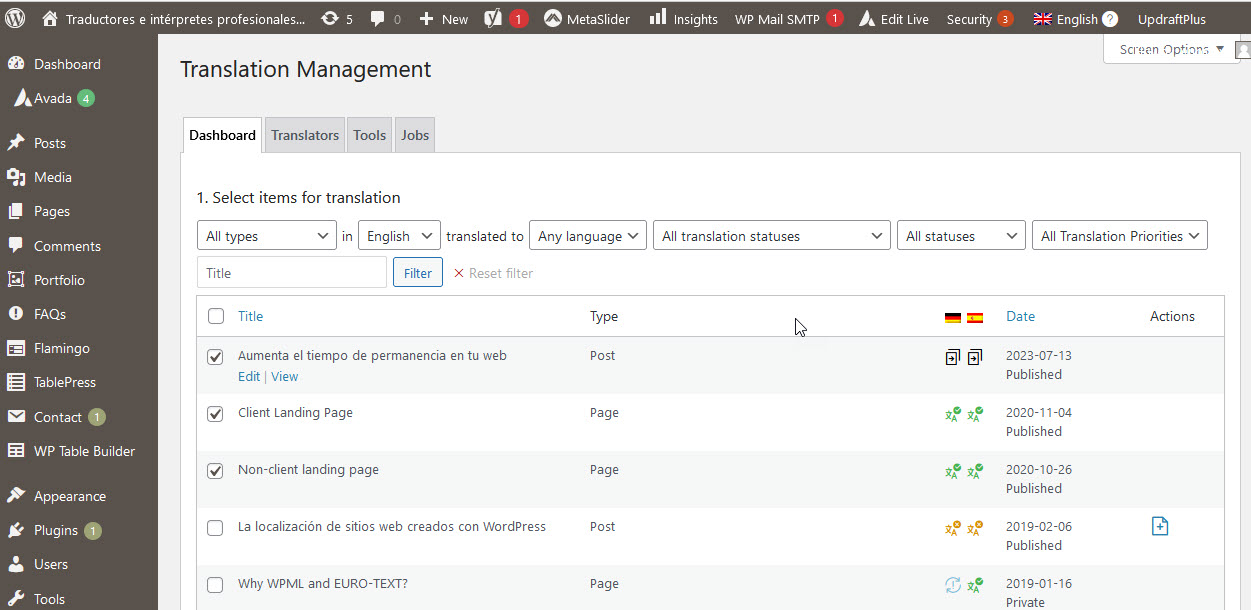
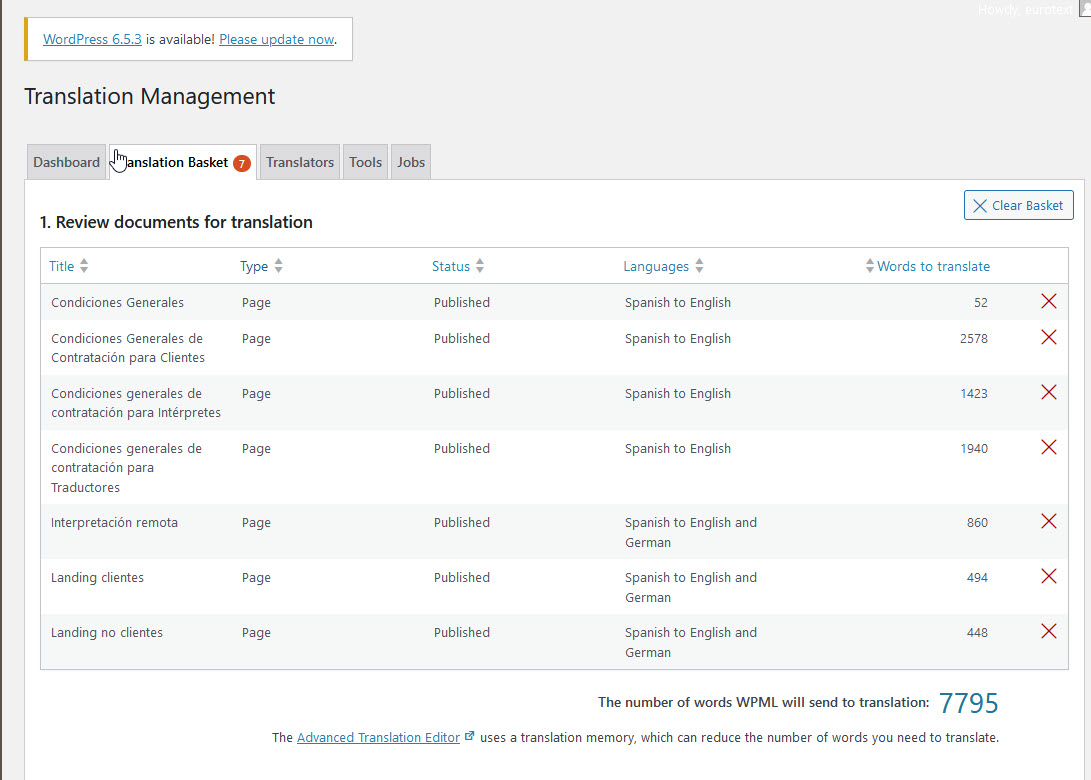
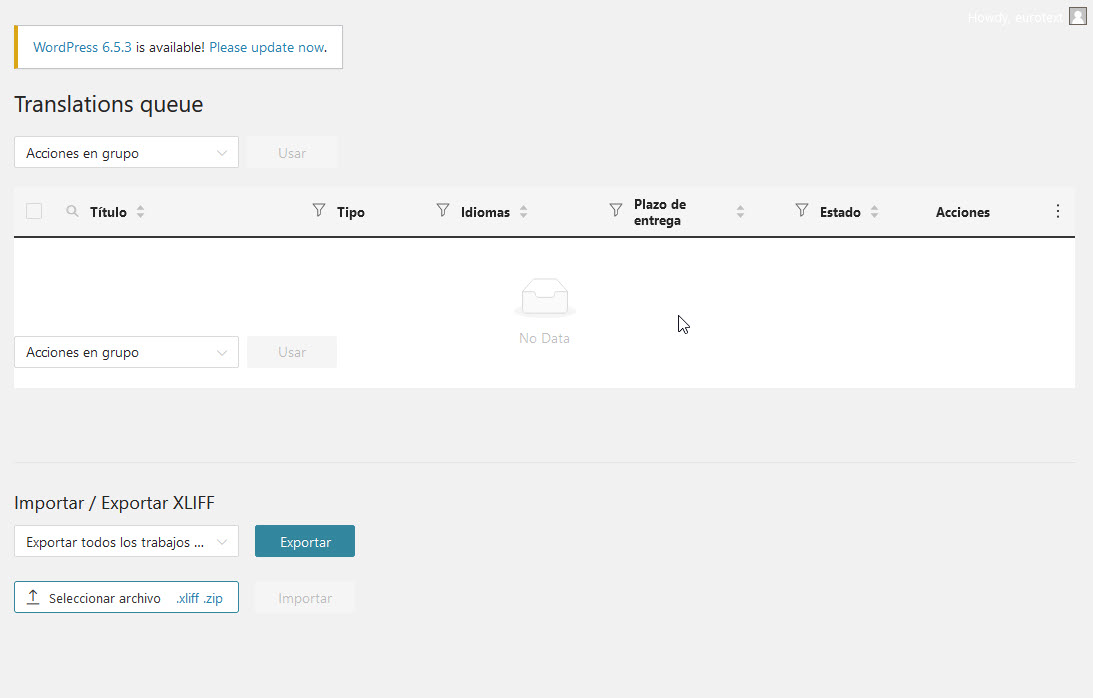
I set up a translation project in WPML|Translation management [1]. The involved files are shown in the Translation Basket [2]. Now, manual download of xliff files takes place in Translations (exclusively), but this list is empty [3]. What do I have to do in order to download the files of the translation project? How can I “connect” the basket to this page (or transfer the information about the files to be translated here)?

Looking forward to your explanations. Thanks in advance.
Best regards
Max

1 translation management.jpg
2 translation basket.jpg
3 translations queue.jpg
May 15, 2024 at 11:13 am #15629793

Bruno Kos
WPML Supporter since 12/2018

Languages: English (English ) German (Deutsch ) French (Français )

Timezone: Europe/Zagreb (GMT+02:00)

Hi,

Thank you for contacting WPML support!

The workflow would be this:

- make sure to have translators set and language pairs assigned: https://wpml.org/documentation/translating-your-contents/#setting-up-translators

and then send these jobs to these translators:
https://wpml.org/documentation/translating-your-contents/#assigning-the-translations-to-a-translator

After this you should have an option to download XLIFF files:
https://wpml.org/documentation/translating-your-contents/using-desktop-cat-tools/configuring-xliff-file-options/#manually-downloading-xliff-files

Regards,
Bruno Kos

May 20, 2024 at 12:25 pm #15645721

Max Schreiner

Hello,

sorry about our delay in answering, but we haven´t had time earlier. Our issue still remains unsolved, unfortunately.

We followed the workflow as outlined in your mail,
- selecting the files to translate (in WPML Translation Management)
- sending them to the (fake) inhouse translator we have configured (eurotext, e-mail: info@euro-text.com)
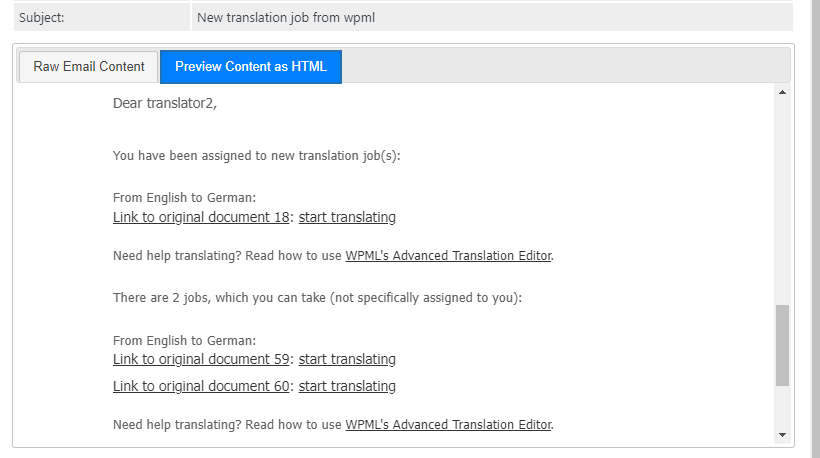
Subsequently, we received the confirmation e-mail (attached 2 screenshots), BUT from this e-mail, we cannot open WP, only the WPML advanced translation wizard.

If we open WP / WPML, there are no files in "Translations" | "Translation Queue". Therefore, we cannot download xliff files. (see screenshot 3).

What are we doing wrong?

Best regards
Max

Empty transl queue 2024-05-20_14-18-38.jpg
Confirmation transl jobs 02 2024-05-20_14-13-27.jpg
Confirmation transl jobs 01 2024-05-20_14-13-27.jpg
May 20, 2024 at 1:46 pm #15646068

Bruno Kos
WPML Supporter since 12/2018

Languages: English (English ) German (Deutsch ) French (Français )

Timezone: Europe/Zagreb (GMT+02:00)

Can you please provide me with the debug information, so that I can get a better idea of your setup?

https://wpml.org/faq/provide-debug-information-faster-support/

Enter this data into the Add debug info box below.

Also, can you confirm that this user is set as translator?
https://wpml.org/documentation/translating-your-contents/#setting-up-translators

Also if you login from that user account (and not from your admin account), do you see these jobs (from your screenshots it does look like you are logged in from that account, correct?)

I did a test on my localhost for the translator who has Editor privileges and this is what I see. From this user I can download these jobs as XLIFF files.

jobs sent to translator.png
Clipboard_05-20-2024_02.png
May 20, 2024 at 3:31 pm #15646848

Max Schreiner

Hello,
it seems that the key to the solution was to get aware that there are 2 users involved: the WPML admin who sets it up and distributes the translations and then the translator, who must access the translation queue with their own login. We were not aware of this. Now it seems that this issue is resolved. Thank you for your help.
Best
Max