


A button that opens the popup opens it in the visitor's language, too. For the full Elementor setup, read how to translate an Elementor website with WPML.
Why a Popup Keeps One Design for Every Language
A popup's design and its settings, when it opens and where it appears, are one design for every language. WPML translates the popup's texts and copies its settings from the original to every language each time you send the popup. You set them once, on the original.
What You Need to Do
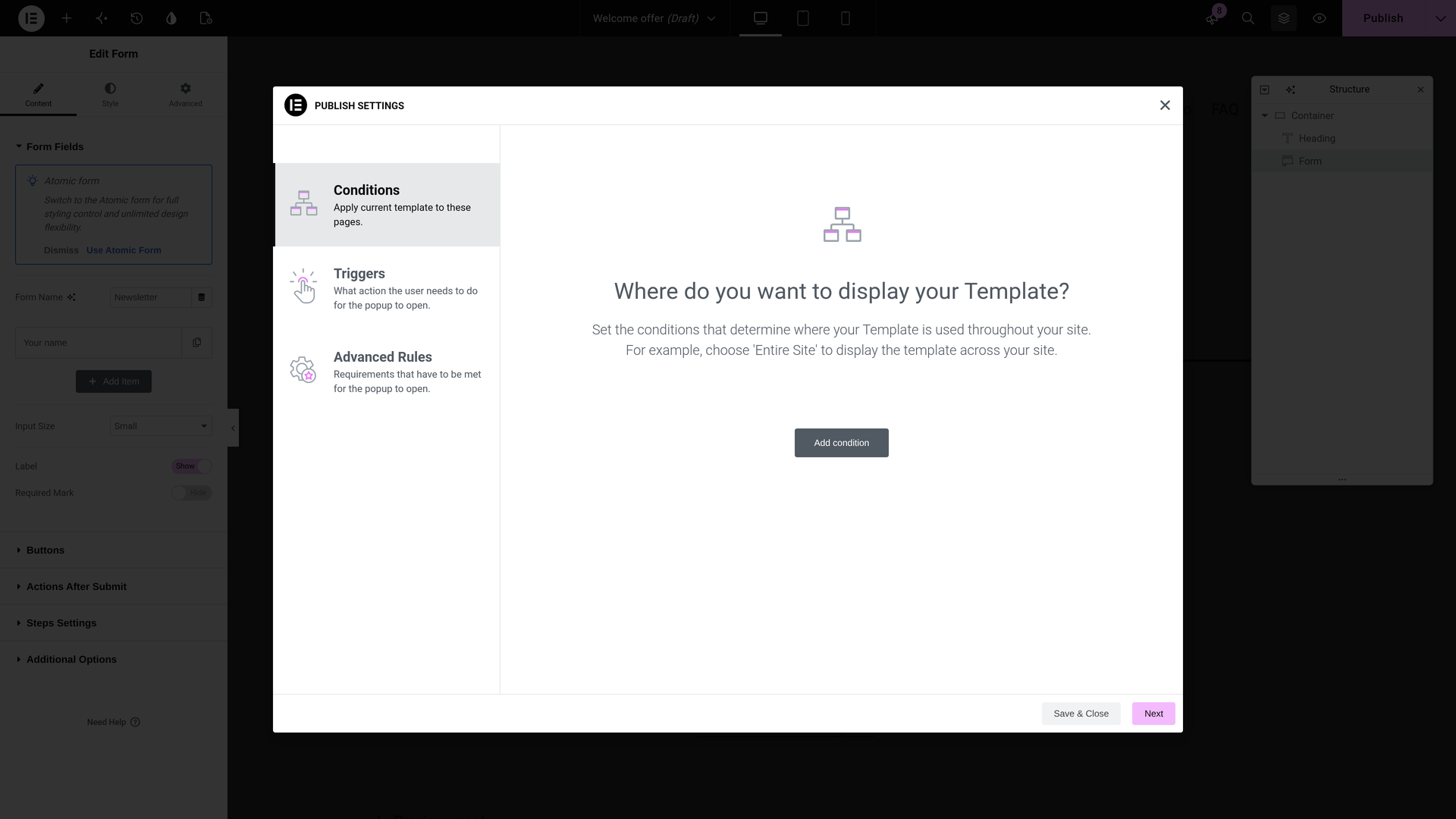
Set the popup up once, on the original. In Elementor, open the popup's publish settings and set its Conditions and Triggers, for example a delay after the page loads.
With Translate Everything On: Nothing
If you use PTC and your site is on Translate Everything, WPML translates the whole site, your popups and the pages that open them included. You do not need to do or review anything. When you edit a popup later, WPML translates the change too.
You set it up in the Translate Everything Automatically box at the top of WPMLTranslations. Read how to translate everything automatically.
With Translate Everything Off: Send the Popup from the Translation Dashboard
You choose what to translate and when. Send the popup together with the pages whose buttons open it.
- Open the Translation Dashboard. Go to WPMLTranslations. The popup is in the Elementor Templates section.
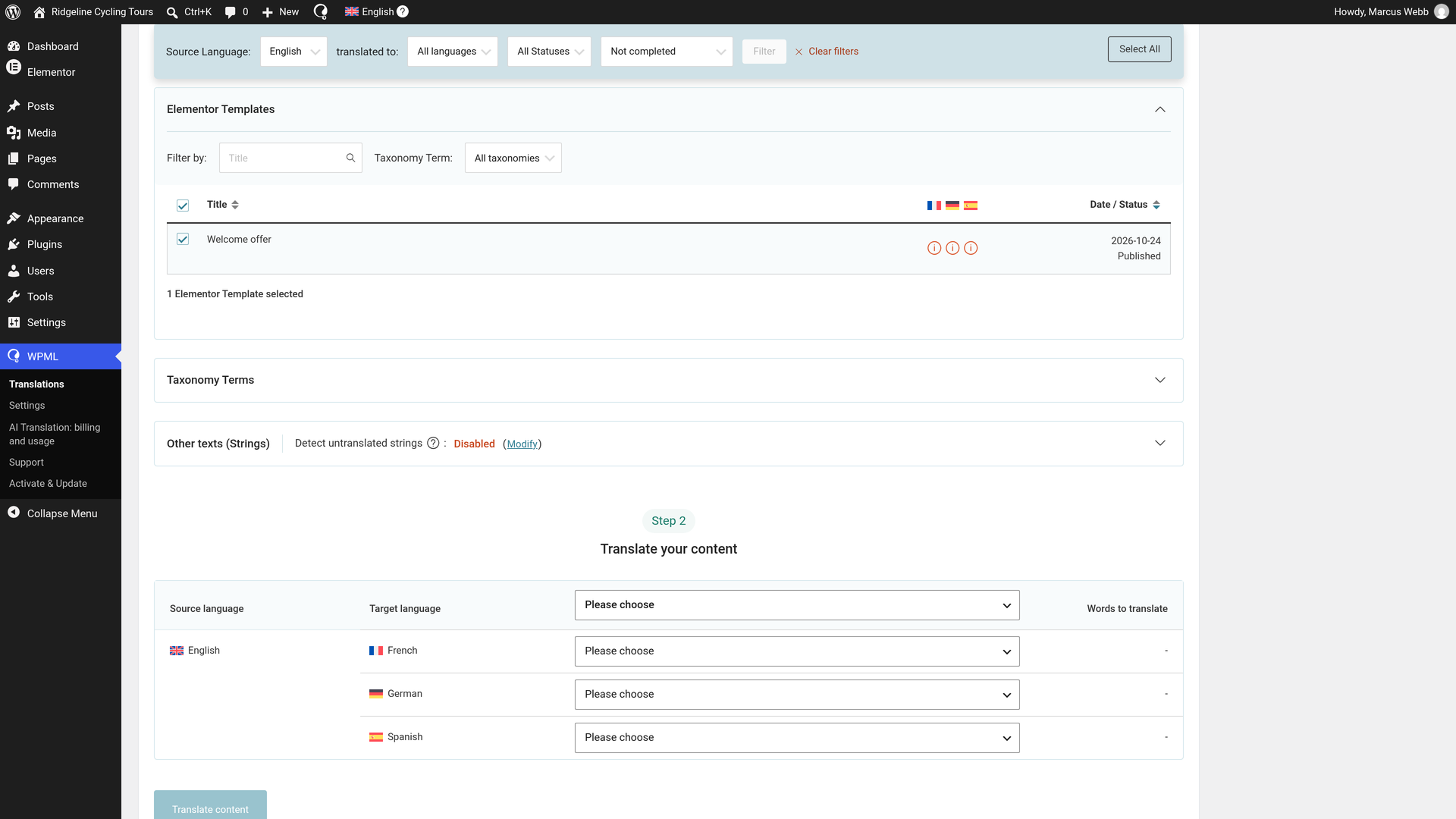
- Select the popup and its pages. Check the box next to the popup, and next to the pages whose buttons open it.
- Choose automatic translation. Under Translate your content, choose Translate automatically for each language.
- Choose Publish without review. Under What would you like to do when WPML finishes translating your content automatically?, choose Publish without review (Recommended). Translations from PTC are ready to publish, so they go live as soon as they are done.
- Send them. Click Translate content. A message confirms Sent for translation.
The translations complete in minutes and are live. In Translation Jobs, each job shows Completed. There is nothing more you need to do. When you edit the popup later, send it again.
Read more about the Translation Dashboard.
What Visitors See in a Translated Elementor Popup
- The popup in their language. Each language shows its own copy of the popup.
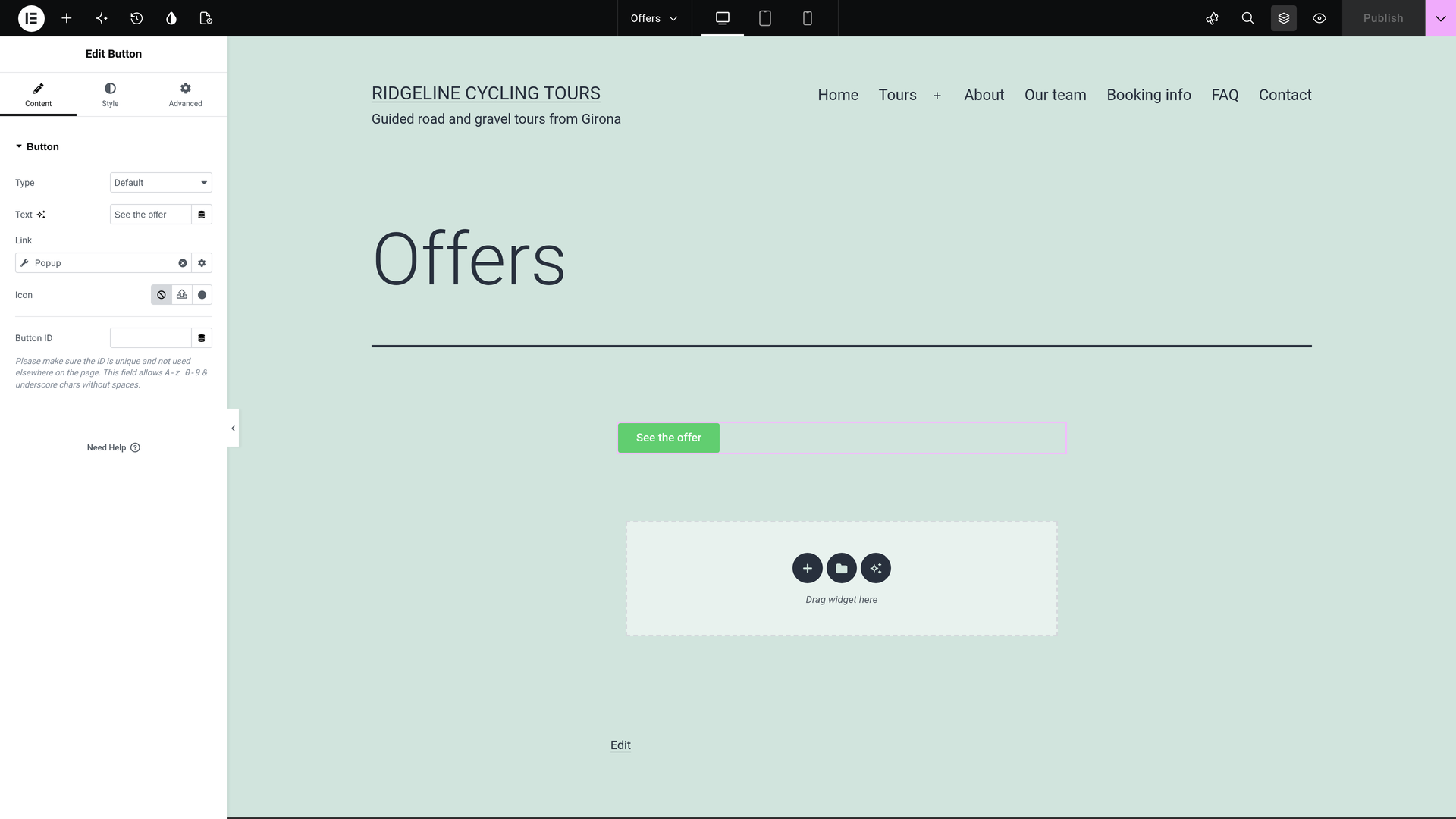
- Buttons that open the translated popup. A button whose link opens a popup opens it in the visitor's language.
- The translated popup in the editor. When you open a translated page in Elementor, the button's popup action shows the translated popup.
See the Translated Popup
You can look at the translations to see for yourself. Visit a page that opens the popup in any of your other languages.
- The popup opens with its texts in that language.
- It opens on the same trigger and conditions as the original.
If You Want to Change a Translation or Translate Popups Yourself
You do not need to check anything. If you want to change a text, do it this way:
- Open Translation Jobs. Go to WPMLTranslationsTranslation Jobs.
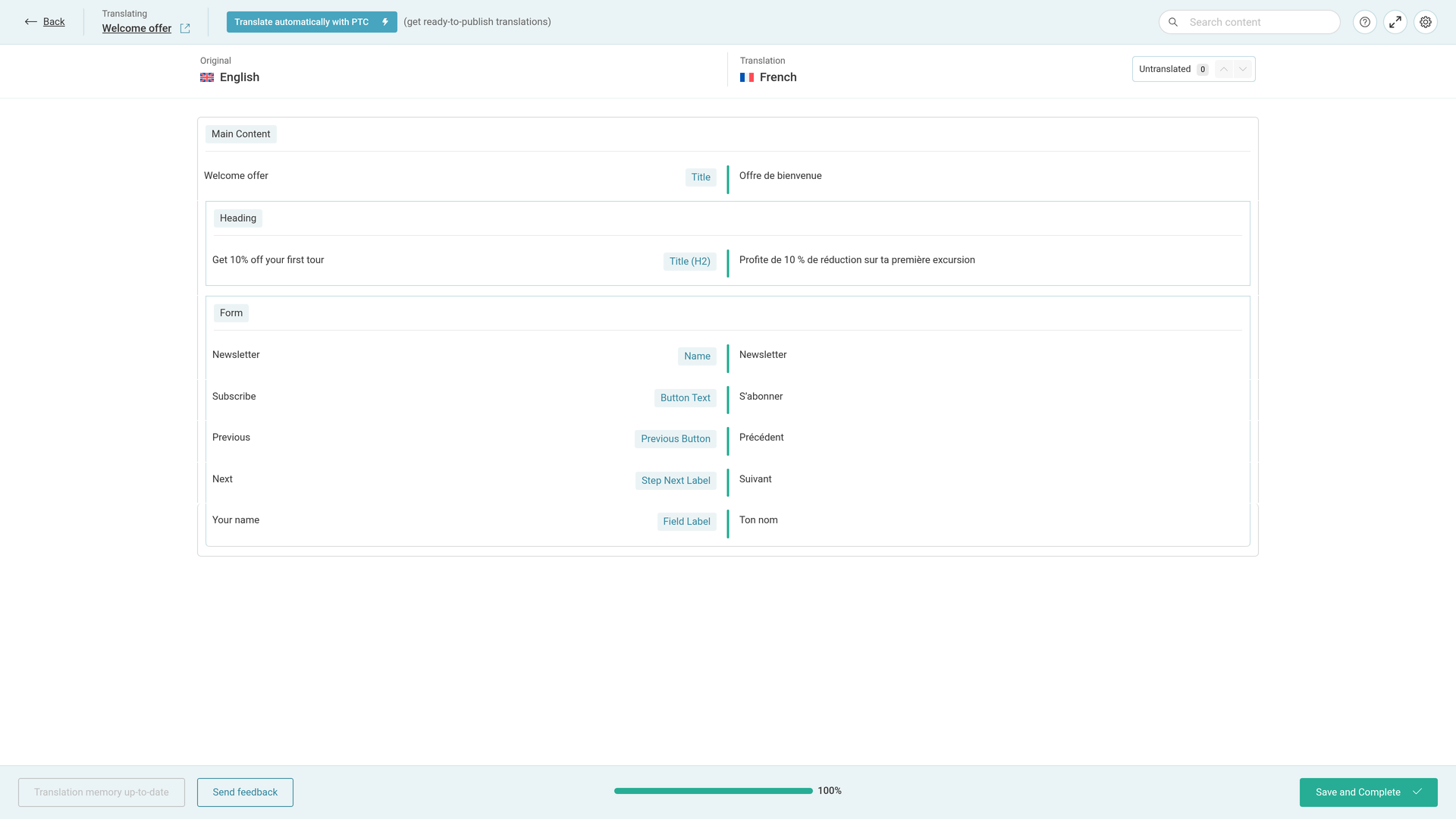
- Click the pencil on the popup's row. Use the row of the language you want. The pencil's title is Edit Translation. The Advanced Translation Editor (ATE) opens with every text of the popup.
- Edit what you want. Change any text in the editor.
- Click Save and Complete. Always finish this way, even with no change. Otherwise the job stays In progress.
When you use PTC, it learns from your edits, so you do not need to keep making the same corrections.
Translate the Popup Yourself
To translate the popup yourself from the start, choose it when you send it:
- Send the popup from WPMLTranslations as above. In the Dashboard's step 2, choose Translate myself instead of Translate automatically.
- The job then waits in the Translation Tasks tab. Click Translate on it.
- Translate the rows in the Advanced Translation Editor and click Save and Complete.
What You See in the Translation Editor
In our example, French, automatic translation gave these texts:
| Original | Label in the editor | Translation (our example) |
|---|---|---|
| Get 10% off your first order | Title (H2) | Profite de 10 % de réduction sur ta première commande |
| Newsletter | Name | Newsletter |
| Your name | Field Label | Ton nom |
| Subscribe | Button Text | S’abonner |
A form inside the popup goes in the popup's job. Read what WPML translates in a form: translate Elementor Pro forms.
What Stays One Design for Every Language
- Triggers and timing, such as the delay after the page loads. After you change them on the original, send the popup again from WPMLTranslations, and every language uses the new settings.
- Display conditions, which say on which pages the popup appears.
- Background and overlay images.
A Different Popup in One Language
The translation job copies the original's settings every time, so a translated popup has no settings of its own. If one language needs a different popup, build that language's popup in Elementor instead of the translation editor. Read how to use different translation editors for different pages.
A popup you finished in Elementor is replaced if you send it for translation again. To show a different template per language, read how to create different Elementor templates per language.
Building a site for a software company with onboarding popups? The same translation system also translates the product's documentation and user interface with Private Translation Cloud (PTC) for software.
