
This is the technical support forum for WPML - the multilingual WordPress plugin.
Everyone can read, but only WPML clients can post here. WPML team is replying on the forum 6 days per week, 22 hours per day.
| Sun | Mon | Tue | Wed | Thu | Fri | Sat |
|---|---|---|---|---|---|---|
| 10:00 – 14:00 | 10:00 – 14:00 | 10:00 – 14:00 | 10:00 – 14:00 | 10:00 – 14:00 | - | - |
| 16:00 – 20:00 | 16:00 – 20:00 | 16:00 – 20:00 | 16:00 – 20:00 | 16:00 – 20:00 | - | - |
Supporter timezone: Asia/Jerusalem (GMT+02:00)
Tagged: Documentation request, WCML
Related documentation:
This topic contains 35 replies, has 1 voice.
Last updated by Itamar 6 months, 1 week ago.
Assisted by: Itamar.
| Author | Posts |
|---|---|
| July 15, 2025 at 4:42 pm #17239084 | |
 Itamar WPML Supporter since 02/2016 Languages: English (English ) Timezone: Asia/Jerusalem (GMT+02:00) |
Hi, Thanks for the video. It was helpful. Once a product is translated, but the attributes are set to full back, problems like the one you experienced could occur. My suggestion to you is to translate all the attributes. You can do it in WPML -> Taxonomy Translation. If it is just a numeric value, you simply need to copy it from the original (there is a button for this). You can also add all the attributes that are not currently translated to a temporary product (explicitly created for this purpose). Then send it for automatic translation. This will translate all the attributes and will make them appear translated on all the other products they are associated with. You might need to update the products afterwards. You can also try WooCommerce Multilingual & Multicurrency and the WPML troubleshooting sections. WooCommerce Multilingual & Multicurrency 2. There, select the 'Create missing translations for product attributes' for BTU, and click the Run the selected tools button. Please see the attached screenshot, create-missing-trans.jpg. WPML 2. Go to WPML -> Support -> Troubleshooting (link) 3. Once on the troubleshooting screen, press the following buttons and check if it helps. Press each button at a time and wait for the process to complete. - 'Synchronize posts taxonomies' for 'Products' - 'Clear the cache in WPML' - 'Remove ghost entries from the translation tables' - 'Fix element_type collation' - 'Fix WPML tables collation' - 'Assign translation status to duplicated content' - 'Set language information' - 'Fix terms count' - 'Fix post type assignment for translations' *** Please make a backup of your database before using this.*** Please let me know if this information was helpful to you. Regards, 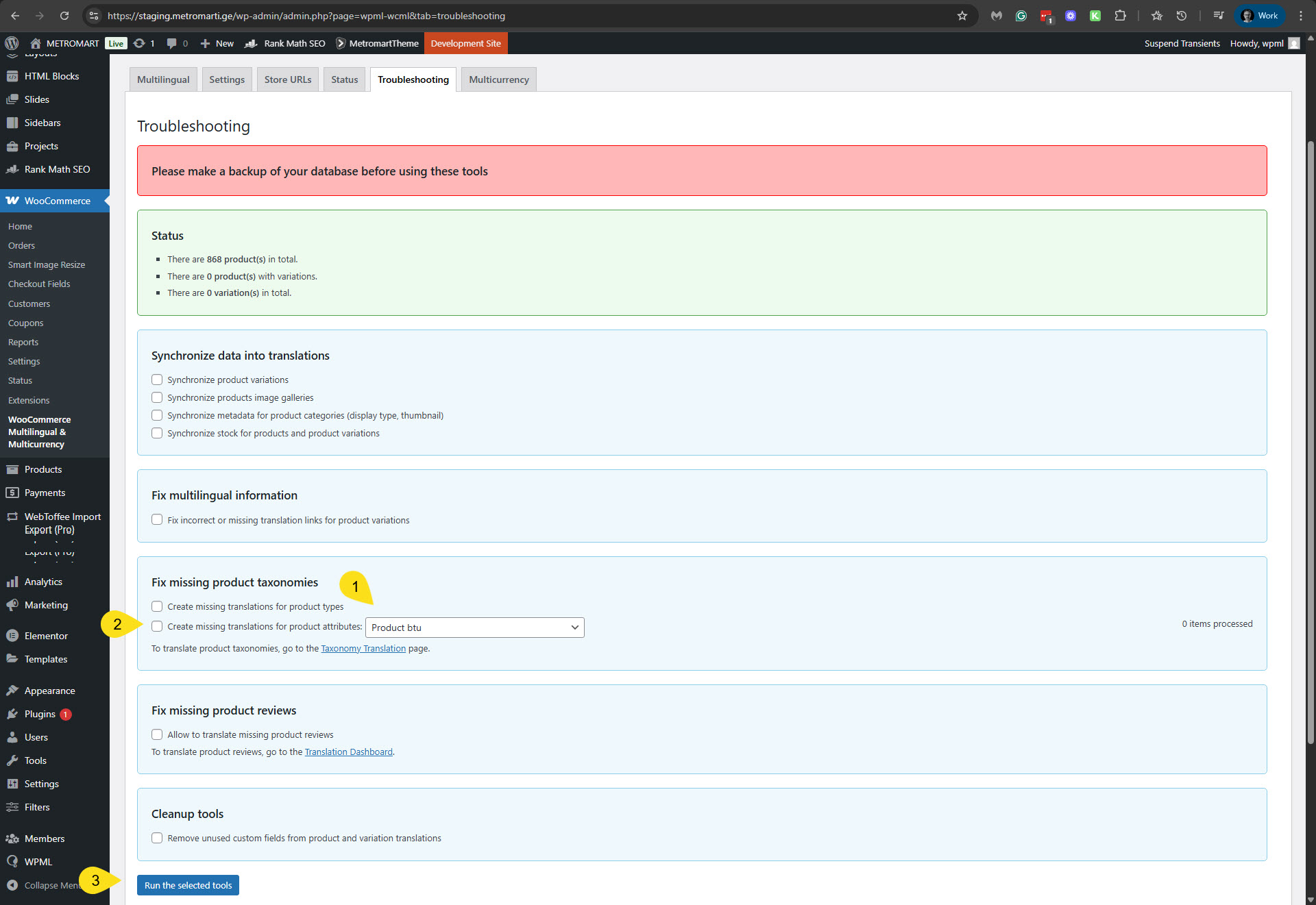 |
| July 15, 2025 at 11:53 pm #17239844 | |
 robertM-124 |
Hi, thank you for reviewing my video. Unfortunately, the troubleshooting actions you mentioned are not working for me. In fact, any of the troubleshooting actions remove the previously uploaded translation values for attribute values. It actually reveals the issue that will occur later on at some point of time, because any change in the original product causes the same issue. In short, the fallback doesn't work as described: "Translatable Since there are no configuration change recommendations, and this happens not only to me, I would kindly request you to address the issue to the developers team to get a fix in future. Or please advise where I can submit a "feature request/bug report". Thanks a lot for reviewing all the information throughout this conversation. I appreciate your time and efforts to help me out. Wishing you lots of success. |
| July 16, 2025 at 7:39 pm #17243613 | |
|
Itamar WPML Supporter since 02/2016 Languages: English (English ) Timezone: Asia/Jerusalem (GMT+02:00) |
Hi, I'm consulting our second-tier supporters about your case. If our second-tier supporters need to debug this issue further, please allow me to take a copy of your site. For this, I must install a plugin like Duplicator or All In One Migration. Please let me know if you agree. Regards, |
| July 16, 2025 at 11:33 pm #17243787 | |
|
robertM-124 |
Hello and thank you. Sure, you have my full permission to copy the website for debugging purposes. Regards |
| July 17, 2025 at 9:18 pm #17248062 | |
|
Itamar WPML Supporter since 02/2016 Languages: English (English ) Timezone: Asia/Jerusalem (GMT+02:00) |
Thanks! I've installed the All In One migration plugin on your site and created a copy of it. I then deleted the plugin. We will debug this issue on our servers and will get back to you with an update as soon as we have news. Please note that my weekend is Friday to Saturday, and I'll be able to continue checking the state of this issue on Sunday. Regards, |
| July 21, 2025 at 9:13 am #17254331 | |
|
Itamar WPML Supporter since 02/2016 Languages: English (English ) Timezone: Asia/Jerusalem (GMT+02:00) |
Hi, I've extensively debugged the issue with attributes that are set to fallback but not displaying on the English-translated product. I debugged it on your staging site as well as on the copy of your site on my local server. The conclusion is that the problem occurs because the Translation Editor set for products was the WordPress editor, rather than WPML's Advanced Translation Editor. Once I switch the product to be translated with the Advanced Translation Editor and update the English translation (by simply visiting the translation and clicking the Save and Complete button), the values of the attribute are displayed in the English translation. I checked it with the 'Indoor unit noise level (dB)' and the 'Outdoor unit noise level (dB)' attributes on this product: Please watch the video (7:41) I recorded for you while trying this: I hope this clarifies things. Regards, |
| July 22, 2025 at 4:34 pm #17260427 | |
|
robertM-124 |
Dear Itamar, Thanks a lot for putting so much effort in this reply. I appreciate your dedication, professionalism and kind support. Please give me a little more time so I can test what you have shown. Currently I am trying to figure out what triggers the switch to the classic editor and how to avoid translating all the stuff from scratch as in your example. The product that you edited was showing dotted green line, but when I try to replicate it, all the uploaded translations are gone. I will test it thoroughly and get back here with the results. Regards |
| July 24, 2025 at 6:32 pm #17269026 | |
|
Itamar WPML Supporter since 02/2016 Languages: English (English ) Timezone: Asia/Jerusalem (GMT+02:00) |
Hi, You are welcome. I'll be waiting to hear from you if you need further assistance with this issue. Please note that my weekend hours are Friday to Saturday. If you need further assistance, I'll be available to continue checking this issue and helping you next week. Regards, |
| July 28, 2025 at 2:30 am #17273593 | |
|
robertM-124 |
Dear Itamar, Sorry again for my delayed response. I am posting a video below, so you can see the issue I am facing when following the steps you kindly explained. hidden link Staging and "production" (in Developmnent) websites are still the same in terms of settings and plugins. Since I've made this demonstration on the "production" website, I can: In case 1 or 2 please open the dialog box to provide you with new credentials. Is there something that can be done at this point to preserve the uploaded translations for local attributes? |
| July 28, 2025 at 4:57 am #17273653 | |
|
robertM-124 |
UPDATE: Attached is the screenshot of attributes of the item from the previous video after running the troubleshooter. It switches the Translations to "WordPress Editor" and it deletes the local attributes. Global attributes (numeric) will be returned (fall back) once the translation is done in "Advanced Translation Editor", as you showed in your video. So, the questions are: This all, if true, bring to the point that uploading translation doesn't work. 4. Is it the same for all import/export plugins, or just for WebToffee? Best Regards 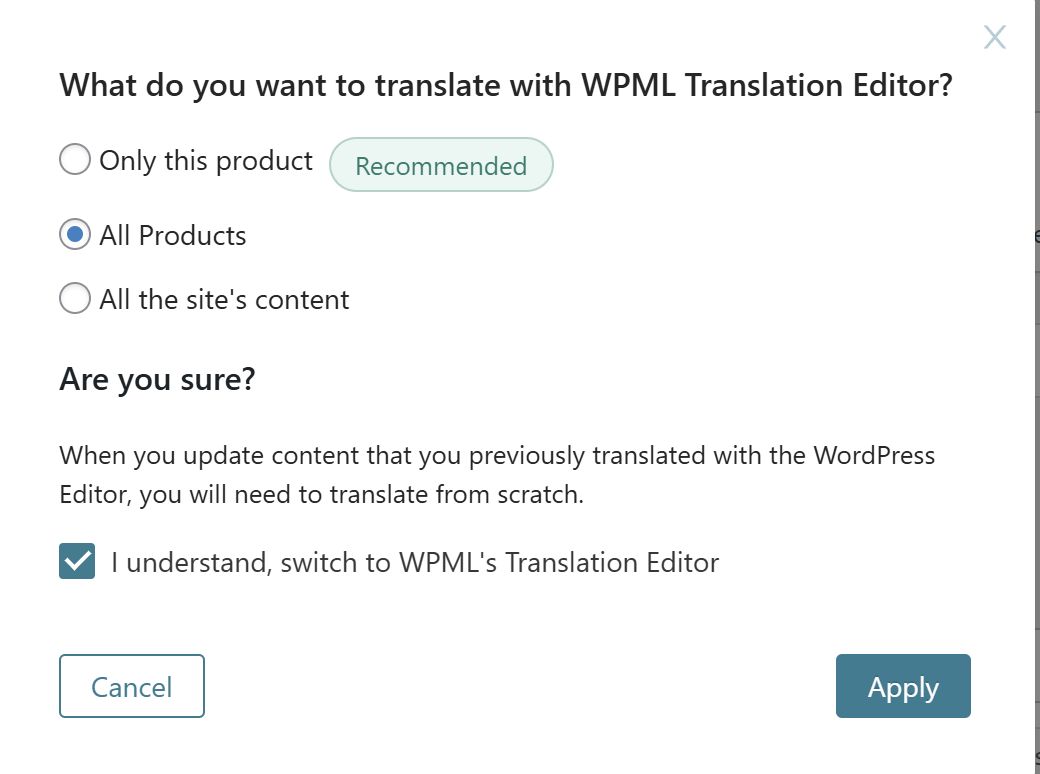 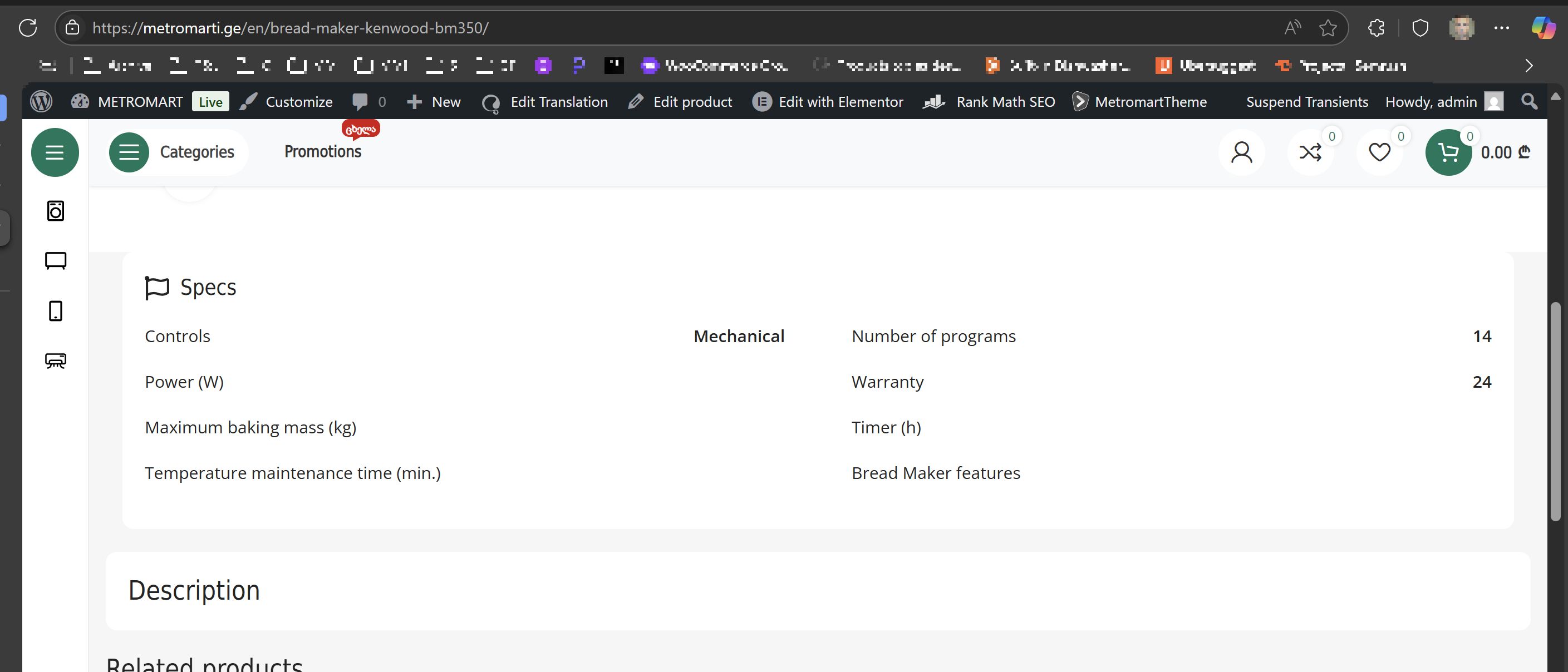 |
| July 29, 2025 at 5:00 pm #17279878 | |
|
Itamar WPML Supporter since 02/2016 Languages: English (English ) Timezone: Asia/Jerusalem (GMT+02:00) |
Hi, Thanks for the detailed video! From your video, the following is unclear to me. Also, in your video, at around 9-10 minutes, you are making a change to a product, and things break. You changed a global attribute in the default language and updated the English translation with the Advanced Translation Editor, and half of the specs in English got missed. This most probably happened because the translation was in progress. You can tell it by the gear icon. Please see the attached screenshot. The problem is this: a change to the original product while the translation is in progress will not take effect. You must first complete the in-progress translation to make the pencil icon display. Only then can you make a change to the original product, and then update the translated product. After updating the original product, the circled arrow icon will show. The circled arrow icon designates that the translation needs an update. You asked the following questions.
I'm unsure about it. Further testing and debugging are needed.
Unfortunately, the answer to this is no. Local/custom attributes can only be translated in WPML's Translation Editor. Therefore, in your case, it is recommended only to use global attributes. About allocating automatic translation quota for repeating translations, this should not be the case if you work with WPML's Advanced Translation Editor. The Advanced Translation Editor has a memory feature which will remember previously translated strings (if they are precisely the same. You can read about the Advanced Translation Editor memory feature here: https://wpml.org/documentation/translating-your-contents/how-wpml-keeps-track-of-your-translations/. I'm not yet sure, but maybe in your case, using the Advanced Translation Editor glossary feature can serve as a workaround. You can read about the glossary feature here: https://wpml.org/documentation/translating-your-contents/advanced-translation-editor/how-to-create-and-manage-glossary-entries/.
It should work for all products. The cause of the unexpected behavior on your site is unclear to me, and if needed, we will need to investigate this further.
For the popular WP All Import and WP All Export plugins by Soflyy, as well as the Built-in WordPress export tool and the official WordPress Importer plugin, and the WooCommerce built-in product CSV Importer and Exporter, we have a bridge plugin named WPML Export and Import. This plugin enables a smoother import process. You can read about it here: https://wpml.org/documentation/related-projects/wpml-export-and-import/. Other import and export plugins are also officially compatible with WPML, and you can see the complete list here: https://wpml.org/plugin-functionality/import-export/. The WebToffee plugin you are using should also work and is mentioned in our following article: https://wpml.org/compatibility/2022/05/top-wordpress-import-and-export-plugins-for-moving-your-data/. However, it was WebToffee's responsibility to write the guide on working with WPML. And I have the feeling it is not such a complete guide. I would expect more detailed steps regarding the export and import process, as well as a sample file (perhaps available in their other documentation). At this point, we should examine your import process on a clean WordPress installation. I believe it would be a reasonable step to take. It might be that you are missing something in your import process. Or it might also be that there is a problem/bug with the latest versions of the WebToffee plugin that has not yet been reported to us. Additionally, other third-party plugins might be interfering with the import process. For this, I created a test website with a clean WordPress install. You can access it through this link: hidden link With this link, you'll be directly logged in. Could you please install the Product Import Export for WooCommerce by WebToffee plugin and see if the issue is replicable on a clean WordPress installation? Please configure WPML and WooCommerce as set on your site (just the basic configurations needed to replicate the issue are enough). Please also make sure that you are installing the latest version of the plugin. When everything is finished and you can replicate the problem, please let us know. Please record a video of the import process that you are doing, and also share with me your import file. Important! Do not import your site to the test site. We must replicate the problem on a fresh, clean WordPress installation. Further questions came to my mind after I created the sandbox site. 1. Do you have products and taxonomies already created on your site before proceeding with the import process? 2. How did you add the Georgian (ka-ge) language to your site? P.S. I'm sorry that this issue is taking so long to get resolved. This is an edge case, and this is the nature of such edge cases. Regards, 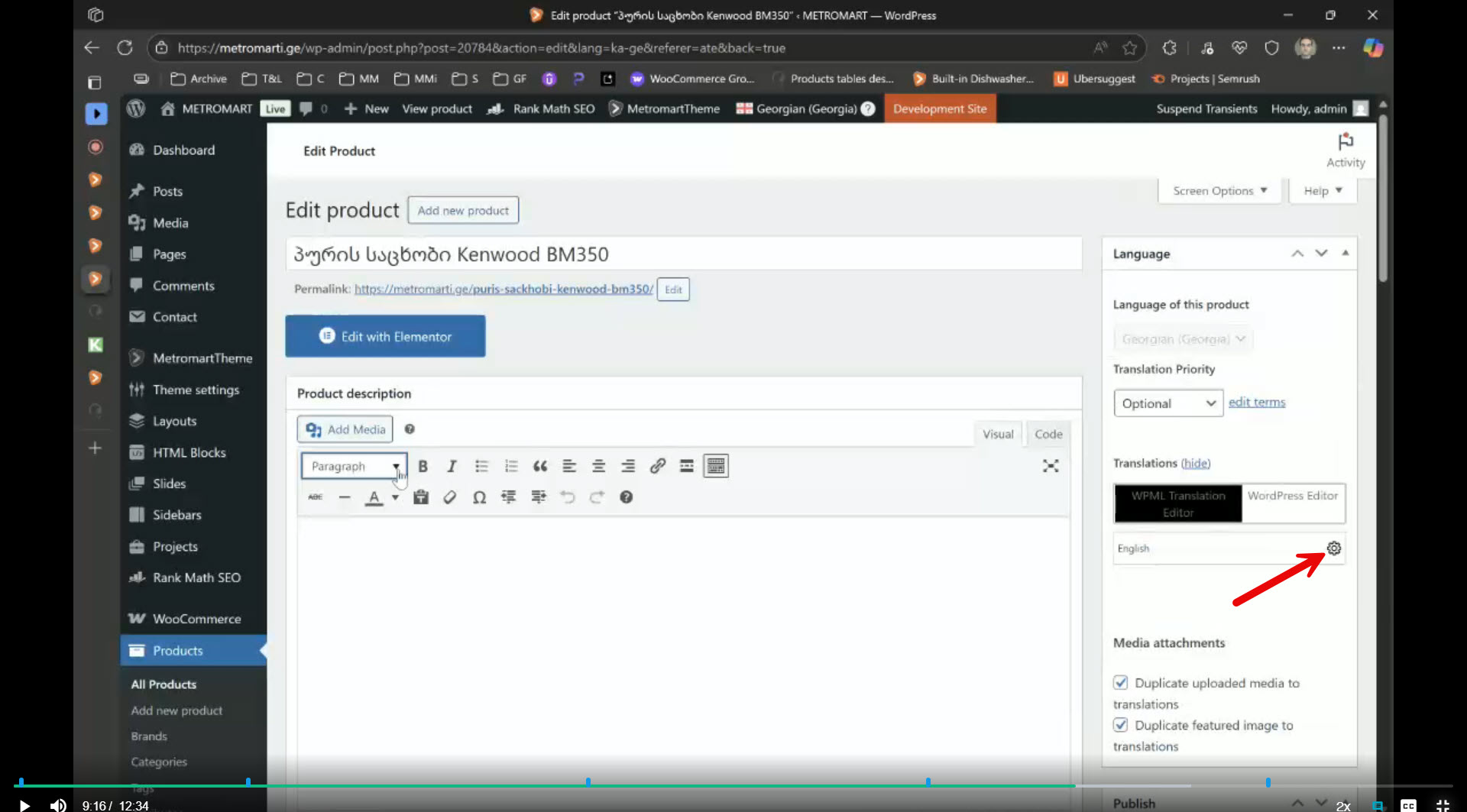 |
| July 30, 2025 at 2:31 am #17280414 | |
|
robertM-124 |
Hi, thank you for your reply. "Are you keeping the column names in your file as specified in WebToffee's guide?" "1. Do you have products and taxonomies already created on your site before proceeding with the import process?" "2. How did you add the Georgian (ka-ge) language to your site?" I recorded 3 separate videos to cover everything. Sorry they are not so well structured, but I tried to include as much useful information as possible. 1. hidden link In addition to what I said in the video, fallback for the attributes is not happening. Files: hidden link I will be happy if this investigation can do any good for WPML as well. I appreciate you investing so much time in this. Best Regards! P.S. |
| August 1, 2025 at 11:32 am #17288182 | |
|
Itamar WPML Supporter since 02/2016 Languages: English (English ) Timezone: Asia/Jerusalem (GMT+02:00) |
Hi, Thanks a lot for sending me the videos! I watched them at least two times. I'm consulting our second-tier supporters and compatibility team about this case. We're not yet sure how the import with the WebToffee plugin should behave. We also suspect that the problem with the local attributes is already known ot us. However, we need to conduct further tests to see if it is indeed related. I'll get back to you regarding this issue next week. Meanwhile, can you please write in text here the points that you think are not working as you expect? Here are some guiding questions. 1. Is everything working alright regarding the import process? 2. Are you not including the attribute numeric values in your CSV files and expect them to fallback to the values from the original language? 3. Do you expect to be able to work with the Advanced Translation Editor and edit the translated products after the import? Thanks, |
| August 1, 2025 at 12:57 pm #17288366 | |
|
robertM-124 |
Hello Itamar, thanks a lot for your time. 1. The import process itself works flawlessly. The issue is after it. Thanks again for your kind support. |
| August 3, 2025 at 7:42 pm #17291294 | |
|
Itamar WPML Supporter since 02/2016 Languages: English (English ) Timezone: Asia/Jerusalem (GMT+02:00) |
Hi, Please check the workaround in the following link to another ticket. Please let us know how it goes. Regards, |







The topic ‘[Closed] Products tables desyncronization’ is closed to new replies.