Home›Support›English Support›[Resolved] Help for WPML update. Sent from translations.com translation service
[Resolved] Help for WPML update. Sent from translations.com translation service
This thread is resolved. Here is a description of the problem and solution.
Problem: If you're trying to manually install WPML plugins and encounter the error message 'The link you followed has expired. Please try again', or if you need guidance on installing the plugin using FTP, we can help. Solution: First, ensure you have a backup of your website. It's safer to perform these operations on a staging version of your site to prevent any disruptions. Here are the steps to manually update or install WPML: 1. Sign in to your WPML account at https://wpml.org/account/downloads/. 2. Download the latest versions of WPML and its add-ons. 3. If using FTP, unzip the downloaded files to access the plugin folders. Connect to your site via FTP, navigate to public_html → wp-content → plugins, delete any existing WPML plugin folders, and upload the new ones. 4. After uploading, go to your WordPress Dashboard → Plugins and activate WPML. For automated updates, you can check for updates directly from your WordPress dashboard under Plugins > Add New > Commercial tab. For more detailed instructions on manual updates, visit https://wpml.org/faq/updating-wpml-manually/. To provide debug information for further support, follow the steps at https://wpml.org/faq/provide-debug-information-faster-support/.
If this solution does not apply to your situation, or if it seems outdated, we highly recommend checking related known issues at https://wpml.org/known-issues/, verifying the version of the permanent fix, and confirming that you have installed the latest versions of themes and plugins. If issues persist, please open a new support ticket.
This is the technical support forum for WPML - the multilingual WordPress plugin.
Everyone can read, but only WPML clients can post here. WPML team is replying on the forum 6 days per week, 22 hours per day.
Would you please give us the details on what the symptoms are while you try to update WPML?
The usual method to update WPML is:
- IMPORTANT STEP! Create a backup of your website. Or better approach will be to test this on a copy/staging version of the website to avoid any disruption of a live website.
- Go to "WordPress Dashboard > Plugins > Add new > Commercial (tab)".
- Click the "Check for Updates" button.
- Update WPML and its addons there.
But if the WPML version is too old, it is recommended to do the update manually:
- IMPORTANT STEP! Create a backup of your website. Or better approach will be to test this on a copy/staging version of the website to avoid any disruption of a live website.
- Make sure you are signed in wpml.org.
- Go to https://wpml.org/account/downloads/
- Click the "Download WPML manually" link to show the rest of the plugins on the page.
- Download the latest version of WPML and its add-ons.
- Install them manually on your website using the method below: https://wpml.org/faq/updating-wpml-manually/
Finally, it will help if you could share the debug information following the steps below:
And try to manually install it by uploading. See if it works?
That way we will know if the issue is hapening because of the WPML zip file or the issue is related to your server permissions.
If you manage to install the Yoast Duplicate plugin manually with no issues, I'd appreciate it if you could give me the URL/User/Pass of your WordPress dashboard after you make sure that you have a backup of your website.
It is absolutely important that you give us a guarantee that you have a backup so if something happens you will have a point of restore.
Thank you for the login information. I checked and could not find the issue.
May I ask you to either use FTP connection outside WP Dashboard with an FTP Client or use your hosting service provider's file manager to upload the content of the WPML Multilingual CMS and WPML String Translation to wp-content/plugins/sitepress-multilingual and wp-content/plugins/wpml-string-translation.
I suggest that you first delete the folders and upload the folder content with an FTP client or a file manager.
If you provide steps to be able to connect to the website files outside WP Dashboard, I can do that process for you.
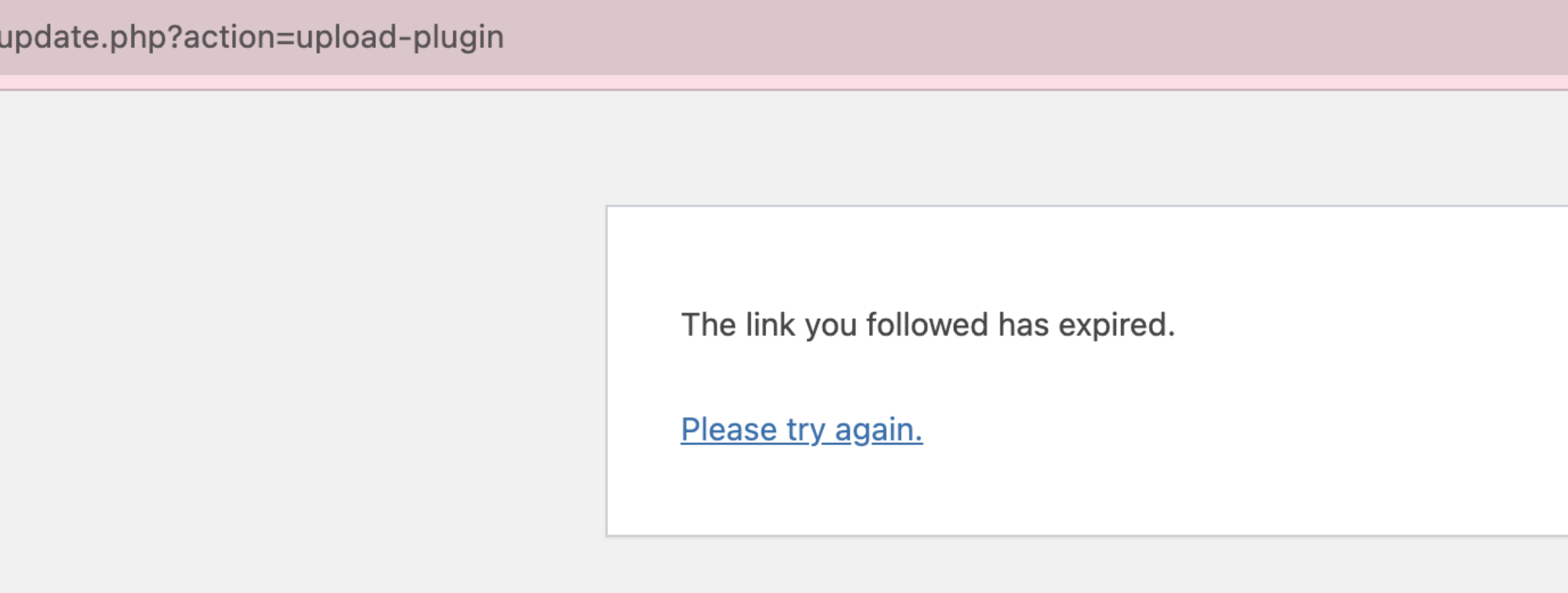
I tried to reinstall WPML Multilingual CMS by deactivating and deleting the plugin, then uploading the plugin package downloaded from the WPML website. However, I received the following error message:
“The link you followed has expired. Please try again.”
Could you please advise how to resolve this issue?
Also, could you provide instructions on how to install the plugin using FTP, by copying the plugin directly into the appropriate WordPress plugin folder?