


If an Elementor text or link is missing from WPML's translation editor, it sits in a control WPML does not read yet. Here is how to find and register it.
WPML reads Elementor's own widgets, the texts and links of add-on widgets, and a container's own link by itself. What it does not read is a control that an add-on puts on a container or a column, such as a clickable container, or a control of an unusual type. Those you register in WPML's Custom XML Configuration or in a wpml-config.xml file. This page shows what appears by itself, how to find the missing field, and how to register it.
For the full Elementor setup, read how to translate an Elementor website with WPML. Verified on WPML 5.2.0 with Elementor 4.3.2, October 2026.
What Appears in the Translation Editor by Itself
The Advanced Translation Editor (ATE) lists these without any configuration on your side:
- Heading: the heading text.
- Text Editor: the paragraph, with the links inside it.
- Button: the button text and its link.
- Image: the caption and the image link.
- Container link: when a container's HTML Tag is
aand its Link is set, the link appears as a Link URL row of its own. A container contributes nothing else. - Add-on widgets: WPML reads the widget's controls and lists its text, text area, visual editor and link controls, the items of its lists included. On our test site, a Pricing Table widget from Elementor Addons by WPZOOM appeared with its texts and links without any setup. Most add-ons also ship a wpml-config.xml of their own, which WPML reads.
The links in Icon List, Slides and Price Table entries appear too. Read what WPML does with the links in Elementor icon lists, slides and price tables.
Find the Missing Field in the Translation Editor
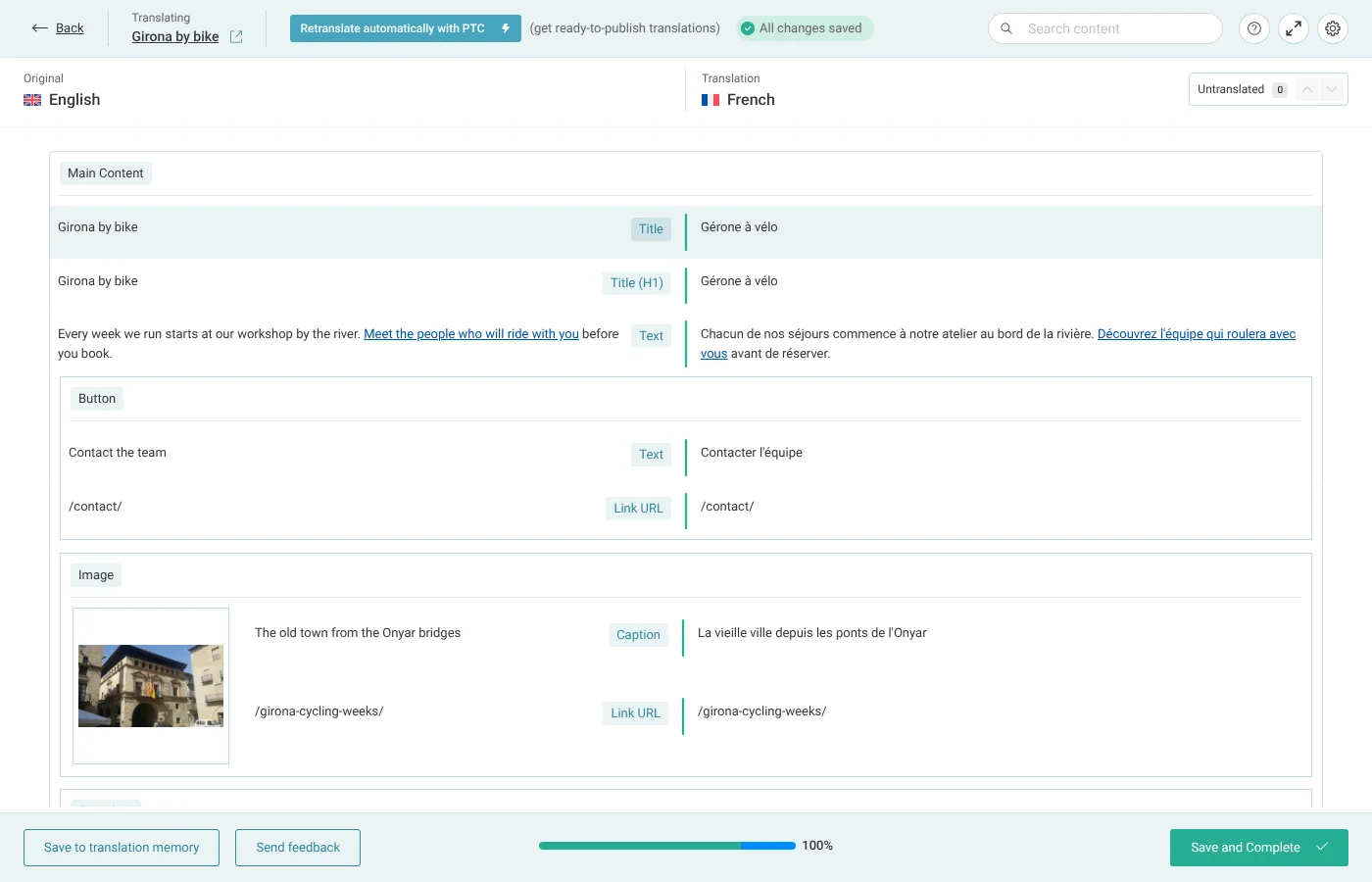
- Open the page's translation from WPMLTranslations. Go to the WPMLTranslations page and open the Translation Jobs tab. In the page's row, click Review (or Continue reviewing), then Edit translation in the bar above the translated page. If WPML publishes automatic translations without review, the row shows the Edit Translation pencil instead; click it. The Advanced Translation Editor opens. The icons in the language columns of PagesAll Pages are a shortcut to the same editor.
- Look for the field. The editor groups rows by widget, for example the Link URL row in the Button group. If a text or link is not listed, it sits in a control WPML does not read: usually a control an add-on added to a container or a column.
Register the Missing Field in Custom XML Configuration
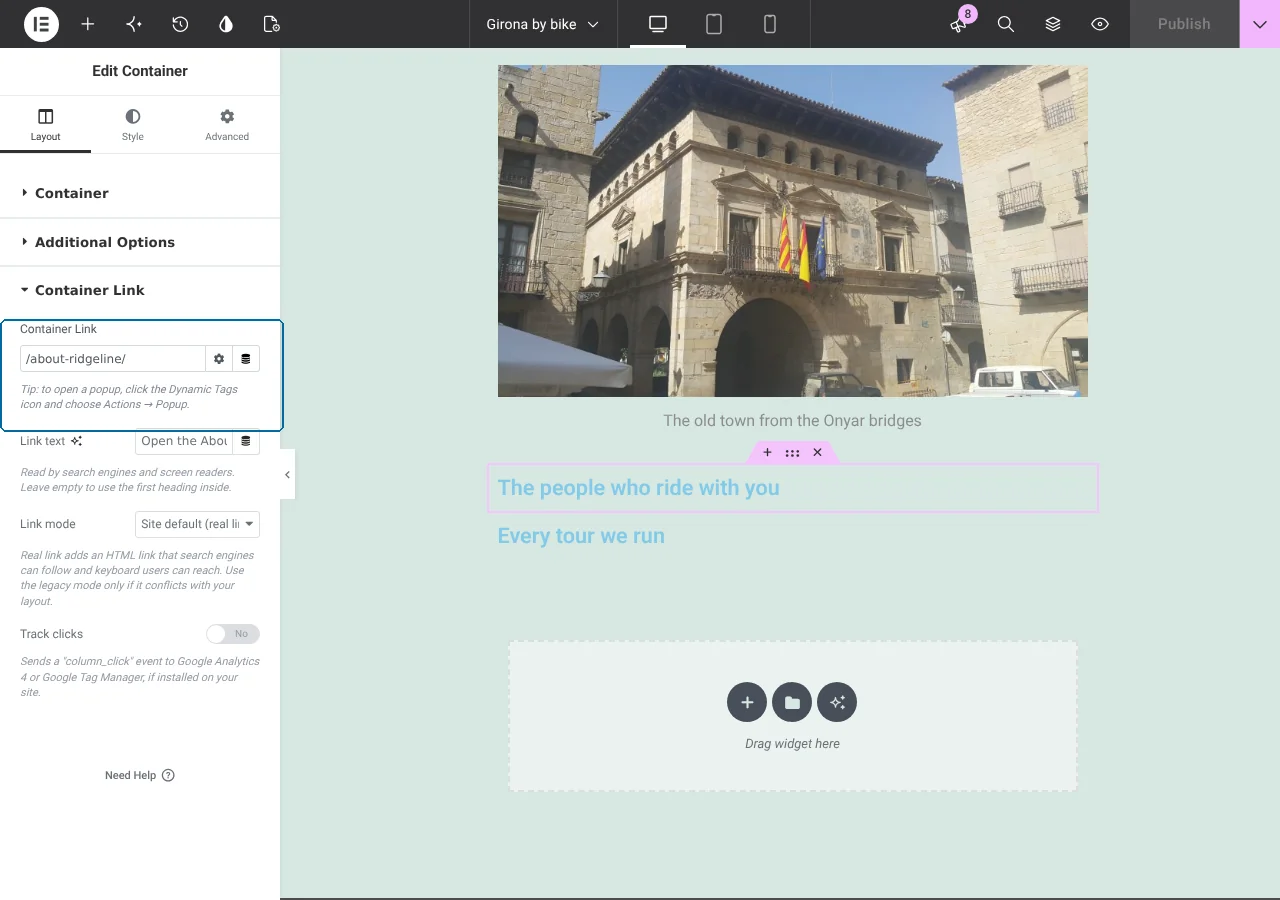
A control that an add-on adds to a container or a column is not a widget control, so WPML does not read it by itself. In this example, the Make Column Clickable add-on adds a Container Link control to containers, with a link and a link text. On legacy columns, the control is called Column Link.
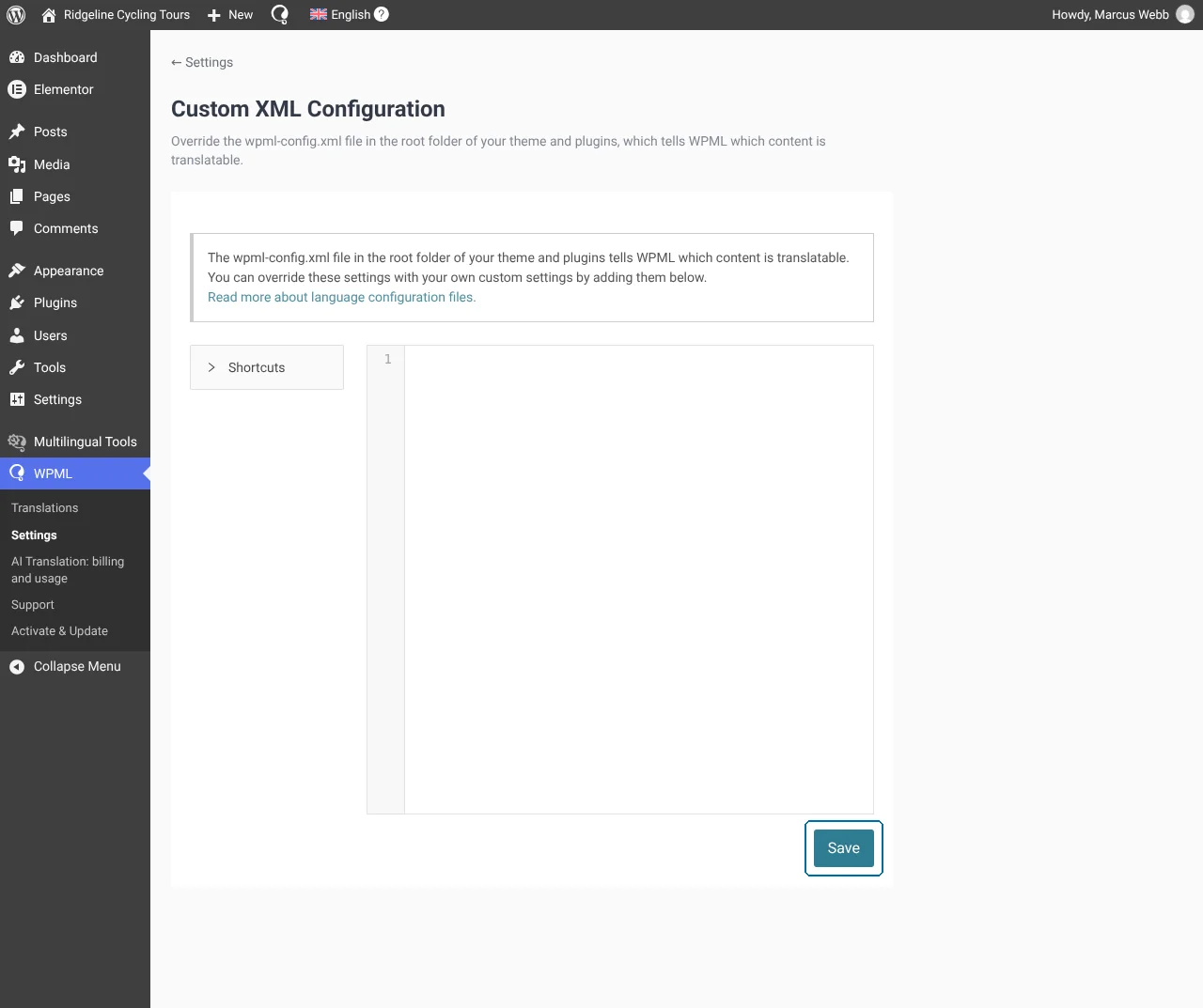
- Open the Custom XML Configuration section. Go to the WPMLSettings page and open the Custom XML Configuration section.
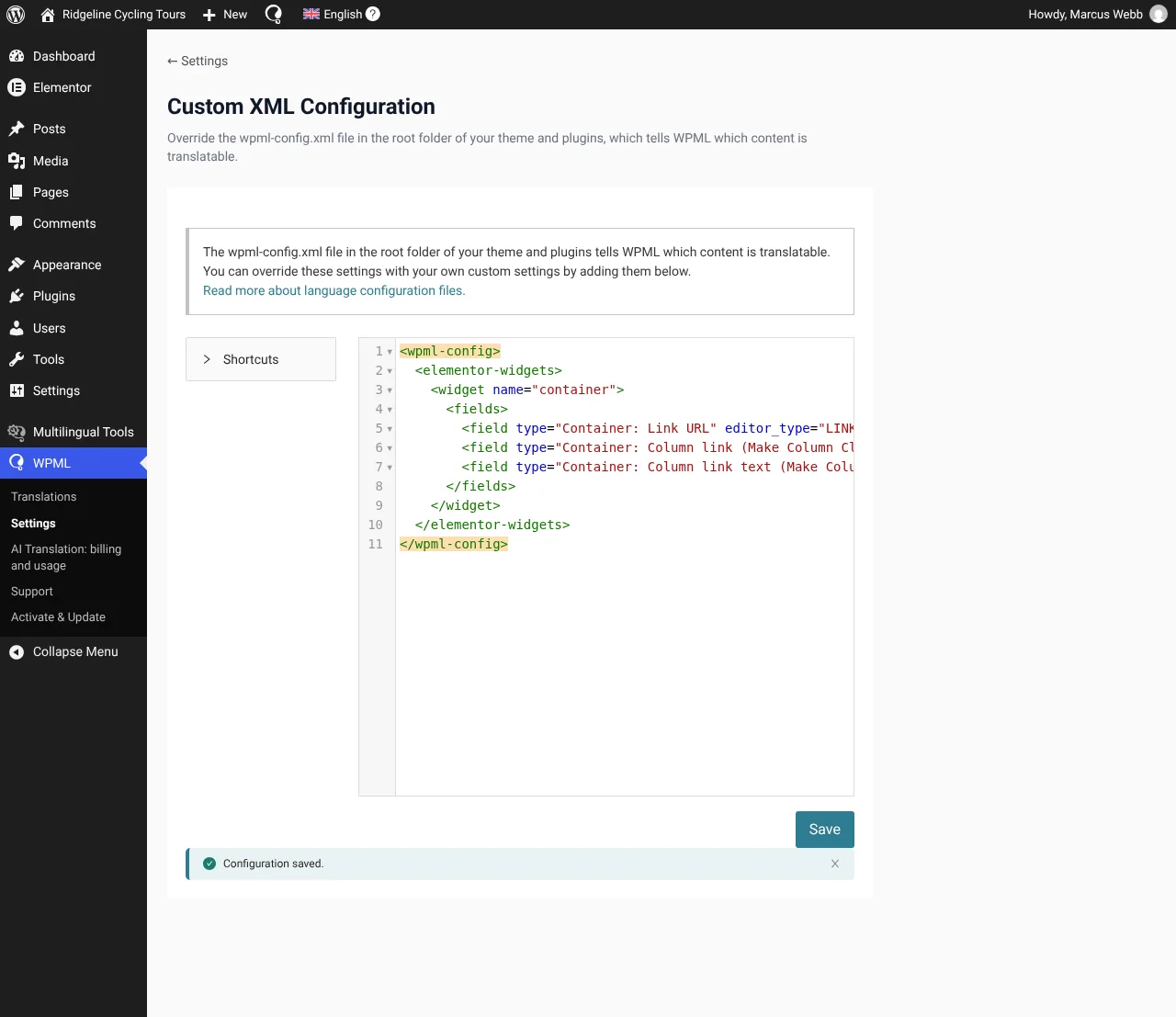
- Enter the XML. Paste the configuration into the code editor. The
nameis the element's name in Elementor, and each field is the key of a control.
Registering the Make Column Clickable container link
<wpml-config>
<elementor-widgets>
<widget name="container">
<fields>
<field type="Container: Link URL" editor_type="LINK">link>url</field>
<field type="Container: Column link (Make Column Clickable)" editor_type="LINK">column_link>url</field>
<field type="Container: Column link text (Make Column Clickable)" editor_type="LINE">column_link_text</field>
</fields>
</widget>
</elementor-widgets>
</wpml-config>- Save the configuration. Click Save. The notice Configuration saved. appears.
When you add a container entry, keep Elementor's own container link line (link>url) in it, as in the example, so WPML keeps registering the native container link.
Update the Page and Translate the New Fields
- Save the page in Elementor again. Edit the page with Elementor, change a text and click Publish. WPML then registers the page's strings again.
- Reopen the translation editor. The new rows carry the names from the XML: Container: Column link (Make Column Clickable) and Container: Column link text (Make Column Clickable).
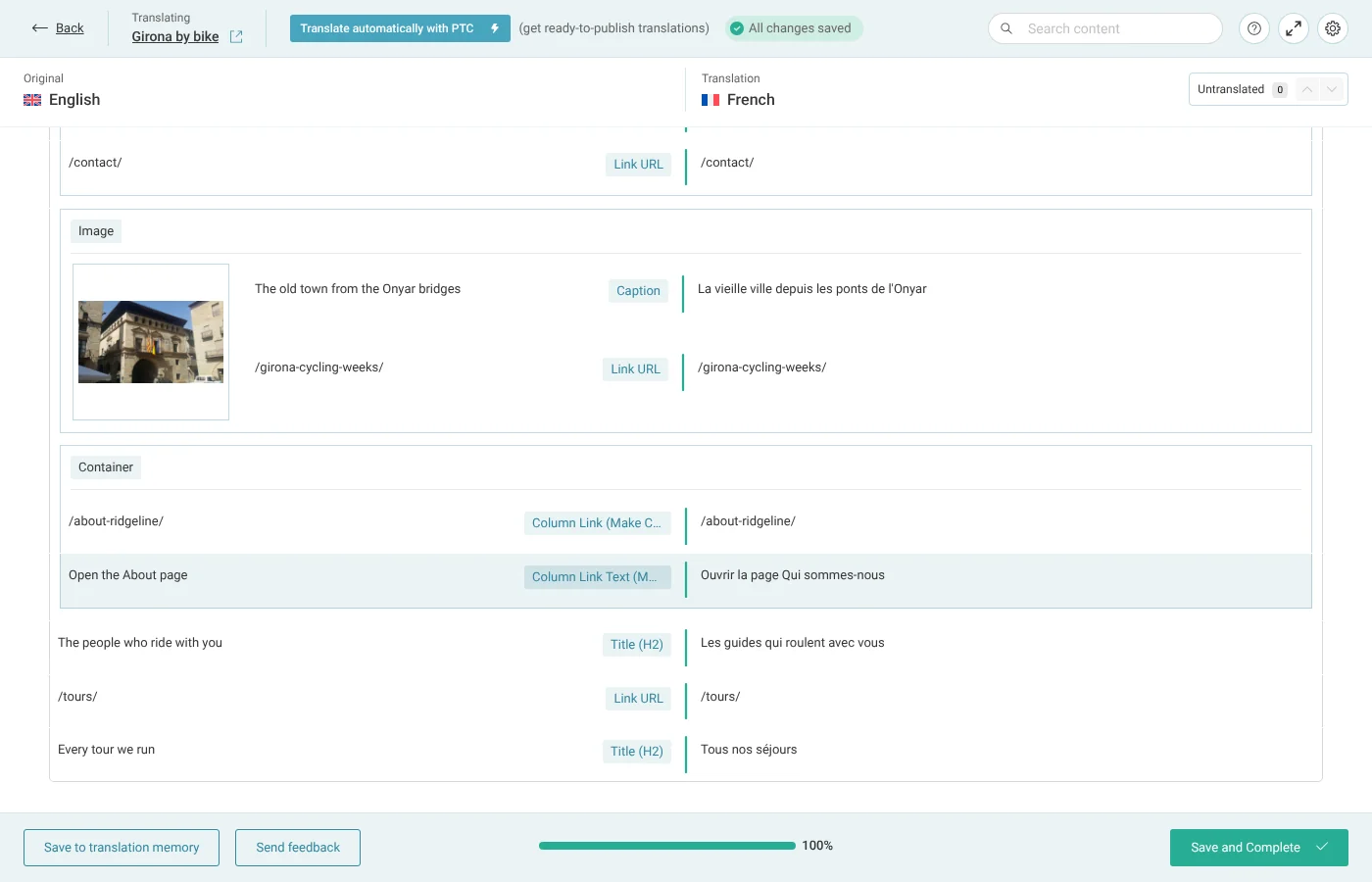
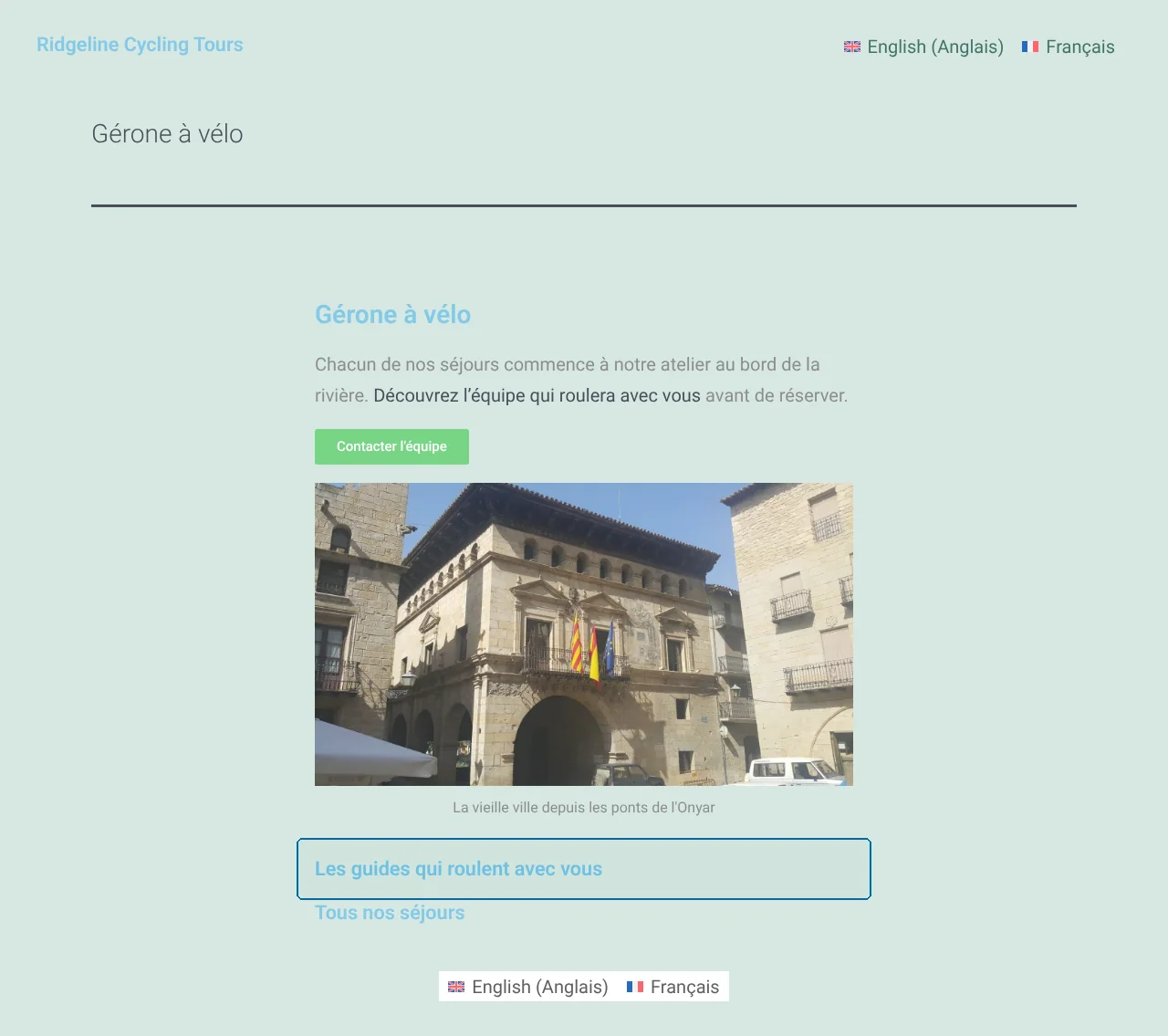
- Translate and complete. Translate the link text, keep the link URL and click Save and Complete. On the translated page, the container link points to the translated page.
Register Fields in a wpml-config.xml File
The same XML works in a wpml-config.xml file in the root folder of the add-on or theme. WPML merges its configuration in this order: its own list of Elementor widgets, the configuration WPML serves for popular add-ons, the add-on's wpml-config.xml, and your Custom XML on top. Read about language configuration files and how to register page builder widgets for translation.
Translate Elementor Pages Automatically
With Translate Everything Automatically on, WPML translates the page, its widgets and the fields you registered as soon as you publish or update it, using WPML's AI translation. The registered container link points to the translated page after automatic translation too. You review the result in the Advanced Translation Editor. The page is charged once per language, and a later edit costs only the words the page grew by. Read how to translate everything automatically.
Building a site for a software company? The same translation system also translates the product's documentation and user interface with Private Translation Cloud (PTC) for software.
When a Field Still Does Not Appear
- You registered the field and it still does not appear. Save the page in Elementor again and reopen the editor. Check that the Custom XML Configuration section showed Configuration saved. and that the widget name and the field key match the add-on's control.
- The add-on's control is not a text, text area, visual editor (WYSIWYG) or URL control. Register it with PHP. Read how to make custom Elementor widgets translatable using PHP.
- An add-on widget's text or link control is missing. The add-on may ship its own wpml-config.xml that leaves the control out, and that file rules for its widgets. Add the field in Custom XML Configuration, which WPML merges on top.
- The field appears, but the translated link points to the original language. The target page is not translated yet. Translate it, and the link follows.
For Developers: The wpml_elementor_widgets_to_translate Filter
An add-on can also register its widgets with the wpml_elementor_widgets_to_translate filter. Each field sets an editor_type: LINE for one line, AREA for several lines, VISUAL for the visual editor, or LINK for a URL. Read how to make custom Elementor widgets translatable using PHP.
