This thread is resolved. Here is a description of the problem and solution.
Problem: The client was unable to see images translated into other languages on their WordPress site, despite following the WPML documentation for media translation.
Solution: We resolved the issue by taking the following steps: 1. Installed and activated the WCML (WooCommerce Multilingual) plugin, which enhances product translations on WooCommerce-based sites. 2. Navigated to WooCommerce -> WooCommerce Multilingual & Multicurrency -> Settings. 3. Scrolled to the "Troubleshooting" link and clicked to load the Troubleshooting page. 4. On the Troubleshooting page, unchecked all options except for "Sync products categories (display type, thumbnail)". 5. Clicked the "Start" button to sync product thumbnails across translations.
Please note that gallery images are not translated by default, but you can sync them using the steps above after translating the categories.
If this solution does not resolve your issue, or if it seems outdated or irrelevant to your case, we highly recommend checking related known issues at https://wpml.org/known-issues/, verifying the version of the permanent fix, and confirming that you have installed the latest versions of themes and plugins. If further assistance is needed, please open a new support ticket at WPML support forum.
This is the technical support forum for WPML - the multilingual WordPress plugin.
Everyone can read, but only WPML clients can post here. WPML team is replying on the forum 6 days per week, 22 hours per day.
Can you please explain if you want to use the same images across your translations? Because in this case you don't need WPML Media Translation plugin.
However, if you want to use difference images or translated captions, alt text and etc, you'll need the said plugin, which I see isn't installed in your site (reference to your provided debug information).
Depending on the case, specially for the later, please install WPML Media Translation plugin and follow the guide.
However, in any of these cases, you may also check by the followings, to confirm if problem is really coming from WPML (provided that you've followed the above mentioned correctly):
1) Take a full backup of your site and database before proceeding. It is highly advised to try these in a staging/test site first.
2) Deactivate all plugins except WPML, String Translation and Elementor (and Media Translation if needed).
3) Switch to the parent theme Hello Elementor.
4) Make sure the content you're checking is completely translated, including any Elementor template/layout used (as well as the relevant images, if going for different images per translation).
5) Check for the issue if it still happens.
Additionally, you may also check by updating the translation manually and search for "http" in WPML Translation Editor to see if all the images have been translated correctly?
Please let me know your findings and I'll try my best to help you further.
Regards.
P.S.: I'll be off for the weekend and 'll be able to attend on Monday.
I automatically translate site by using DEEPL AI but images not work only for de and da it will worked for nl language if i add manually for de and da it will work but i don't want to add content manually what i need to do
I need to take a closer look at your site. So I request temporary access (WP-Admin and FTP), preferably to a test site where the problem has been replicated.
Your next answer will be private, to share this information safely.
Also provide detailed steps to reproduce the issue and links to pages in the admin and on the frontend.
IMPORTANT: Please take a complete backup of the site to avoid data loss. I may need to activate/deactivate plugins also.
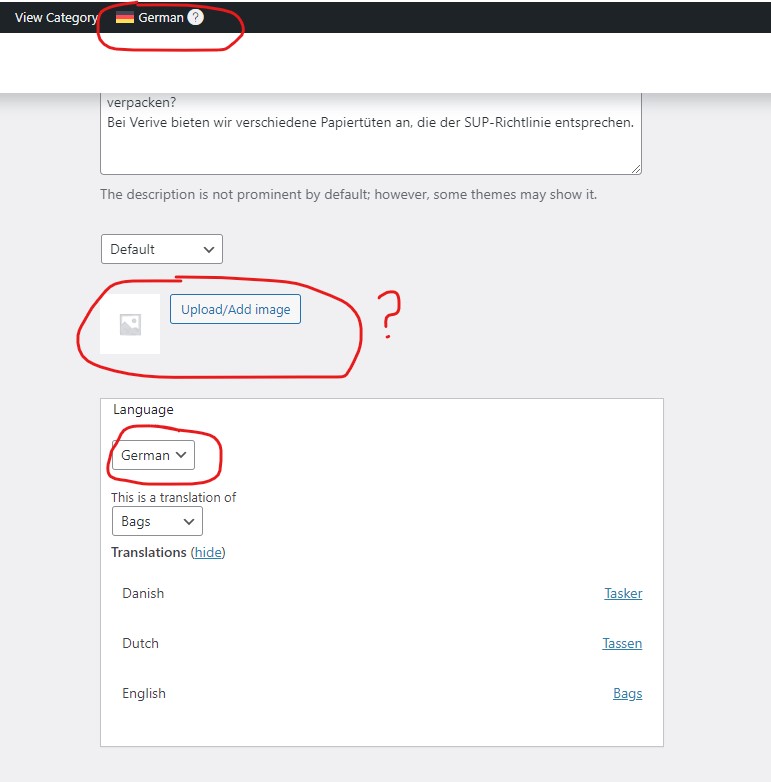
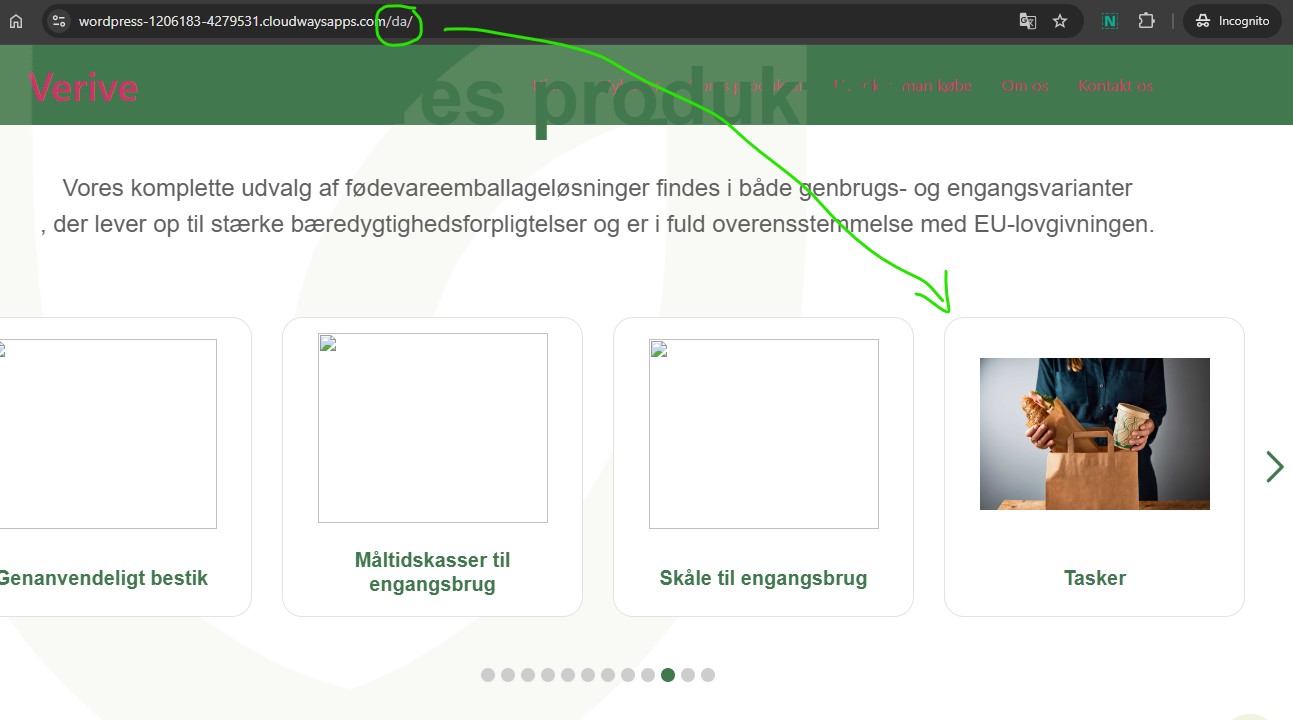
I checked for the issue in your site and looks like you're missing product category images for Danish and German (da and de).
So I added images for "Tasker" (Danish) and "Taschen" (German) categories (the translations of "Bags" (English) and these now appear correctly on the frontend:
- hidden link
- hidden link
Scroll through the slider to see the images for said categories. Remember to edit these translations for correct images. I intentionally used different images to show the effective change.
So you need to add images to these product categories accordingly. You can do the following:
- Open the category for editing in default language.
- Switch to the relevant translation.
- Upload/add image.
- Save.
- Please note that I've disabled caches in your site for now, so if you enable the cache, remember to clear all caches after making changes in the site, so these are reflected correctly on the frontend.
Can you please explain how are you expecting product category images to be translated automatically with products? I mean do you want different images for each category or want to use the same image?
I want to use the same as English category images on all other languages.
When I translate data through DEEPL under WPML automatically then images gone
I want images should be changed automatically once we translate the category into another languages.
To translate several taxonomy terms at once, assign them all to a temporary post or product and send the post/product for translation. Then, from WPML → Translation Management send the post/product for translation. This should translate all the images as well.
I have tried your provided method but still taxonomies thumbnail not showing up
Also I am getting critical error on archive pages for example : hidden link
when I add thumbnail manually then archive pages working fine.
Is there a way to automatically add thumbnail in another language we don't want to add manually we have to use same images for all languages.
The issue should be fixed now. Please note the following steps I did to fix this:
- Installed and activated WCML (WooCommerce Multilingual) plugin, which is a companion plugin or addon for WC based sites and improves product translations.
- Then went to WooCommerce -> WooCommerce Multilingual & Multicurrency -> Settings (tab).
- Scrolled down to the end to find "Troubleshooting" link.
- Clicked to load the "hidden link" page.
- Unchecked other options, while checked on "Sync products categories (display type, thumbnail)".
- Clicked "Start" button.
It took a few seconds and all product thumbnails were synced across translations. You can find several other options in there, which you can/may use for fixing related issues.
Please note that by default these gallery images are not translated, but you can sync these from above mentioned after you've done translating the categories.