This thread is resolved. Here is a description of the problem and solution.
Problem: The client mistakenly configured WPML to automatically translate the entire website, including draft folders and unnecessary files, which depleted all their translation credits. Additionally, the client sought advice on configuring their site to translate exclusively into Japanese using the Travel Tour - Travel Booking WordPress theme by GoodLayers. Solution: We restored the translation credits as an exception. For future translations, we recommend using the WPML > Translation Dashboard to translate in batches, allowing better control over what gets translated and the associated costs. For translating the site exclusively into Japanese: 1. Navigate to WPML -> Translation Dashboard. 2. Select the content to translate into Japanese. 3. In the 'Step 2' section, set other languages to 'Do nothing'. 4. Set Japanese to 'Translate automatically' and initiate the translation. For more details on managing translations, visit: https://wpml.org/documentation/translating-your-contents/ https://wpml.org/how-to/translation-dashboard/ Regarding the compatibility of the Travel Booking theme by GoodLayers with WPML, we cannot guarantee it as this specific theme has not been tested by us. You can check other tested themes from GoodLayers here: https://wpml.org/developer/goodlayers/
If this solution does not apply to your case, or if it seems outdated, we highly recommend checking related known issues at https://wpml.org/known-issues/, verifying the version of the permanent fix, and confirming that you have installed the latest versions of themes and plugins. If further assistance is needed, please open a new support ticket at WPML support forum.
This is the technical support forum for WPML - the multilingual WordPress plugin.
Everyone can read, but only WPML clients can post here. WPML team is replying on the forum 6 days per week, 22 hours per day.
I've successfully set up WPML on my WordPress website.
I encountered an issue where I mistakenly configured the automatic translation to translate the entire website, which included draft folders and unnecessary files. Unfortunately, this action used up all of our translation credits, and now we don't have credit available for our necessary pages and products.
Would it be possible to reverse the credit that was used on these draft folders and files back into our WPML account? We would be truly grateful if you could assist with this, as we are keen to continue translating our essential pages.
Also, is there a recommended or best-practice method for machine translation that you could point me towards, perhaps similar to online services like gtranslate.io, to ensure we use our credits most efficiently for our necessary content?
Languages: English (English )Spanish (Español )Italian (Italiano )
Timezone: Europe/Rome (GMT+01:00)
Hello,
By default the drafts should not be translated, even when setup automatically unless you've explicitly changed the setting for it in WPML > Settings.
In general credits are non refundable but I managed to make an exception for you this time and the credits are all in your website again.
-------------
As a rule of thumb I'd only enable the option to translate the entire site when you have a site like a directory, blog or an e-commerce where products are constantly being edited, published, etc. I wouldn't use that option on other types of sites and definitely not at the beginning because, as you said, there are many things that you may not even remember about that will translate and consume credits.
In my opinion, you should translate in batches, from WPML > Translation Dashboard.
this way you translate what you know you want to translate, you can also check how much you'll be spending and control it better.
Thank you very much for your kind support and for restoring the 90,000 translation credits to my account. I truly appreciate your assistance.
Additionally, I would like to ask for your guidance regarding the site settings. I am using the Travel Tour - Travel Booking WordPress theme by GoodLayers, and my goal is to translate the entire site into Japanese only. Could you please advise me on the best configuration to achieve this, specifically for translating the entire site exclusively into Japanese?
About the Travel Booking theme by GoodLayers. I must mention that this theme is unknown to us, and we can't guarantee its compatibility with WPML. We have a few other themes from GoodLayers that we tested and confirmed compatibility with WPML. You can see the complete list here: https://wpml.org/developer/goodlayers/.
You asked: "Could you please advise me on the best configuration to achieve this, specifically for translating the entire site exclusively into Japanese?"
This would be a straightforward process.
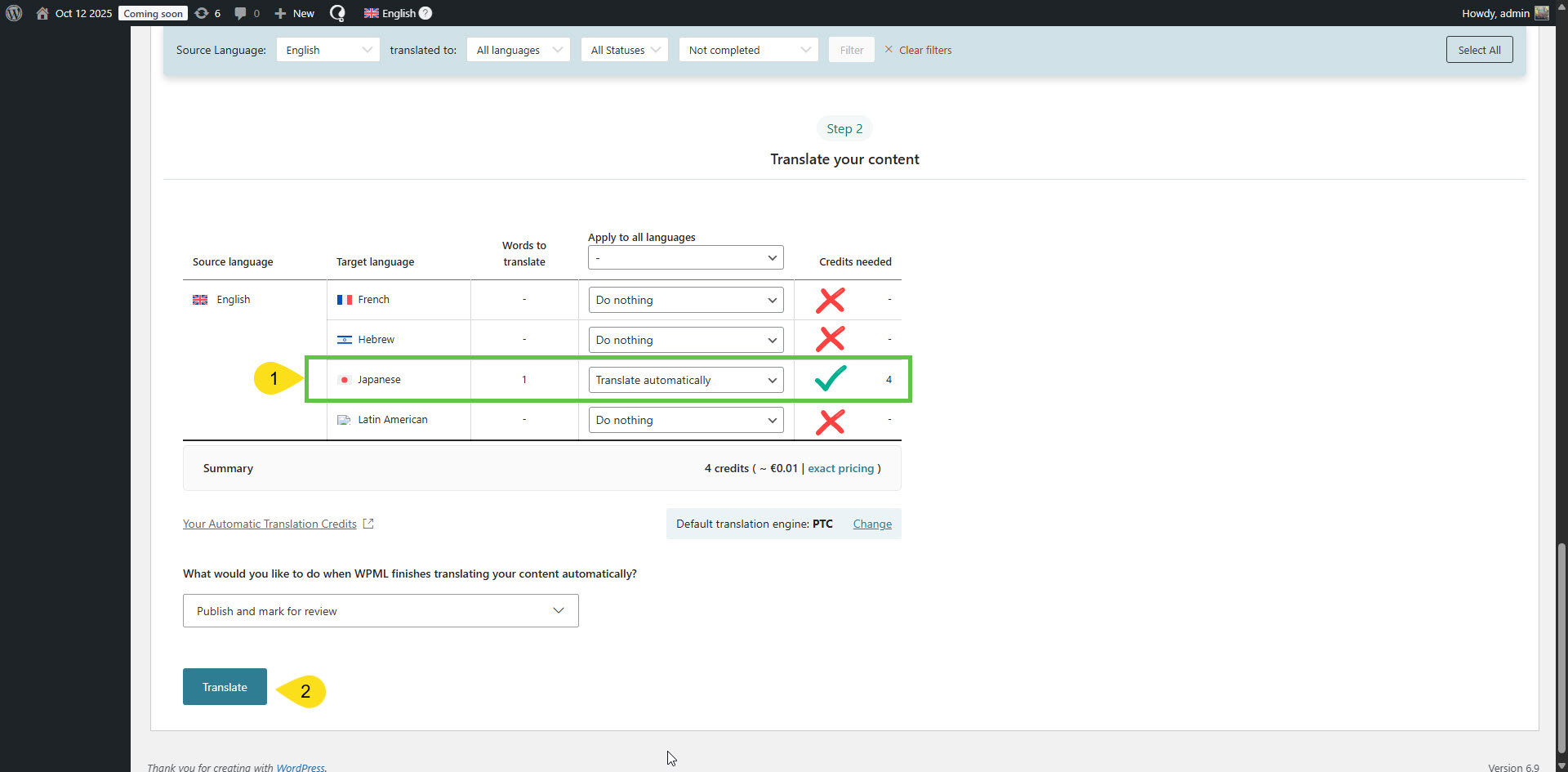
1. Go to WPML -> Translation Dashboard.
2. Select the pages, posts, and other content types you want to translate into Japanese.
3. Scroll down to the Step 2 section.
4. Select 'Do nothing' for your other secondary languages, if you have any.
5. Select 'Translate automatically' for Japanese and click the Translate button. Please see the attached screenshot.
You can read more about WPML's Translation Dashboard here:
Thank you very much for your prompt response and for your continued assistance. I will follow your instructions regarding the translation process accordingly.
Regarding the Travel Tour theme by GoodLayers, we used this theme, which is fully supported by WPML. However, I have noticed that although the theme includes Tour/Packages features, these are not visible in the WPML Translation Dashboard. Could you please advise if there is any additional configuration needed to enable translation for these custom post types?
Additionally, I would appreciate it if you could confirm whether my 90,000 translation credits have been successfully restored to my account.
Thank you once again for your support. Please let me know if you require any further information.
If you don’t see your custom post type in the Translation Dashboard:
Go to WPML → Settings and scroll down to Post Types Translation.
Locate the custom post type you want to translate and set it to Translatable – only show translated items. Click Save to confirm.