Problem: The client is unable to send categories and tags to translators using WPML, and documents are not showing up on the translated site. Additionally, titles and notices were not included in the xliff file and thus not translated. Solution: To address the issue of translating categories and tags, we recommend translating the Categories and Tags taxonomy terms manually from WPML>>Taxonomy Translation. Alternatively, create a private post including all the Categories and Tags taxonomy terms, and send that post for translation. For detailed guidance, please refer to our documentation on translating taxonomy terms from a central page and how to translate all taxonomy terms at once.
Please note that the solution provided might be outdated or not applicable to your specific case. We highly recommend checking related known issues at https://wpml.org/known-issues/, verifying the version of the permanent fix, and confirming that you have installed the latest versions of themes and plugins. If the issue persists, please open a new support ticket.
Problem: Der Kunde versucht, einige Strings aus der
functions.php
zu übersetzen. Es funktioniert für die Sprachen nl und de, aber nicht für en, fr, da, it. Die Strings sind korrekt hinterlegt, und die Einstellungen in Elementor für das Formular sind zwischen den Sprachen ES und EN identisch. Solution: 1) Die Strings direkt in ein Template (z.B. header.php) als
getText()
Aufruf mit
echo
einfügen und prüfen, ob diese bei einem Sprachwechsel im Frontend korrekt ausgegeben werden. Dies hilft festzustellen, ob die String-Ausgabe generell funktioniert. 2) Das Problem isolieren, indem der Code zuerst in ein neues Hello Elementor Child Theme eingefügt wird. Funktioniert es damit? 3) Das Problem weiter isolieren, indem ein Standard-Theme verwendet wird, alle nicht benötigten Plugins deaktiviert werden und der Versand eines übersetzten Formulars ohne Elementor getestet wird. 4) Überprüfen, ob zusätzliche externe Logik (Workflows) von Brevo geladen wird, die möglicherweise nicht für alle Sprachen identisch ist.
Bitte beachten Sie, dass die Lösung möglicherweise irrelevant ist, entweder weil sie veraltet ist oder nicht auf Ihren Fall zutrifft. Wir empfehlen Ihnen, ein neues Support-Ticket zu öffnen, wenn dies der Fall ist. Überprüfen Sie außerdem verwandte bekannte Probleme unter https://wpml.org/known-issues/, bestätigen Sie die Version der dauerhaften Lösung und stellen Sie sicher, dass Sie die neuesten Versionen von Themes und Plugins installiert haben. Für weitere Unterstützung empfehlen wir Ihnen, unser Support-Forum zu besuchen: WPML Support-Forum.
Problem: The client is trying to automatically translate strings on their website but encounters an issue where the translation status shows 'Waiting for translator to DE'. They are unsure why the strings are not being translated automatically and what this status message means. Solution: We recommend checking the existing public tickets on our forum that discuss similar issues. You can find relevant discussions and solutions by visiting this link: WPML support forum search. The first few tickets should provide guidance on resolving this issue.
If this solution does not apply to your case, or if it seems outdated, we highly recommend opening a new support ticket. Additionally, please check related known issues at https://wpml.org/known-issues/, verify the version of the permanent fix, and confirm that you have installed the latest versions of themes and plugins. For further assistance, you can also visit our support forum at https://wpml.org/forums/.
Problem: If you're experiencing a 503 error in the backend of your site that appears briefly and then disappears upon refreshing, it might be due to a conflict between WooCommerce and WPML or a memory limit issue. Solution: We recommend following these steps: 1. Create a Full Backup: Ensure you have a complete backup of your website (files and database). 2. Increase PHP Memory Limit: Add the following to your wp-config.php file:
define('WP_MEMORY_LIMIT', '256M');
define('WP_MAX_MEMORY_LIMIT', '512M');
3. Check for Plugin Conflicts: Deactivate all plugins except WooCommerce, WPML, and Elementor, then reactivate them one by one to identify the conflicting plugin. 4. Troubleshooting WPML: Navigate to WPML > Support > Troubleshooting and perform: - Fix WPML Table collation - Set Language information - Clear WPML Cache 5. Review and Update Plugins: Ensure all plugins, especially WooCommerce and WPML, are updated. Go to Plugins > Add new > Commercial > click "check for updates" > and update all the outdated plugins.
If this solution does not resolve your issue or seems irrelevant due to being outdated or not applicable to your case, we highly recommend checking related known issues at https://wpml.org/known-issues/, verifying the version of the permanent fix, and confirming that you have installed the latest versions of themes and plugins. If the problem persists, please open a new support ticket at WPML support forum.
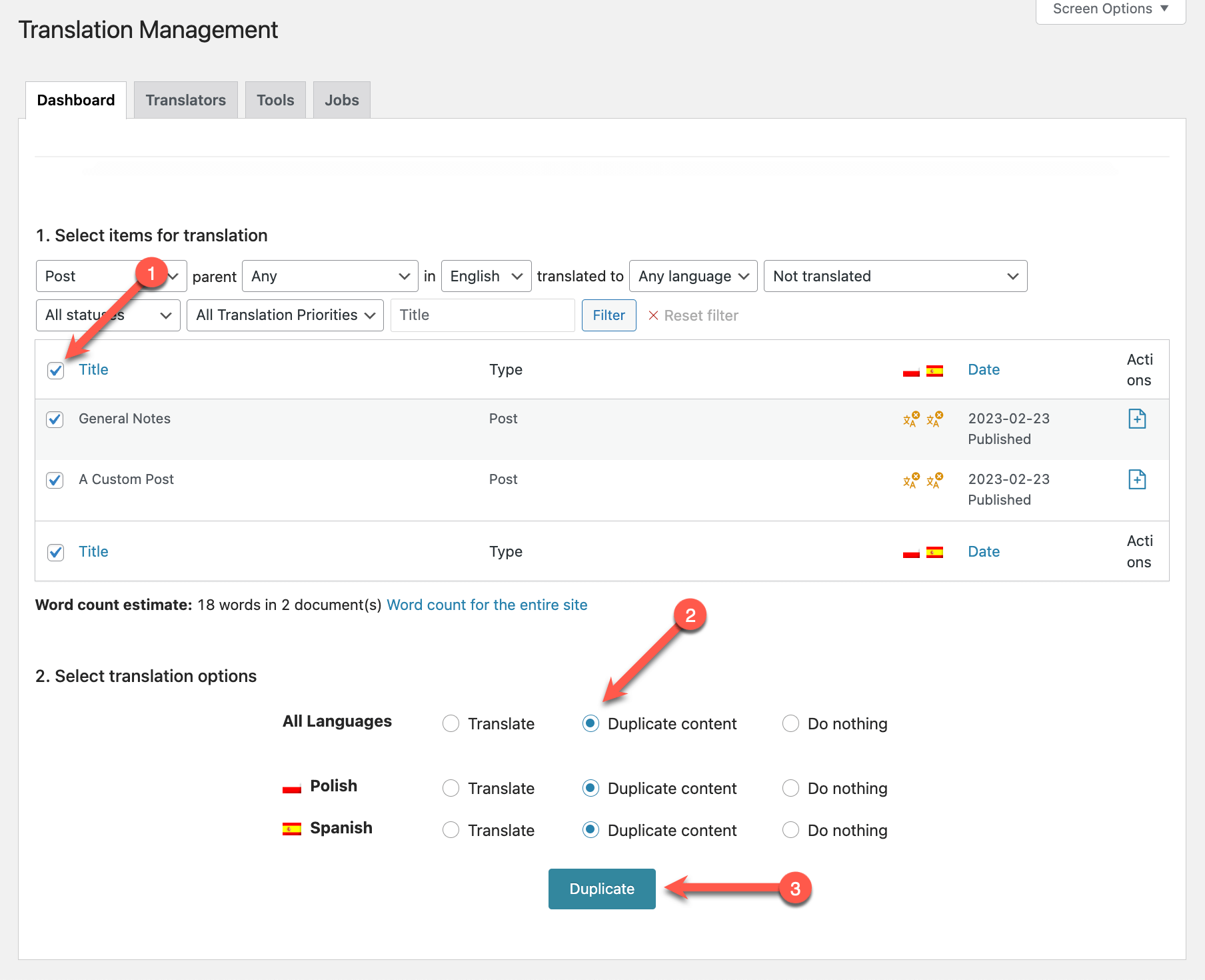
Problem: The client was unable to see glossary entries and terms were being translated into a new language. There was confusion about automatic translation between two English variants and issues with glossary visibility after language deactivation. Solution: 1. We clarified that automatic translation does not work between two languages mapped as the same language, such as translating English into another variant of English. However, content can be duplicated in bulk from one English to another using the Translation Management tool. For more details, see the capture here: WPML Translation Management Dashboard. 2. The glossary was not visible because the English language was deactivated in WPML. Reactivating the English language resolved the issue. We are awaiting further feedback from second-tier support regarding the potential bug related to creating a glossary from a custom language. 3. A new version of the Advanced Translation Editor (ATE) has been released, which should resolve the issue. We recommend updating to this latest version.
If this solution does not apply to your case, or if it seems outdated, please check related known issues at https://wpml.org/known-issues/, verify the version of the permanent fix, and confirm that you have installed the latest versions of themes and plugins. If issues persist, we highly recommend opening a new support ticket at WPML support forum.
Problem: You are experiencing issues with items not persisting in the cart after page changes when the WPML multicurrency feature is enabled. The problem occurs specifically when the 'PixelYourSite' plugin is activated, particularly its 'add to cart tracking' feature. Solution: We recommend disabling the 'add to cart tracking' feature within the 'PixelYourSite' plugin as this has resolved the issue for other users. Additionally, since 'PixelYourSite' is not on our list of compatible plugins, you might consider contacting the plugin author and suggesting they join our GoGlobal program where we can assist in ensuring compatibility. For further insights, you can also check the workaround discussed in the WordPress support forum: https://wordpress.org/support/topic/product-disappear-in-the-cart/
If this solution does not resolve your issue or seems irrelevant due to updates or differences in your case, we highly recommend checking related known issues at https://wpml.org/known-issues/, verifying the version of the permanent fix, and confirming that you have installed the latest versions of themes and plugins. Should you need further assistance, please open a new support ticket at WPML support forum.
Problem: Footer titles and texts were not translated because they were not included in the xliff file. Solution: If you're experiencing this issue, we recommend translating the footer contents via String Translation since they are added through widgets. You can add these strings for translation by navigating to WPML>>String Translation>>Translate texts in admin screens (at the bottom of the screen). After adding, please translate those strings from WPML>>String Translation and check if the translation appears as expected. For more details, refer to the following documentation:
If this solution does not resolve your issue or seems irrelevant due to being outdated or not applicable to your case, we highly recommend checking related known issues at https://wpml.org/known-issues/, verifying the version of the permanent fix, and confirming that you have installed the latest versions of themes and plugins. If further assistance is needed, please open a new support ticket at WPML support forum.
Problem: The client is trying to change the text displayed by the Complianz plugin on the cookie banner. Despite entering the translation in the dedicated field, the original English text remains unchanged. Solution: We recommend translating the smiley icon to HTML code as detailed in the documentation. You can find the necessary steps and examples on how to do this at https://www.w3schools.com/charsets/ref_emoji_smileys.asp.
If this solution does not resolve your issue, or if it seems outdated or irrelevant to your case, please open a new support ticket. We also highly recommend checking related known issues at https://wpml.org/known-issues/, verifying the version of the permanent fix, and confirming that you have installed the latest versions of themes and plugins. For further assistance, you can contact us directly through the WPML support forum.
Problem: You are trying to translate all your products on your WordPress site using WPML, but you encounter issues where sometimes the translations work and sometimes they do not. Solution: We have identified that the issue might be due to the setting "Show only products with custom prices in secondary currencies" being enabled in WooCommerce Multilingual (WCML). We recommend you disable this setting. Please check your site after making this change to see if the problem persists.
If this solution does not resolve your issue, or if it seems outdated or irrelevant to your case, we highly recommend checking related known issues at https://wpml.org/known-issues/, verifying the version of the permanent fix, and confirming that you have installed the latest versions of themes and plugins. If you still experience difficulties, please do not hesitate to open a new support ticket. For further assistance, you can also visit our support forum at https://wpml.org/forums/forum/english-support/.
Problem: The client reported that activating WPML plugins causes the MySQL binlog file to increase drastically in size, leading to very slow website performance and occasional inability to log into WP admin. Solution: We recommend updating the WPML plugins to the latest versions. Specifically, update WPML to version 4.6.12 and Strings Translation to 3.2.13. These updates address issues that might be causing the large binlog file. After updating, clear the debug.log to ensure that only new errors are logged. If you don't see the new versions available, please visit your WP admin's plugin installation page and click on the Check for updates button. You can find the plugin installation page here: Plugin Installation.
Please note that the preg_match() errors mentioned are not related to the issue of the MySQL binlog file.
If this solution does not resolve your issue or seems outdated, we highly recommend checking related known issues at Known Issues, verifying the version of the permanent fix, and confirming that you have installed the latest versions of themes and plugins. If the problem persists, please open a new support ticket at WPML Support Forum.
Problem: You are experiencing issues with indexing the Danish and Swedish versions of your website. Only the English version is being indexed, while the translated pages are not. Solution: We have identified that the 'Redirect visitors based on browser language only if translations exist' option in WPML -> Languages -> Browser language redirect might be affecting your site's indexing. We recommend disabling this option to see if it improves the indexing of the Danish and Swedish pages. For more information on how browser language redirects can affect Google Indexing, you can visit the following links:
If this solution does not resolve your issue or seems irrelevant due to being outdated or not applicable to your case, we highly recommend checking related known issues at https://wpml.org/known-issues/, verifying the version of the permanent fix, and confirming that you have installed the latest versions of themes and plugins. Additionally, you can open a new support ticket for further assistance at WPML Support Forum.
Problem: If you're experiencing a blank page when trying to access the Translation Management section in WPML, it might be due to issues with the plugin installation or migration process. Solution: We recommend reinstalling the WPML plugin. After reinstallation, if a migration banner appears, set your site as a copy site and complete the migration process. This should resolve the issue and the Translation Management board should start working properly. For more details on using the Advanced Translation Editor after moving or using a copy of your site, please visit this documentation.
If this solution does not apply to your case, or if it seems outdated, we highly recommend checking related known issues at https://wpml.org/known-issues/, verifying the version of the permanent fix, and confirming that you have installed the latest versions of themes and plugins. Should you need further assistance, please do not hesitate to open a new support ticket at WPML support forum.
Problem: You are trying to translate registration information in the Blocksy-companion domain using WPML > String Translation, but the translation does not appear on the front end. Specifically, the message 'An account is already registered with your email address. Please log in.' remains untranslated. Solution: We recommend following these steps: 1. Revert any previous changes you made while attempting other workarounds. For details on reverting changes, you can refer to our forum post: https://wpml.org/forums/topic/registration-info-translation-issue/#post-15864965 2. Edit the file
Note the change in the file extension from '.mo' to 'mo'. ❌ IMPORTANT: Please ensure you backup your database and website before making these changes. ❌
If this solution does not resolve your issue, or if it seems outdated or irrelevant to your case, we highly recommend checking related known issues at https://wpml.org/known-issues/, verifying the version of the permanent fix, and confirming that you have installed the latest versions of themes and plugins. If you still need assistance, please open a new support ticket at WPML support forum.
Problem: The client was experiencing an issue where their site would switch back to English immediately after selecting Spanish, despite using WPML for language management. The problem was identified to be caused by the Simply Static Pro plugin, which was redirecting users based on browser language settings. Solution: We recommended disabling the browser language redirection feature in WPML and checking for any other plugins that might cause redirection. The client discovered that Simply Static Pro has a feature that redirects based on the browser's configured language. To resolve this, the client used the following code snippet to disable the redirection:
If this solution does not apply to your case, or if it seems outdated, we highly recommend checking related known issues at https://wpml.org/known-issues/, verifying the version of the permanent fix, and confirming that you have installed the latest versions of themes and plugins. If issues persist, please open a new support ticket at WPML support forum.
Problem: You are using the setup wizard, but in the last step, you encounter an error message indicating that you are not allowed to access the page. You tried adding code to the functions.php file of your current theme as suggested in a previous solution, but it didn't resolve the issue. Solution: We recommend following the steps outlined in an existing support ticket that addresses similar issues. Please visit https://wpml.org/forums/topic/cant-configure-the-wpml-plugin-sorry-you-are-not-allowed-to-access-this-page/ and try the suggested solutions. If the problem persists, it might be due to the specific setup of your hosting or theme.
Please note that the solution might be irrelevant if it's outdated or not applicable to your case. We highly recommend checking related known issues at https://wpml.org/known-issues/, verifying the version of the permanent fix, and confirming that you have installed the latest versions of themes and plugins. If the issue continues, please open a new support ticket at WPML support forum for further assistance.
This page includes support tickets that are resolved and documented. Looking for tickets that are “in progress”? Visit the complete support tickets archive