Problem: The client needed to adapt affiliate widget code for language support on their site, specifically to translate the 'data-gyg-locale-code' attribute in the widget code. Solution: We recommended using a custom XML configuration in WPML to make the widget code translatable. Here are the steps we suggested: 1. Navigate to WPML >> Settings >> Custom XML >> Configuration section: https://purple-drumbox.sandbox.otgs.work/wp-admin/admin.php?page=tm%2Fmenu%2Fsettings&sm=custom-xml-config 2. Add the following XML code:
3. Save the changes. 4. Make a small edit to the default language page to trigger a reload of the translation. 5. Open the translated page in WPML Advanced Translation Editor, search for the English locale code en-EN, and replace it with the translated locale code.
If this solution does not apply to your case, or if it seems outdated, we highly recommend checking related known issues at https://wpml.org/known-issues/, verifying the version of the permanent fix, and confirming that you have installed the latest versions of themes and plugins. If issues persist, please open a new support ticket at https://wpml.org/forums/forum/english-support/.
Problem: You are trying to translate text items in the Jetpack newsletter signup widget on your Spanish pages using WPML, but the translations are not applying, and the text still displays in English. Solution: We recommend adding the following XML code to WPML-> Settings-> Custom XML tab to ensure the Jetpack widget strings are translatable:
After adding this code, the strings should translate correctly. Please check your Spanish version to confirm.
If this solution does not resolve your issue or seems outdated, we highly recommend checking related known issues at https://wpml.org/known-issues/, verifying the version of the permanent fix, and confirming that you have installed the latest versions of themes and plugins. If the problem persists, please open a new support ticket.
Problem: The client wants to change the Armenian language code in their website's URL from 'hy' to 'am'. Solution: We explained that it is not possible to change the language code of existing languages directly. However, we recommended adding a new language with the desired language code 'am'. To do this, the client should follow the steps provided in our documentation:
If this solution does not apply to your case, or if it seems outdated, we highly recommend checking related known issues at https://wpml.org/known-issues/, verifying the version of the permanent fix, and confirming that you have installed the latest versions of themes and plugins. Should you need further assistance, please do not hesitate to open a new support ticket at WPML support forum.
Problem: The client is building a bilingual website in English and Welsh using WPML and wants the language selector in the English menu to display 'Cymru' instead of English, with a dropdown for the Welsh version. However, they cannot find an option in the settings to change the country name in the language selector. Solution: 1. To display the opposite language in the language switcher: - Navigate to WPML >> Languages. - Scroll to the Menu Language Switcher section. - Click on the Edit language switcher icon. - Choose the “List of languages” option, uncheck the “Current language” option, and press the Save button. 2. To customize the language names on the language switcher: - Go to WPML >> Languages >> Edit Languages. - Add your required translation in the Translation text boxes. - Press the Save button.
If this solution does not apply to your case because it might be outdated or not relevant, we recommend opening a new support ticket. We also highly recommend checking related known issues at https://wpml.org/known-issues/, verifying the version of the permanent fix, and confirming that you have installed the latest versions of themes and plugins. For further assistance, please visit our support forum at WPML Support Forum.
Problem: The client is experiencing issues with translating the 'job-offers' page and sending emails from different language versions of their site using Contact Form 7 (CF-7) with WPML. They are unable to change the 'job-offers' slug per language and have issues with emails not working in different language versions. Solution: We confirmed that the Contact Form 7 plugin is officially compatible with WPML. For translating forms and managing translations with CF-7, we recommend following our guide: Using Contact Form 7 with WPML. It is important to note that with WPML, you cannot send the translated forms to different email addresses other than the ones specified in the original form.
If this solution does not resolve your issue or seems outdated, please check for related known issues at https://wpml.org/known-issues/, verify the version of the permanent fix, and confirm that you have installed the latest versions of themes and plugins. If further assistance is needed, we highly recommend opening a new support ticket at WPML support forum.
Problem: The client is experiencing an issue where translations are inserting unwanted tags in the HTML across the website, which are not present in the original English text. This issue is visible on the homepage and menu, and there are [returns] in the backend text editor that should not be there.
Solution: We have consulted with the developers of the Advanced Translation Editor (ATE), and they provided the following insights and suggestions: 1. When segments are manually joined, they are combined with a \n (e.g., joining phrase1 and phrase2 results in phrase1\nphrase2). 2. For the pages in question, it appears the segments may have been manually joined. To address this, they suggest: - Unjoining the segments, which should resolve the issue. - Alternatively, updating the translations using the previously recommended solution.
Currently, there is no batch solution to address this issue comprehensively. The only option available is to fix it manually. Our developers are considering creating a script to automate the process, but it will require time as it may introduce additional complications.
If this solution does not apply to your case, or if it seems outdated, we highly recommend checking related known issues at https://wpml.org/known-issues/, verifying the version of the permanent fix, and confirming that you have installed the latest versions of themes and plugins. If the issue persists, please open a new support ticket at WPML support forum for further assistance.
Problem: You are trying to display categories as a drop-down list on the translated Thai property page using WPML, but the categories do not display at all, unlike the English page where they appear correctly. Solution: 1. Ensure that all categories are fully translated. Navigate to WPML > Taxonomy Translation, select categories from the drop-down menu, and verify that all categories are translated. For more information, visit Translating Post Categories and Custom Taxonomies. 2. Confirm that the widget used to display the categories is translated. This can be done using the String Translation or by using a separate widget for each language. Detailed guidance can be found here: Translating Widgets. 3. Check for any known compatibility issues that might be affecting the display of categories. Currently, there is an open issue related to this problem, which can be tracked on the WPML Errata page: WP Residence - No Results Found in Advanced Search.
If these steps do not resolve your issue or if the solution becomes outdated, we highly recommend checking related known issues at https://wpml.org/known-issues/, verifying the version of the permanent fix, and confirming that you have installed the latest versions of themes and plugins. If the problem persists, please open a new support ticket.
Problem: The client is experiencing issues with bulk translations using WPML, resulting in a 504 error even when translating a single post. Credits are being utilized despite these errors, and URLs are showing a '?' at the end of the slug after using WPML. Solution: We recommend increasing the
max_execution_time
to 300. This adjustment was tested by sending 20 jobs at once and it worked as expected. It's also advised to consult with your hosting provider to explore why the 'Bad Gateway' error occurs, particularly to check if large queries are being restricted by the server. Starting with smaller batches of up to five may also help mitigate the issue.
If this solution does not resolve your issue, or if it seems outdated or irrelevant to your case, we highly recommend checking related known issues at https://wpml.org/known-issues/, verifying the version of the permanent fix, and confirming that you have installed the latest versions of themes and plugins. Should you need further assistance, please open a new support ticket at WPML support forum.
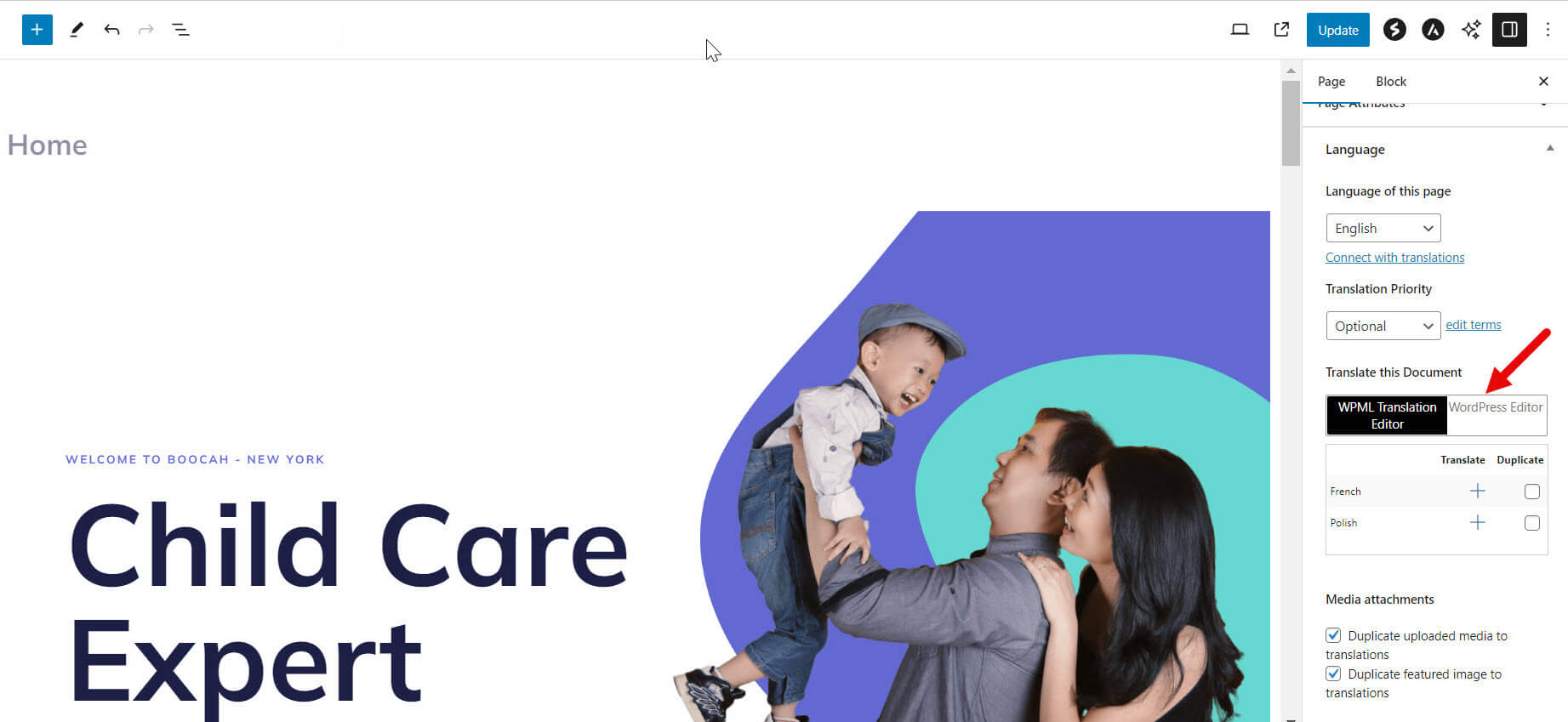
The client's site homepage is designed with Elementor for the Croatian version, which is the default language. For the English translation, the client wants to use the WordPress block editor. Despite setting the translation editor to 'WordPress Editor', Elementor is being forced on the English translation, causing a broken layout.
Solution: We recommend the following steps after a full site backup:
1) Trash the English Homepage 2) Delete the English Homepage from Trash 3) Open the Homepage to edit 4) Choose the WordPress Editor option for translating the page - step-1-arrow-wp-editor-1.jpg 5) Duplicate the Homepage to English 6) Then make sure you can edit the English homepage as expected Refer to the following documentation for more details: Using different translation editors for different pages
Alternatively, add the following code to your functions.php file, replacing '123' with the correct translated post ID:
function compsupp7735_remove_elementor_edit_mode($meta_id, $object_id, $meta_key, $_meta_value) {
    // Define the specific post ID to check.
    $target_post_id = 123; // Replace 123 with the correct post ID.

    // Check if this is the specific post.
    if ($object_id === $target_post_id) {
        // Delete the specific meta field.
        delete_post_meta($object_id, '_elementor_edit_mode', null);
    }
}
add_action('updated_post_meta', 'compsupp7735_remove_elementor_edit_mode', PHP_INT_MAX, 4);
3) Resave the translation in the WordPress editor
If this solution does not resolve your issue or seems outdated, please check related known issues at https://wpml.org/known-issues/, verify the version of the permanent fix, and confirm that you have installed the latest versions of themes and plugins. We highly recommend opening a new support ticket if needed.
You are experiencing difficulty translating texts and associating images with text in the banner box option of WPBakery using WPML.
Solution:
1. Ensure you have a custom language configuration for WPBakery elements in WPML. This involves adding specific XML configurations in WPML>>Settings>>Custom XML Configuration. For more details, refer to the documentation on building multilingual sites with WPBakery and WPML and registering page builder content for translation. 2. Add the following XML configuration to enable translation for the banner elements:
3. After updating the XML configuration, make a minor edit to the Homepage to refresh the translation settings, then update the translation. Remember to back up your site first and clear all caches after updating. 4. To translate the Image ID, add the following line to the functions.php file of your child theme:
Then, update the Homepage, translate the Image ID values with its French ID, and save the changes.
If this solution does not resolve your issue or seems outdated, we recommend checking related known issues at https://wpml.org/known-issues/, verifying the version of the permanent fix, and confirming that you have installed the latest versions of themes and plugins. If the problem persists, please open a new support ticket.
Problem: You are experiencing issues where translations revert to older versions or to automatic translations, even though you have stopped the automatic translation process. Solution: If you're facing this issue with specific phrases or words reverting, we recommend using a glossary to manage your translations more effectively. A glossary can help ensure that your preferred translations are used consistently. For guidance on setting up and managing a glossary, please visit how to create and manage glossary entries.
Please note that this solution might be outdated or not applicable to your specific case. We highly recommend checking related known issues at https://wpml.org/known-issues/, verifying the version of the permanent fix, and confirming that you have installed the latest versions of themes and plugins. If the issue persists, please open a new support ticket at WPML support forum for further assistance.
Problem: You are facing an issue where the 'review translations' function does not display any results despite indicating there are over 600 reviews pending. This problem arises while managing translations for a large number of pages/posts across multiple languages, requiring a simple system for non-developer international team members to use. Solution: First, ensure that you have correctly added the language pairs. This setup is crucial for the translations to appear in the review queue. For guidance on setting up language pairs, refer to the documentation here: https://wpml.org/documentation/getting-started-guide/language-setup/ Once the language pairs are set, the translations should be visible in the translations queue, ready for review. If you continue to experience issues or find this solution outdated or irrelevant to your specific case, we recommend opening a new support ticket. Additionally, always check related known issues at https://wpml.org/known-issues/, verify the version of the permanent fix, and confirm that you have installed the latest versions of themes and plugins. If further assistance is needed, please contact us through the WPML support forum: https://wpml.org/forums/forum/english-support/
Problem: You are using WPML to translate your site into multiple languages and have encountered an issue where, in the English version, all links redirect to the default language, Greek. This problem does not occur in other languages. Solution: Currently, the feature to translate link targets inside custom field sub-keys is under review and not available. However, we recommend a workaround where you do not need to manually translate each link. Instead, you can use the
wpml_permalink
filter to ensure links are correctly adjusted to the target language. Here is how you can apply it:
This solution should automatically adjust the links when viewed in the Advanced Translation Editor (ATE).
If this solution does not resolve your issue or seems outdated, please check our known issues page and confirm that you have the latest versions of themes and plugins installed. If the problem persists, we highly recommend opening a new support ticket for further assistance at WPML support forum.
Problem: The client is considering recreating their existing website and wants to understand the implications for their current translations.
Solution: If you're planning to recreate your site, you might not need to redo all translations provided that:
The URL of the site remains the same.
The site is registered under the same WPML account, even if using a different site key.
The content that was previously translated remains unchanged.
If you used the Advanced Translation Editor (ATE) or automatic translation before, your translations are saved in Translation Memory. This means if the same sentence is sent again for translation, it will be reused.
However, be aware of potential issues:
Changes in design that alter the content could require new translations.
Changes in style or design elements that affect the visual presentation but not the content might also need updates.
We recommend testing these changes on a staging site before applying them to your live site.
If this solution does not apply to your case, or if it seems outdated, please check the related known issues, verify the version of the permanent fix, and confirm that you have installed the latest versions of themes and plugins. If issues persist, we highly recommend opening a new support ticket at WPML support forum.
Problem: The client reported that some WooCommerce strings such as 'Update Cart', 'Coupon Code', and 'Proceed to Checkout' were not translated into Bulgarian on the front-end of their bilingual website, despite being translated in the WPML String Translation module.
Solution: We discovered that these strings were still in English within the Elementor Cart element properties for the default Bulgarian language. We edited the Cart page in Elementor, replacing the English strings with their Bulgarian equivalents, and saved the changes. Afterwards, we updated the translation in the Advanced Translation Editor (ATE). For the 'Coupon Code' string, which is the placeholder text in the coupon input box, we found and translated it directly in the String Translation module.
If you're experiencing similar issues, we recommend checking the default language settings of your page elements in Elementor and ensuring that they are correctly set before translating them in WPML. Also, verify that all translations are updated in the ATE.
Please note that this solution might be outdated or not applicable to your specific case. We highly recommend checking related known issues at https://wpml.org/known-issues/, verifying the version of the permanent fix, and confirming that you have installed the latest versions of themes and plugins. If the issue persists, please open a new support ticket.
This page includes support tickets that are resolved and documented. Looking for tickets that are “in progress”? Visit the complete support tickets archive