Problem: The client needs to query posts of a specific type in a language different from the current display language on a multilingual site. For example, querying posts in Slovak while the site is displayed in English. Solution: We recommend using the
wpml_switch_language
action to switch the language context temporarily for querying posts. Here’s how you can implement it:
do_action('wpml_switch_language', 'sk_SK');
This code switches the current language to Slovak ('sk_SK'), allowing you to query posts in that language. Ensure that the posts/pages you want to query are published and not drafts. After performing the query, you can switch back to the original language if needed. For more details on using this hook, please visit: WPML hooks reference.
Please note that this solution might be outdated or not applicable to your specific case. We highly recommend checking related known issues at https://wpml.org/known-issues/, verifying the version of the permanent fix, and confirming that you have installed the latest versions of themes and plugins. If this does not resolve your issue, please open a new support ticket.
Problem: You are unable to select an image from the media library in Media Translation, leading to many duplicate images. Solution: Currently, the option to select images directly from the media library is not available in WPML. We have acknowledged this as a valuable feature and have escalated the issue to our developers for potential implementation. We recommend checking for updates regularly and visiting the known issues page to stay informed about any changes or fixes.
If this solution does not apply to your case, or if it seems outdated, please do not hesitate to open a new support ticket. We also highly recommend ensuring that you have installed the latest versions of your themes and plugins. For further assistance, you can visit our support forum.
Problem: The client needs WPML to use automatic translation only for specific types of posts (Custom posts) and wants these translations to be put up for review. However, WPML started translating all content automatically, including re-translating content that already had translations, despite the client specifying that only new future posts should be translated. Solution: We recommend checking the settings where you can disable or enable post types for automatic translation. This adjustment will ensure that only the specified custom post types undergo automatic translation and are available for review as intended. If this solution does not align with your current setup or if it seems outdated, we highly recommend visiting the known issues page, verifying the version of the permanent fix, and confirming that you have installed the latest versions of themes and plugins. If the issue persists, please open a new support ticket.
Problem: When attempting to create a translated version of an English menu, the client found that using the 'Duplicate English Contents' feature available for posts is not available for menus. Following the guide on translating menus manually resulted in an empty new menu, and using 'Menus Sync' only synced menu items containing translated posts. Solution: We recommend manually translating the menu by following the steps outlined in Translating Menus Manually. Initially, the new menu will appear empty because it starts as a blank slate. You need to manually add the same links as in the original menu to populate it. If you encounter any issues or if anything is unclear, please do not hesitate to contact us for further assistance.
Please note that this solution might be outdated or not applicable to your specific case. We highly recommend checking the related known issues, verifying the version of the permanent fix, and confirming that you have installed the latest versions of themes and plugins. If the problem persists, please open a new support ticket.
Problem: The client needs to delete a product from all languages simultaneously when it goes out of sale, rather than just from one language. Solution: If you're experiencing this issue, we recommend two approaches: 1. Manually switch languages using the language switcher at the top of the products listing page and delete each translation individually. 2. Alternatively, enable the option
When deleting a post, delete translations as well
in WPML > Settings > Posts and pages synchronization. By doing this, when you delete the original product in the default language, it will automatically delete all its translations as well.
Please note that this solution might be outdated or not applicable to your specific case. We highly recommend checking related known issues at https://wpml.org/known-issues/, verifying the version of the permanent fix, and confirming that you have installed the latest versions of themes and plugins. If the issue persists, please open a new support ticket at WPML support forum for further assistance.
Problem: Can the Elementor Header & Footer Builder Plugin be translated using the WPML Multilingual Blog option? Solution: If you're experiencing this issue, we recommend setting the post types for Headers and Footers to "Translatable - only show translated content" in WPML > Settings > Post Type Translation. This will make the templates translatable with the WPML Translation Editor. However, to use this feature effectively, the String Translation plugin is necessary, which is included in the WPML Multilingual CMS package. You can upgrade your subscription and only pay the difference for your current billing cycle. For more details on pricing, visit WPML Pricing. If upgrading is not an option, you might try translating the templates manually. For guidance on using different translation editors, see this guide. If these solutions do not resolve your issue or seem outdated, please check related known issues at https://wpml.org/known-issues/, verify the version of the permanent fix, and confirm that you have installed the latest versions of themes and plugins. We highly recommend opening a new support ticket if needed.
Problem: The client's website is in French/Chinese, and Chinese mobile users leave the homepage because they cannot see the Chinese flag and the site does not automatically redirect to the browser language.
Solution: 1. Ensure that the automatic redirection based on browser language is enabled. This feature should work on all devices, including mobile browsers. You can enable and read more about this feature here: Automatic Redirect Based on Browser Language.
2. To add language flags outside the hamburger menu in Divi theme, custom CSS and JavaScript are required. Here are the steps:
- Add the following CSS in your WordPress Dashboard under Divi > Theme Options > General > Custom CSS:
If these solutions do not apply or are outdated, we recommend checking related known issues at WPML Known Issues, verifying the version of the permanent fix, and confirming that you have installed the latest versions of themes and plugins. If further assistance is needed, please open a new support ticket at WPML Support Forum.
Problem: The client is unable to translate all content generated by the FunnelKit shortcode, with only the checkout page being available for translation. Solution: 1. Edit the Checkout page template using the WordPress editor. 2. Duplicate it to the other language. 3. Edit the translated template using Elementor to translate it. 4. Navigate to FunnelKit -> Checkout -> Edit -> Fields. 5. Translate the fields according to the language. 6. Change the ID in the URL manually to translate the fields to other languages according to the template post ID. 7. Check the checkout pages on the front end.
If this solution does not apply to your case, or if it seems outdated, please open a new support ticket. We also highly recommend checking related known issues at https://wpml.org/known-issues/, verifying the version of the permanent fix, and confirming that you have installed the latest versions of themes and plugins. For further assistance, you can contact us directly through our support forum.
You are experiencing a critical error on your site because the WPML site key isn't working anymore.
Solution:
We recommend you follow these steps after ensuring you have a full site backup:
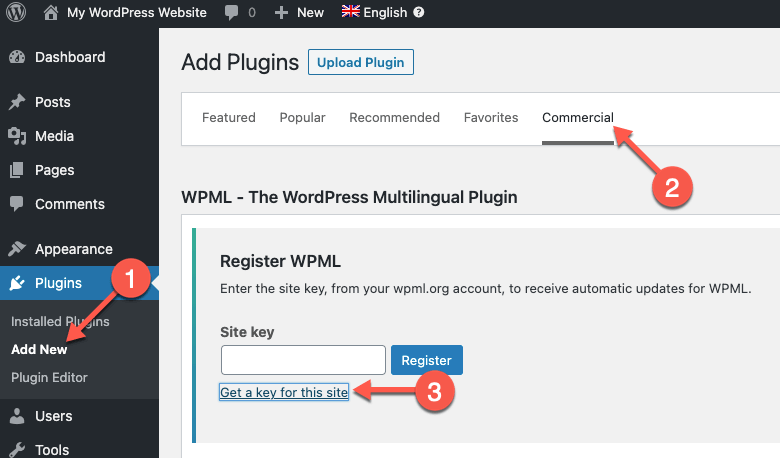
1. Visit your account page at https://wpml.org/account/sites/ 2. Delete the existing key for your site. 3. Navigate to Plugins>>Add New>>Commercial tab. 4. Click on "Unregister WPML from this site". 5. Refresh the page. 6. Click on "Get a key for this site". 7. Copy the newly generated code. 8. Return to Plugins>>Add New>>Commercial tab. 9. Register the site with the new key.
For more detailed instructions, please refer to our documentation:
If this solution does not resolve your issue or seems irrelevant due to being outdated or not applicable to your case, we highly recommend checking related known issues at https://wpml.org/known-issues/, verifying the version of the permanent fix, and confirming that you have installed the latest versions of themes and plugins. If further assistance is needed, please open a new support ticket at WPML support forum.
3- Go to WooCommerce-> Settings-> Shipping zones
4- Edit each shipping zone and resave it
5- Go to WPML-> String Translation and translate them
6- Check the checkout page on the front end
Kindly let me know if the above steps helped you fix the issue.
Problem: The client reported that the language switcher dropdown was not functioning on two recently translated pages, although it worked on other pages. The issue was not related to WP Rocket, Cloudflare, or Advanced Ads.
Solution: We recommended the following steps to diagnose and potentially resolve the issue: 1. Enable the Footer Language Switcher via WordPress Dashboard > WPML > Languages > Footer Language Switcher and check if the second language flag appears at the bottom of the page. 2. If the flag appears, it might indicate a JavaScript issue. To investigate further: - Create a backup of the website. - Switch to a default theme like "TwentyTwenty" via WordPress Dashboard > Appearance > Themes. - Deactivate all plugins except for WPML and its add-ons via WordPress Dashboard > Plugins. - Check if the issue persists. If not, reactivate plugins one by one to identify the problematic plugin. 3. If the second language flag does not appear in the footer, the page might not be translated correctly. To address this: - Go to Dashboard > Pages and open the edit screen of the original page. - Make a minor edit and save it. - Update the translation to ensure it is 100% complete.
If these steps do not resolve the issue, we requested the client to provide access to their WordPress dashboard after ensuring a backup is in place, and to set the reply as private.
Please note that this solution might be outdated or not applicable to your specific case. We highly recommend checking related known issues at https://wpml.org/known-issues/, verifying the version of the permanent fix, and confirming that you have installed the latest versions of themes and plugins. If the problem persists, please open a new support ticket at WPML support forum.
Problem:
The client is facing the missing attribute images issues in a secondary language.
Solution:
I'm able to copy the variation images into a secondary language by following the below steps:
1. Went to WPML >> Settings > Custom Term Meta Translation section.
2. Searched for the “swatchly” field and set the “swatchly_image” field to “Copy” and pressed the Save button as you can see in the attached screenshot.
3. After that we need to re-save the default language attribute to copy the field value into secondary languages. So, I followed the below steps to re-save the default language attribute terms:
3.1. Went to Products >> Attributes.
3.2. Clicked on the “Configure terms” from the Garden attribute.
3.3. Switched to the English language using the admin language switcher.
3.4. Clicked on the “Quick Edit” link for each term.
Problem: You are trying to center the text of the language switcher in a widget, but it appears left-aligned due to the theme's CSS overriding your changes. Solution: To center the language switcher text, you need to apply specific CSS rules that can handle the theme's existing CSS. Here is the correct CSS to use:
ul .wpml-ls-menu-item a {
    display: flex;
    align-items: center;
    justify-content: center;
}
If this solution does not work because it might be outdated or not applicable to your case, we recommend opening a new support ticket. Also, we highly recommend checking related known issues at https://wpml.org/known-issues/, verifying the version of the permanent fix, and confirming that you have installed the latest versions of themes and plugins. For further assistance, please visit our support forum at WPML Support Forum.
This page includes support tickets that are resolved and documented. Looking for tickets that are “in progress”? Visit the complete support tickets archive